| Audience | Marketers, creative teams |
| Prerequisites |
Refine the concepts Ad Studio generates until they meet your standards: in the chat, in the visual editor, or with comments from your team.
Ad Studio never launches an ad without your approval. Review what the agent generates, refine it, and collaborate with your team before anything goes out.
Prompt the agent
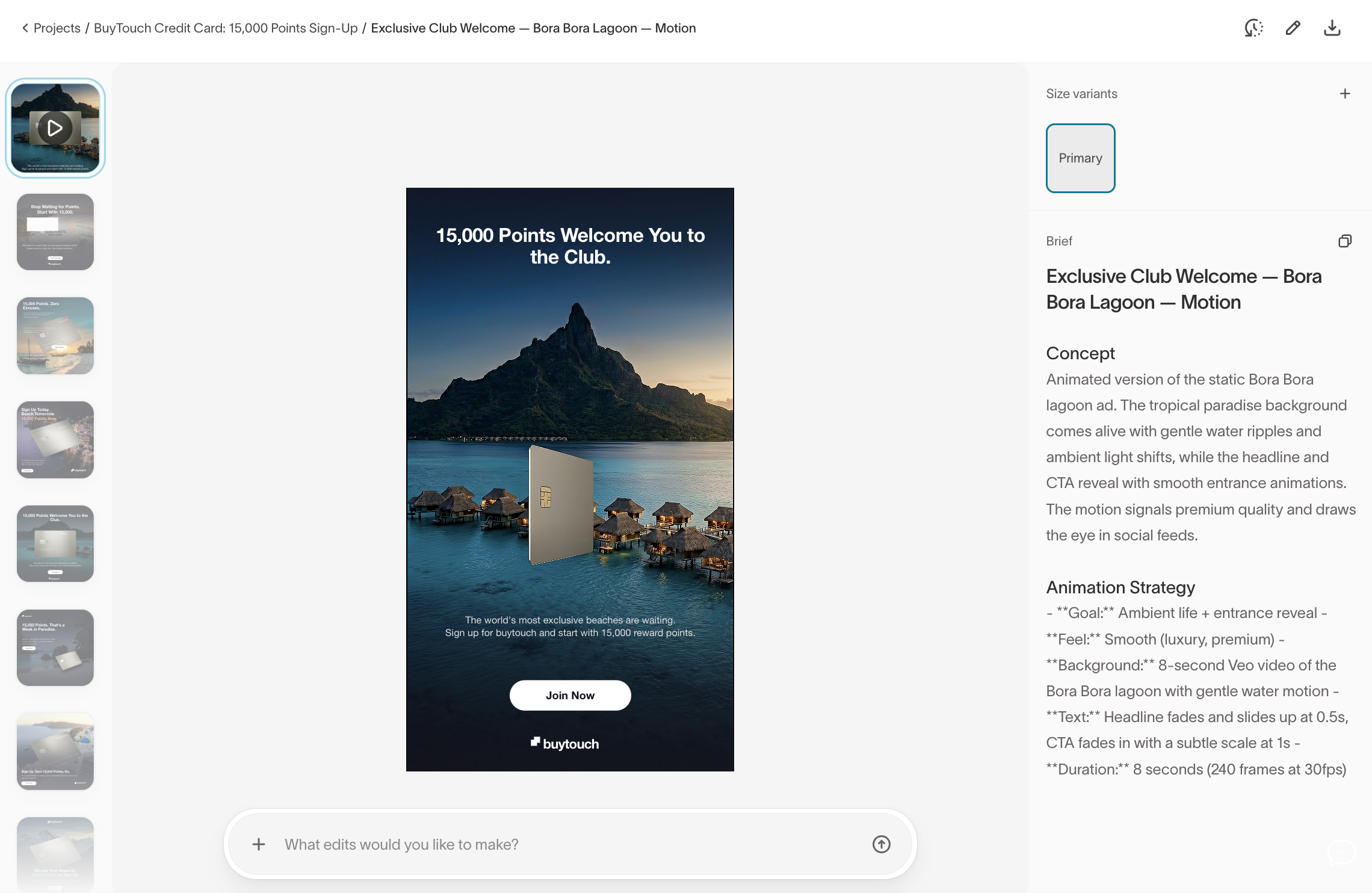
After Ad Studio generates the first batch, the editing workspace opens. Review the generated ads, then use the chat to describe what you want to change.
Describe the change you want in the chat. For example:
- "Make the headline more direct and lighten the palette."
- "Swap the product image for the blue variant."
- "Resize this for Instagram Stories."
The agent explains what it changed, so you can judge each round in context. Specify what should stay the same in each prompt. Otherwise, regenerated ads can drift from the version you approved. See Iterate on results in the chat for the patterns that work.
Edit with the visual editor
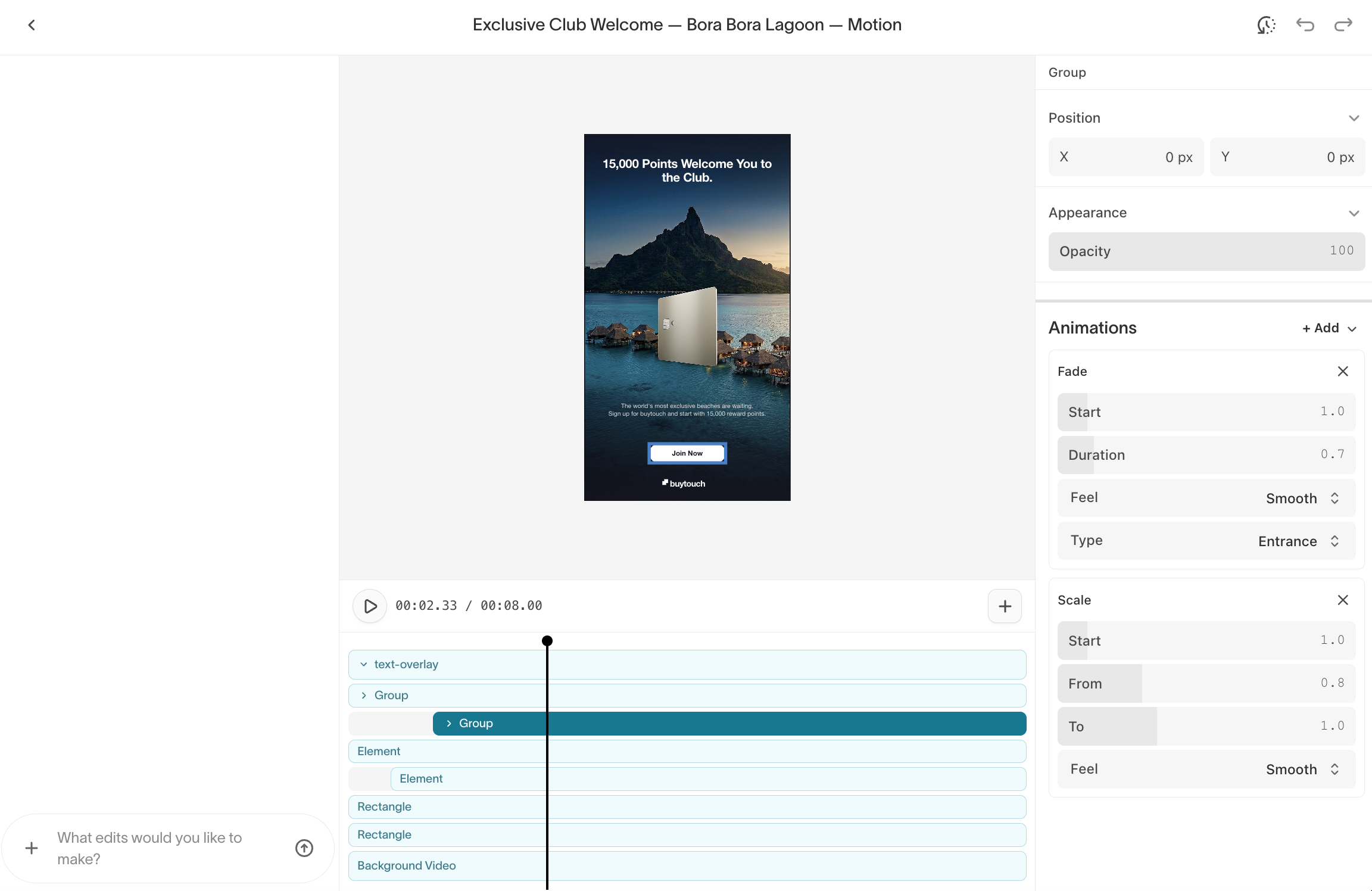
Switch to the visual editor when you want to adjust the creative directly instead of prompting the agent. Every ad is a layered composition of headline, CTA, imagery, and background, so you can change individual elements without regenerating the ad.
Use the editor to:
- Adjust the layout — Move or resize elements, change their position or opacity, and reorder layers.
- Revise copy — Edit text directly without regenerating the rest of the creative.
- Add motion — Animate individual layers and use the timeline to preview how the ad changes over time.
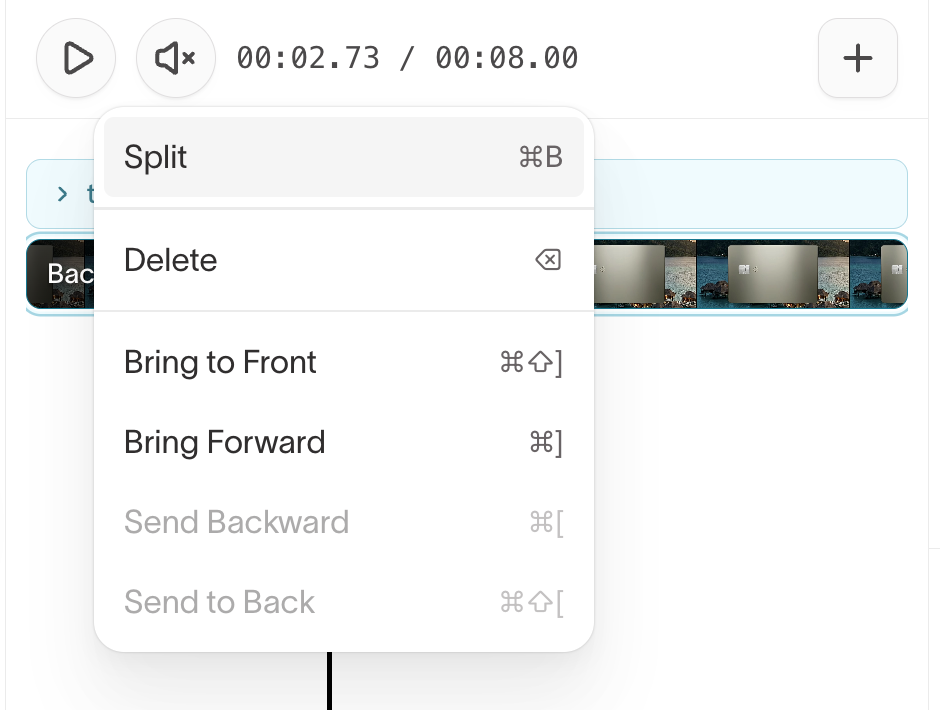
- Edit video clips — Split and trim clips, then move, resize, or crop video layers.
To split a video clip, right-click the video layer and select Split (or press ⌘B) to cut at the playhead. Drag either end of the clip to trim it.
Edits in the editor and the chat stay in sync, so you can move between them at any time.
Comment on an ad
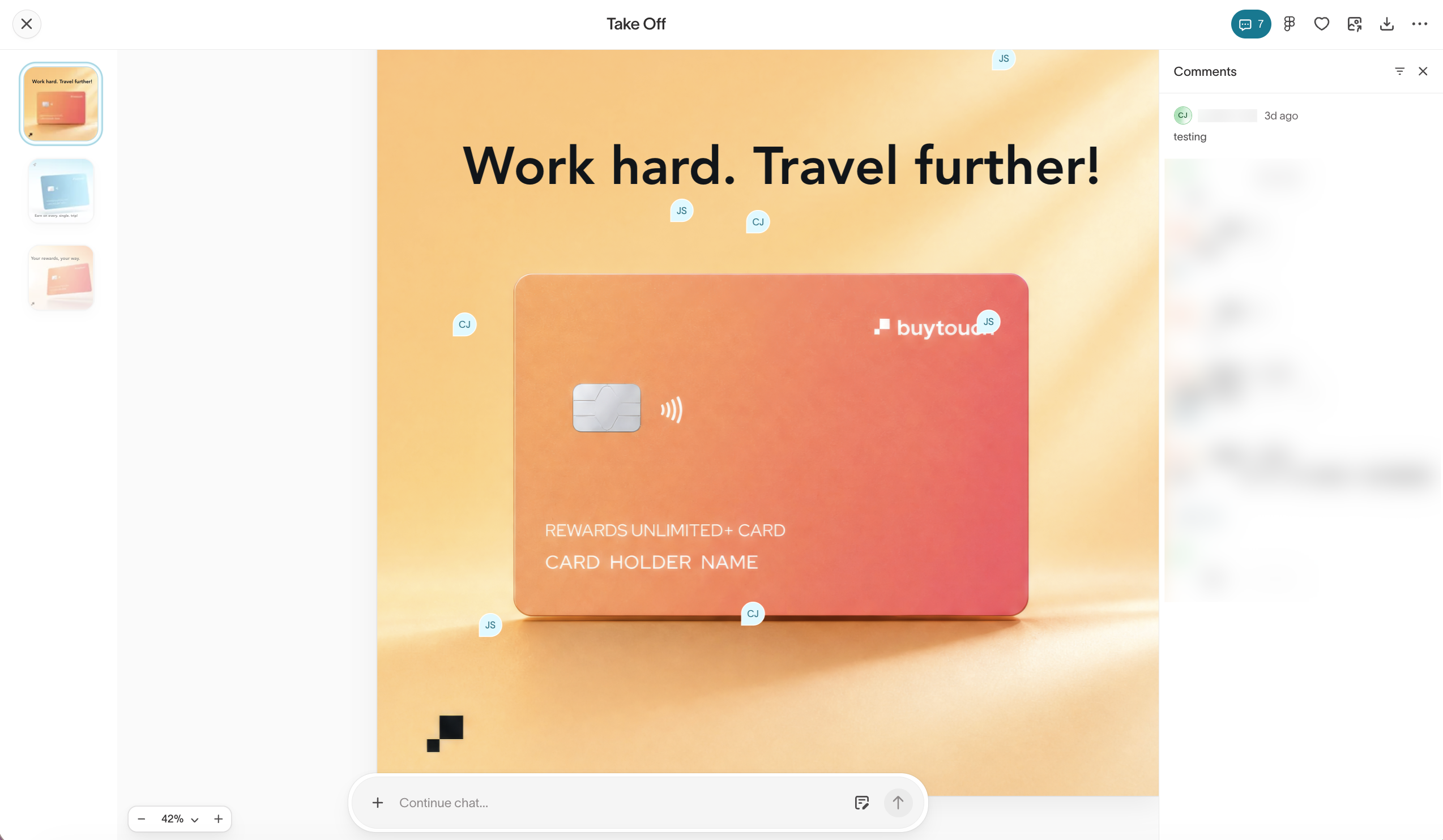
Use comments to review an ad with your teammates. Pin feedback to a specific part of the creative so everyone can see what the note refers to, then reply in the thread and mark it resolved when the feedback is addressed.
Select the comments icon above the ad to turn on comment mode. Direct editing pauses while you comment, but you can still pan and zoom around the creative.
To leave a comment:
- Select a spot on the ad to drop a pin.
- Write your feedback. Type
@to mention a teammate — they get an email with a link to the comment. - Press Enter or select the send button to post.
Your comment shows as a pin on the creative and in the comments rail on the right. Select any pin to open its thread, reply, or mark it resolved once the feedback is handled. To reposition a pin, drag it or nudge it with the arrow keys.
Comments attach to the size you're viewing, so a note on the 1:1 version stays with that size rather than the whole set. Switch sizes to see or add comments on another format.
You can comment on both static and video ads. On a video ad, a comment is anchored to a moment in the clip rather than a fixed spot, and each one shows the timestamp it points to, so feedback lands on the right frame.
When a thread needs attention, filter the rail to your own threads, unread comments, or resolved ones. Opening a thread marks it read, and you can mark it unread again from the thread menu to revisit it later.
Track comment activity
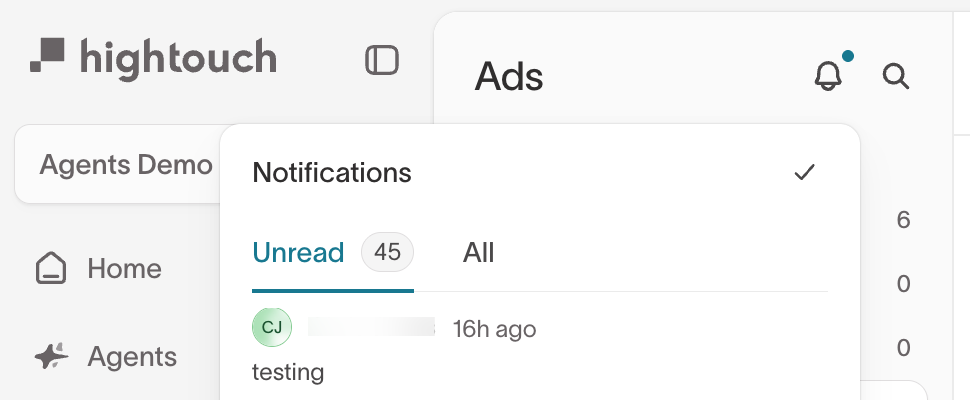
The bell above the Ads page collects comment activity across the workspace, with a dot when something is unread. Select it to open the feed:
- Unread is your inbox — comments you haven't caught up on, minus your own.
- All is every comment in the workspace, newest first.
Select any notification to open the ad and jump to its thread. Select the check to mark everything read at once.
Favorite, queue, and export ads
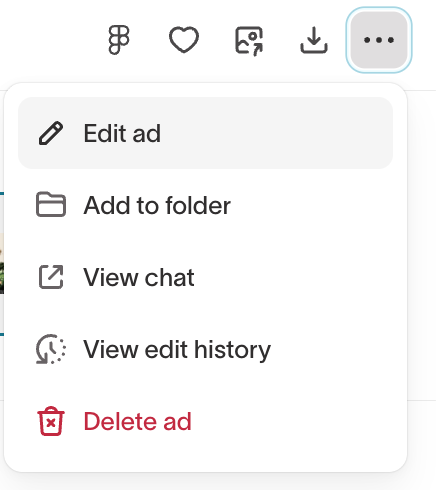
The toolbar above an open ad is where you act on it once it looks right. Favorite an ad to collect it under My favorites, queue it for launch, or download every generated size at once. An overflow menu holds the rest: edit the ad, file it in a folder, open its chat or edit history, and delete it. To hand off to your design team, open the ad in Figma.