| Audience | Marketers and operations teams running live journeys |
| Prerequisites | An activated journey (see Test and launch a journey) |
Monitor a live journey from the canvas and performance panel. Use member paths and run logs to investigate unexpected behavior, then pause, edit, or turn off the journey when needed.
Monitor journey performance
The journey canvas shows how members move through each tile. Line thickness reflects volume. Hover over a line to see counts.
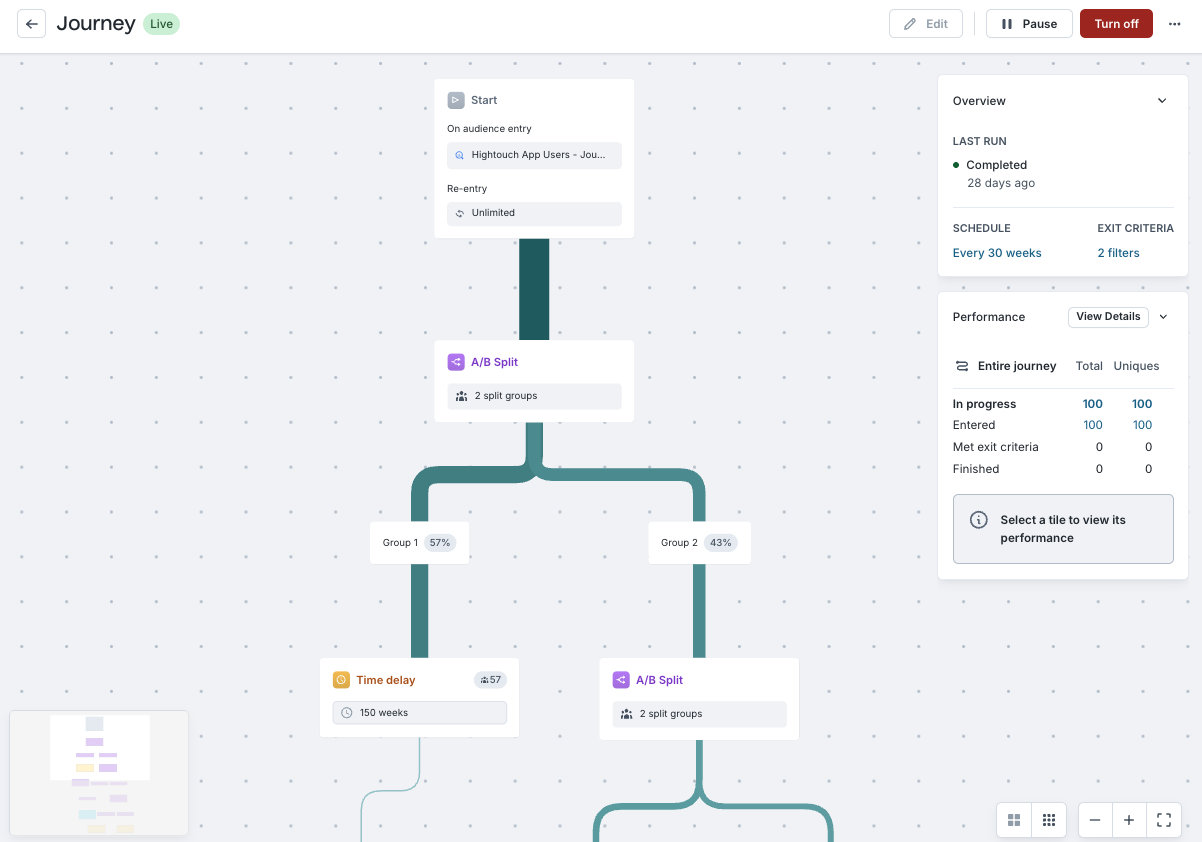
The Performance panel shows metrics across the journey's history unless you reset it:
- In Progress — Members currently waiting in a tile.
- Entered — Members who have entered the journey.
- Met Exit Criteria — Members removed by global exit criteria.
- Finished — Members who reached the end.
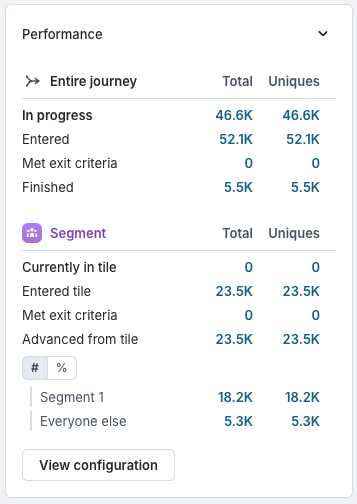
Select a tile to see tile-specific counts. Segment, A/B Split, and Hold until tiles also show per-branch counts and percentages.
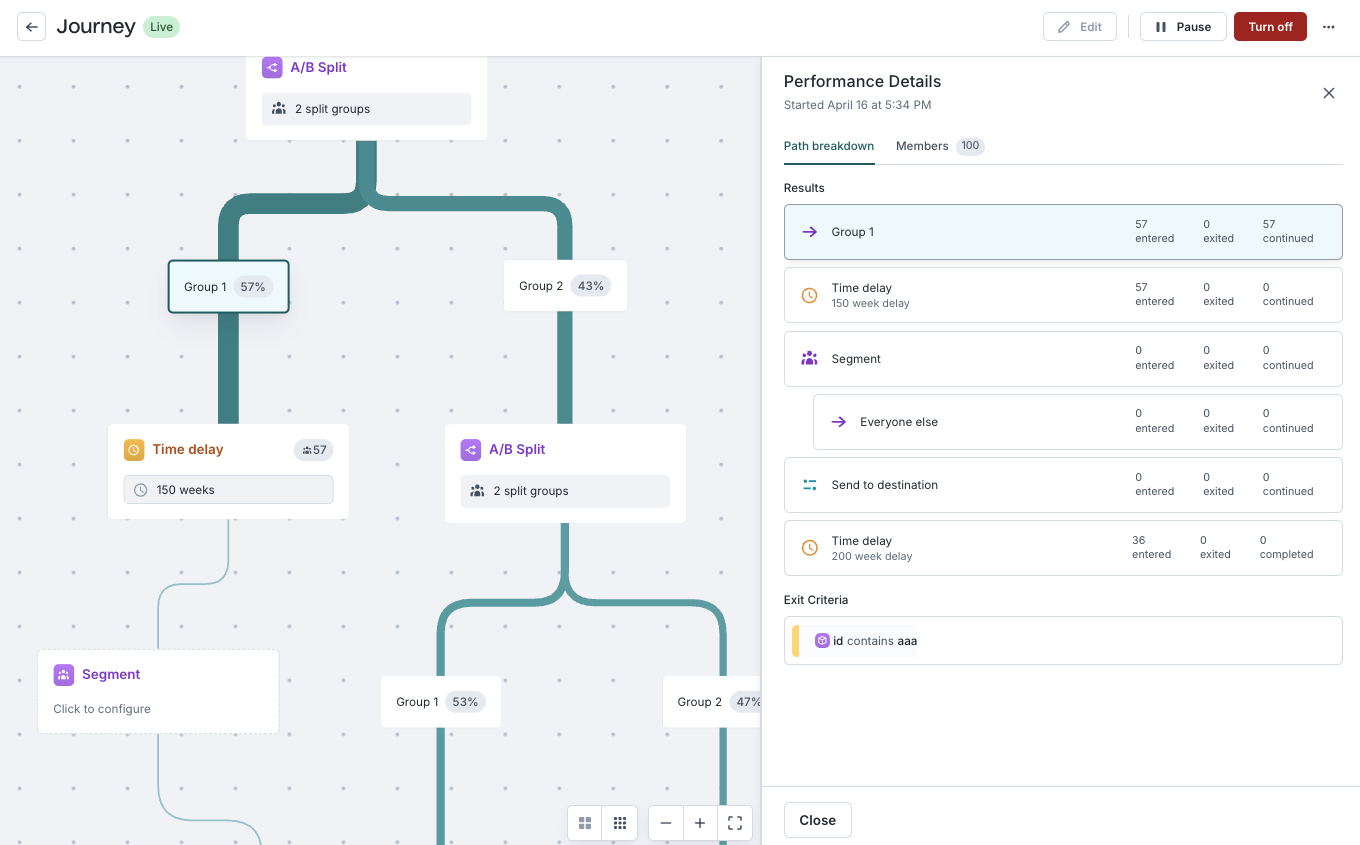
These counts are cumulative across every run since the journey started, not a point-in-time snapshot, and they count re-entries. Entered, advanced, and exit totals are tallied independently, so they don't form a strict funnel and won't always add up. In Progress is the exception — it's the live count of members waiting in a tile right now.
Inspect a member's path
Use the member path to understand why a specific member entered, exited, or followed a branch.
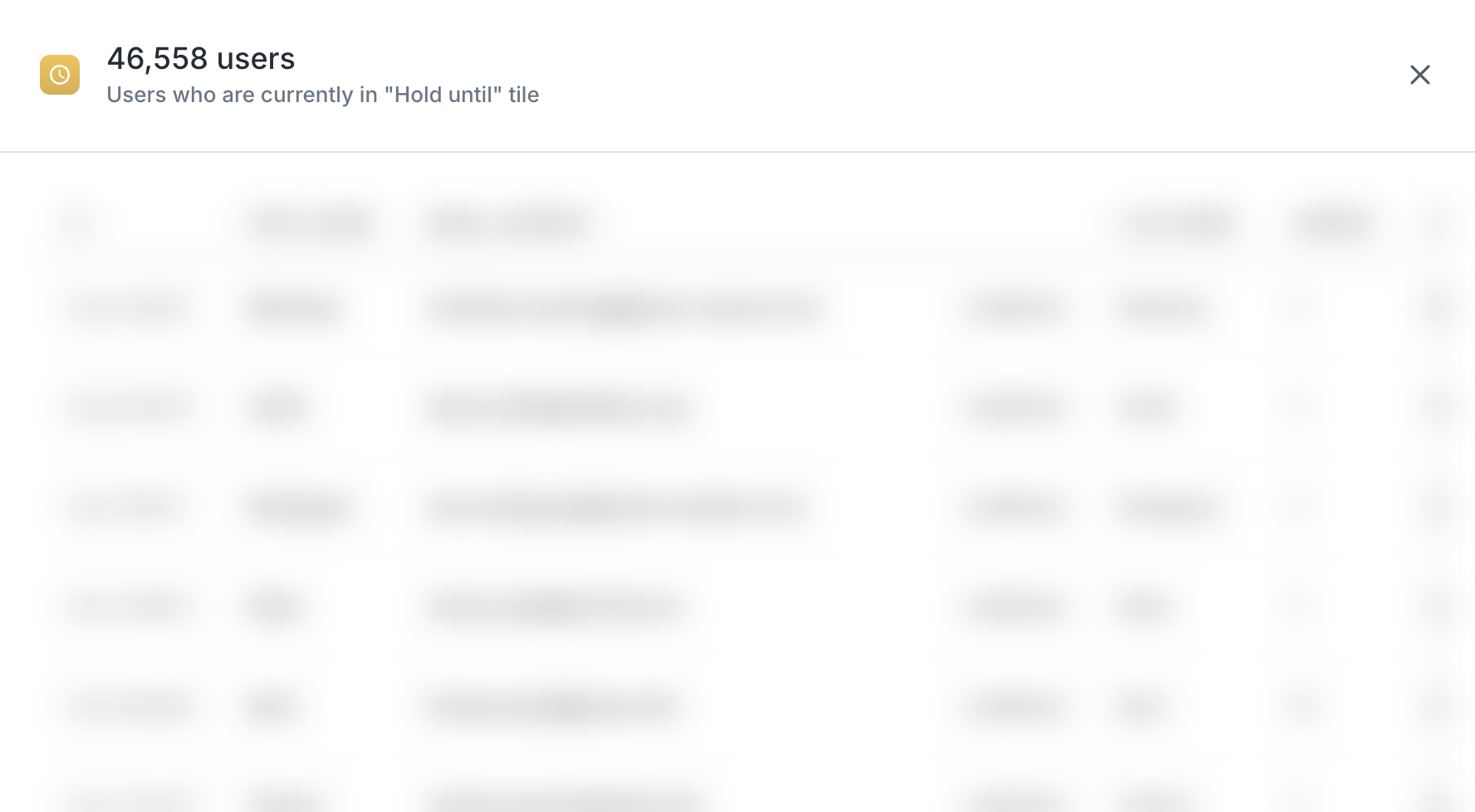
- Select a count in the Performance panel to open the member list. The list shows a sample of up to 100 members, and you can search by primary key.
- Select a member to view their attributes and step-by-step path through the journey.
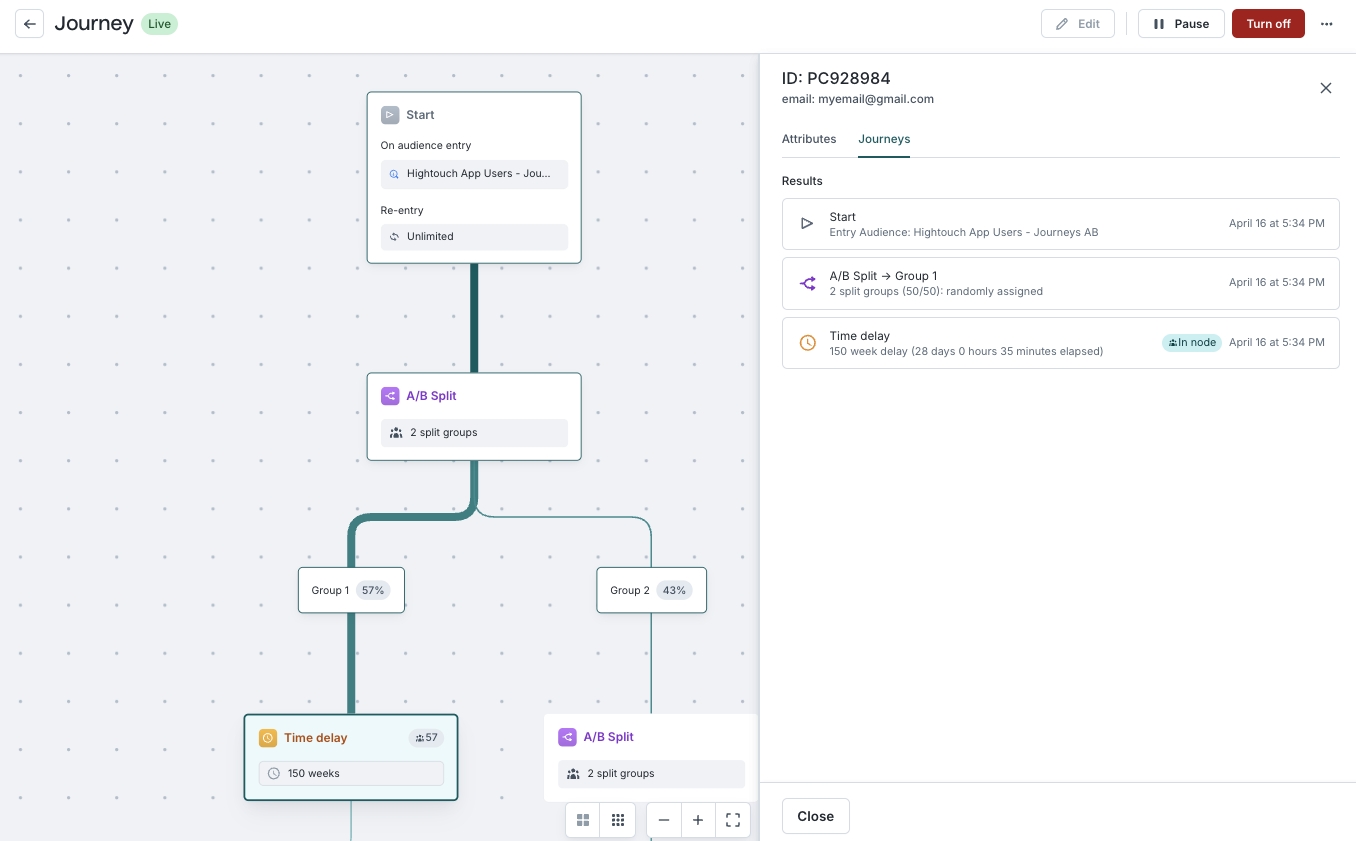
Journey logs
Hightouch writes journey data to tables in your warehouse under the HIGHTOUCH_PLANNER schema for reporting, debugging, and custom analysis. Workspace-level read-only views in hightouch_audit aggregate data across journeys.
See Journey tables and Journey views for schema details.
Manage a live journey
Edit a journey
Select Edit on the canvas to update the journey.
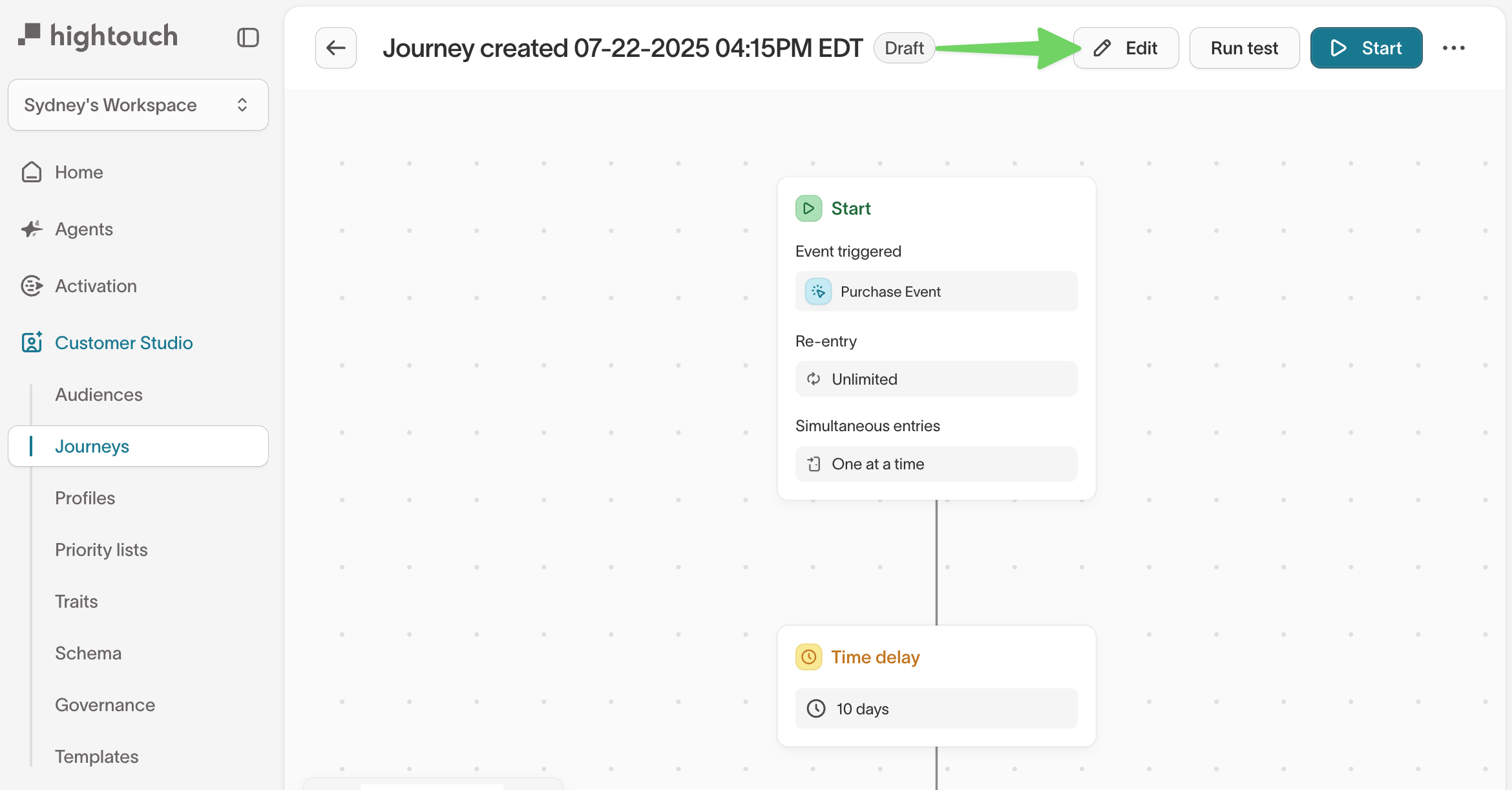
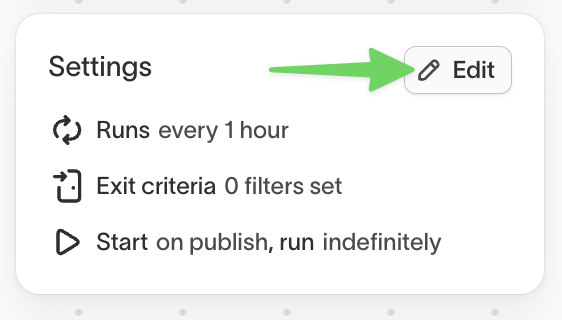
In edit mode, you can update the journey name, description, evaluation schedule, exit criteria, variables, alerting, and journey tiles.
Editing a live journey affects members already in progress. Members continue from their current position, but changes to later tiles can change what happens next. For major changes, create a replacement journey and drain the existing one instead of editing it in place.
Pause and resume
Select Pause to stop evaluations and sync triggering. While paused, members don't enter, advance, exit, or trigger destination actions.

Select Resume to continue evaluation from each member's current position.
Turn off a journey
Select Turn off to stop the journey permanently. Choose how to handle members already in progress:
- Existing members should complete the journey first (default) — The journey enters Draining. No new members enter, but existing members continue until they finish or exit. The journey becomes Off when no members remain.
- Hard stop — All members are removed on the next evaluation run.
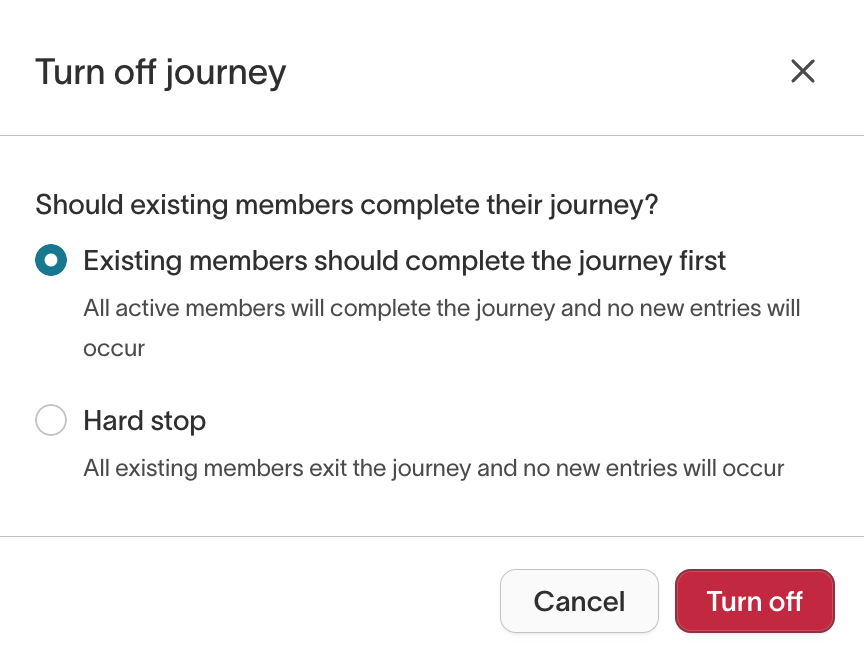
Use Draining when retiring or replacing a journey without interrupting members already in progress.

Trigger a manual run
For active journeys, select Trigger manual run from the actions menu to run an evaluation outside the regular schedule.
Use a manual run when you need Hightouch to evaluate members after a data refresh or configuration change without waiting for the next scheduled run.
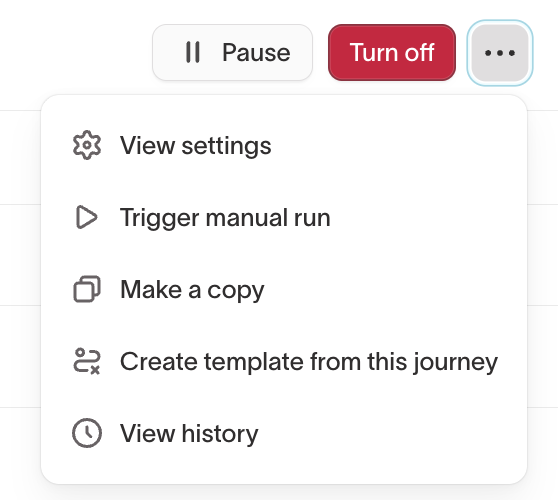
Reset a journey
For any journey that isn't currently active, reset it to clear member progress, run history, and journey log data.
Resetting a journey permanently deletes member progress, run history, and journey log table contents. This can't be undone.
Configure alerts
Journey alerts notify you when a run fails. Journeys inherit workspace alert settings, which you can override at the journey level.
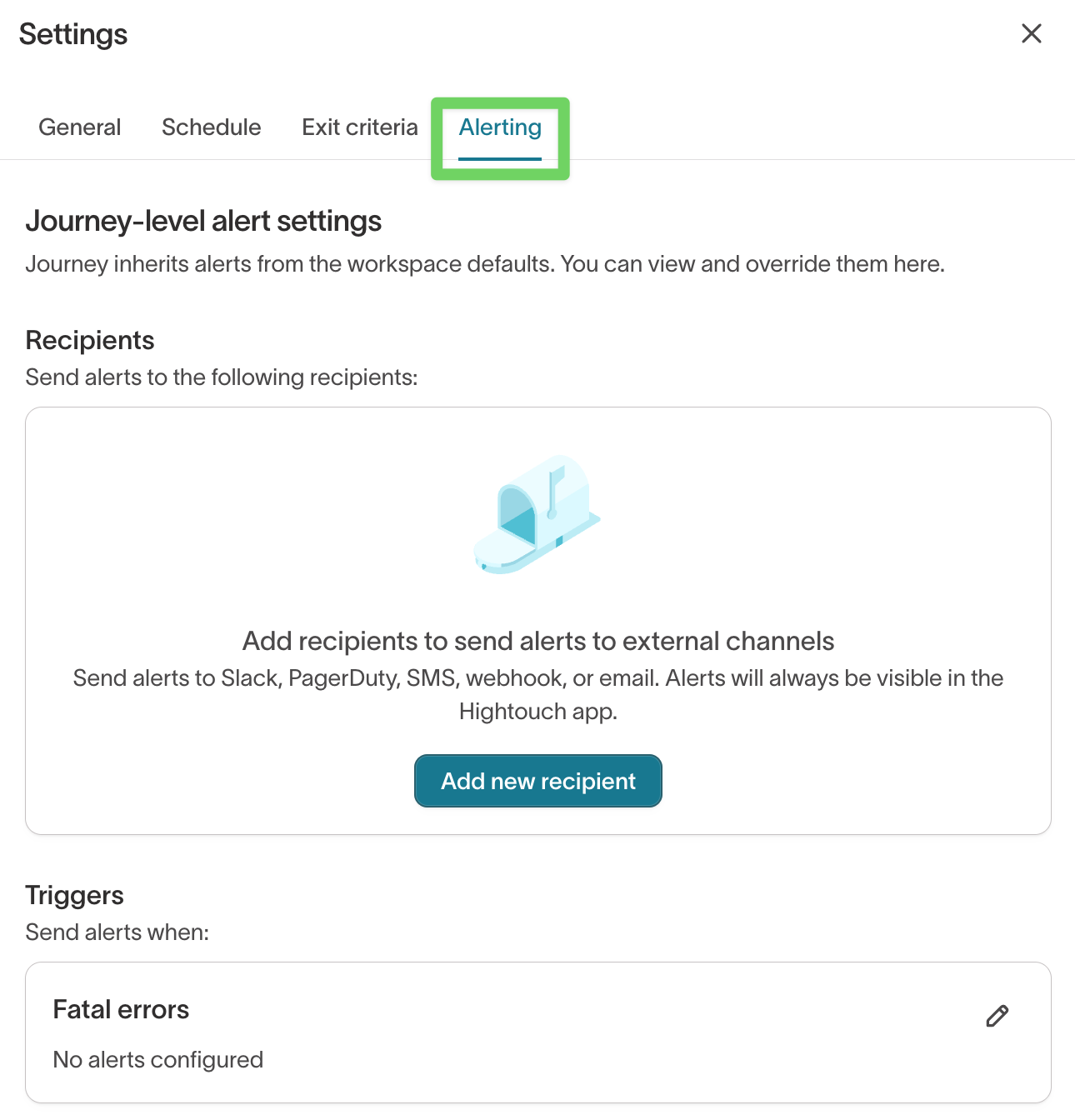
- Recipients — Send alerts by email, Slack, PagerDuty, SMS, webhook, or another configured channel.
- Triggers — Journeys currently support alerts for fatal errors in a journey run, not for failures in the syncs a journey triggers. If no trigger is configured, failures appear in the Hightouch UI only.
Alerts fire on a status change, not on every run: a journey that starts failing sends one alert, further consecutive failures don't re-alert, and the next successful run sends one recovery alert.
Configure workspace defaults under Alerting > Journeys. See Sync alerting.
Troubleshoot a journey
When a journey doesn't behave as expected, start with three checks:
- Confirm when the journey last ran and how often it runs.
- Confirm the relevant warehouse data was available at that run.
- Inspect the member path or run log for the point where behavior diverged from expectations.
For warehouse SQL errors such as invalid identifiers, unresolved columns, or missing objects, see Resolve SQL compilation errors.
Members aren't entering
Entry is checked on each journey run. A member won't enter if the entry condition isn't true at run time, the data hasn't refreshed, or entry settings prevent them from qualifying.
Check:
- The Start tile entry source, filters, exclusions, and re-entry settings.
- For event entry, the event model primary key, selected event, and lookback window.
- The journey's last run time and evaluation schedule.
- The entry audience preview.
- Whether the member entered and immediately met exit criteria.
Delays or Hold until tiles take longer than expected
Delays and hold conditions are evaluated on journey runs, not continuously. A member advances on the first run after the delay or condition is satisfied.
Check:
- The delay duration against the journey's evaluation interval.
- Whether multiple delay or hold tiles add additional runs to the total wait.
- Whether the journey needs a more frequent schedule.
See How the schedule affects timing.
Members aren't exiting
Exit criteria are checked on journey runs. If the condition becomes true between runs, the member remains until the next run detects it.
Check:
- The action timestamp against the journey's run history.
- The exit criteria in journey settings.
- Whether the warehouse contains the updated data.
- The member path to see when the member exited and which condition matched.
Members are re-entering unexpectedly
Re-entry settings determine how many times a member can enter and how soon they can return.
Check:
- The Start tile re-entry and simultaneous-entry settings.
- For event entry, whether repeated qualifying events are expected.
- The re-entry delay.
A destination tile shows members but syncs zero records
If members reached Send to destination but the sync processed zero records, check the sync configuration rather than journey entry logic.
Check:
- Whether the sync is paused.
- Whether the sync's model is linked to the journey output.
- Liquid templates in the sync configuration.
- Whether the members reached the tile during a completed live run rather than a journey test.
Journey and destination counts don't match
A journey can process more members than a destination receives, because filtering happens at several stages after journey qualification. Check the stages in order and stop where the count drops. See How journey membership works for the underlying model.
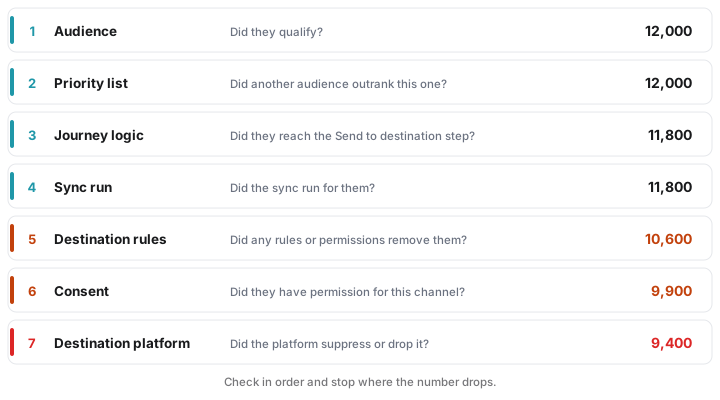
Most drops happen on the destination side. Where the count fell, check:
- Priority list — audience ranking and overlapping membership, in case a higher-priority audience claimed the member.
- Destination rules — the rules applied to the sync, and any subset scoping the audience upstream.
- Consent — consent status in the warehouse or OneTrust.
- Destination platform — the destination's delivery logs for suppression or deduplication.
Also check for a Users might never be synced warning on the destination tile. If a cohort sync removes members on exit and the destination tile is the final tile, add a Time delay tile after it so members remain in the cohort for at least one run.
A journey run fails
Open the Run Log tab to find the failed run and its error message.
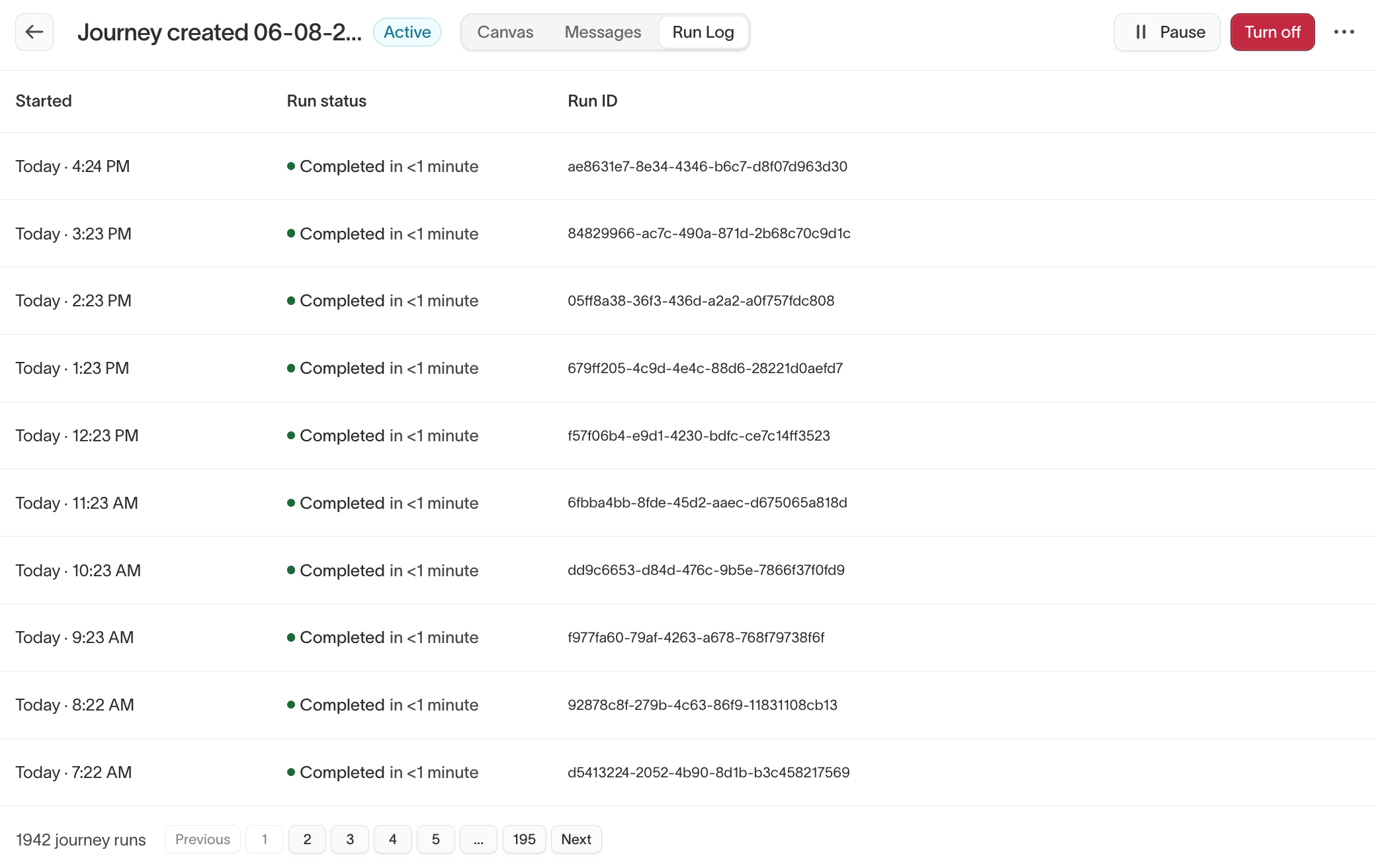
Check:
- The error for the failed run.
- For SQL-related errors, Resolve SQL compilation errors.
- If the Start tile's error says
could not find subsets for this parent model, a subset selected on that tile was deleted. Remove it from the Start tile. See Subsets. - Warehouse credentials and permissions for the parent model's underlying tables.
- Warehouse concurrency or query timeout limits if the failure is intermittent.
- Journey alerting so Hightouch notifies you when future runs fail.
Members receive duplicate sends
Duplicate sends usually come from sync mode, re-entry behavior, or an unstable primary key.
Check:
- The sync mode on Send to destination. For one-time actions, use Message mode.
- The Start tile re-entry settings.
- For cohort syncs, the configured removal behavior.
- The member path to see whether the member reached the tile once or multiple times.
- That the parent model's primary key is stable and unique. A key that changes — for example, when identity resolution reassigns it — can re-fire earlier sends.
Members follow an unexpected branch
Segment evaluates branches from top to bottom and uses the first matching branch.
Check:
- Branch order.
- Whether branch conditions overlap.
- The member path to see which branch matched.
- Warehouse data freshness if live behavior differs from a journey test.
Test results differ from live runs
Journey tests evaluate conditions in a single pass with delays skipped. Live runs use real timing, current warehouse data, exit evaluation, cross-journey interactions, and destination behavior.
Use:
- A journey test to validate branches and conditions.
- Test syncs to validate field mappings and payload formatting.
- A small live cohort to validate timing, exits, and end-to-end delivery.
- Run history and data freshness when comparing test and live results.
Next steps
- Priority lists when audience priority affects who can enter a journey.
- Warehouse tables reference for journey log schemas.