| Audience | Marketers, growth teams, campaign managers |
| Prerequisites | A configured schema. Open an existing audience or start a new one. |
The agent in the audience builder drafts audience conditions from a plain-language request. This guide covers how to prompt it well: writing a first draft, refining it, exploring your data, and troubleshooting.
Overview
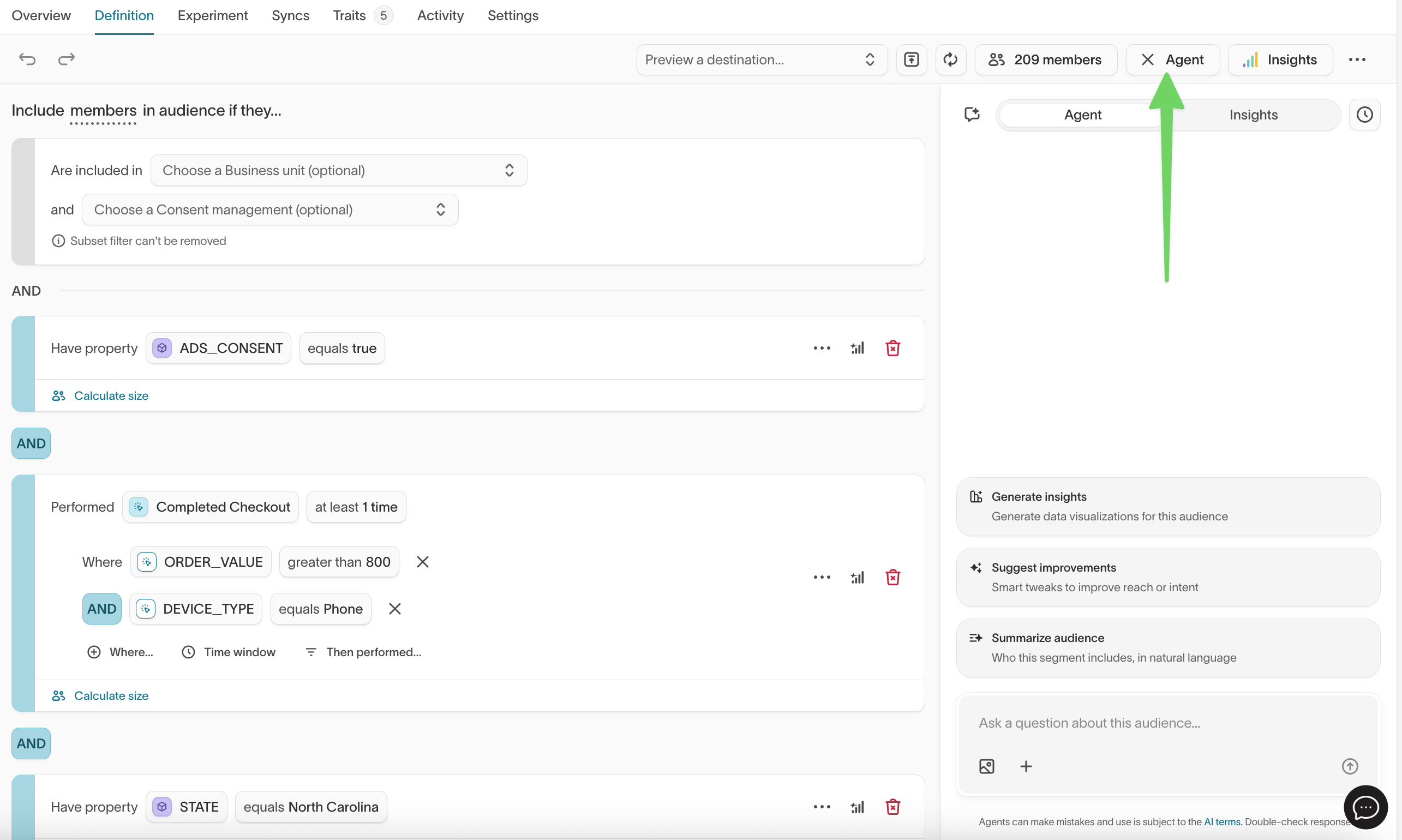
The agent works alongside the audience builder. You describe what you want in natural language, and it drafts or updates the conditions for you. You can also ask it to explore the fields and events in your schema, explain existing filters, or help troubleshoot unexpected results.
This guide focuses on the prompts themselves. For how to open the agent, apply its proposed changes, and undo them, see Build an audience.
If you're starting with an open-ended question rather than a specific audience, use Agents instead. For example, use Agents to investigate which customers are most valuable or which segment is underperforming, then create or refine the resulting audience in Customer Studio.
Write effective prompts
You don't need a special prompt format, but specific requests produce more predictable audience logic. Include details such as:
- who you want to target
- what behavior or attribute matters
- when it needs to have happened
- thresholds such as counts or values
- exclusions that should not qualify
Instead of Find my best customers., try:
Create an audience of customers who completed at least 3 orders in the last 90 days and have an average order value over $100.
The first prompt leaves the agent to infer what "best" means. The second names the behavior, the window, and the thresholds, so the draft is closer to what you intended.
After the agent drafts an audience, review the definition before saving:
- Check that it used the fields, events, and traits you expected.
- Confirm the time windows and thresholds.
- Check any exclusions.
- Preview the qualifying members.
If something isn't right, continue the conversation instead of starting over:
Exclude customers who already purchased in the last 7 days.
Change the cart window from 30 days to 14 days.
Keep the purchase condition, but remove the country filter.
Start broad, then refine
You can build the audience over several messages, checking the result at each step.
| Step | Example |
|---|---|
| Start | Build an audience of active customers. |
| Add detail | Limit it to customers who logged in at least 3 times in 30 days. |
| Exclude | Exclude anyone who already upgraded. |
| Inspect | How many customers match each condition? |
| Adjust | Change the login threshold to at least once. |
If you don't want the agent to modify part of the audience, say so explicitly:
Add a filter for email engagement, but don't change the purchase filter.
Ask what data is available
If you're not sure which fields, traits, events, or relationships you can use, ask the agent before building the audience. For example:
What fields can I use to filter by customer tenure?
What events are available for audience filtering?
What properties are available on the Order Completed event?
What traits can I use?
This is especially useful when you're working with a schema you didn't configure yourself.
Narrow the search
If the agent returns too much information, narrow the request:
What fields relate to email engagement?Which fields contain dates or timestamps?List fields with "subscription" in the name.
If the agent can't find a field
The field may use a different name, live on a related model, or not be exposed in the Customer Studio schema. Ask the agent to inspect related models or search for similar names.
If the field still isn't available, ask your data team to review the schema. Clear model names, field descriptions, event labels, and trait descriptions make it easier for both marketers and the agent to understand the data.
Refine an existing audience
Use follow-up prompts to change the current audience without rebuilding it.
| Goal | Example prompt |
|---|---|
| Add a condition | Include only customers who opened an email in the last 14 days. |
| Remove a condition | Remove the country filter. |
| Add an exclusion | Exclude anyone who unsubscribed in the last 60 days. |
| Change a window | Change the purchase window from 90 days to 30 days. |
| Change a threshold | Require at least 2 purchases instead of 3. |
| Explain a filter | What does the third filter do? |
To ground a prompt in a specific condition, send that filter to the agent from the builder: open the filter's ... menu and select Add filter to chat. See Build an audience for the steps.
Understand an audience
You can ask the agent to explain the current audience in plain language. For example:
Summarize this audience in one sentence.
Which condition excludes the most customers?
Explain why this audience is smaller than expected.
Break down this audience by region.
For visual composition, overlap, and breakdown analysis, use Audience insights. For broader questions that span multiple audiences or campaigns, use Agents.
Troubleshoot with the agent
The agent can help you investigate audience logic, but it doesn't replace checks on the underlying data or schema.
Audience is smaller than expected
Ask Which condition removes the most customers? or How many customers match each filter individually?, then check for:
- filters that become too restrictive when combined
- time windows that are narrower than intended
- missing or null values
- unexpected relationship behavior
See Audience filters for filter semantics and null behavior.
The agent can't find the data you need
Ask it to search for similar field names, inspect related models, or list available traits or events. If the field isn't exposed in the schema, your data team may need to add or describe it.
The agent works within the current audience's parent model and its related models. It can't query across separate parent models or pull data from other audiences, so a field on an unrelated model isn't reachable from here.
Some column types can't be used in filters directly. Ask What data type is the [column name] column? If the type is unsupported, create a trait that transforms the column into a filterable value, or ask your data team to transform it upstream.
The audience changed unexpectedly
Ask the agent to explain the current definition, then check whether source data changed, a trait changed, a schema relationship changed, or a rolling time window caused customers to enter or leave. The agent can help interpret the audience, but it doesn't replace the underlying source-of-truth checks.
Analysis is slow or times out
If the agent's analysis queries take too long, narrow what it evaluates. For example: Analyze the first three conditions only.
Improve results with better schema context
The agent uses the Customer Studio schema to understand what data is available for audience building. Clear schema metadata improves how reliably it maps your request to the right fields. Use:
- business-readable model names
- clear field descriptions
- descriptive event labels
- understandable trait names
- accurate relationships
For example, a trait named 90-day purchase value with a description that explains the time window and included orders is easier to interpret than ltv_90d_v2.
See Schema and Traits for how to improve the data context available to audience builders and the agent.
Agent in the audience builder vs. Agents
Use the agent in the audience builder when you're working on a specific audience. Use Agents when your starting point is a broader question or analysis.
| Start with... | Use... |
|---|---|
| An audience idea, template, or existing definition to build or change | The agent in the audience builder |
| A question about who to target, or campaign or performance analysis | Agents |
| Audience-specific filter troubleshooting | The agent in the audience builder |
| Cross-audience analysis, reports, or recurring work | Agents |
The two experiences don't share conversation history. If analysis in Agents leads you to an audience worth targeting, create the audience in Customer Studio and continue refining its definition there.
AI and data privacy
When you use the agent, Hightouch sends relevant audience context — attributes, behavior signals, and schema metadata — to the AI model to generate a response. This data is not retained after the response, is not used to train or fine-tune models made available to other customers, and is governed by Hightouch's AI Terms of Service Addendum. Your conversations with the agent are private to you. Other team members can't see your audience-specific chats.
Next steps
- Build an audience for the end-to-end audience workflow.
- Audience filters for filter types, nested conditions, and operator behavior.
- Traits for reusable calculated values.
- Audience insights to validate audience composition and overlap.