| Audience | Marketers |
| Prerequisites | A configured schema. |
Filters define who qualifies for an audience. Combine customer attributes, behaviors, related records, traits, and other conditions to express the audience you want.
Add and combine filters
Add filters for the customer data or behavior that determines whether someone belongs in the audience.
You can build the conditions directly, start from an audience template, or ask the agent to draft or refine the logic.
| Filter type | Filters on... | Example |
|---|---|---|
| Properties | Columns on the parent model | email contains "@gmail.com" |
| Relations | Records related to the parent | has Purchase where amount > 100 |
| Events | Timestamped customer behavior | Product Viewed within last 30 days |
| Audiences | Membership in another audience | Are included in VIP Members |
| Journeys | Participation in a journey | Are currently in Abandoned Cart Journey |
| Traits | Reusable calculated values | customer_score > 80 |
If several audiences need the same calculated logic, consider creating a reusable trait instead of rebuilding the conditions each time.
Combine conditions with AND and OR
Use AND when all conditions must match. Use OR when any condition can match.
For example, to include users who either made a purchase or added an item to their cart, but only if they belong to the Gold tier:
| Group | Condition |
|---|---|
| A | has Purchase where amount > 100 OR added to cart within last 7 days |
| B | loyalty_tier equals "Gold" |
| Audience logic | A AND B |
Nest conditions within a related model
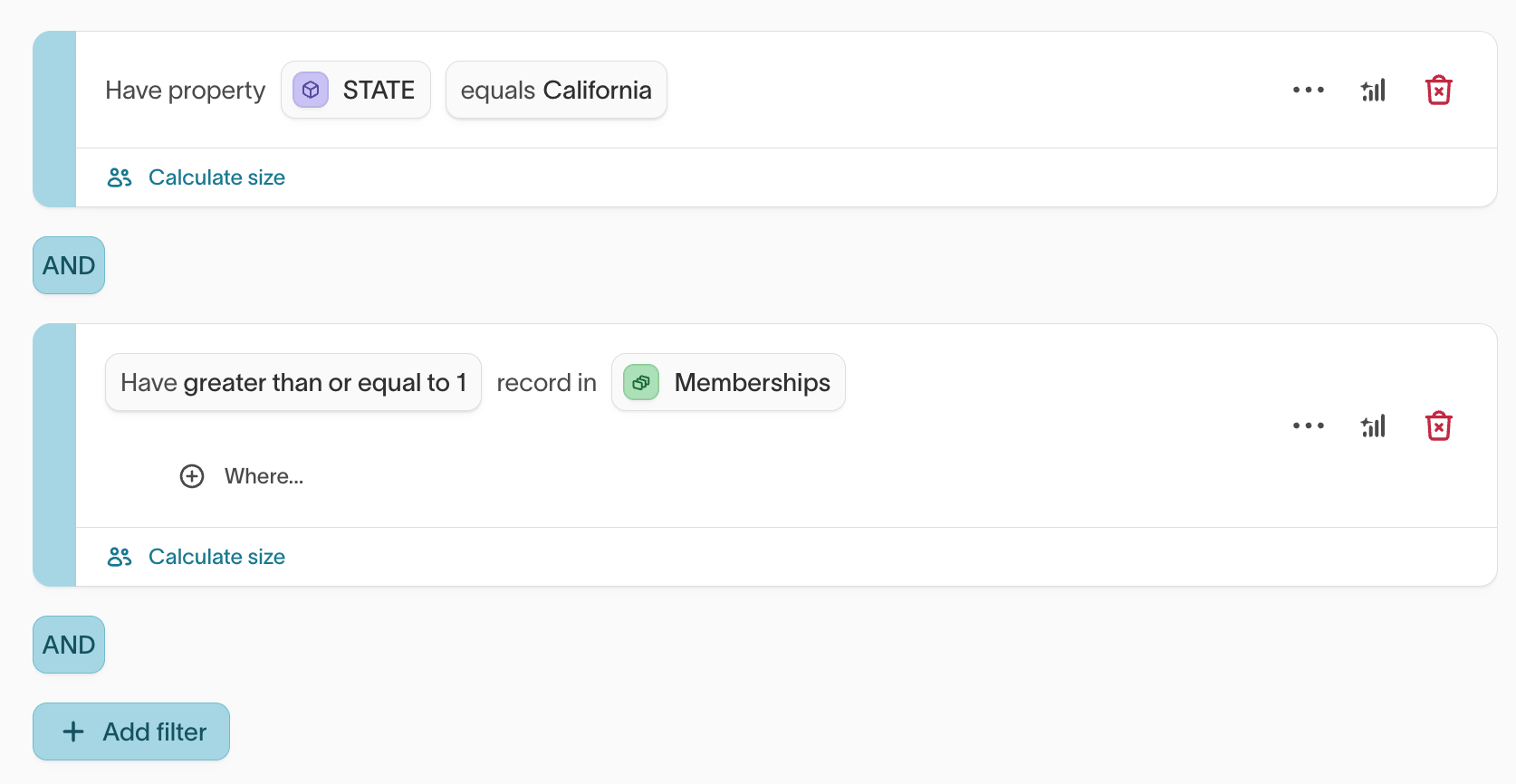
Conditions on the same related record can have their own AND/OR logic. For example:
has a Purchase where (amount > 100 AND category = "Electronics") OR (amount > 50 AND category = "Accessories")
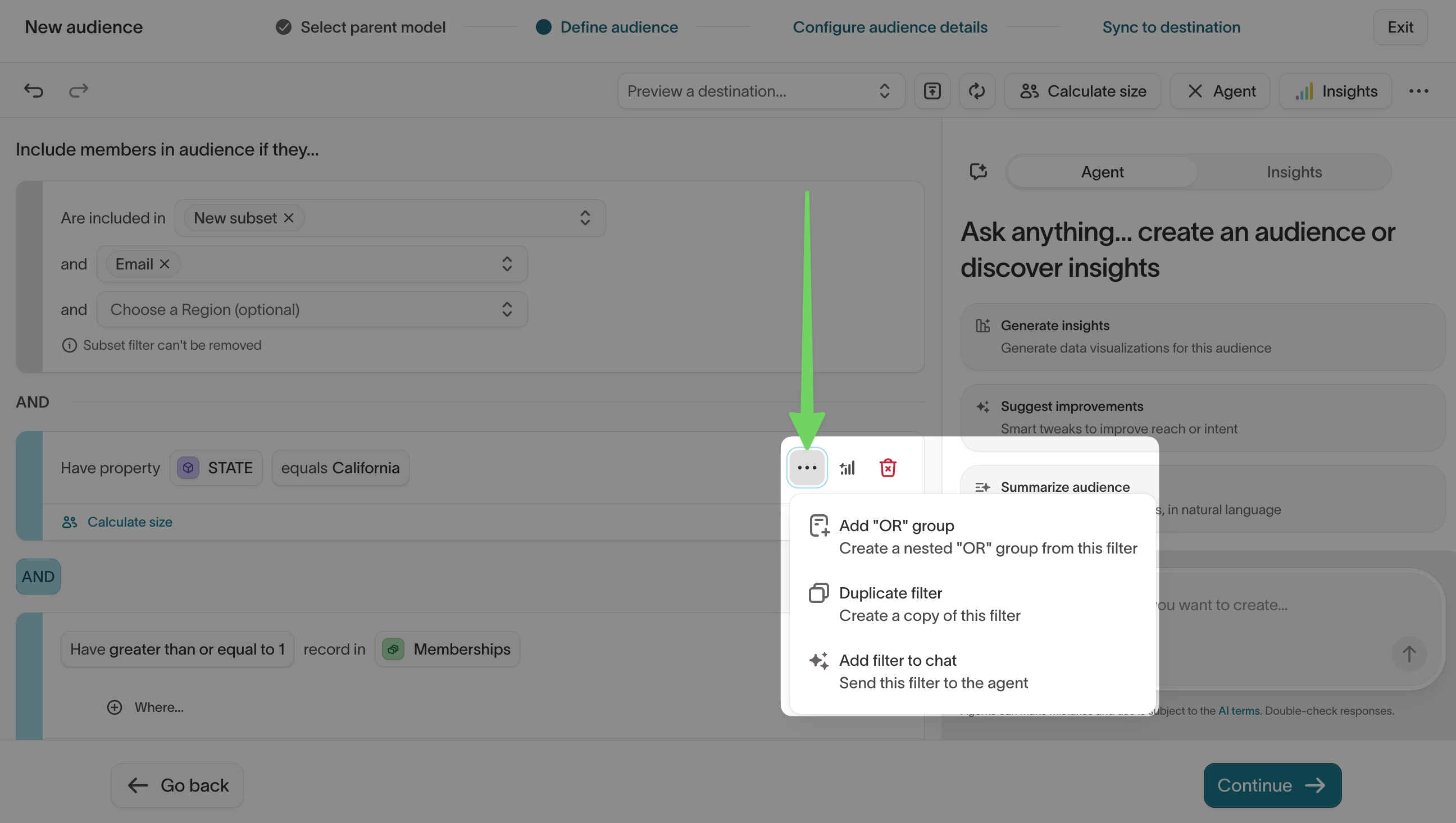
Open the ... menu on the related-model filter and select Add "OR" group to add another condition group inside it.
Filter on related records
Use related and event models when the audience depends on data that isn't stored directly on the parent model.
For example, with a Users → Orders relationship, you can build an audience of users who placed an order worth more than $100. Customer Studio evaluates the related records, then includes the parent records that meet your conditions.
Select Add filter, then Relations to filter on a related model.
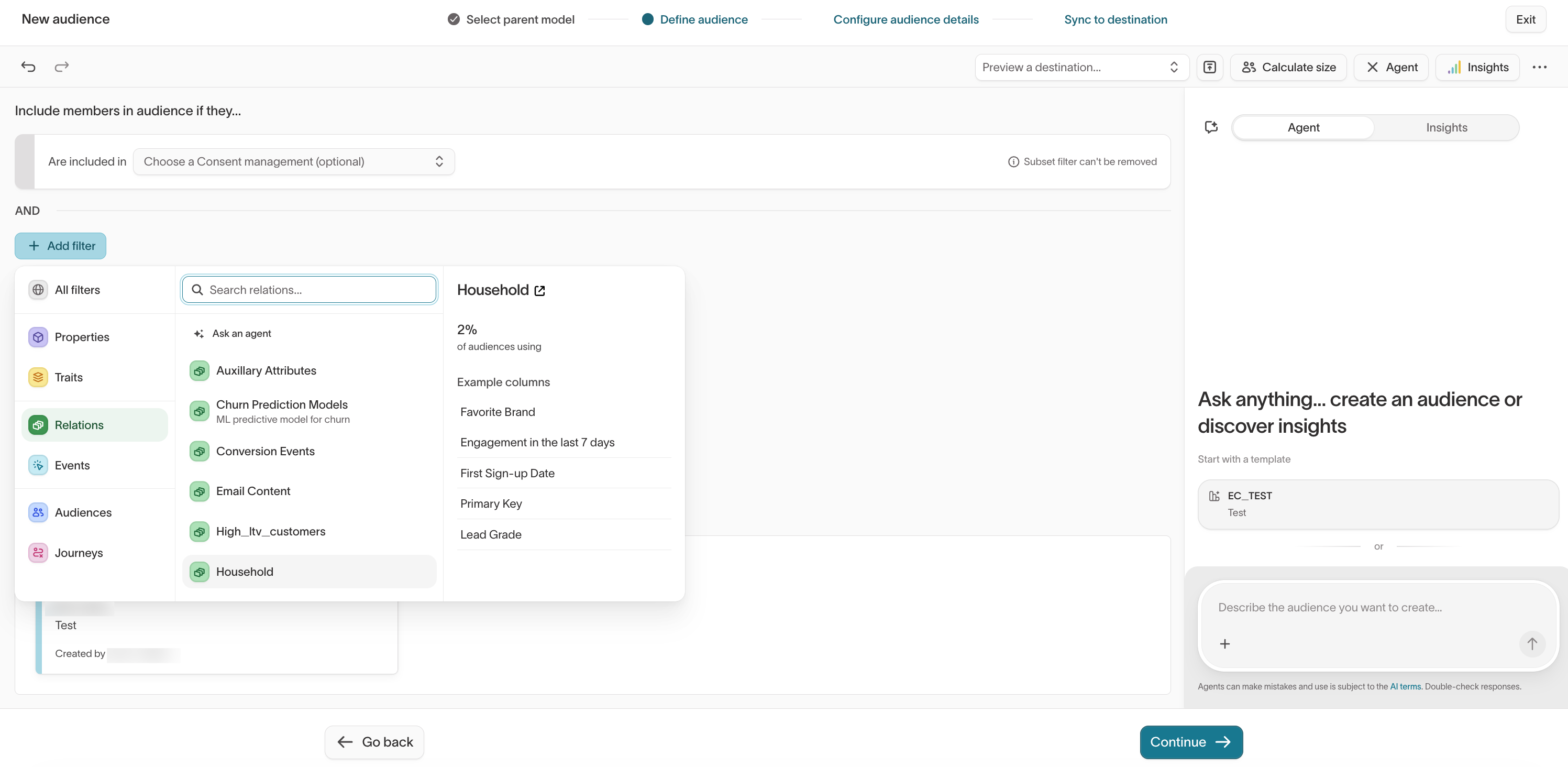
Set how many related records must match, then add conditions on the related model's fields.
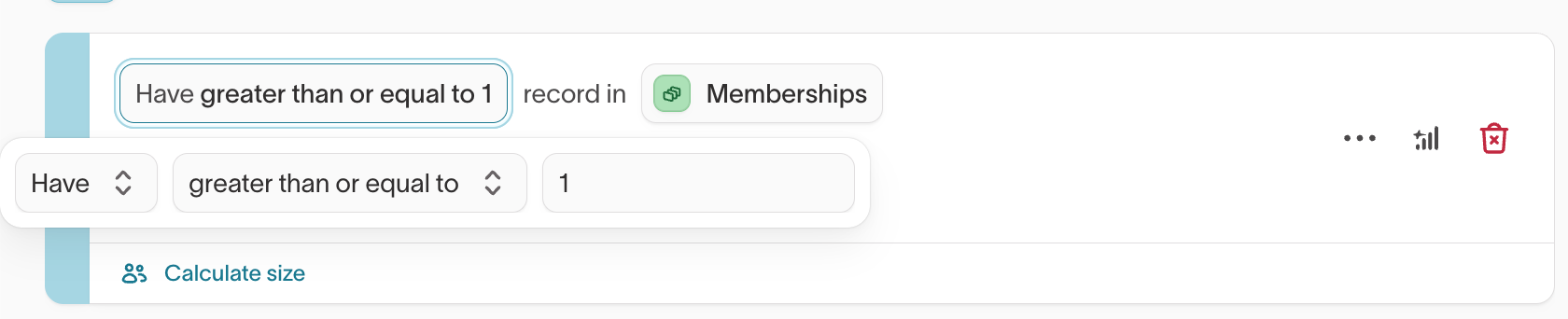
If a model or field you expect isn't available, your data team may need to update the schema relationships or merge columns.
Filter on events
Event filters target customers by what they did and when. Add an event condition, then refine it:
- Frequency — require the event at least, at most, or exactly a number of times (for example, purchased at least one time).
- Time window — limit to a period such as the last 30 days, using a rolling or calendar window.
- Where — filter on the event's own properties, such as
category equals "Toy". - Sequential events — add Then did perform or Then did not perform to require or exclude a later event within a time window, such as viewed a product and then did not purchase.
Filter by audience or journey membership
Reuse an existing audience or a journey as a condition.
Audience membership — filter by whether customers Are included in or Are not included in another audience. Use this to build on top of an existing segment or to exclude one.
Journey participation — target customers by where they are in a journey:
| Option | Includes customers who... |
|---|---|
| Have entered / Have not entered | ever entered (current and past members), or never entered |
| Are currently in / Are not currently in | are active in the journey now, or aren't (may have entered before) |
| Have completed / Have not completed | reached the end of the journey, or haven't |
| Have exited / Have not exited | met exit criteria before completing, or didn't |
Compare columns and traits
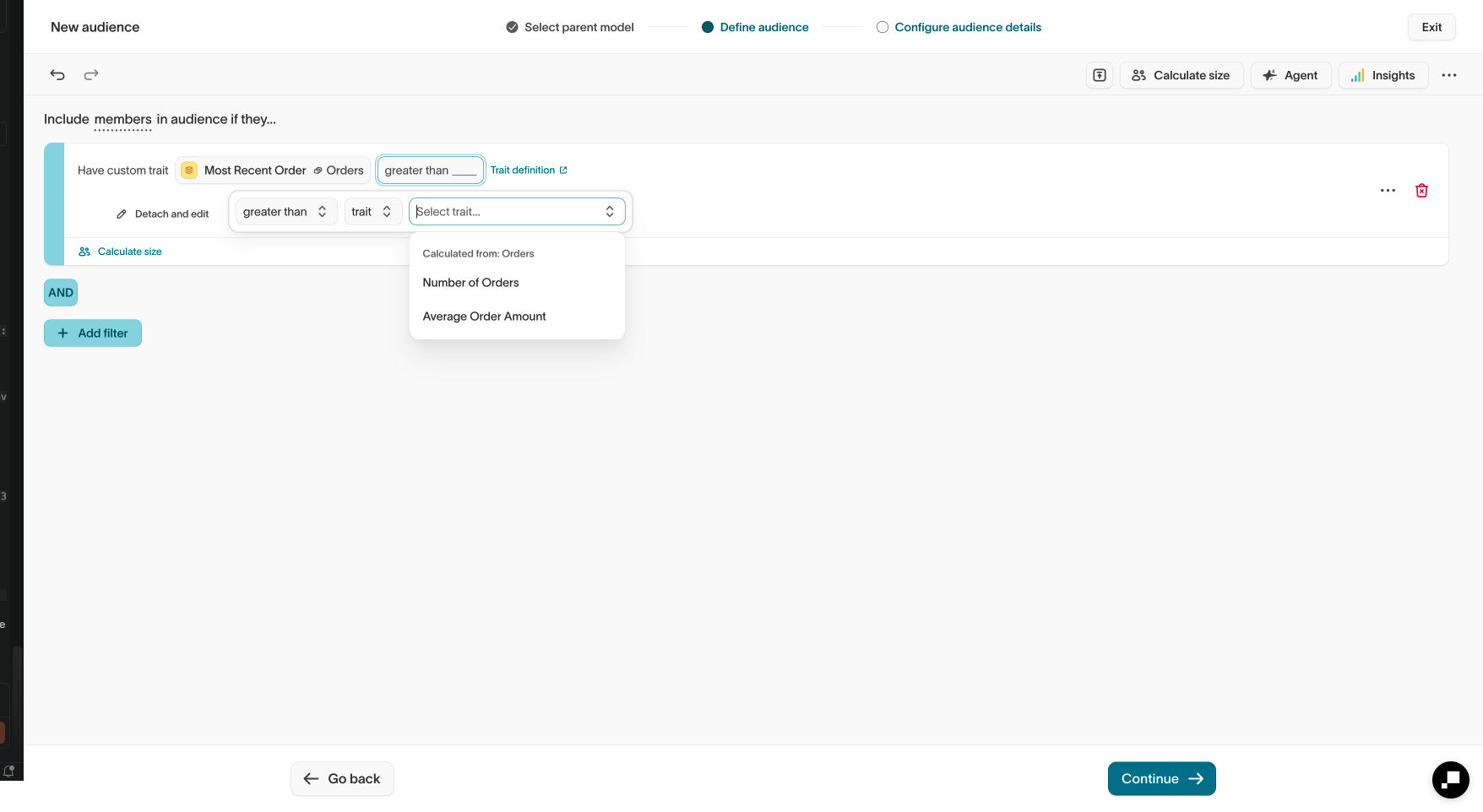
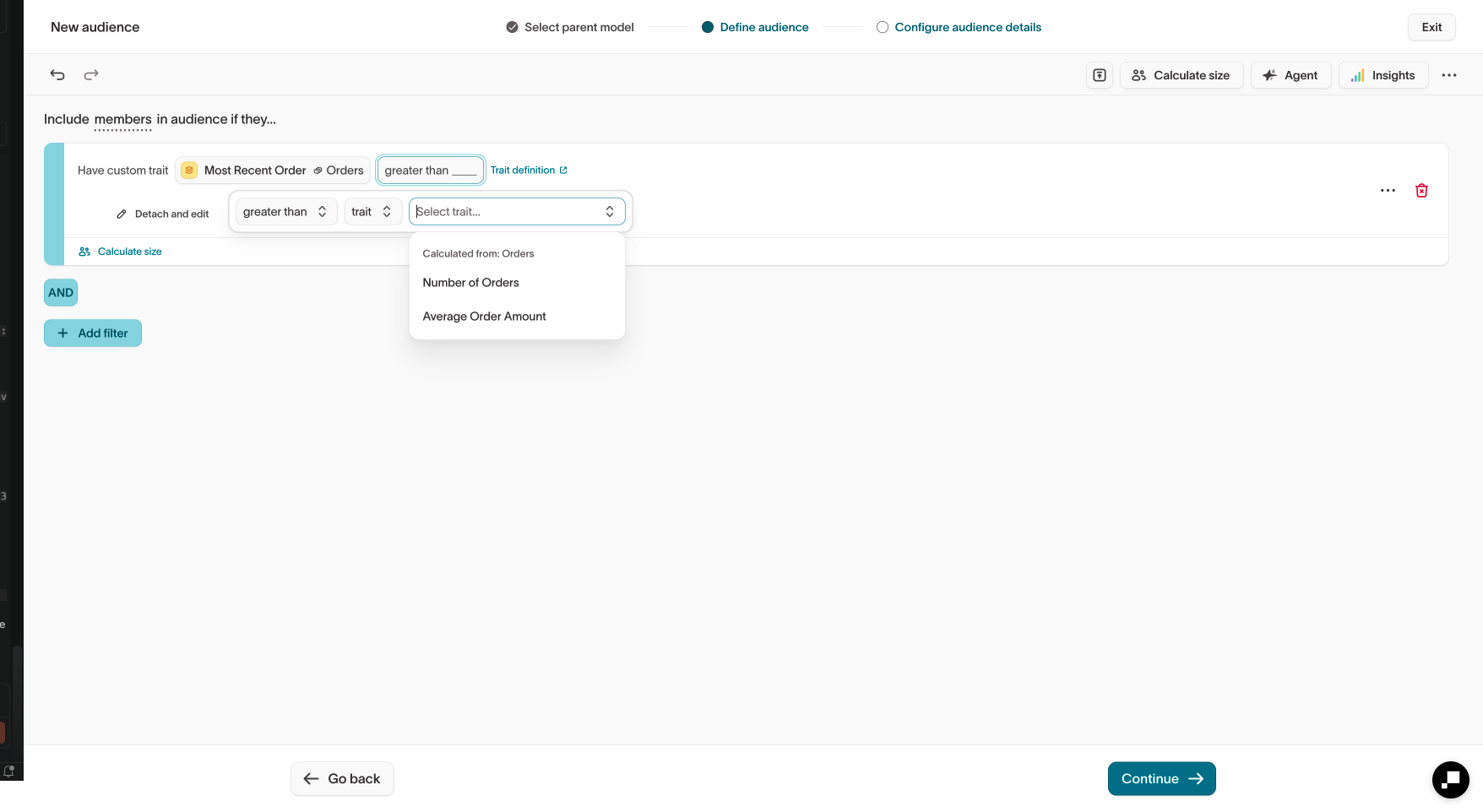
Instead of comparing a field with a fixed value, you can compare two columns or traits.
For example, lifetime_value > avg_order_value includes customers whose lifetime value is greater than their own average order value, rather than comparing every customer against the same threshold.
When configuring the condition, select a value, property, or trait as the comparison, then choose the field you want to compare it with.
Build a trait inside the audience
When you need a calculated value for a single audience, add a trait condition directly in the builder instead of creating a reusable trait first. Choose a calculation method such as Average or Count, the column to calculate, and the event or related model to calculate across, then compare the result.
Select Add filter, then Traits to create a custom trait or start from a trait template.
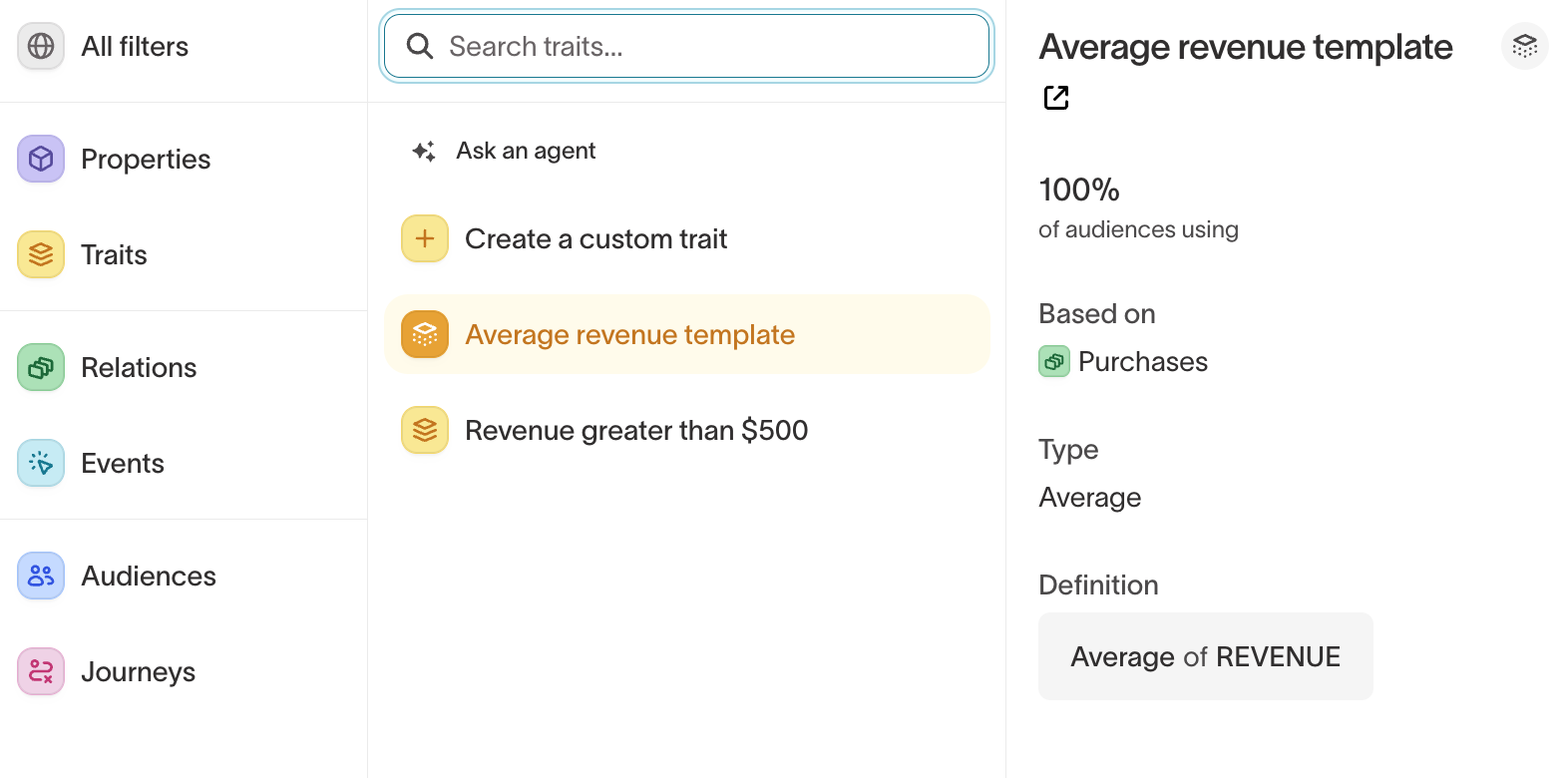
For logic you'll reuse across audiences, create a saved trait instead.
Filter across multiple related models
For data that spans multiple relationships, you can nest related or event filters. For example, with a User → Purchases → Items schema, you can find users who made a purchase in the last 30 days that included an item in the Toy category.
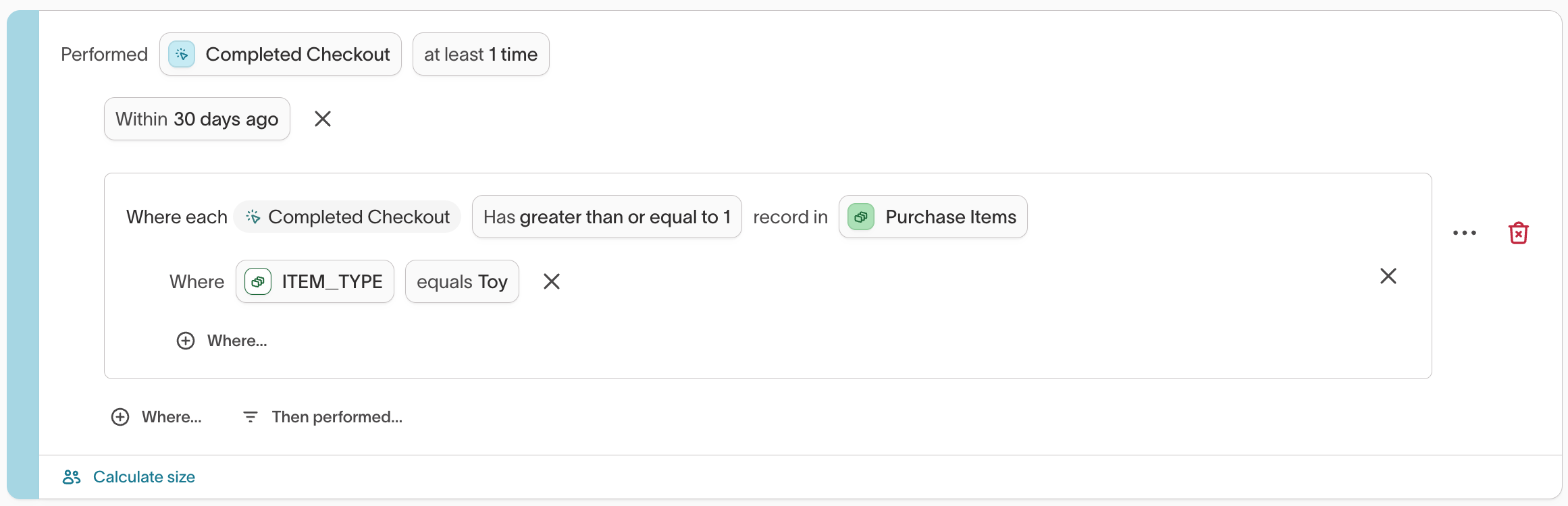
Each level applies to records from that model:
- The outer condition finds qualifying purchases for each user.
- The inner condition finds qualifying items within those purchases.
A user qualifies when at least one record satisfies the complete nested path.
You can also apply counts at multiple levels. For example, find users with at least three purchases where each qualifying purchase contains at least two matching items.
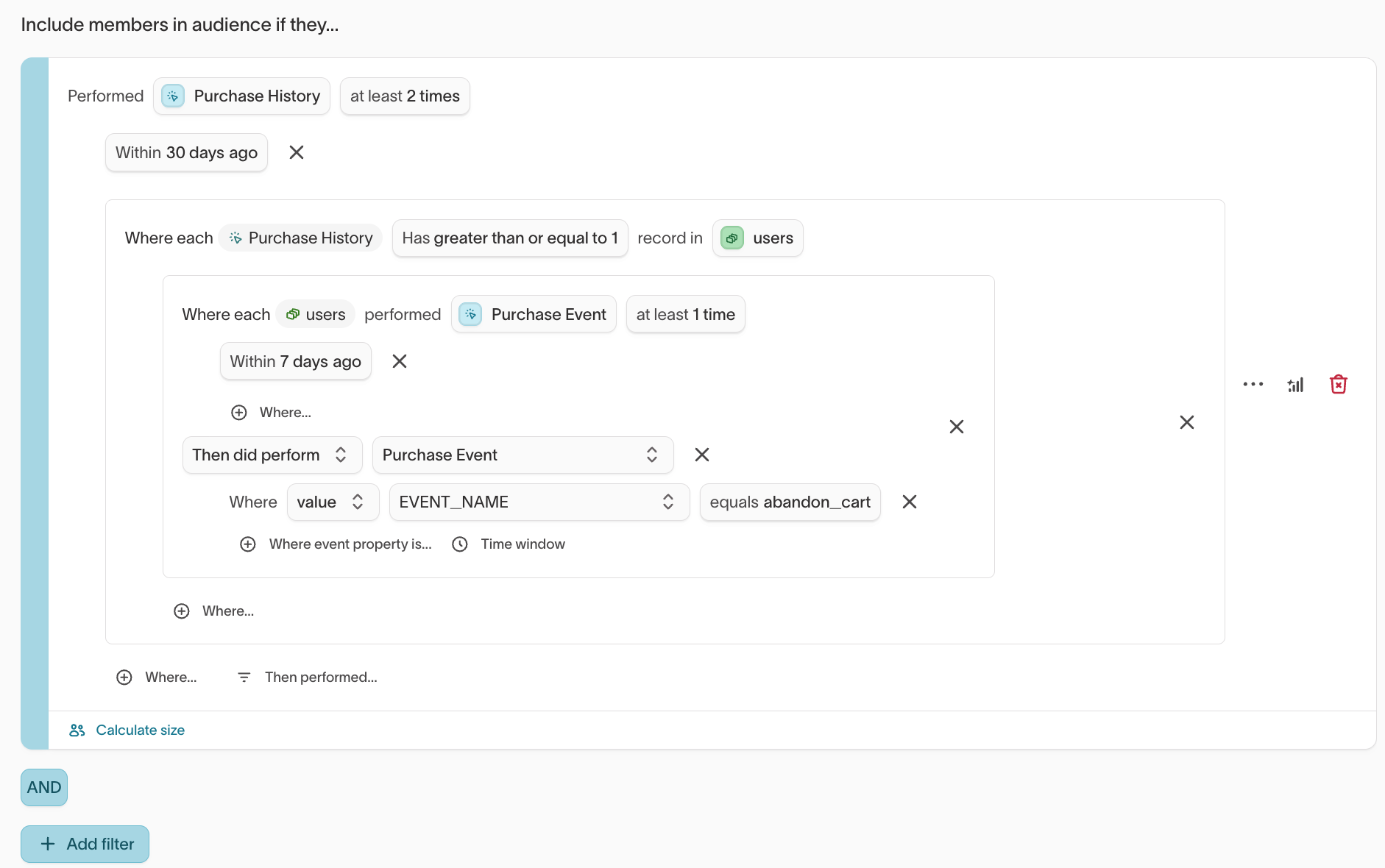
Nested filtering supports up to three levels from the parent model.
Segment across people, households, and accounts
If your schema includes multiple entity types, such as people, households, or accounts, you can use relationships between them when building an audience.
For example, you could build a People audience that includes:
- people in households with at least one active subscription
- people associated with accounts that recently purchased or renewed
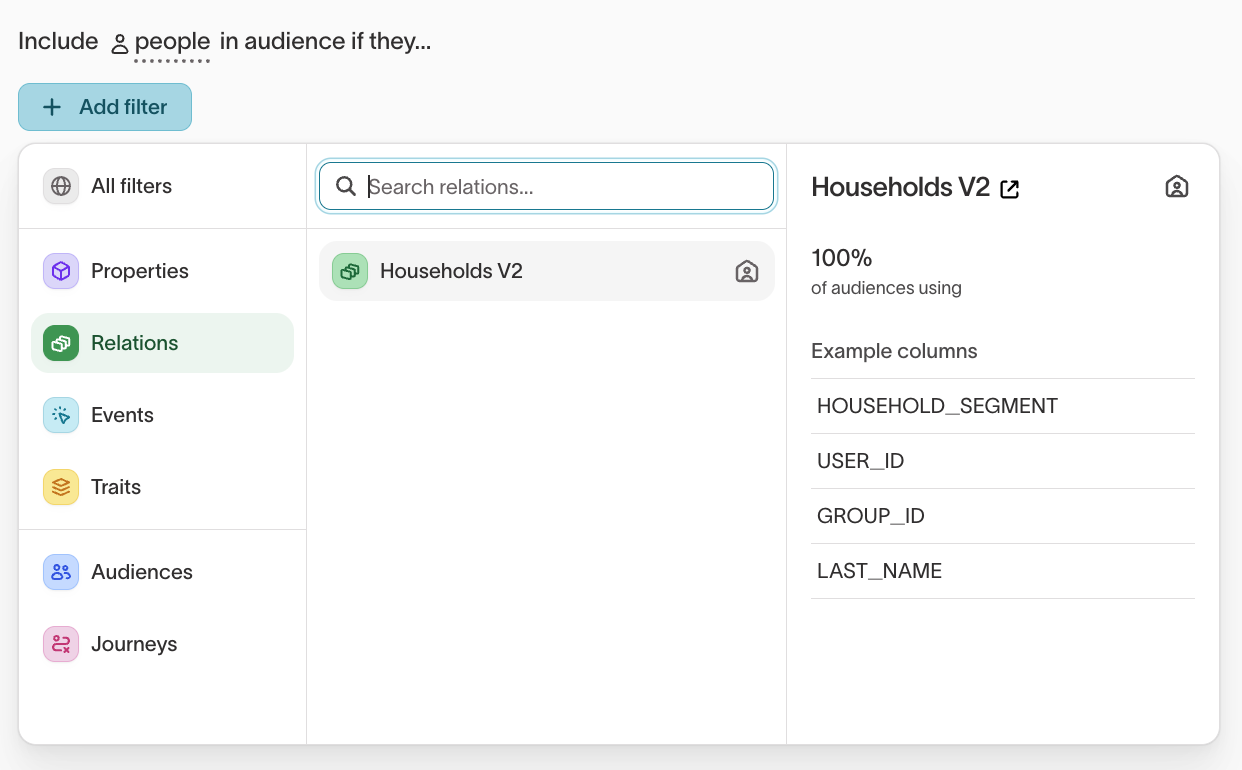
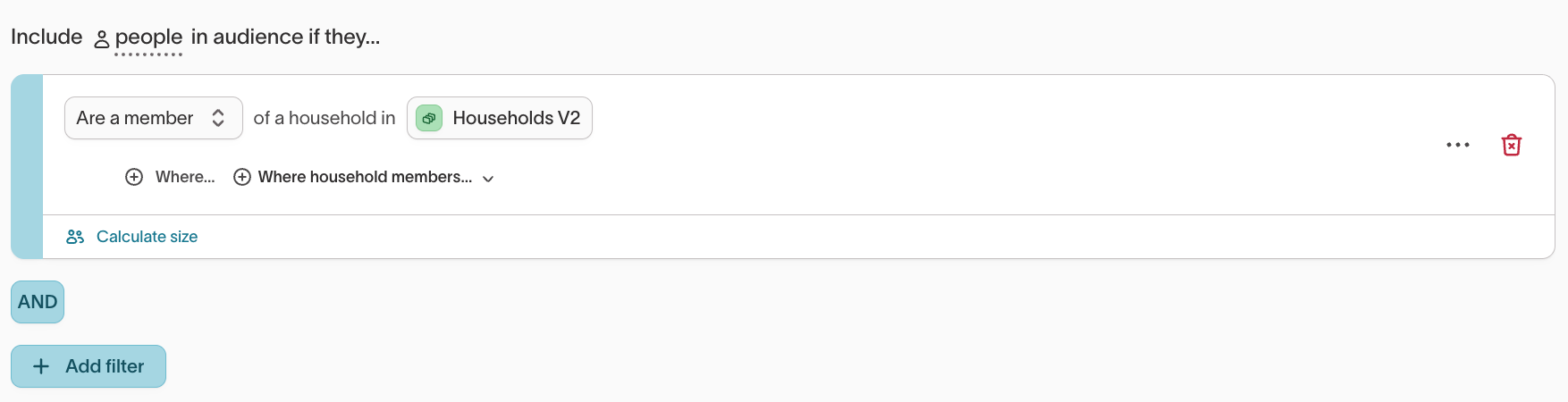
See Schema for how entity labels affect the audience-building experience.
Filter nested JSON
If a column contains a JSON object or array, use dot-path notation to filter on values inside it. For example:
booking.product.geo.citytargets a nested object property.booking.0targets the first item in an array.
Given:
{
"inventory": {
"on_order": 50,
"stock": 750,
"warehouse": "WHB"
},
"dimensions": [9, 8, 7]
}
you could filter on inventory.stock, inventory.warehouse, or an item in dimensions.
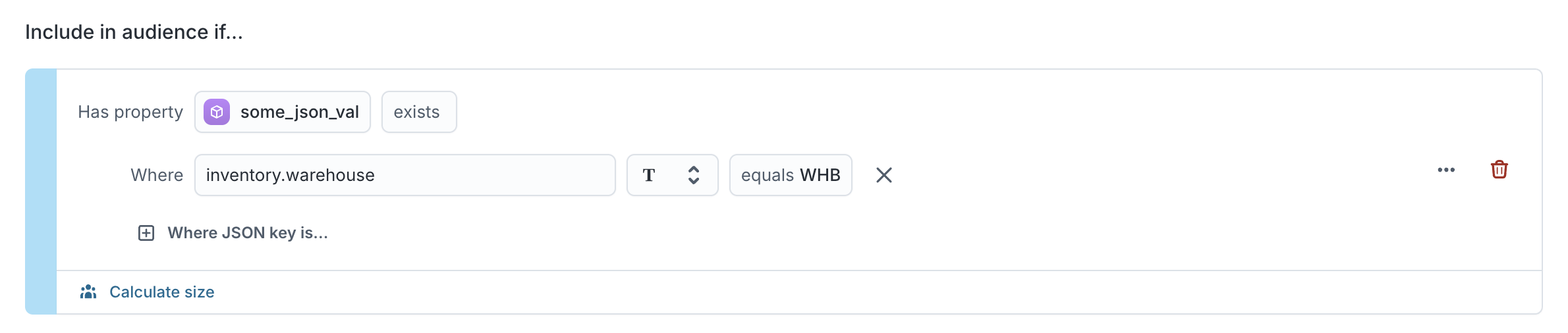
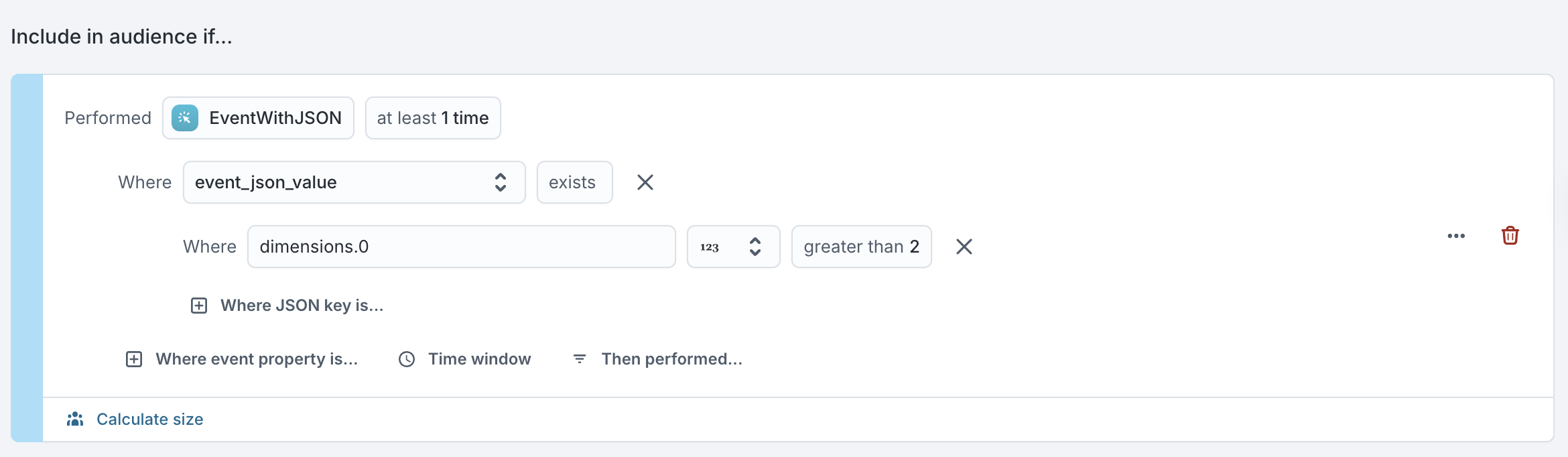
JSON columns initially use the unknown type. Set the nested value's type to String, Number, or Boolean to use the operators that type supports. For example, a numeric value can use greater than, while a string can use contains. JSON filtering is supported on parent, event, and related models.
Preview the audience after adding a JSON filter to confirm that the path and data type match the structure in your warehouse.
Add a list of values
For filters that accept multiple text or numeric values, you can drag a .txt or .csv file into the value field instead of entering each value manually.
This is useful for long lists such as customer IDs, organization IDs, or email addresses. The file should contain comma-separated values.
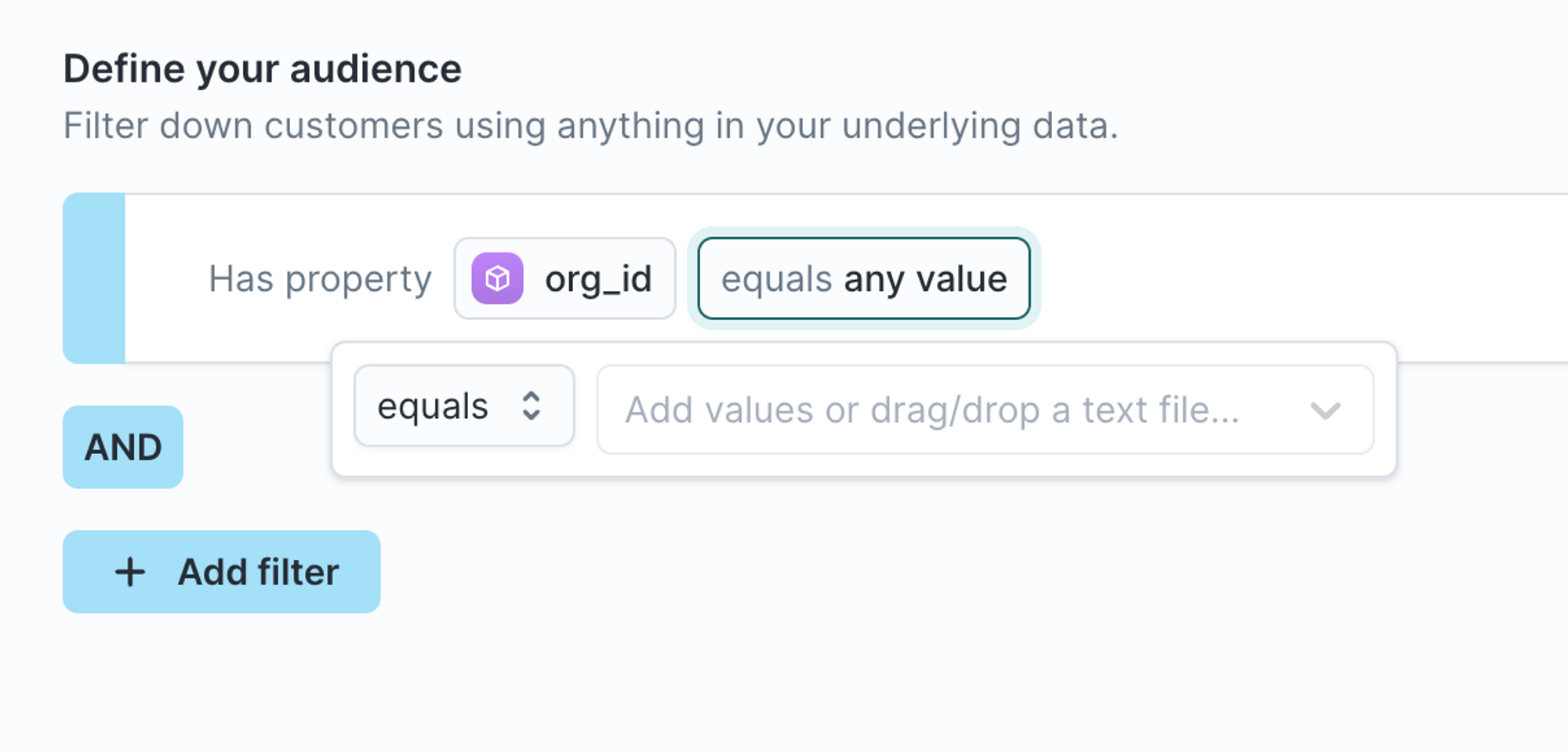
Supported operators:
| Data type | Operators |
|---|---|
| String | contains, does not contain, equals, does not equal |
| Number | equals, does not equal |
Filter operator reference
The available operators depend on the field's data type.
| Data type | Operators |
|---|---|
| String | equals, does not equal, contains, does not contain, starts with, does not start with, ends with, does not end with, exists, exists and is not empty, does not exist |
| Number | equals, does not equal, greater than, less than, greater than or equal to, less than or equal to, between, exists, does not exist |
| Boolean | equals, does not equal, exists, does not exist |
| Timestamp | equals, before, after, within, not within, between, anniversary, exists, does not exist |
String operators
Use these operators for text values such as product names, locations, email domains, or status fields.
contains matches the value anywhere within the field. equals matches the complete value.
exists matches any value that isn't null. exists and is not empty also excludes empty text values.
Number operators
Number filters can compare a field against either:
- a fixed value, such as
purchase_amount > 100 - a percentile, such as customers in the top 10% of lifetime value

To use percentiles, value suggestions must be turned off for that column in the schema configuration.
Percentile filters use the entire dataset as the comparison group, not just the records that match your other filters.
For example, if you filter a global user model for users whose country is France
and whose lifetime value is in the bottom 10%, Hightouch returns users who:
- Live in France, and
- Are in the bottom 10% of lifetime value across all users
Hightouch does not calculate the bottom 10% using only users in France.
If you want to apply a percentile filter with only the matching records as the comparison group, consider using a percentage-based audience size limit instead.
Timestamp operators
Timestamp filters support fixed dates and relative time windows. For relative periods, choose between:
- Rolling periods — calculated backward from the current time. For example,
within previous 2 months. - Calendar periods — completed calendar units. For example, if today is June 3,
within previous 2 calendar monthscovers April 1 through May 31.
Use anniversary for recurring dates such as birthdays, renewals, or membership milestones.
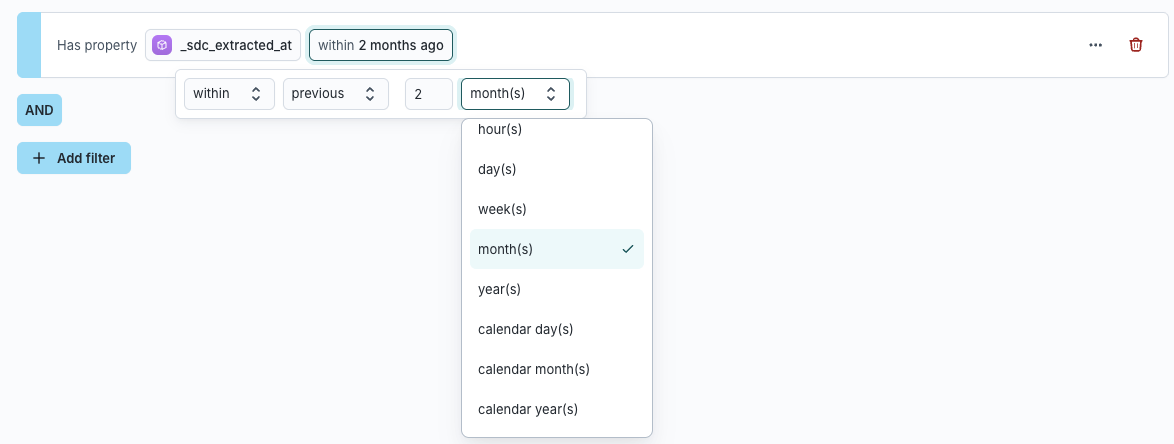
If the field includes timezone information, Hightouch uses it when evaluating the timestamp. Otherwise, Hightouch uses the warehouse's default timezone.
If an operator isn't available, check the field's configured data type in Schema.
Configure null behavior
Workspace admins can control whether null values match negative operators such as does not equal. For example, consider Country does not equal USA. Depending on the workspace setting:
- Treat null values like any other value — records where
Country = nullqualify. - Use special behavior for null values — records where
Country = nulldon't qualify.
Configure this behavior in Workspace Settings.

Troubleshoot filters
A filter returns no results
First check:
- that you're filtering on the expected model
- that the relationship connects the records you expect
- that the field contains the values you're filtering for
- how your workspace handles
nullvalues
For related or event data, also verify the schema relationship. To spot-check the underlying data, inspect individual members in Profiles.
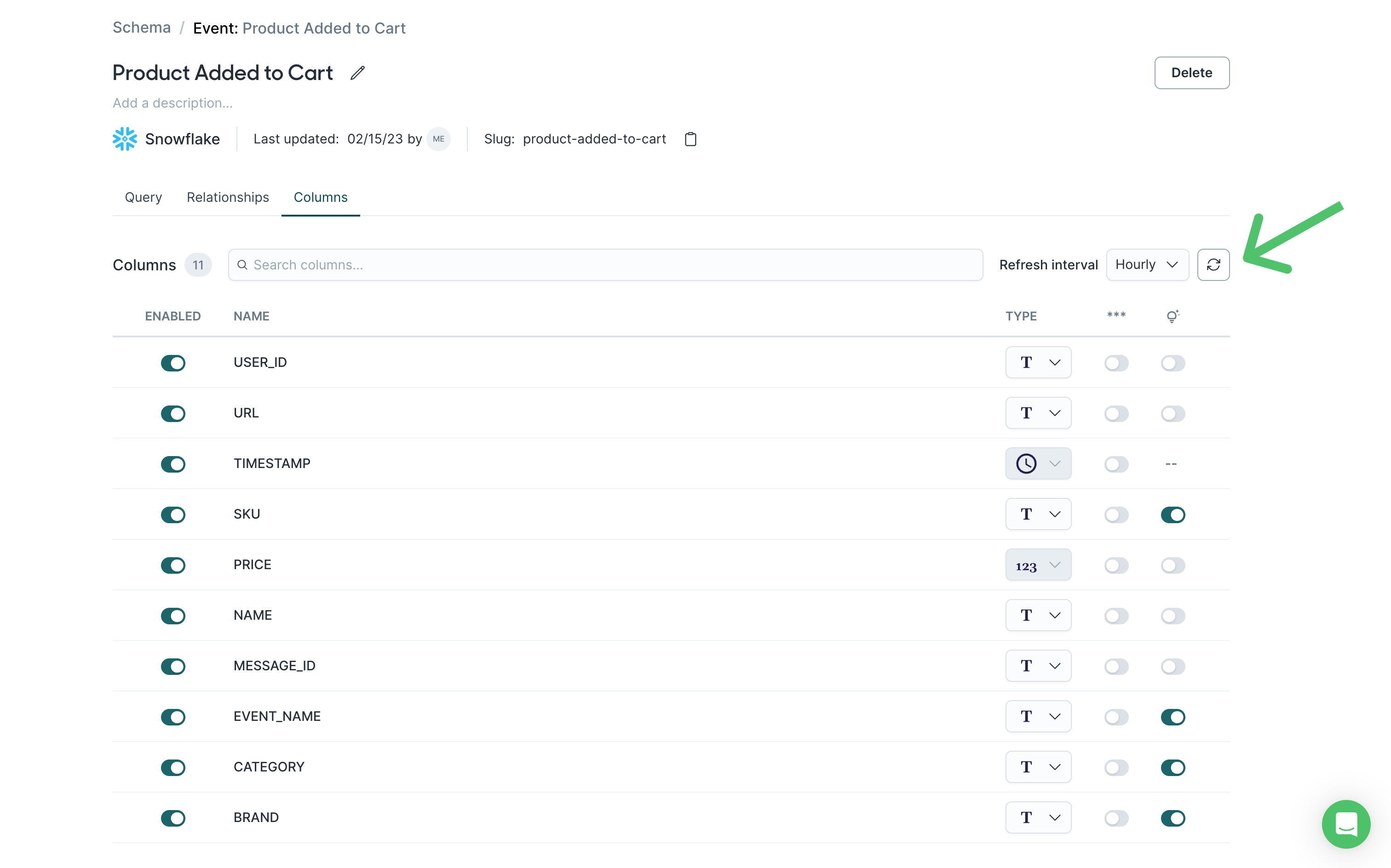
Filter value suggestions are missing
Column suggestions may be disabled or out of date.
Confirm that value suggestions are enabled. If they're enabled but values are missing, refresh the suggestions from the filter.
A filter references a missing column
If a warehouse column was renamed or removed, an existing audience can continue to reference the old field, and the preview fails with an error that the column can't be resolved or no longer exists.
- Open the model and confirm the column exists.
- Refresh or re-save the model so Customer Studio has the current columns.
- Update any audience conditions that reference the missing field.
- Preview the audience again.
If the failure surfaces as a warehouse SQL error, see Resolve SQL compilation errors.
Next steps
- Build an audience to review the full audience-building workflow.
- Audience builder prompting guide for prompting patterns and guidance on using the agent.
- Create traits for reusable calculated values you want to use across audiences.