| Audience | Marketers and data teams |
| Prerequisites |
|
Catalog recommendations use machine learning to generate the top recommended items from any catalog for each user, so you can personalize syncs and audience targeting at scale.
Coming from AI Decisioning Collections? Managing catalog filters from the AI Decisioning sidebar is deprecated. Catalog recommendations are the current way to generate personalized product recommendations from your warehouse catalogs. Using them within AI Decisioning isn't fully self-serve yet. before you set it up.
Overview
Standard traits like counts and aggregations tell you what users have done. Catalog recommendations go further by predicting which items each user is most likely to engage with next.
Given a catalog of any size — hundreds to hundreds of thousands of items — Hightouch trains a model on your historical interaction data and generates a ranked list of the top 20 recommended items per user. You can then sync those recommendations to any destination or use them to build highly targeted audiences.
Catalog recommendations are part of the predictive traits suite and share the same ML infrastructure.
How it works
Hightouch uses three inputs to train the recommendation model:
- Users — the parent model in your schema (for example,
Users). - Catalog — a table of items in your warehouse (for example,
Products,Offers,Listings). - Events — interactions between users and catalog items (for example, purchases, add-to-cart events, page views, email clicks).
Each time the model runs, Hightouch pulls training data from your warehouse, trains the model, and writes recommendations back. The model generates a ranked list of the top 20 items for each user based on their predicted propensity toward each item.
Use cases
- Personalized product syncs — Sync each user's top recommended products to an ESP or ad platform by mapping the catalog recommendation trait as a sync field, then use the ranked product array to populate personalized email templates or dynamic ad creative.
- Targeted audience building — Create an audience in Customer Studio filtered by catalog recommendation trait (for example, users whose top five include a specific product), then sync that audience to an ads platform to run a targeted launch campaign for that product line.
Set up a catalog
Before you create a catalog recommendation trait, you need a catalog configured for recommendations in your schema.
- Go to Customer Studio > Schema.
- Add or select the table that represents your catalog (for example,
Products). The catalog must be connected to a parent model through event or relationship tables. - On the catalog model's detail page, go to the Recommendations tab and enable catalog recommendations.
- Select the parent model that represents your users.
- Define the key events that capture how users interact with catalog items (for example,
AddToCart,Purchase,EmailClick). These events are what the model uses to learn user preferences.
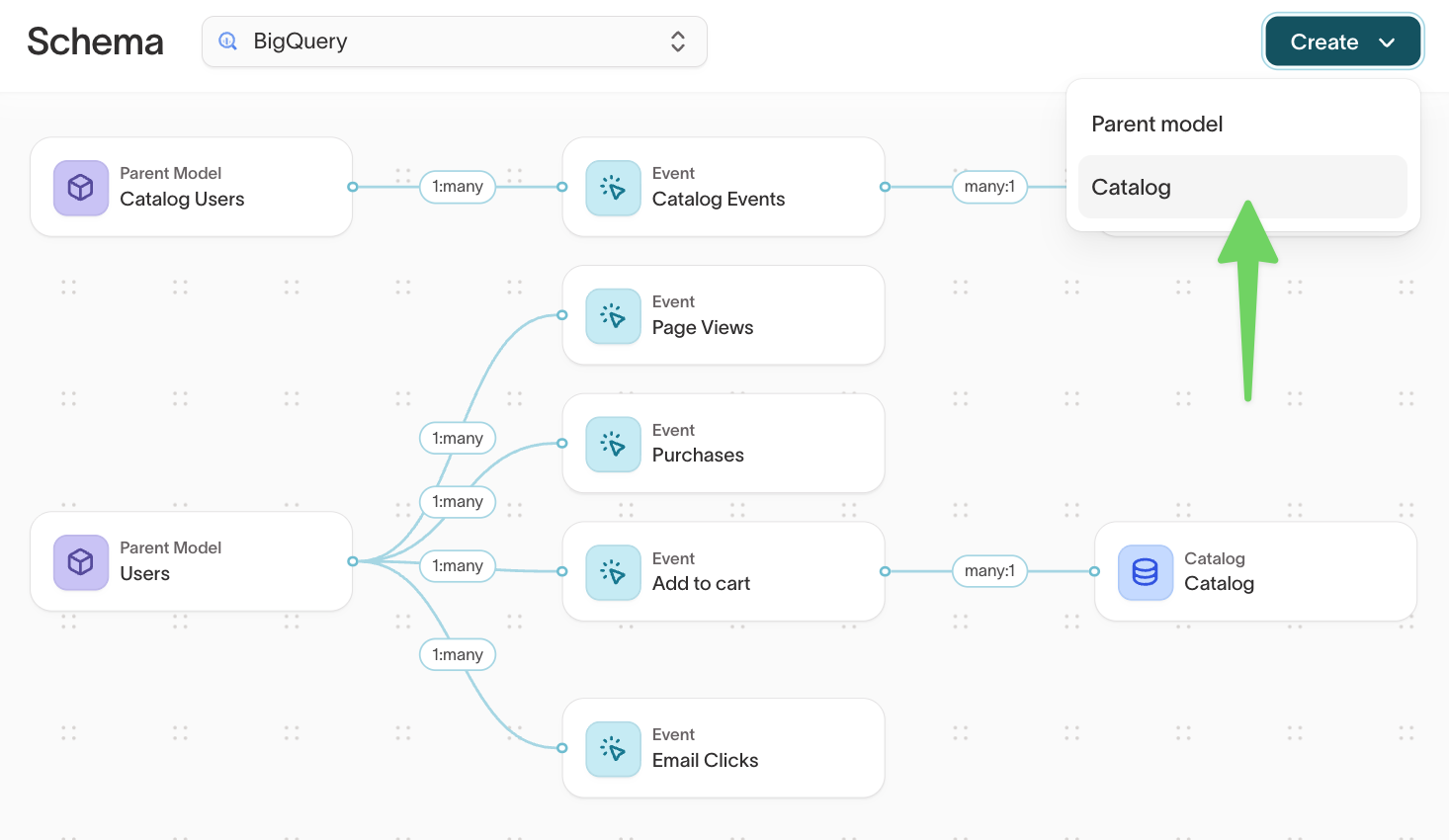
You can use multiple event types to train a single recommendation model. For example, combining purchase events with add-to-cart events gives the model more signal about user preferences.
Create a catalog recommendation
To create a catalog recommendation:
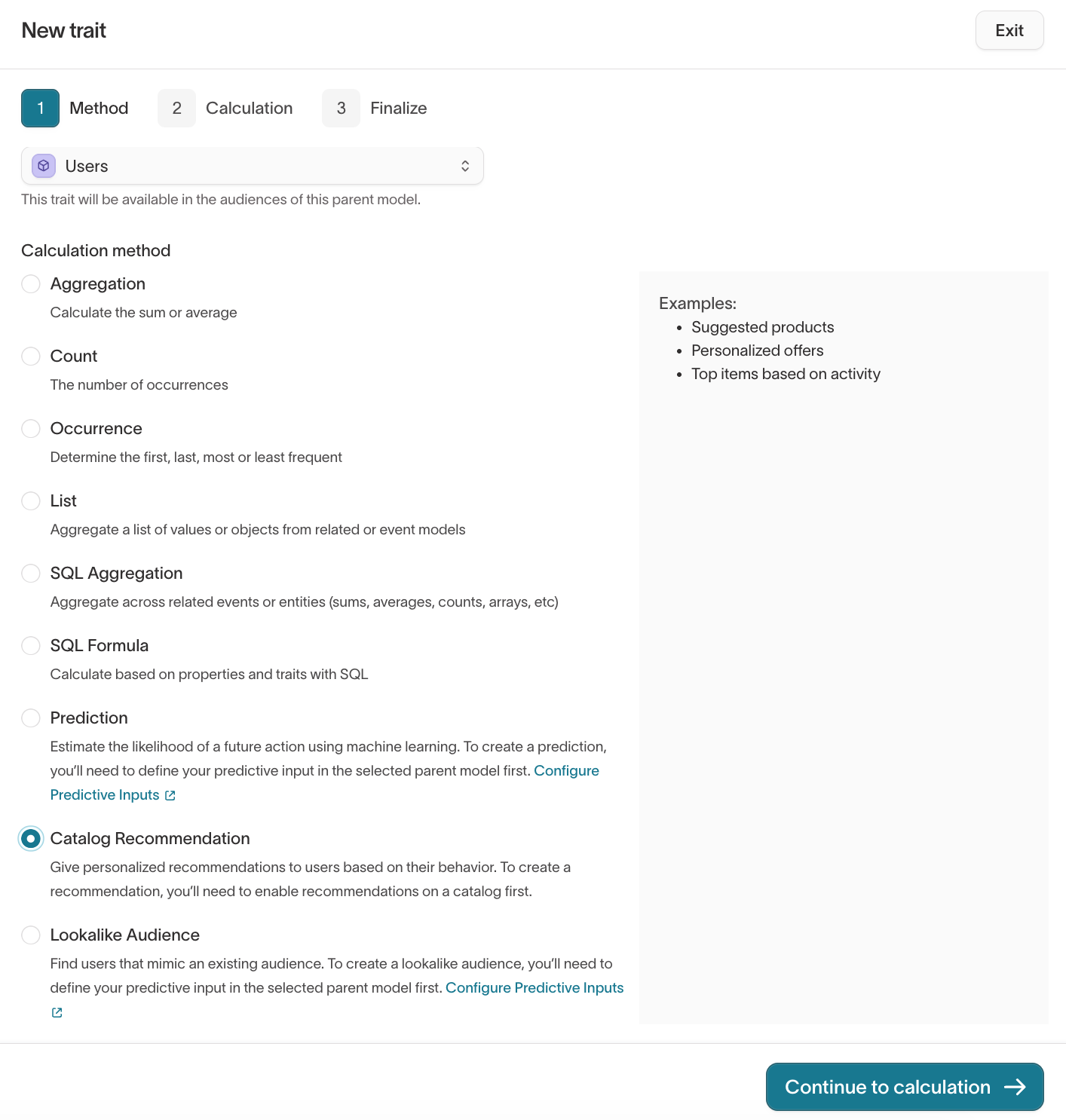
- Go to Customer Studio > Traits.
- Select Create > New trait.
- In the Method step, select a parent model (for example,
Users) that has a relationship with the catalog you want to generate recommendations for. - Under Calculation method, select Catalog Recommendation.
- Click Continue.
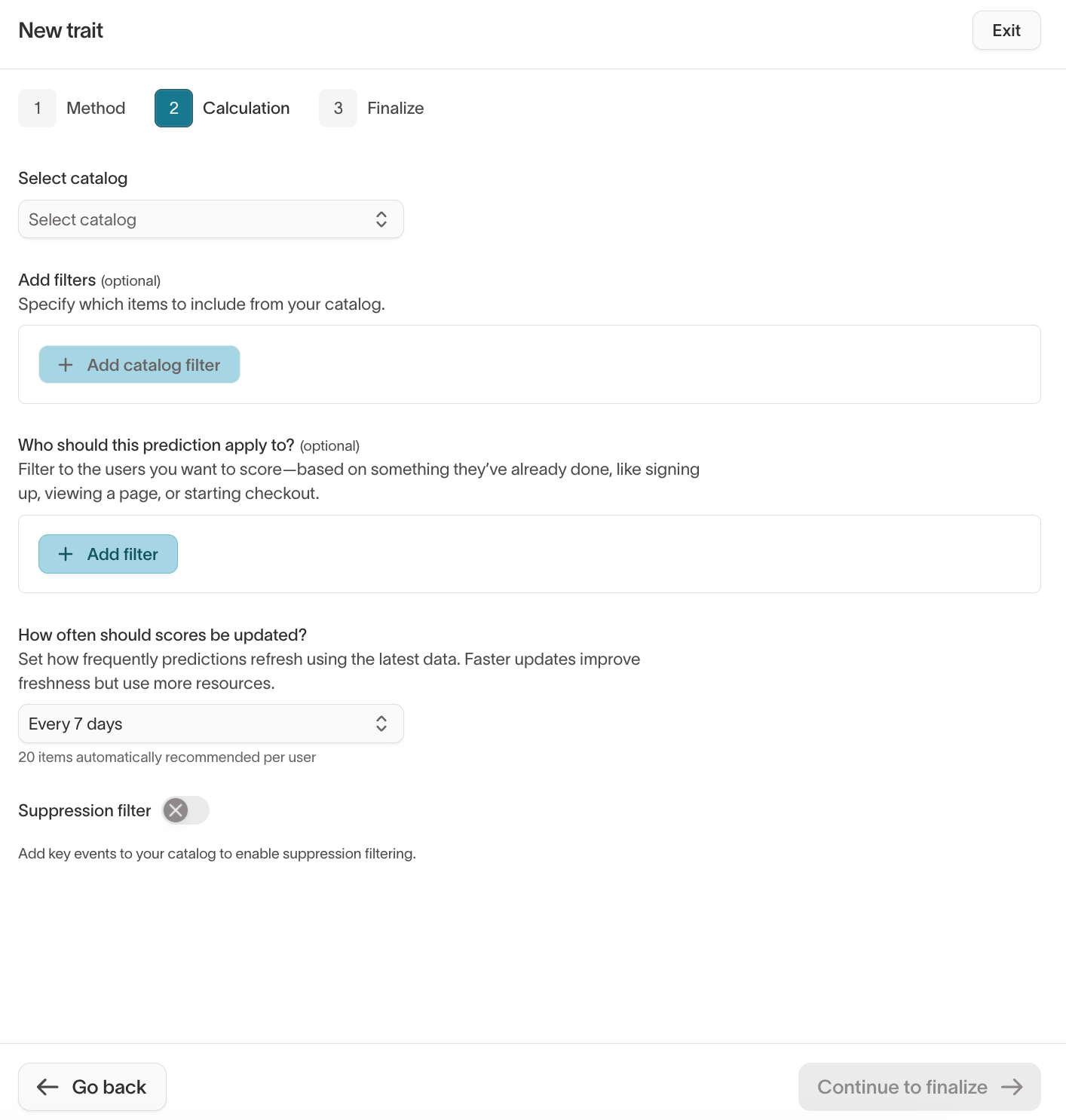
- In the Calculation step, select the catalog you want to generate recommendations from. The remaining settings on this page are optional.
Filter the catalog
You can optionally add filters to specify which items to include from your catalog. Filters use columns from the catalog table.
For example, if your catalog contains all products but you only want to recommend shoes, you can add a filter where the product name contains "shoes" or the category equals "footwear."
Filter eligible users
Under Who should this prediction apply to?, you can filter which users receive recommendations. By default, every user in your parent model is scored. To narrow the pool, add filters based on something users have already done — for example, signing up, viewing a page, or starting checkout.
Set a suppression filter
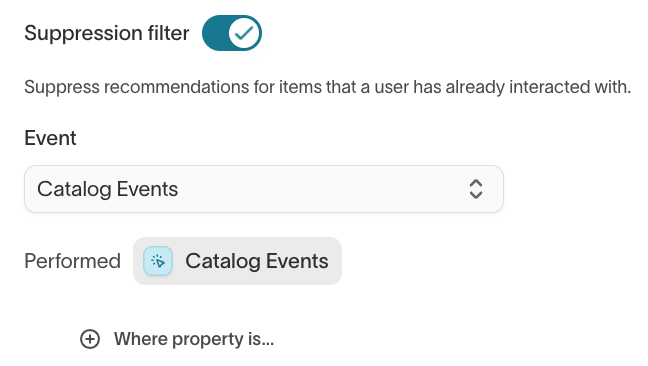
Optionally, enable the suppression filter to suppress recommendations for items that a user has already interacted with. When enabled, you select the event that represents the interaction (for example, a purchase event), and the model excludes those items from that user's recommendations.
Set the update schedule
Under How often should scores be updated?, choose how often the model should retrain and refresh recommendations. Each run uses warehouse compute to pull data and write results, so the schedule affects warehouse usage. The model generates 20 recommended items per user on each run.
More frequent updates keep recommendations fresh but increase warehouse usage. Less frequent updates are appropriate when your catalog and user behavior change slowly.
After configuring the calculation, click Continue to finalize. In the Finalize step, name your trait, optionally add a description, review the calculation summary, and click Create trait.
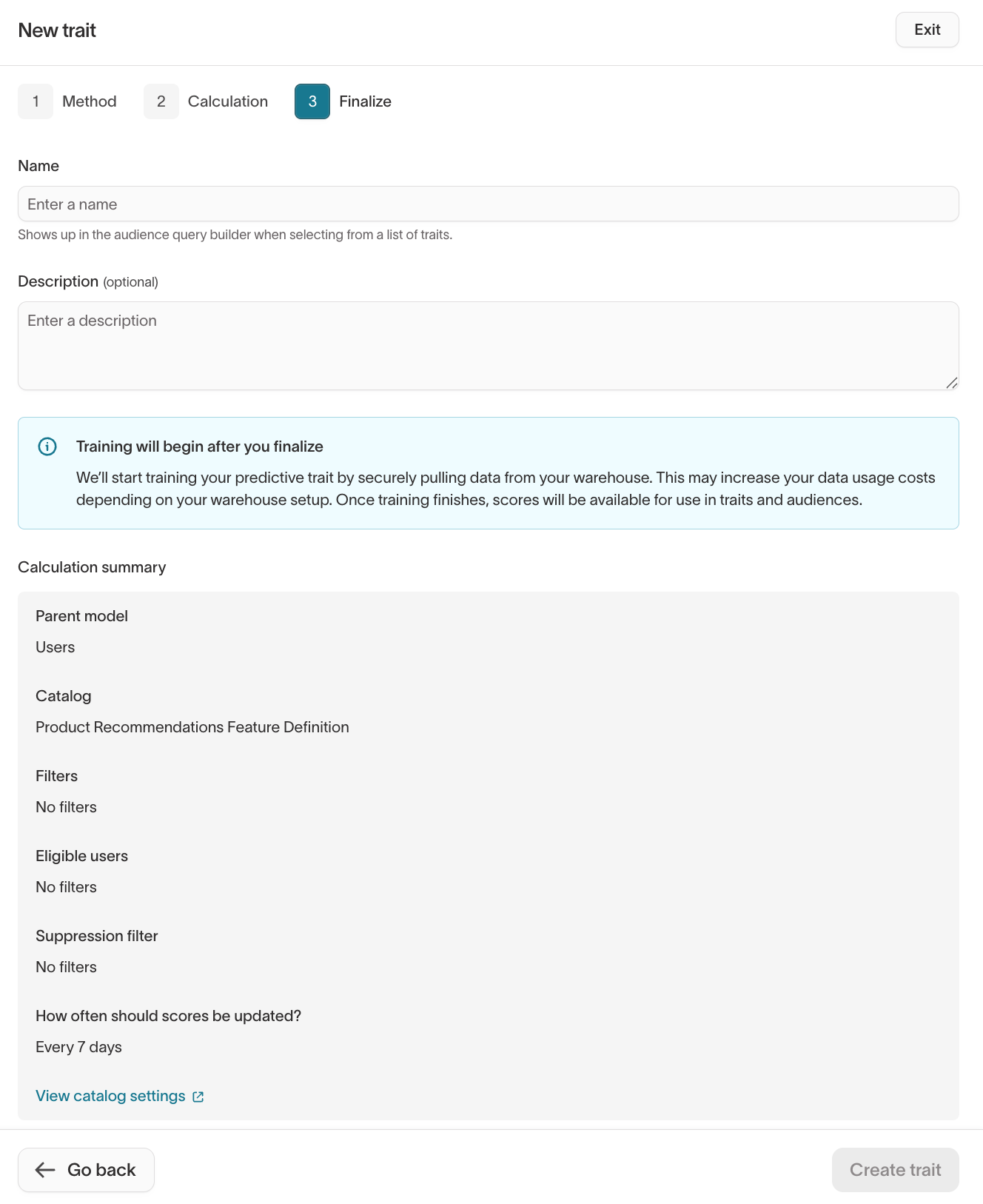
The model begins training immediately. Training time varies based on the size of your data.
Evaluate recommendation quality
After the model completes training, the Prediction analysis tab on the trait detail page displays performance metrics. The page shows the total number of users and items evaluated, along with the last run date.
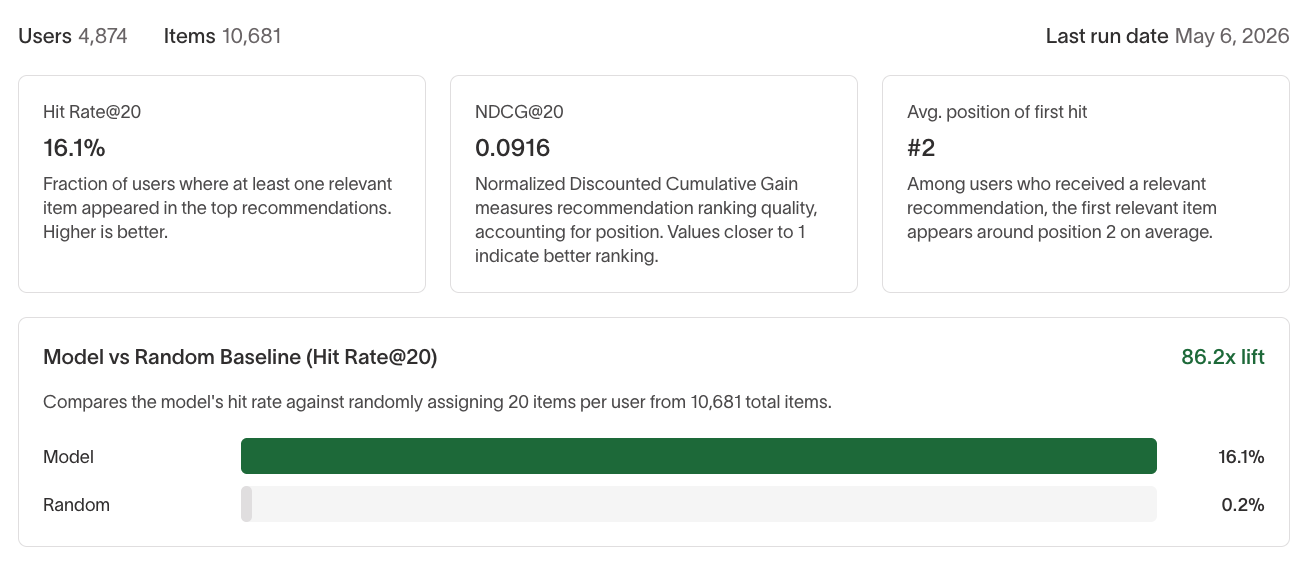
Hit Rate@20
Hit Rate@20 measures the fraction of users where at least one relevant item appeared in the top 20 recommendations. A higher hit rate is better. The analysis page also shows a Model vs Random Baseline comparison that visualizes the model's hit rate against what you'd expect from randomly assigning items — this lift metric helps you gauge how much value the model adds.
NDCG@20
NDCG (Normalized Discounted Cumulative Gain) at 20 measures recommendation ranking quality, accounting for position. Values closer to 1 indicate better ranking — meaning items the user is most likely to engage with are placed closer to the top of the list.
Average position of first hit
Among users who received a relevant recommendation, this metric shows the average rank position where the first relevant item appears. A lower number means the model tends to place relevant items near the top of the list.
Use catalog recommendations
Once a catalog recommendation trait is created and trained, you can use it in two ways.
Sync recommendations to a destination
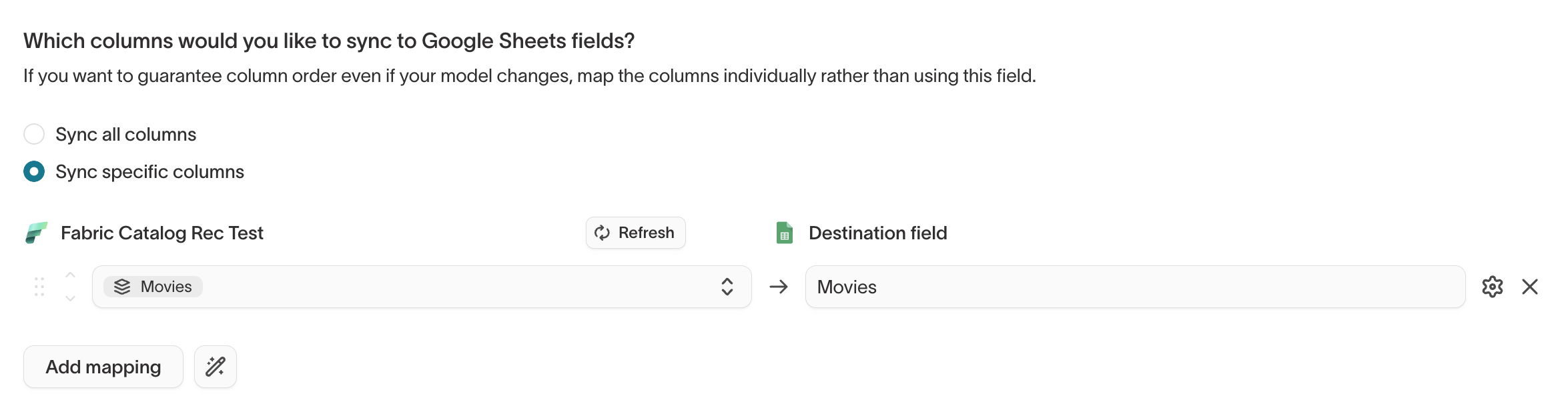
When you set up a sync, you can select the catalog recommendation trait as a field to include. Recommendations sync as a ranked array of each user's top recommended items, so you can power personalized content in downstream tools such as email templates, push notifications, and ad creative.
- Go to Syncs and create or edit a sync.
- In the field mapping step, select your catalog recommendation trait.
- The recommendation data syncs as a structured array to your destination.
Build audiences from recommendations
You can use catalog recommendations to define audience membership. For example, to target users who are predicted to be interested in a specific product:
- Go to Customer Studio > Audiences and create a new audience.
- Add a filter using your catalog recommendation trait.
- Set a percentile range or filter by specific items to define which users qualify for the audience.
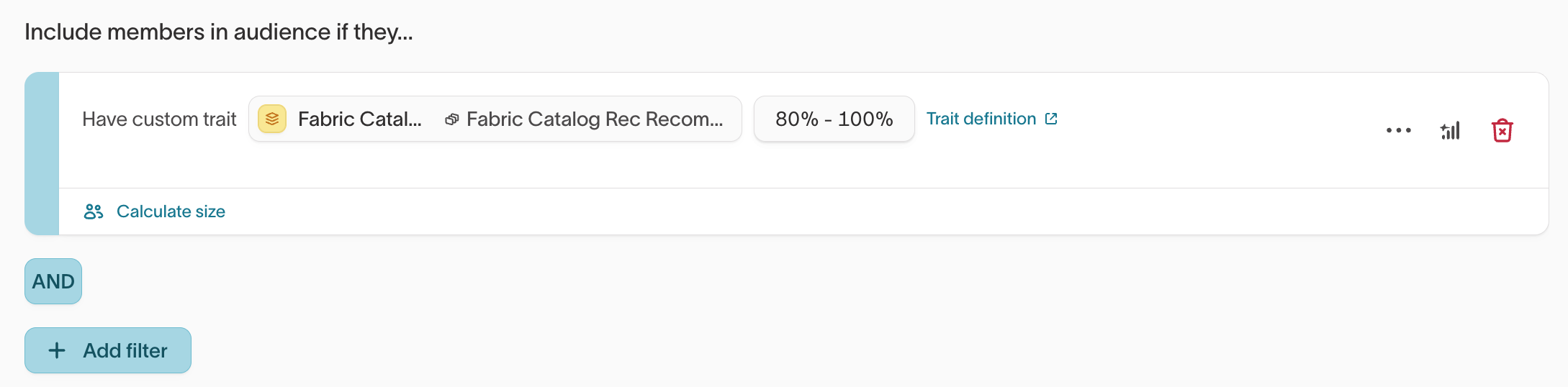
This lets you build launch audiences, cross-sell segments, or personalized campaign groups based on predicted product affinity rather than past behavior alone.
Next steps
- Build an audience to filter users by their recommended items in the visual builder.
- Sync audiences to send each user's ranked recommendations to a destination.
- Predictive traits to score the likelihood of a specific future action.
- Lookalike audiences to find users who resemble a high-value segment.