| Audience | Data and analytics engineers, platform admins. Marketers can use this guide to understand how their campaign requirements translate into Customer Studio. |
| Prerequisites |
|
Before marketers build audiences, a data team decides which warehouse data they can use in Customer Studio and how that data connects. Start with the audiences your team actually wants to build, then design the smallest schema that supports them.
How Customer Studio uses your data
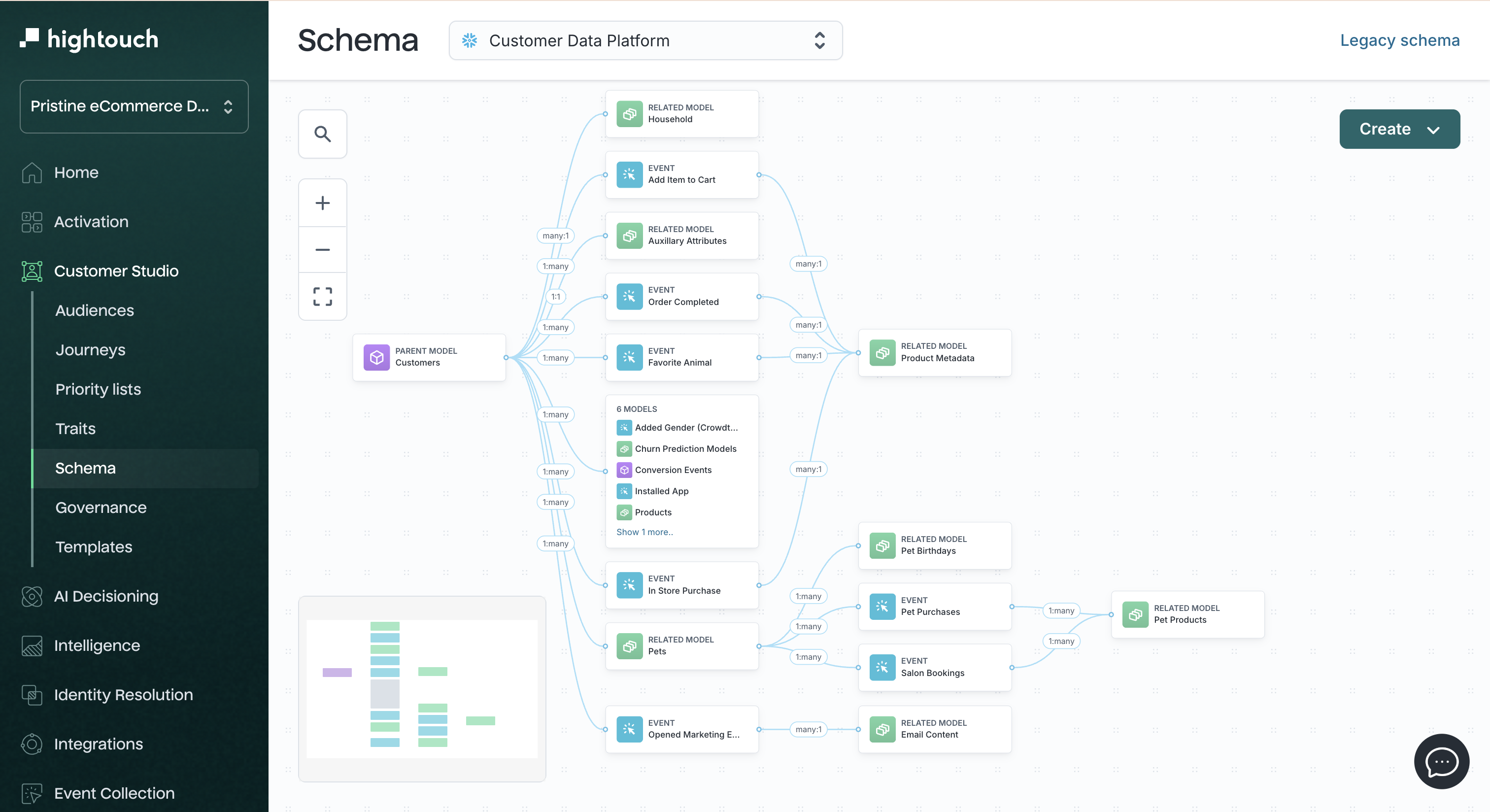
In Customer Studio, marketers build audiences from your warehouse data. Your schema defines the building blocks they work with: the records, attributes, activity, and calculated values they combine into an audience.
A schema starts with a parent model: the set of people, accounts, households, or other records that can become members of an audience. You can then connect additional records and activity to that parent so marketers can filter using more context.
For example, suppose your team wants to build this audience:
Users in New York who purchased in the last 90 days and have a lifetime value over $500.
A Customer Studio schema might provide:
Usersas the parent model, with one row per userregionas a field onUsersPurchasesas a related model connected to each userpurchased_atas the timestamp marketers use for the 90-day conditionLifetime valueas a reusable trait calculated from purchase history
What you put in the schema determines what marketers can find, filter on, and send to destinations. Its names, descriptions, and relationships also help agents match natural-language requests to the right models and fields.
Start with the audiences marketers need
Before choosing tables, ask marketers or campaign owners for a few real audiences they expect to build.
For each audience, identify:
- Who or what should qualify? For example, users, accounts, households, or devices.
- Which attributes matter? For example, region, plan, signup date, or account tier.
- Which activity or history matters? For example, purchases, logins, support tickets, or product views.
- Which values need to be sent to a destination? Filtering data and destination fields don't always need to be modeled the same way.
- Which freshness and lookback windows apply? For example, current account status versus purchases in the last 90 days.
Start with one or two high-priority use cases instead of designing for every possible campaign. Common starting points include:
- excluding recent purchasers from acquisition campaigns
- re-engaging users who have been inactive for 30 days
- targeting trial users who haven't activated
Use these examples throughout implementation. Your schema is ready when marketers can build the audiences you designed it for.
Decide what one audience member represents
Your first schema decision is what one row in the parent model represents. Each qualifying parent row becomes one audience member and one record in a sync. Traits and filters return results for that same row.
Before you choose a source table, decide three things about the parent model:
- Targeting entity — who or what marketers communicate with.
- Grain — what one row represents.
- Identity — the stable, unique key that identifies that row.
Keep these decisions stable and change them only when the targeting entity itself changes. Renaming or replacing the identity key invalidates the joins, audiences, and syncs that depend on it, so treat it as a migration rather than an edit.
For most businesses, the targeting entity is a user or customer. Other common choices include:
- an account for B2B account-based campaigns
- a household for household-level targeting
- a device for device-level messaging
- a buyer or seller for marketplace campaigns
- a trip or reservation when each trip must be targeted independently
If Users contains one row per user, marketers build audiences of users. If Accounts contains one row per account, marketers build audiences of accounts. A parent model at the account grain can target accounts but not individual users within them — if you need both, use separate parent models, or a user-level parent with account data joined as a related model.
Choose the parent model based on what marketers need to target, not on which warehouse table contains the most fields.
When to use more than one parent model
Create another parent model only when marketers need to target a different kind of record directly.
For example:
- A B2B company might build user audiences for product-adoption campaigns and account audiences for renewal campaigns.
- A marketplace might build separate buyer and seller audiences.
- A travel company might target individual travelers for some campaigns and individual trips for others.
Each parent model creates its own audience-building entry point, with its own related models, events, and traits. Start with one parent model for your highest-priority use case and add another when a concrete campaign requires it.

If the additional data belongs to the same audience member, connect it as a related model, event, or trait instead of adding a parent model.
Decide how each kind of data should appear
Once you know what an audience member represents, decide how marketers need to use each piece of data.
| Marketers need to... | Model the data as... | Example |
|---|---|---|
| Target a person, account, or other record directly | A parent model | Users |
| Filter on attributes that describe that record | Parent model columns | region, plan_tier, signup_date |
| Filter on records associated with that record | A related model | Purchases, subscriptions, support tickets |
| Filter on something that happened at a particular time | An event model | Logged in, viewed product, added to cart |
| Reuse a calculated value across audiences or syncs | A trait | Lifetime value, days since last purchase |
| Make a warehouse table available to agents, but not to audience building or syncs | A general model | Product catalog, sales figures, competitive datasets |
A merge column isn't a separate kind of data — it shows an existing parent field on a related or event model so marketers can filter on it there. You configure merge columns when you define the schema.
Parent model fields
Put attributes marketers commonly use to describe the audience member on the parent model when they are already available there.
For a Users model, those attributes often include:
regionplan_tiersignup_dateemail
Don't expose warehouse implementation details only because they exist in the source table. You control which columns appear in Customer Studio when you define the schema.
Related models
Use a related model when one audience member can have additional records associated with them.
For example, one user might have many:
- purchases
- subscriptions
- support tickets
- devices
A related model lets marketers ask questions such as:
Users who have a subscription with status
past_due.
or:
Users who made at least three purchases.
Event models
Use an event model for behavior where when it happened matters.
Examples include:
Product ViewedLogged InCheckout StartedSubscription Renewed
Events include a timestamp, which lets marketers build conditions such as "in the last 7 days" or "before January 1."
If an activity is stored as repeated rows but marketers don't need time-based conditions, use a related model instead.
Traits
Use a trait when marketers repeatedly need one calculated value for each parent record.
Examples include:
- total lifetime spend
- days since last purchase
- number of purchases in the last year
- most frequently purchased category
Keep business-critical or governed logic in your warehouse. If your warehouse already contains an official version of the value — for example, a governed lifetime-value or churn score — expose that existing column instead of recreating it. Create a trait when you need the value for audience building and it doesn't already exist as a warehouse column.
General models
Agents can query any data that’s already in your Customer Studio schema. Create a general model only for warehouse tables that agents need to query but marketers don't need for audience building — for example, a product catalog, sales figures, or a competitive dataset.
A general model is queryable by agents but never appears in the audience builder or in syncs, so it keeps that data out of the marketer-facing schema while still giving agents the context to answer questions about it. If a table is already in your schema, agents can query it without a general model. General models require agents to be enabled in your workspace; see General models for setup and availability.
Start small and expand as needed
You don't need to model your entire warehouse on day one. Start with:
- one parent model (for example,
Users) with common attributes flattened onto it, such as email, region, plan, and signup date - the two or three related models your highest-priority audiences need (for example, Purchases and Subscriptions)
- one or two event models (for example, Page Views and Logins)
- a small set of reusable traits
Expand the schema as new use cases require it. Add a new object instead of changing one that existing audiences, traits, syncs, or journeys depend on. When you must change the schema, classify the change first so you know how much validation it requires:
- Additive changes — a new model, column, event, trait, or relationship. Usually the lowest-risk change.
- Logic changes — a changed calculation, filterable value, join key, or cardinality. Re-validate dependent audiences and syncs.
- Breaking changes — a deleted or renamed model, column, or relationship, or a change to the parent identity. Review dependents and plan a migration before you make it.
If a related model or event table connects to more than one parent model, share it through a relationship instead of duplicating it. If agents need warehouse context that doesn't belong in audience building, add it as a general model rather than growing the audience schema.
Understand filtering data and sync fields
Data used to decide who qualifies for an audience isn't always data you can send directly to a destination.
Marketers can use fields from related and event models in audience filters. Sync field mappings can use parent model columns, traits, and merge columns.
For example, a marketer can build:
Users who made a purchase over $100.
using a Purchases related model. But if a destination also needs each user's last purchase amount, expose that value as a trait, parent-model column, or merge column.
Plan destination mappings while you design the schema. A field that works for filtering doesn't automatically become a field you can send in a sync.
Map how the data connects
You don't need to document your entire warehouse. Map only the records needed for the audience use cases you're supporting.
For the running example:
Users
user_id
region
plan_tier
Purchases
purchase_id
user_id
amount
purchased_at
user_id connects each purchase to the user who made it.
If your team already maintains an entity-relationship diagram (ERD), use it as a starting point. Otherwise, create a simple list or diagram of the relevant records and their join keys.
Test the map against a real audience question. If you can't explain how Customer Studio would evaluate "users who purchased in the last 90 days," identify the missing model or relationship before you configure the schema.
Prepare data for Customer Studio
Customer Studio doesn't need to mirror the structure of your raw warehouse. Prepare complex data in your warehouse when raw tables would make audience building slower or harder to follow.
Keep one row per parent record
The parent model should return one row for each audience member and include a stable, unique primary key.
For a Users parent model:
user_id | region | plan_tier
123     | NY     | Pro
456     | CA     | Free
If the same user_id appears more than once, audience counts and sync behavior can become incorrect. Resolve duplicate records upstream, and pick the current row from a slowly-changing dimension in the warehouse rather than exposing the full history and making every audience re-derive "latest."
For journeys, the primary key must also be stable over time. Journeys identify and de-duplicate members by it, so a key that changes for a member — for example, when identity resolution reassigns it — can re-enroll the member or send duplicate messages.
Prepare expensive joins and calculations in the warehouse
If returning a small preview of a model requires expensive joins or calculations, create a cleaner warehouse model first. Teams using dbt often build marts or other curated models for this purpose.
Preparation can include:
- pre-joining tables that are always used together
- materializing expensive calculations
- resolving the current record from slowly-changing data
- flattening nested JSON into typed columns
- partitioning or clustering large event tables by timestamp
For large event tables, encourage bounded time windows in common audience patterns — for example, purchases in the last 90 days — so interactive previews don't scan unnecessary history.
Keep data types consistent across joins
Columns used to connect models must have compatible data types. For example, if Users.user_id is a string but Purchases.user_id is an integer, normalize them before creating the relationship. Matching names aren't enough; the values and types need to be compatible.
A few upstream conventions keep audience filters predictable:
- Store timestamps as UTC timestamp or datetime types, not strings.
- Normalize numeric units and document them — store currency in one consistent unit (for example, cents as an integer) rather than mixing dollars and cents across models.
- Decide what null means (unknown, not applicable, or excluded) and set a default upstream so filters behave consistently.
Name data for marketers
Customer Studio exposes your schema directly in the audience builder, so warehouse naming becomes part of the marketer experience. Clear names also help agents match natural-language requests to the right models and fields.
Use names that describe the business meaning of the data:
Users, notdim_usr_v4Signup date, notcreated_atProduct Viewed, nottrack_event_v2
Name models after the entity they represent, not the destination they came from: a model named Braze user attributes makes sense for one sync but confuses everyone once you add more destinations.
For fields whose warehouse names need to remain unchanged, use aliases and descriptions in Customer Studio. Good descriptions answer questions that aren't obvious from the name, such as:
- whether a date is UTC
- whether revenue includes refunds
- whether a status reflects the latest state or historical state
- how an internal category maps to business terminology
Plan for sensitive data
Decide which fields marketers should be able to use and which values they should be able to see. Personally identifiable information (PII) includes names, email addresses, phone numbers, and payment or government identifiers.
Handle sensitive data in two places:
- In your warehouse — mask or hash values your destinations don't need in cleartext. Hash emails or phone numbers used only as join keys, and keep raw values only in models that require them.
- In Customer Studio — keep a field available for filtering while controlling how its values appear in previews and profile exploration.
Before launch, review sensitive fields such as:
- email addresses
- phone numbers
- internal identifiers
- regulated or restricted attributes
To scope which rows and destinations a team can reach, plan for subsets and destination rules alongside the schema. You'll configure column-level controls when you define your schema.
Coordinate lifecycle state across campaigns
When several lifecycle programs need to stay aligned to the same customer stage, model that stage once in your warehouse instead of redefining it in each audience or journey. A shared lifecycle-state field — such as current_lifecycle_stage, storing values like new_customer, active, at_risk, or winback — gives audiences, journeys, and downstream tools one definition to read from.
Use the shared field to:
- Build stage-based audiences, such as everyone whose
current_lifecycle_stage = winback. - Start or stop journeys when a person enters or leaves a stage, using it as an entry audience or exit condition.
- Pass the same field to downstream tools such as Braze or Attentive, so channel logic stays aligned.
Without a shared field, each program tends to define "active" differently — one from purchase recency, one from product usage — and those definitions drift over time. Define the stage once upstream and every program reads the same model.
This is an advanced pattern. Use a shared field when multiple journeys or teams build lifecycle programs from the same definitions, or when several downstream tools need the same stage field. For simpler overlap, priority lists and journey exclusions are enough — the shared field gives those controls a common lifecycle model to work from, it doesn't replace them.
Validate your plan before building
Before opening the schema builder, return to the audiences you collected at the beginning of this process.
For each audience, confirm that you can identify:
- the parent model that represents each potential audience member
- the parent fields used in filters
- any related records marketers need to inspect
- any timestamped activity that should be an event
- any reusable values that should become traits
- any values that need to be available in destination mappings
- the keys that connect related data back to the parent
For example, for:
Users in New York who purchased in the last 90 days and have lifetime value over $500.
You should be able to map every part of the request to the schema:
Users→ parent modelregion→ parent fieldPurchases→ related model, or purchases recorded as eventspurchased_at→ timestamp used for the 90-day conditionLifetime value→ trait or governed parent-model field
If you can do that, you're ready to configure the schema in Customer Studio.
Next steps
- Define your schema to create the parent, related, and event models you planned and connect them in Customer Studio.
- Create traits for reusable calculated values that don't already exist in your warehouse.
- Add general models when agents need access to additional warehouse tables that don't belong in the audience-building schema.