
Deliver mobile and web push notifications using OneSignal with fresh data from your data warehouse
Overview
With the OneSignal destination, Hightouch can:
- Update tags on existing devices via the external unique ID
Setup
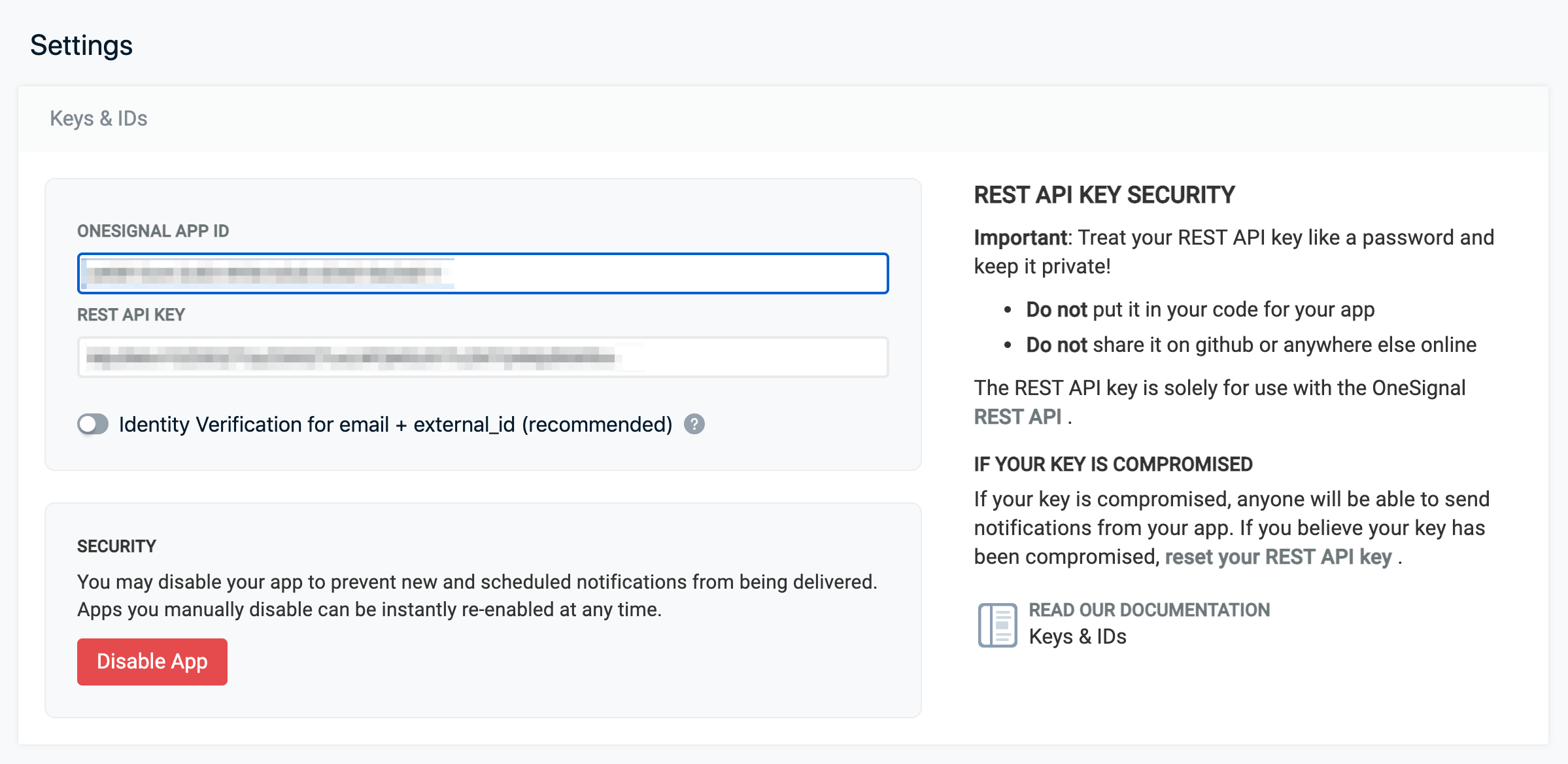
To set up the OneSignal destination, navigate to Destinations and Add New. We can find the keys needed to access OneSignal at OneSignal > Settings > Keys & IDs.
Modes
Updating tags via external unique ID
The destination is configured by default to update tags via external unique ID. In this mode, tags are added or updated on existing devices using the external unique ID.
This mode is good for the following scenarios:
- Adding LTV based on external unique ID to a device
- Assigning segment data to a device
| Name | Description |
|---|---|
| Hightouch Column Containing OneSignal External User ID | The column containing the external user ID of the OneSignal device, which is contained in the OneSignal field external_user_id |
| Hightouch Column to OneSignal Tag Mappings | A list of columns that will be pushed to tags in OneSignal. Each column and it's value for each row will be a key:value pair in the device's tags. |
Tips and troubleshooting
Common errors
To date, our customers haven't experienced any errors while using this destination. If you run into any issues, please don't hesitate to . We're here to help.
Live debugger
Hightouch provides complete visibility into the API calls made during each of your sync runs. We recommend reading our article on debugging tips and tricks to learn more.
Sync alerts
Hightouch can alert you of sync issues via Slack, PagerDuty, SMS, or email. For details, please visit our article on alerting.