When you first sign up for Hightouch, or when your team needs an additional workspace, you'll use the workspace creation flow. This guide walks through when and how to create a workspace, what each field means, and common mistakes to avoid.
Before creating a new workspace, make sure you actually need one. For most teams, a single production workspace is sufficient — Hightouch's governance controls, including user groups, roles, Spaces, and approval flows, let multiple teams share a workspace safely. See Do you need another workspace? below.
Who should create workspaces
Workspace creation is restricted to users who have organization admin privileges. In most companies, this is the IT or platform admin — typically the person who also owns SSO configuration, billing, and user provisioning. If you're setting up Hightouch for the first time, the person who signs up becomes the first organization admin automatically.
If your organization uses SSO, workspace creation may be further restricted — in that case, contact your IT team or Hightouch administrator.
If you see the message "SSO users are not allowed to create workspaces", your organization has disabled self-serve workspace creation. Reach out to your platform admin to have them create the workspace on your behalf.
First sign-in
What you see when you first log in to Hightouch depends on whether your company already has an organization set up.
New company
If no one at your company has used Hightouch before, sign up at app.hightouch.com using Google, Microsoft, or email.
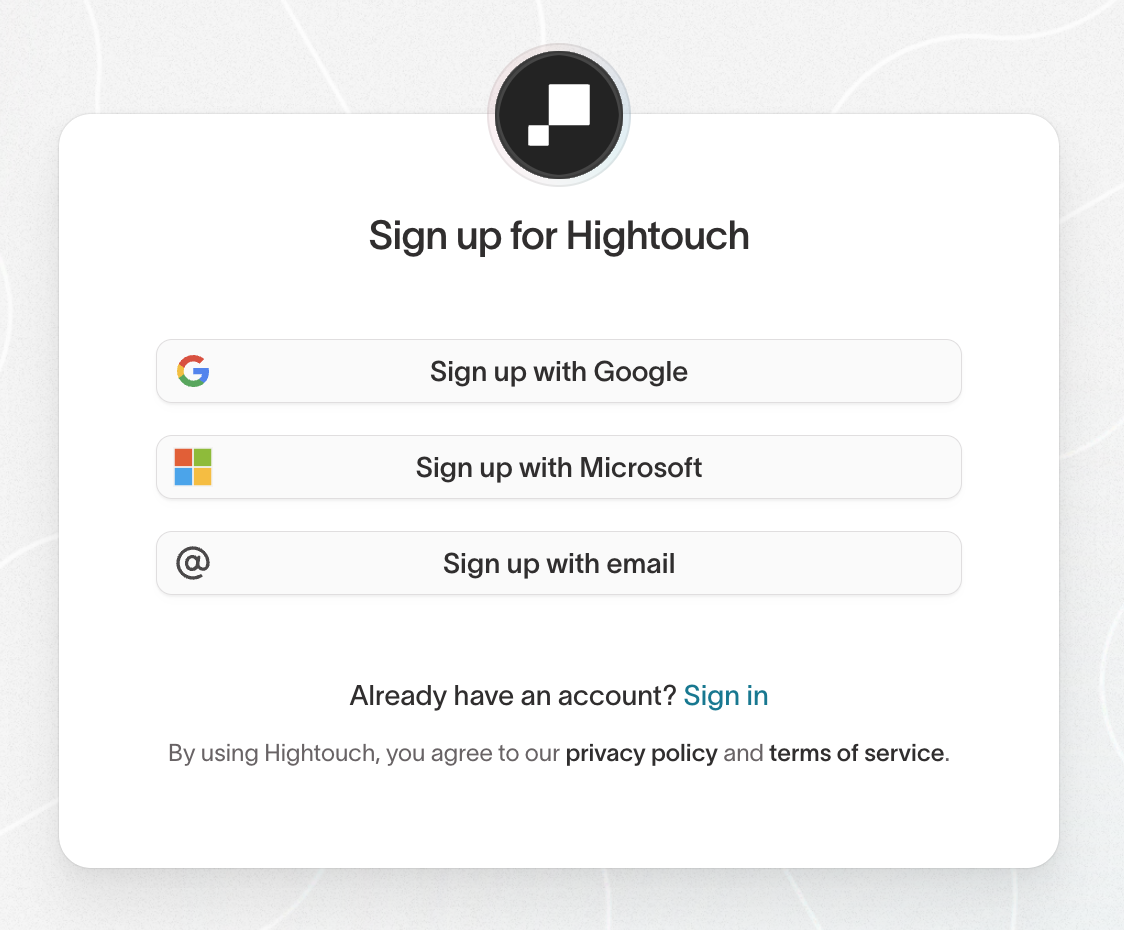
After signing up, you'll be prompted to:
- Create an organization — this represents your company and is the container for billing, SSO, and user management.
- Create your first workspace — using the form described below.
After creating your workspace, the Get started checklist guides you through connecting a data source, adding destinations, and inviting teammates.
Existing company
If your company already has an organization and workspaces in Hightouch, you should not create a new organization. Instead:
- Ask an existing admin to invite you to the appropriate workspace, or
- Log in through your company's SSO provider, which will route you to the correct organization and workspace automatically.
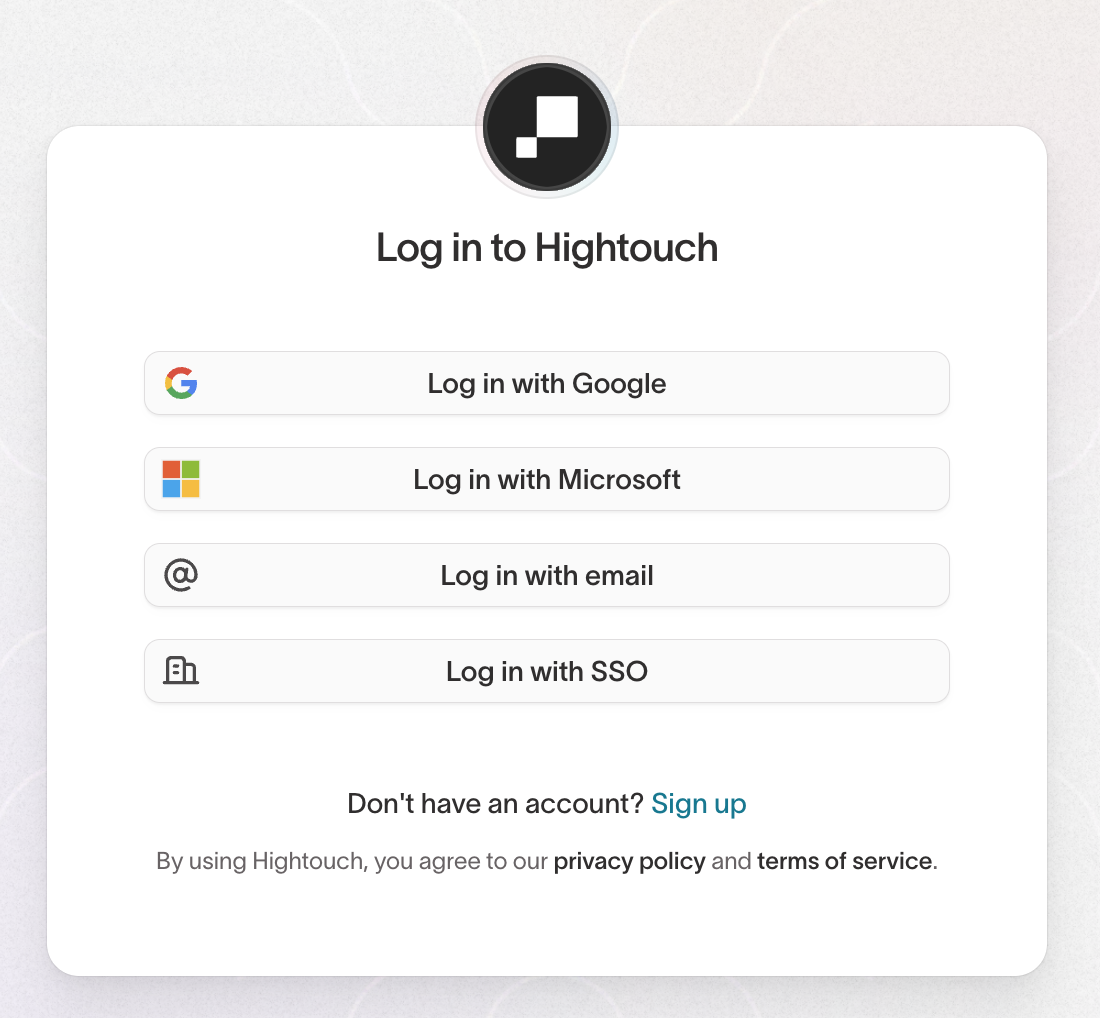
If you were invited to Hightouch but land on the workspace creation screen instead of your team's workspace, stop and contact the person who invited you. Creating a new organization or workspace in this situation will result in a duplicate that needs to be cleaned up.
Workspace creation form
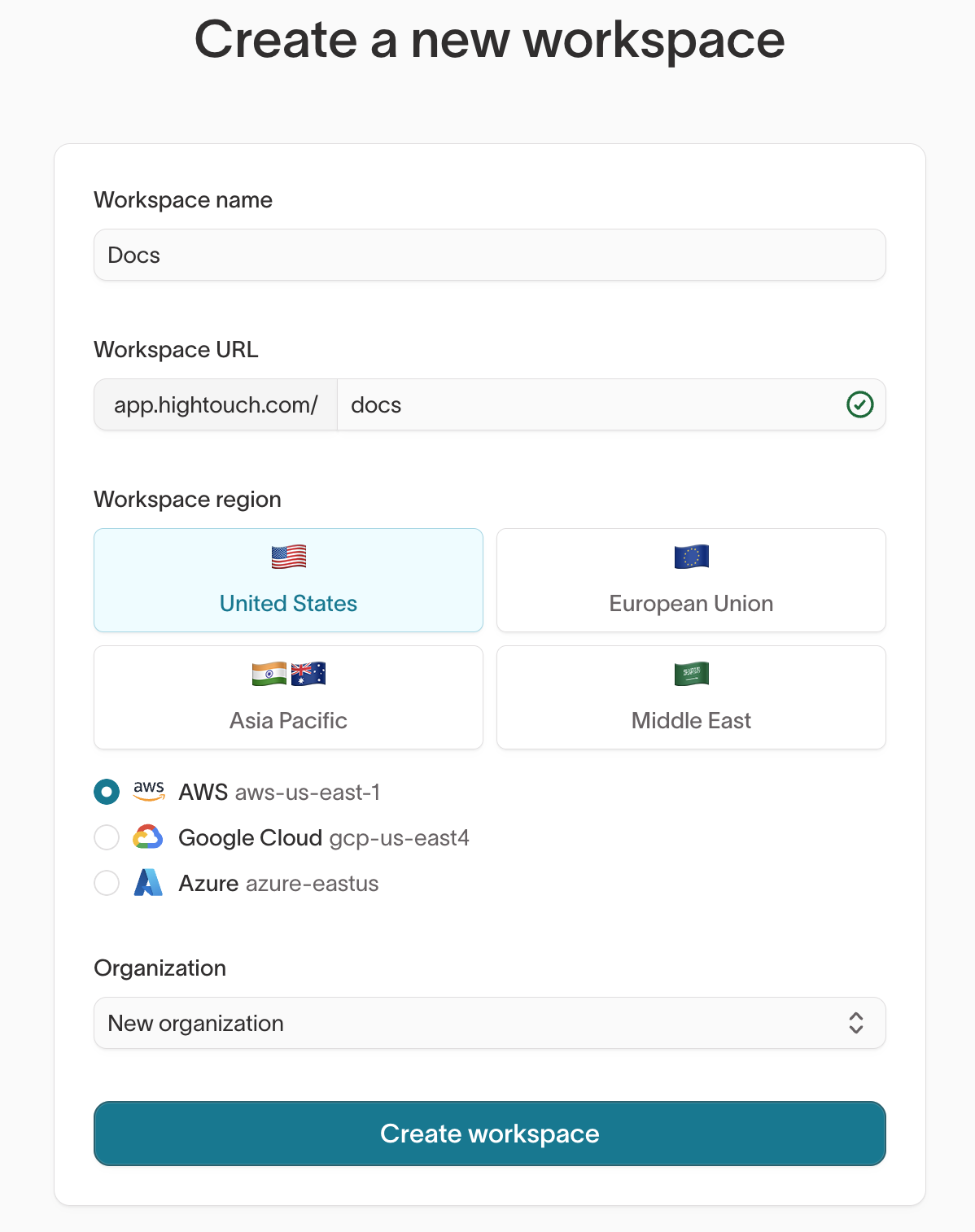
The creation form has four fields: Organization, Workspace name, Workspace slug, and Region.
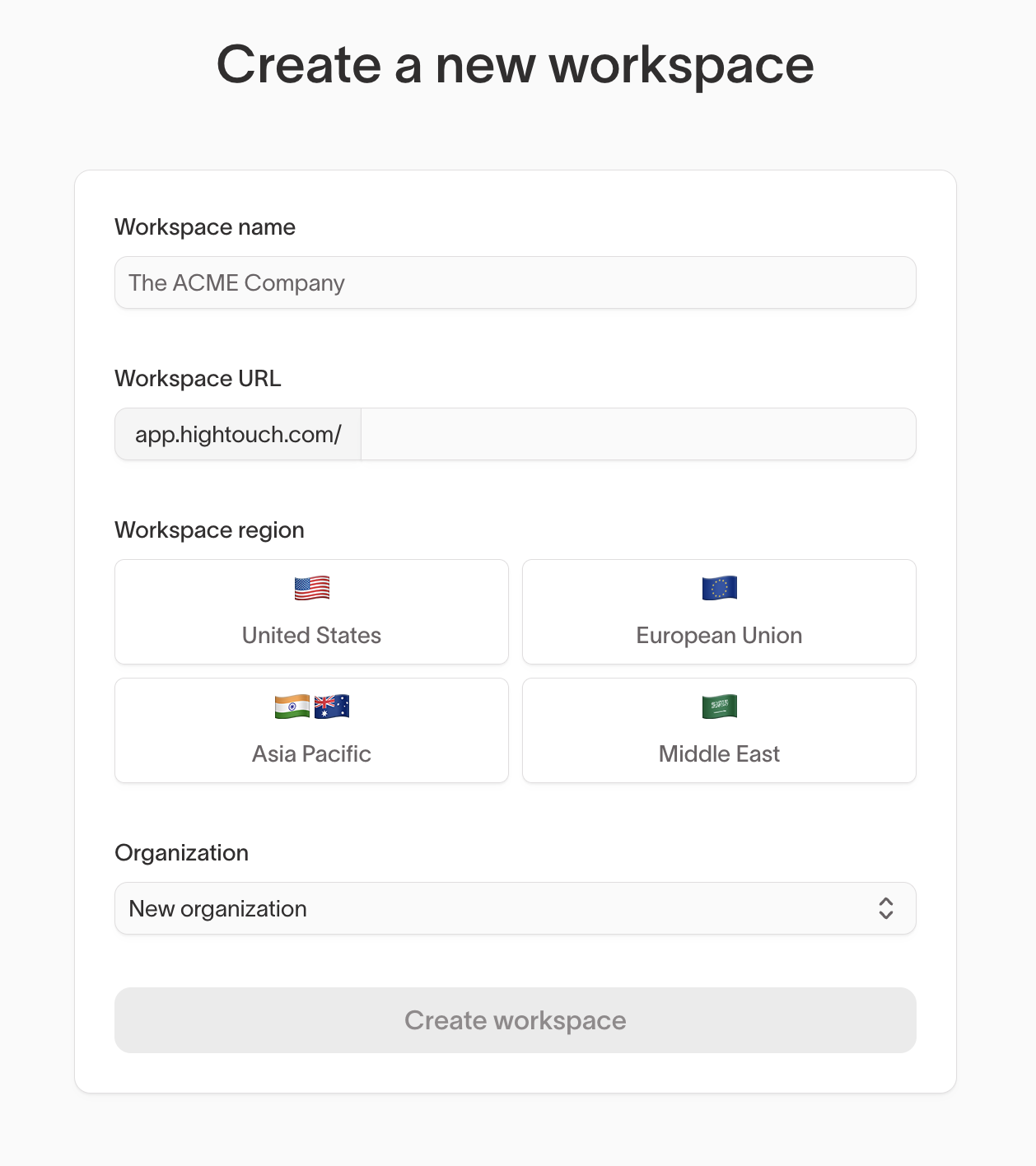
Organization
The Organization dropdown lets you select which organization the new workspace belongs to.
- New organization — if you're the first person at your company signing up for Hightouch, select New organization. You'll provide your organization name (typically your company's legal or common name, such as "Acme Inc."), and Hightouch will create the organization and make you its first organization admin.
- Existing organization — if your company already has an organization, select it from the dropdown. You'll only see organizations where you have permission to create workspaces.
Most companies should have exactly one organization. Multiple organizations are only appropriate when you operate truly separate legal or identity domains — for example, a holding company with independent subsidiaries that don't share users, billing, or SSO configuration.
If your company already uses Hightouch, do not select New organization. This creates a duplicate organization that will need to be cleaned up. Instead, ask an existing admin to invite you, or log in via SSO.
Workspace name
The name appears in the workspace switcher and helps your team identify the workspace. Choose something descriptive:
- Single workspace: Your company name, or something like
<Company> Production. - Production + sandbox:
<Company> Productionand<Company> Sandbox(orPlayground). - Multiple workspaces: Use a pattern that makes the distinction clear, such as
<Company> – USand<Company> – EU, or<Brand A>and<Brand B>.
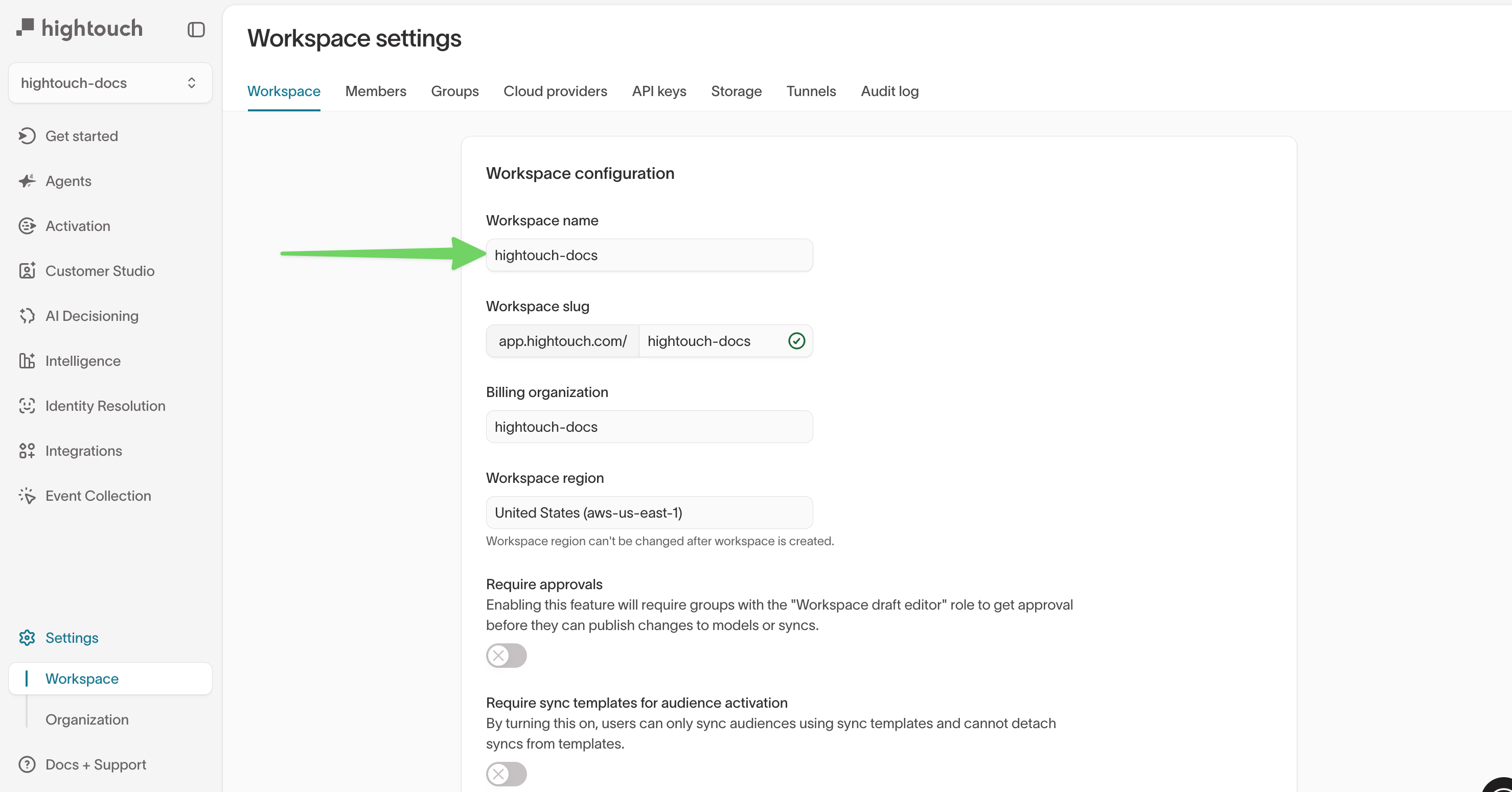
You can change the workspace name later in Settings → Workspace.
Workspace URL/slug
The slug becomes part of your workspace URL: app.hightouch.com/<slug>. It must be globally unique and is auto-generated from the workspace name.
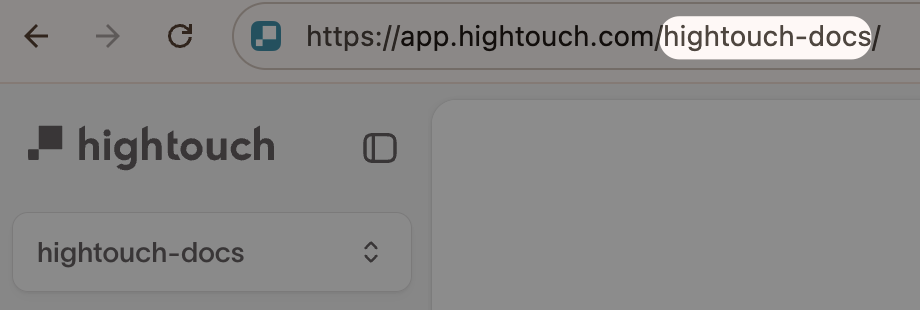
Treat the slug as permanent. While workspace admins can technically update it later in Settings → Workspace, changing the slug breaks all existing bookmarked URLs, saved links, scripts, and integrations that reference the old slug — and there is no automatic redirect. Choose carefully before submitting the form.
Region and cloud provider
The region determines where Hightouch processes your data. You'll select both a geographic region (United States, European Union, Asia Pacific, or Middle East) and a cloud provider (AWS, Google Cloud, or Azure). The available cloud providers vary by region.
When choosing a region:
- Prefer the region closest to your primary data warehouse and your end users to reduce latency.
- Consider data residency requirements. If compliance mandates that data stay within a specific jurisdiction, select a region in that jurisdiction.
- Check feature availability. Not all features are available in every region. Refer to the Regions documentation for a current compatibility matrix.
Region cannot be changed after workspace creation. If you create a workspace in the wrong region, you'll need to create a new workspace in the correct region and migrate your configuration. if you need assistance.
Some newer regions may be in limited availability. If the region you need isn't visible in the dropdown, to check availability and have our team help provision your workspace.
After creation
Once your workspace is created, Hightouch presents a Get started checklist that walks you through initial setup:
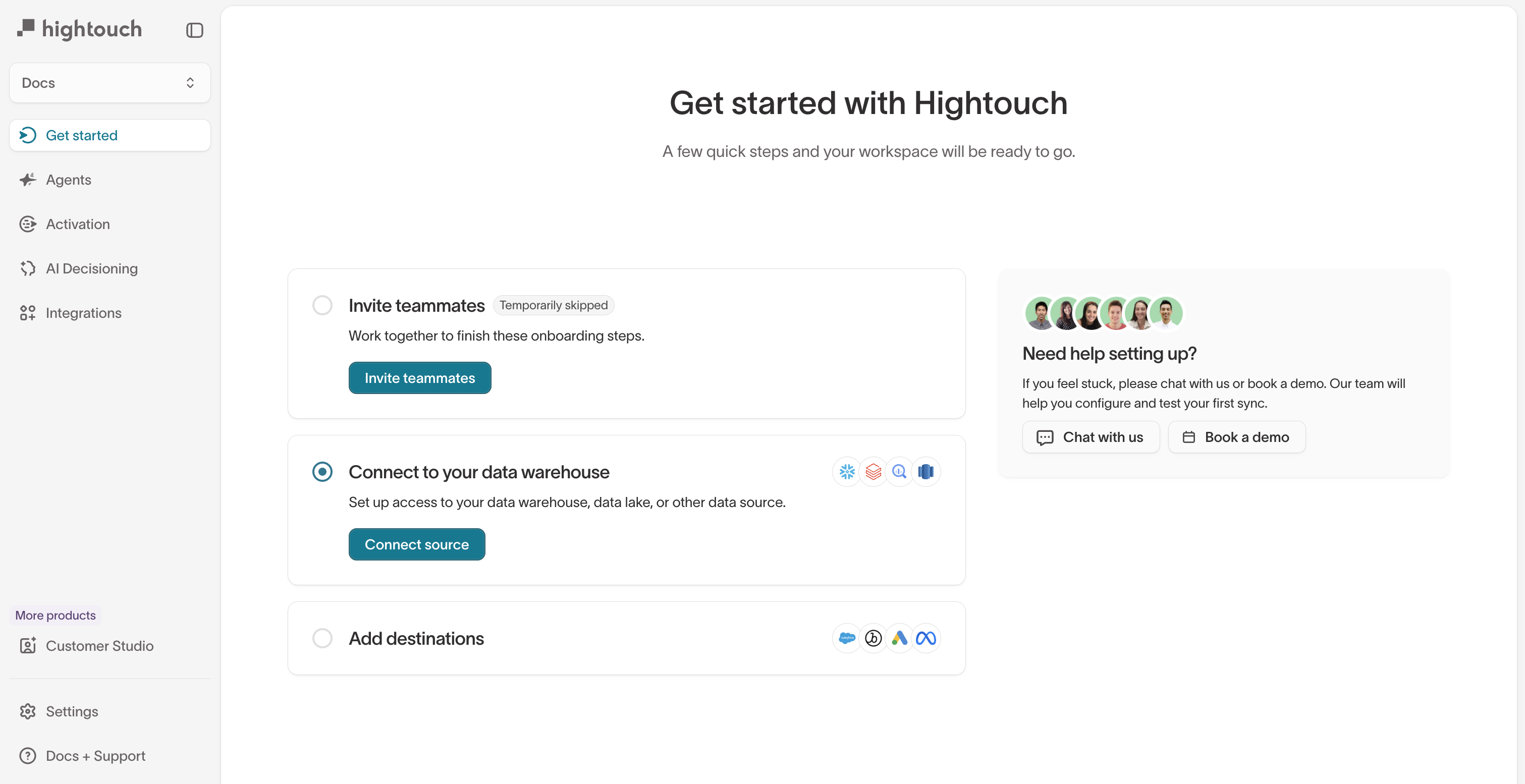
- Invite teammates — add collaborators so they can help configure the workspace.
- Set up storage bucket (Business tier only) — bring your own S3, GCS, or Azure Blob Storage bucket for data-at-rest. This step only appears for Business tier workspaces. See Storage.
- Connect to your data warehouse — set up access to your data source. See Sources.
- Add destinations — connect your marketing, sales, or other downstream tools. See Destinations.
The exact steps shown may vary depending on your plan tier and workspace configuration.
Switching between workspaces
If you have access to multiple workspaces, you can switch between them in two ways:
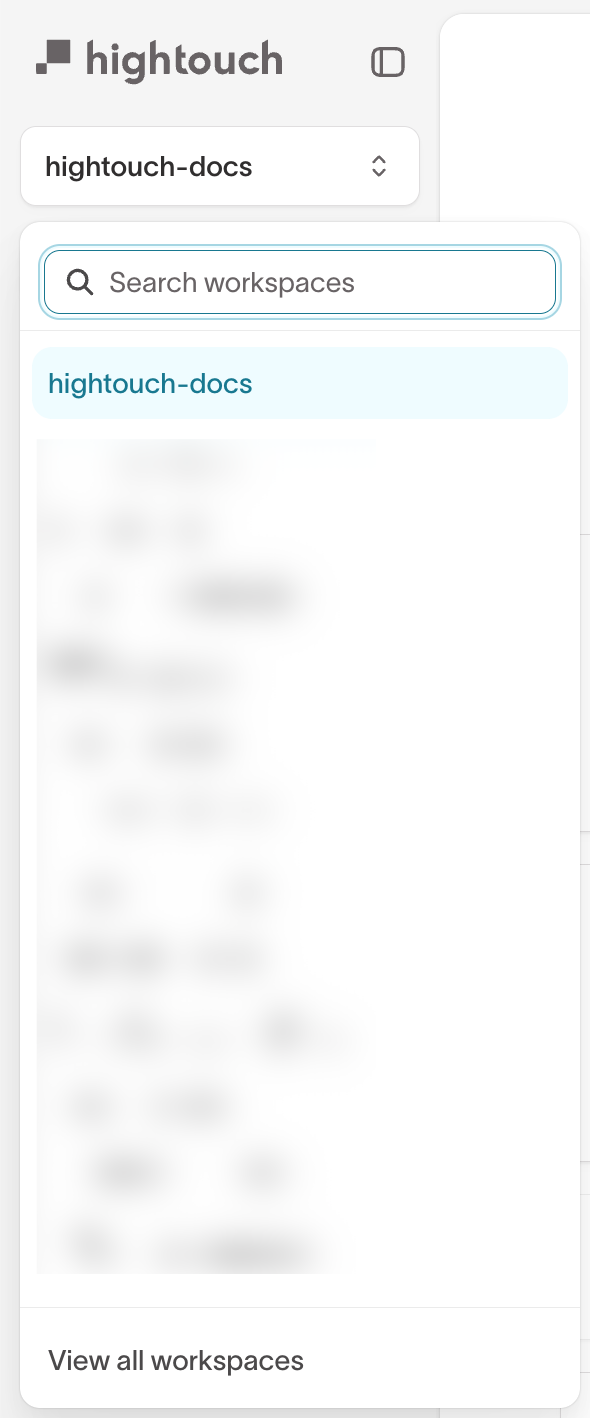
- Workspace switcher — click the workspace name in the top-left corner of the sidebar to open the workspace dropdown, or press S then W anywhere in the app. You can also open the command bar with Cmd+K (Mac) / Ctrl+K (Windows) and type "Switch workspace." Search by name or slug and select the workspace you want.
- Direct URL — navigate to a URL containing another workspace's slug (for example,
app.hightouch.com/other-workspace/syncs). Hightouch will automatically switch your active workspace to match.
Deleting a workspace
There is no self-serve option to delete a workspace. You can find the deletion option in Settings → Workspace, but it routes you to Hightouch support.

If you need to remove a workspace — for example, one created by mistake — . Before submitting your request, remove or disconnect all sources, destinations, syncs, and other resources from the workspace. All current organization or workspace admins will need to approve the deletion.
Do you need another workspace?
Before creating an additional workspace, consider whether Environments or other governance controls would be a better fit.
Use Environments when:
- You need dev / staging / production promotion for the same data and teams.
- You want change control and approval flows without hard security isolation.
Create a separate workspace when:
- You have strict isolation requirements — regulatory, regional, or business-unit-level — where sources, destinations, and data must not be visible across boundaries.
- You need fully separate tenants under the same commercial relationship, such as independent subsidiaries.
| Consideration | Environments | Separate workspaces |
|---|---|---|
| Shared sources and destinations | Yes | No — each workspace has its own |
| Shared user roster | Yes | No — managed separately per workspace |
| Approval flows | Yes | Yes, but independent per workspace |
| Data isolation | Logical (same workspace) | Physical (nothing shared) |
| Typical use case | Dev → Staging → Prod | US region vs EU region |
For more on structuring your organization, see Governance best practices.
Troubleshooting
I was invited but see the create-workspace screen
This usually means the invitation didn't link you to the correct organization or workspace. Don't create a new organization — instead, contact the person who invited you and ask them to re-send the invite or check that your account is correctly associated with their organization.
I accidentally created a duplicate organization
If you signed up directly instead of using an invitation or SSO, you may have created a second organization for your company. to consolidate your organizations.
I need to change my workspace region
Region cannot be changed self-serve after creation. to plan a migration. Before you reach out, be aware of the following:
- Brief outage required. The migration involves a short period of downtime for the affected workspace. Schedule it during low-traffic hours.
- Tunnels must be recreated. Existing SSH tunnels cannot be migrated between regions. You'll need to set up new tunnels in the target region after the migration.
- IP allowlists need updating. If your sources or destinations are behind a firewall that allowlists Hightouch's IP addresses, add the new region's IP range before the migration and remove the old range afterward.
- Sync history and debugger data. If you use self-hosted storage or the Lightning sync engine, your sync history and CDC state are preserved. If you use Hightouch-managed storage with the standard sync engine, syncs will need a full resync after the migration and pre-migration debugger data may not carry over.