
Impact.com - One platform. All partnerships.
Supported syncing
| Type | Description | Supported Sync Modes | API Reference |
|---|---|---|---|
| Conversion Events | Create and send conversion events to Impact.com | Insert | Conversions docs |
| Objects (Catalogs / Actions) | Sync catalog items or action records | Insert, Update | Catalog docs |
See sync modes for more details.
Add Impact.com as a Destination
-
Go to the Destinations page and click Add destination.
-
From the destination list, search for Impact.com and select it.
-
Click Continue.
1. Connect to Impact.com
-
Enter your Account SID and Auth Token.
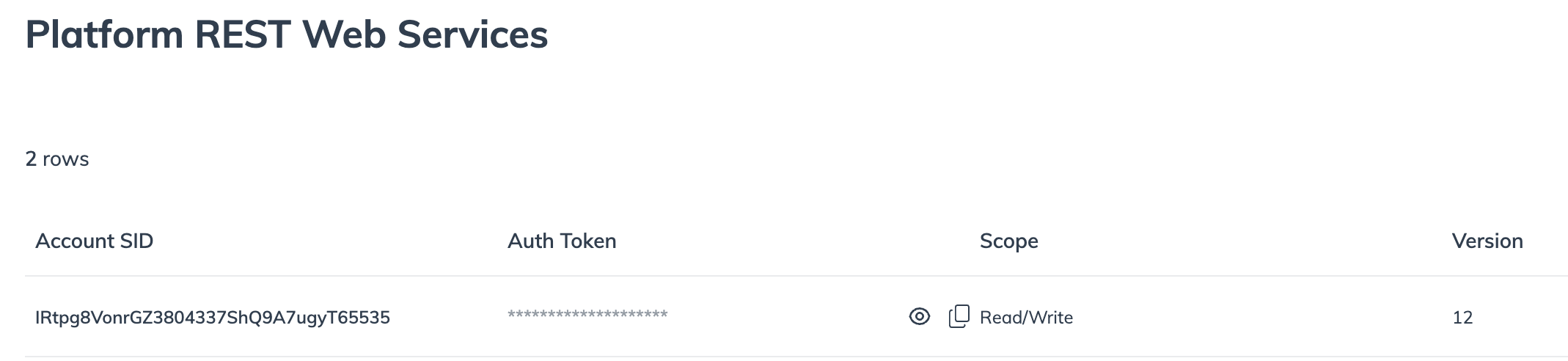
You can authenticate with either a legacy account token or a scoped token. Both are available in your Impact.com account under Settings → API → API Access.
- Legacy account token — find under Legacy Account Tokens.
- Scoped token — find under Scoped Tokens. When creating the token, grant the following scopes:
AccountsActionsCampaignsCatalogsConversionsJobs ManagementSubmissions
From July 1, 2026, Impact.com legacy read/write and read-only tokens can no longer be copied. Existing integrations will continue to work, but new integrations or token resets will require scoped tokens.
-
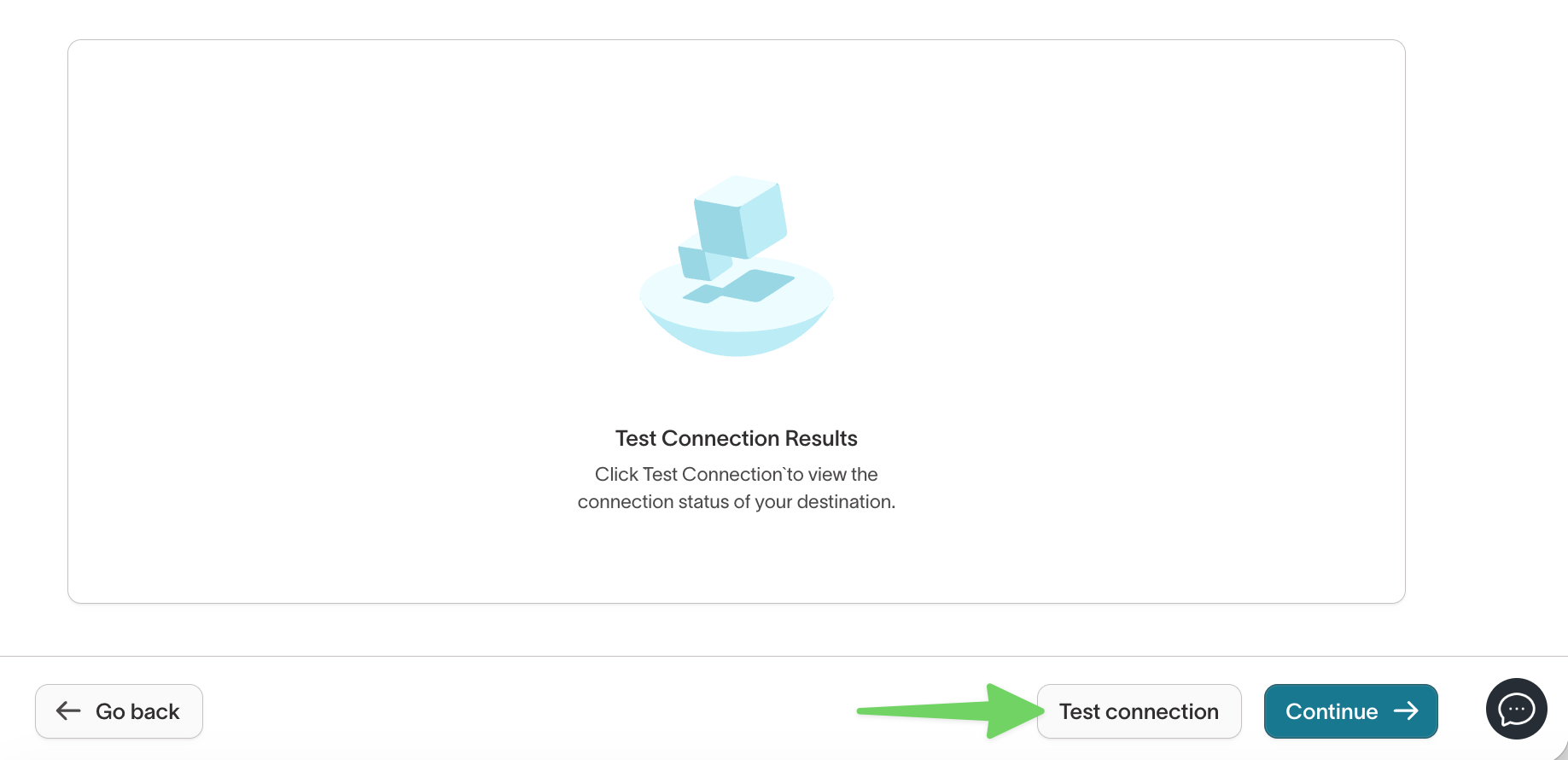
Click Test connection to confirm the connection is valid.
-
Click Continue.
2. Configure alerts (optional)
You can configure default alerting rules for all syncs using this destination.
You may add recipients and enable alerts for:
- Fatal errors
- Rejected rows
- Sync throughput
- Model or audience size
- Sync duration
- Excessive idle time
Click Continue.
3. Finalize destination
Name your destination and assign permissions.
You can choose which user groups can:
- Trigger syncs
- Configure models & syncs
- Manage the destination
Click Finish.
Create a sync
After creating and connecting your Impact.com destination, navigate to:
Integrations → Destinations → Impact.com → Syncs and click Add a sync.
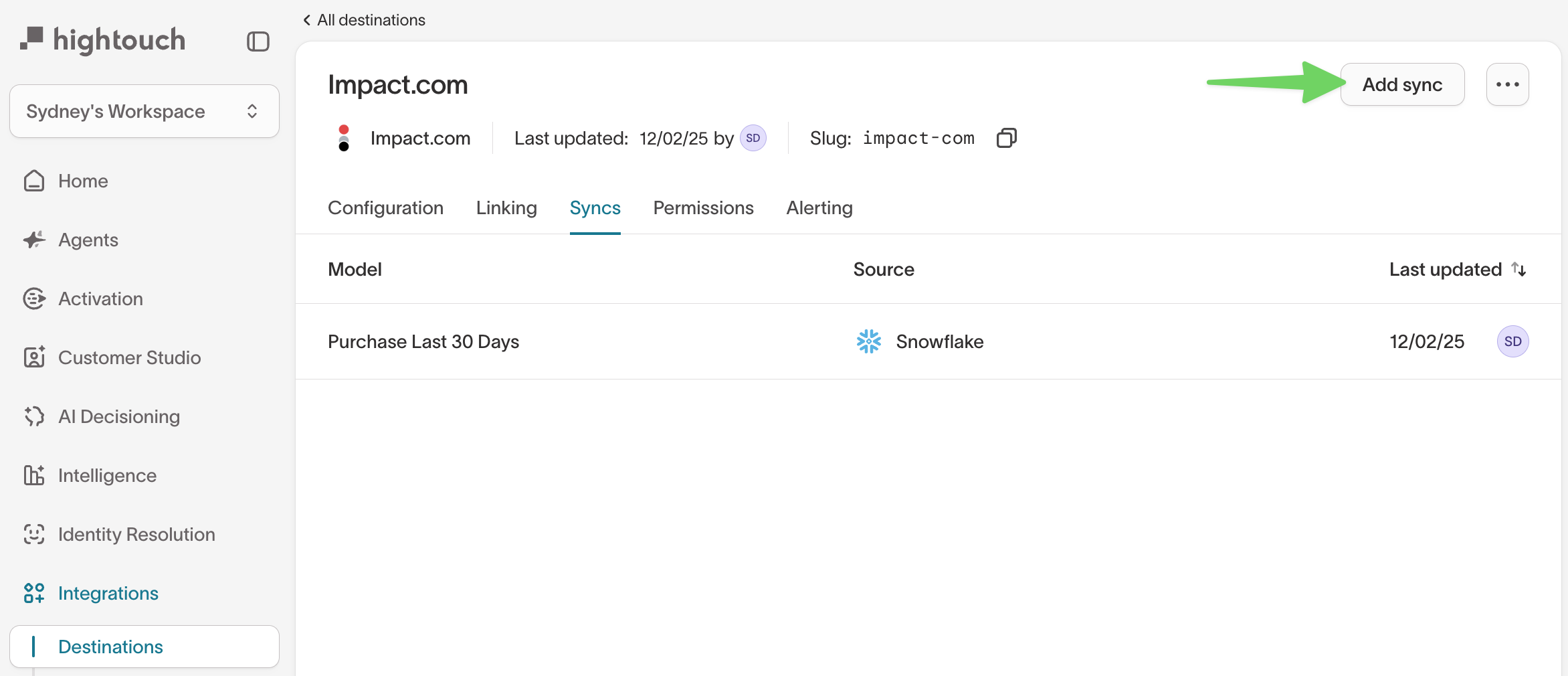
You’ll follow the standard Hightouch sync wizard:
- Select model
- Select destination
- Configure sync
- Finalize sync
The following steps describe the Configure sync settings unique to Impact.com.
Configure sync
At the top of the configuration page, choose what you want Hightouch to send:
- Conversions — send conversion events
- Objects — send catalogs or actions
This choice determines which mapping sections appear.
Conversions sync configuration
Choose Conversions when sending conversion events to Impact.com.
1. Campaign ID
Select a value that identifies the program/campaign on Impact.com. You can:
- Select a campaign ID returned from Impact.com, or
- Toggle Use column to map a value from your model
This ID is required for all conversion event syncs.
2. Event attribution keys
These fields identify who or what generated the conversion.
At least one attribute is required.
Common attribution keys include:
- Email (may require automatic hashing)
- Customer ID
- Click ID
- Partner or affiliate ID
- Custom fields configured in Impact.com
You can add multiple attribution fields.
3. Event ID mapping
This mapping determines the type of event being sent.
Event types are created and managed in Impact.com under:
Event Types → Actions → View/Edit → “Codes”
Map at least one column that identifies the event type.
Examples include: purchase, lead, signup, or custom codes defined in Impact.com.
4. Event timestamp
Choose a column that contains the timestamp of the event.
If you leave this unmapped, Impact.com will use the server arrival time.
Hightouch converts timestamps automatically to the format required by Impact.com (ISO 8601 or Unix milliseconds).
5. Additional event information
Use this section to include extra metadata with your event, such as:
- Order amount
- Currency
- Product identifiers
- SKU or item lists
- Discounts
- Customer metadata
- Device or session information
If you need to include multiple items in the same conversion, manually create
additional fields by appending the index (e.g. ItemName1, ItemName2,
ItemName3).
Each mapping section requires at least one field. Providing rich event metadata leads to better reporting in Impact.com.
Learn more about the Impact.com Conversion object in their API documentation.
6. Automatic PII hashing
Impact.com often requires that PII such as email addresses be SHA-1 hashed.
Toggle Yes to allow Hightouch to automatically detect and hash fields when required.
Fields commonly hashed include:
- Customer Email
- Partner identifiers that contain PII
Only fields required by Impact.com will be hashed.
Object sync configuration
Choose Objects when syncing catalogs or actions.
After selecting Objects, choose the Impact.com object:
- Catalog
- Action
Each object type has its own configuration sections.
Catalog object configuration
Choose Catalog when syncing product catalog data such as SKUs, descriptions, or prices.
1. Record update mode
Choose how Hightouch should write records:
- Update — update existing catalog items
- Insert — create new items without updating existing ones
Use Update if you want ongoing sync behavior.
2. Catalog ID
Choose which catalog to sync to.
You can:
- Select a catalog returned by Impact.com
- Enter a static ID
- Toggle Use column to map a dynamic catalog ID
If your catalog does not appear, ensure it is activated and available in Impact.com.
3. Record matching
Define how Hightouch should match records in your model to the records in Impact.com.
Impact.com typically matches catalog entries using an identifier such as:
Item IDSKUProduct Code
The left side of your mapping is your model field; the right side is the corresponding Impact.com identifier field.
Example:
| Model field | Impact.com field |
|---|---|
sku | Item ID |
Incorrect identifiers will cause mismatched updates or unintended new record creation.
4. Catalog field mapping
Map your model columns to Impact.com catalog fields.
Common catalog attributes include:
- Product name
- Category
- Price
- Brand
- Description
- Primary image URL
- Inventory status
- Custom metadata fields
You may add as many mappings as needed.
5. Handling deleted records
Choose what happens when a row disappears from your query result:
- Do nothing — Hightouch leaves the Impact.com record unchanged
- Delete the Impact.com record
- This permanently removes the catalog entry from Impact.com
- This cannot be undone
Choose deletion only if you want your catalog in Impact.com to stay in sync with your dataset.
Action object configuration
Choose Action when syncing Impact.com Actions (non-conversion activities).
1. Sync modes
The following modes are available:
Operation
- Update — update existing action records
- Reverse — reverse previously submitted action data
- Insert — create new action records (if supported)
Match mode
Choose which identifiers are used to match action records, such as:
Action ID- Custom external IDs
These must correspond to identifiers configured in your Impact.com action settings.
2. Action field mapping
Map model fields to the relevant Impact.com action fields.
Common fields include:
- Action ID
- Action amount
- Status
- Event/action code
- Custom metadata
- Any additional fields your Impact.com account is configured to accept
3. Disposition code (metadata)
You can optionally map a Disposition Code, which determines how Impact.com categorizes the action (e.g., approved, rejected, pending).
You can:
- Select a static value
- Toggle Use column to map a value from your model
Tips and troubleshooting
Common errors
To date, our customers haven't experienced any errors while using this destination. If you run into any issues, please don't hesitate to . We're here to help.
Live debugger
Hightouch provides complete visibility into the API calls made during each of your sync runs. We recommend reading our article on debugging tips and tricks to learn more.
Sync alerts
Hightouch can alert you of sync issues via Slack, PagerDuty, SMS, or email. For details, please visit our article on alerting.