| Audience | Marketers, creative teams |
| Prerequisites |
|
Launch sends a finished ad to the platform you connect. Queue the ads you want, choose the destination campaign, fill in the platform fields, and launch.
Queue ads for launch
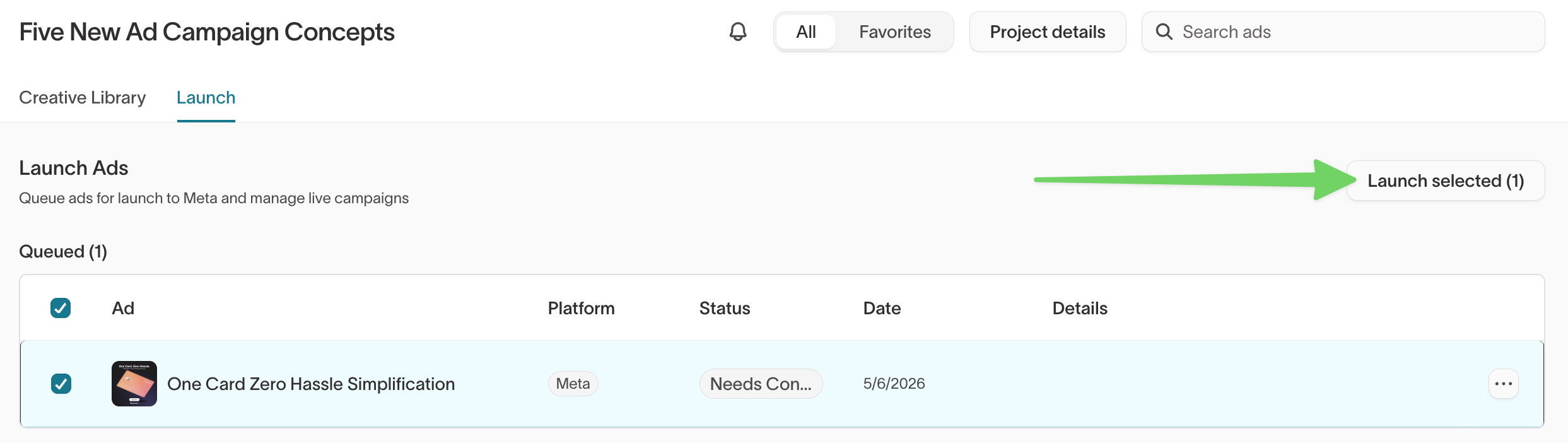
Select Queue for launch in the toolbar to add an ad to the queue. Then open Launch in the sidebar, select the ads you want, and select Launch ads. The queue spans every chat, so you can launch ads from different chats together.
Launch tracks two states: Queued shows ads waiting to go out with their platform, status, and date, and Launched shows the ones already sent.
Select a campaign
- Select the destination ad platform.
- Select the ad account, page, campaign, and ad set.
- Select Continue.
Use Refresh from Meta, or the equivalent for your platform, to pull the latest campaign structure.
Configure and launch
- Fill in the platform fields for each ad: ad name, headlines, primary texts, descriptions, calls to action, destination URL, and URL parameters. Required fields and character limits vary by platform.
- Select the aspect ratios you want to launch.
- Select Launch 1 ad, or the equivalent for your selection.
The ad arrives in your ad platform as a new creative asset. You manage targeting, budget, and scheduling in the ad platform itself.