Overview
Hightouch provides two built-in Sample datasets that let you explore the product without connecting your own data warehouse. They're hosted on a read-only database that Hightouch manages for you, so there are no credentials, networking, or permissions to configure.
Sample datasets are ideal for:
- Running your first sync end-to-end before your production source is ready.
- Evaluating Hightouch during a trial or POC.
- Learning how models, syncs, and Customer Studio work against realistic data.
- Testing a new destination integration without touching production data.
Sample datasets are real, customer-facing sources—not internal-only demo tooling. They appear in every workspace at the end of the source list, and usage of sample sources is excluded from your workspace's billing and analytics metrics.
Two sample sources are available:
- B2B SaaS: models a typical SaaS business with users and organizations, useful for testing CRM, marketing, and product analytics destinations.
- B2C eCommerce: contains customer profiles and cart events data for a B2C eCommerce company that retails shoe brands, useful for testing ad platforms, email, loyalty, and retention destinations.
Add a sample source
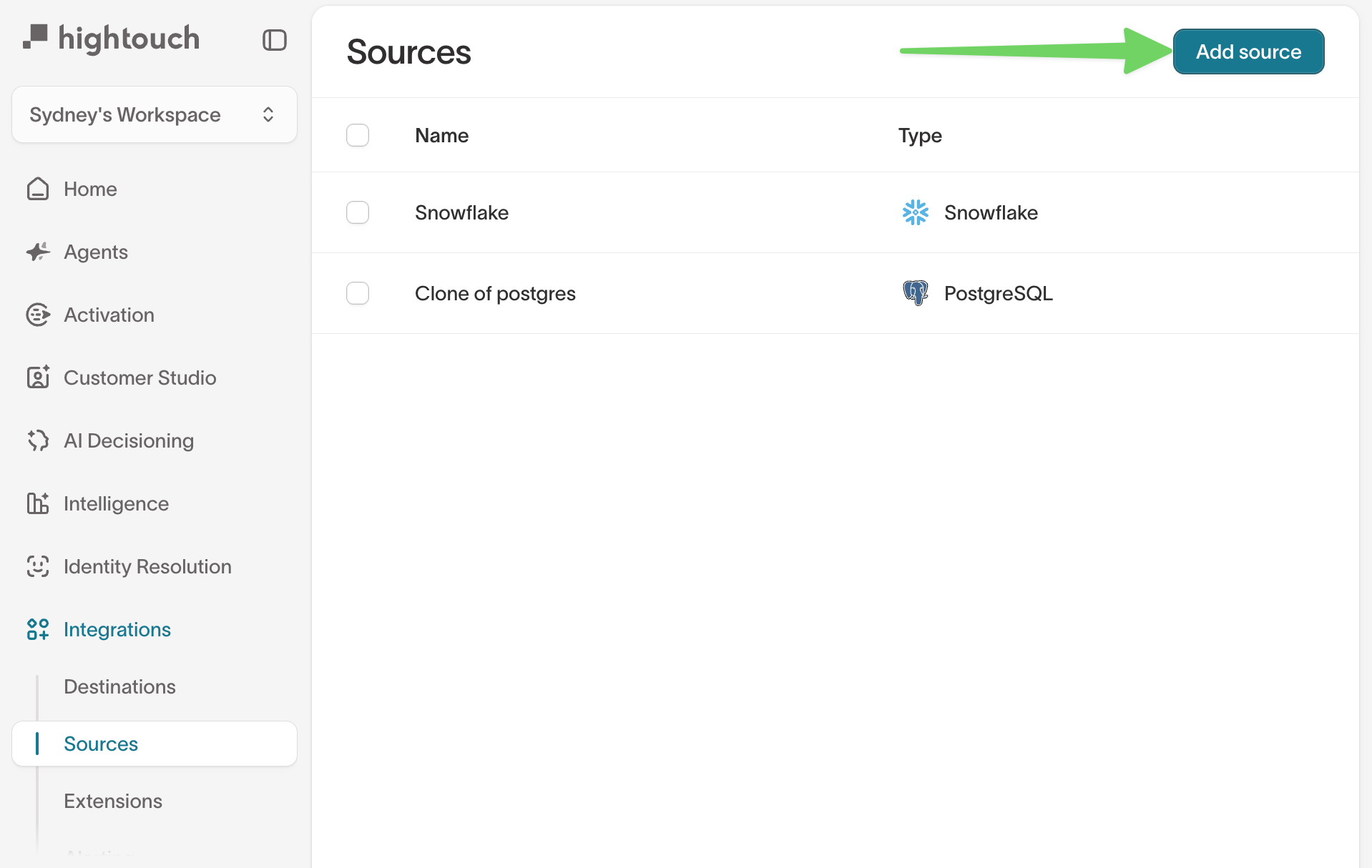
To get started, go to the Sources overview page and click the Add source button.
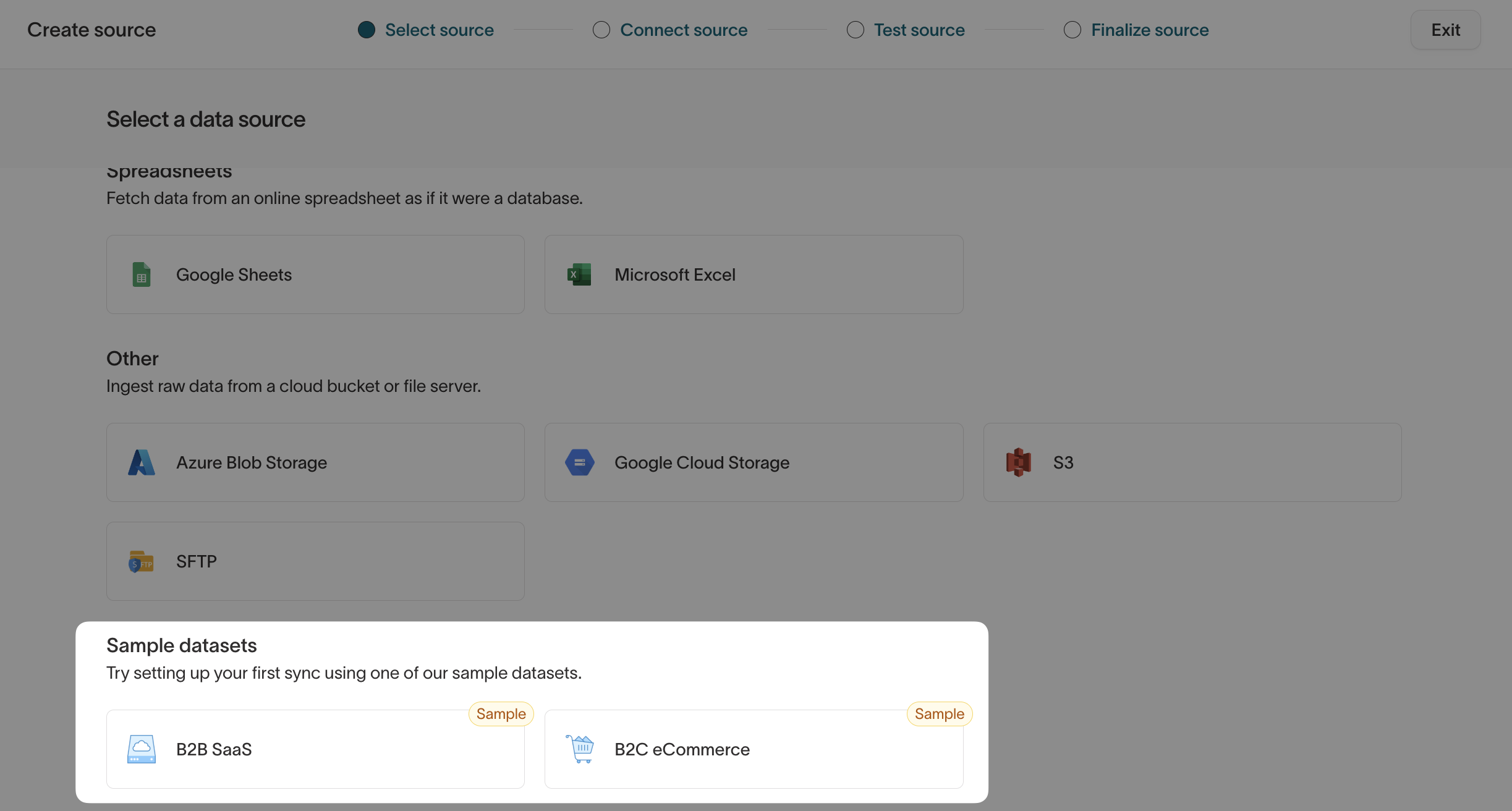
Scroll to the bottom of the source catalog. The Sample datasets section contains both B2B SaaS and B2C eCommerce. Select the one you want to use.
Because the underlying database is managed by Hightouch, there are no credentials to enter and no connection test to run. Hightouch skips directly to the Finalize source step.
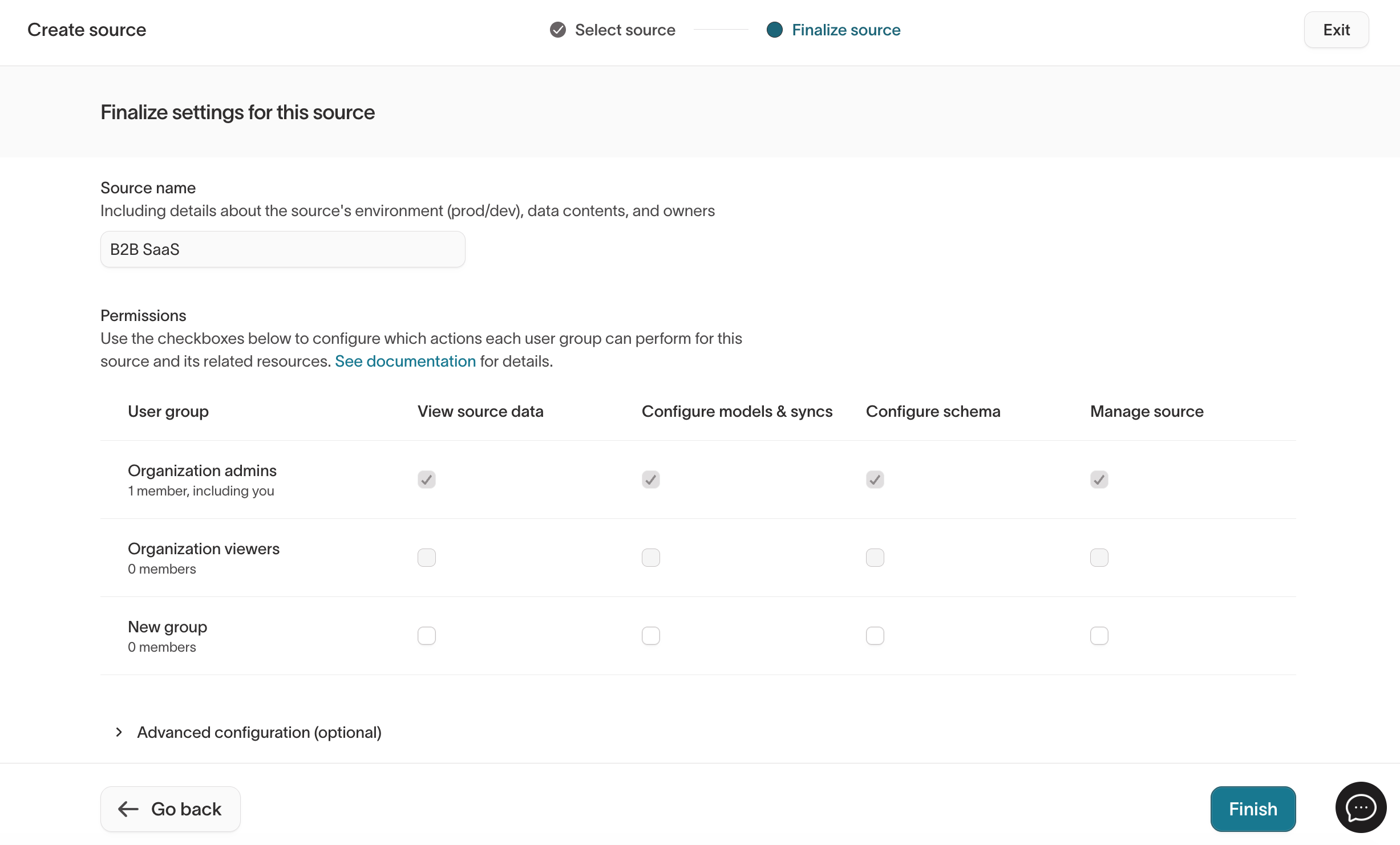
Give the source a name, review the default permissions, and click Finish. The source is ready to use immediately.
Create a model
Models define what data to pull from your source. You can build models on top of a sample source using the SQL editor or the visual table selector. dbt, Looker, and Sigma modeling methods aren't supported on sample sources.
Add a model
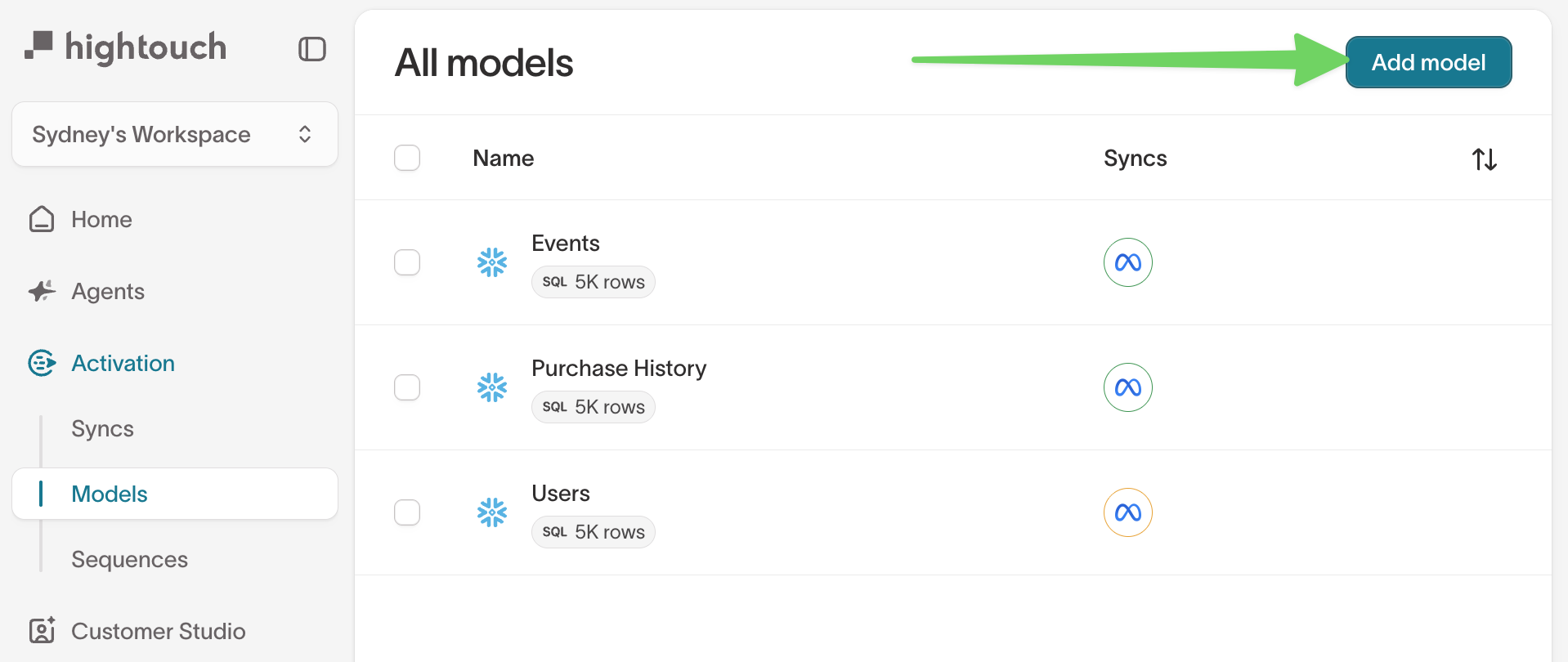
Go to the Models overview page and click Add model.
Select the sample source
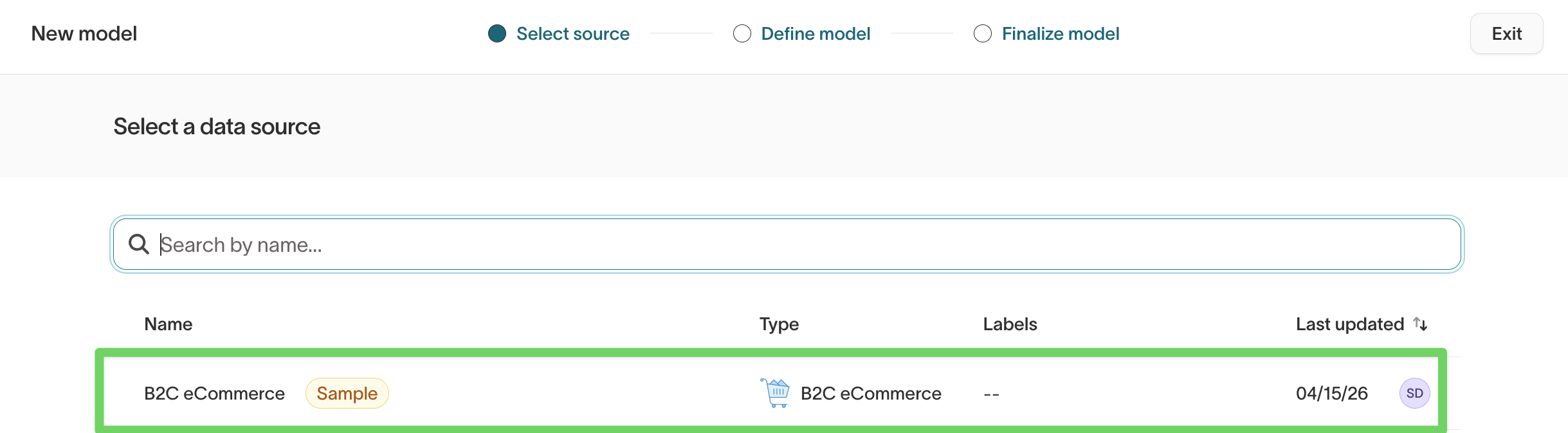
On the Select source step, choose your B2B SaaS or B2C eCommerce sample source. Sample sources are clearly labeled with a Sample badge.
Choose a modeling method
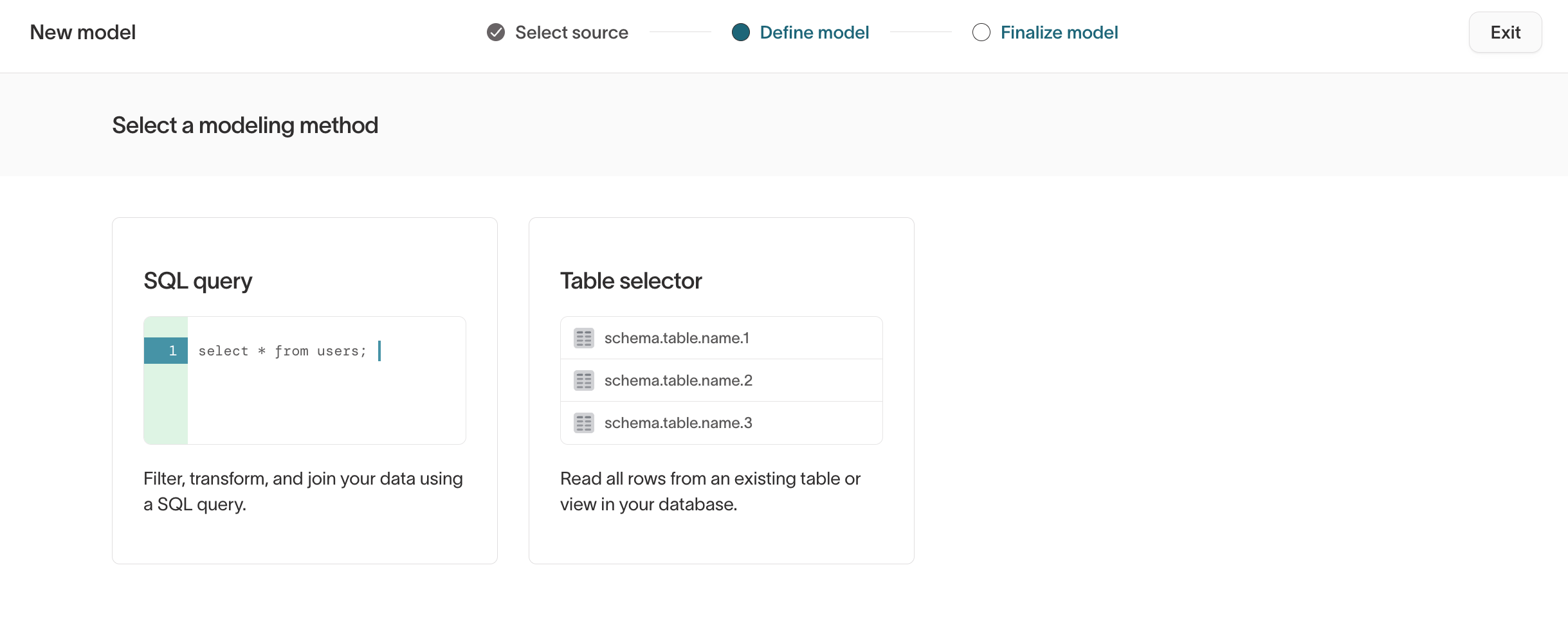
On the Define model step, choose either the SQL query editor or the Table selector.
Use the pre-populated sample queries
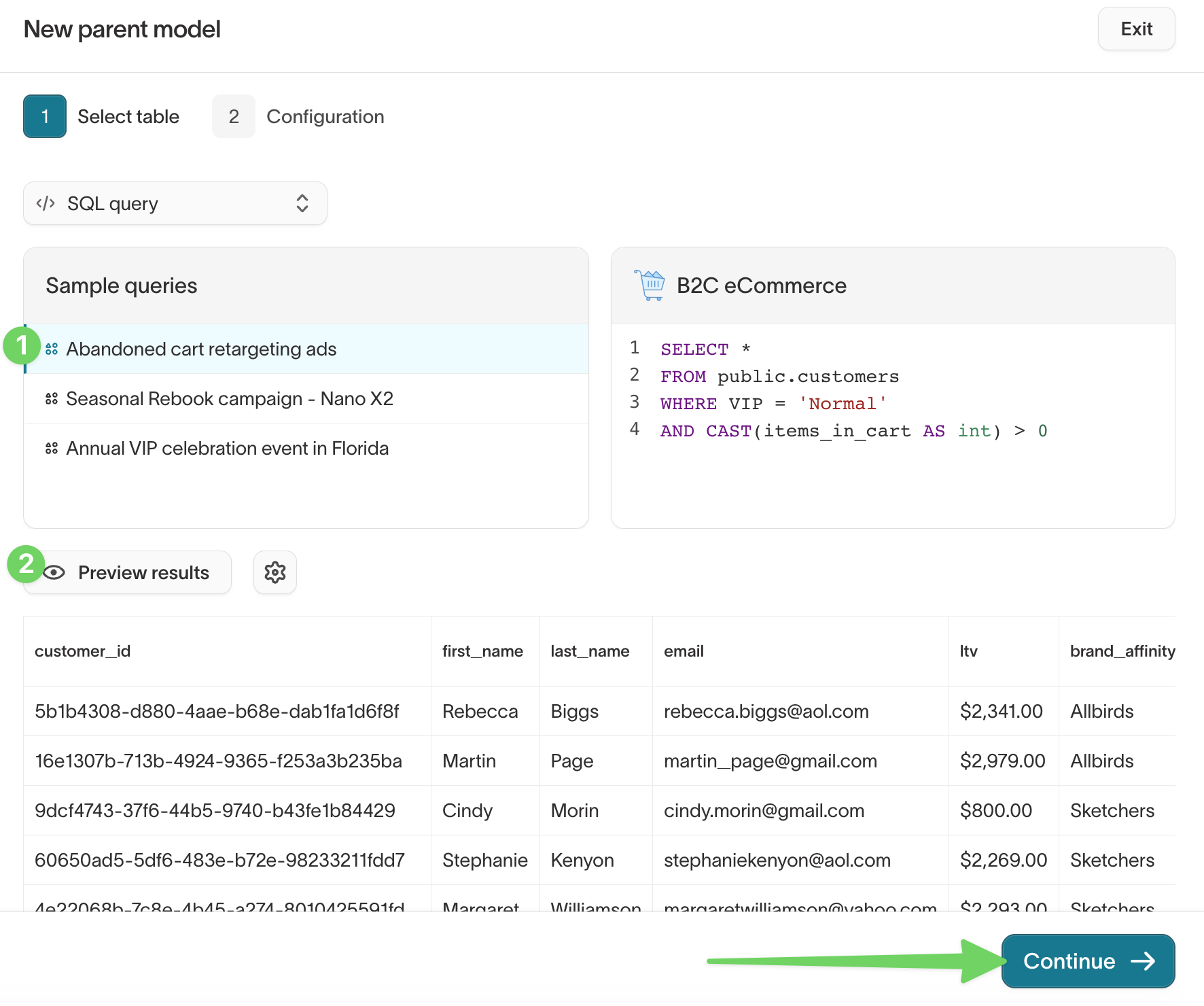
When you pick a sample source in the SQL editor, Hightouch shows a Sample queries panel with ready-to-run examples tailored to the dataset. Click a query to populate the editor, then click Preview results to run it.
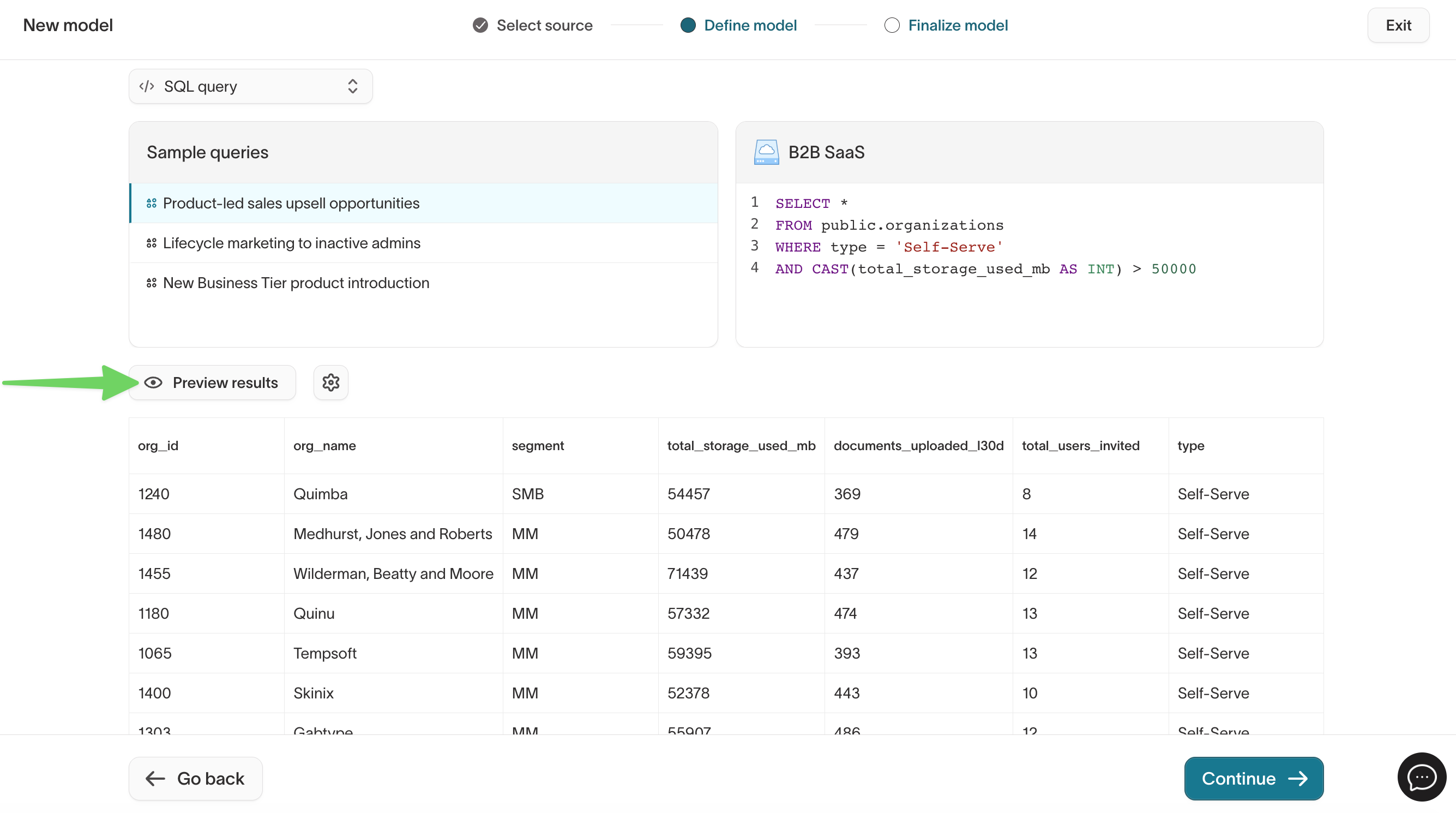
The included sample queries are a good starting point for common use cases—product-led upsell, abandoned-cart retargeting, seasonal campaigns, VIP audiences—and can be edited freely.
For a full reference on writing model queries, see Create models with the SQL editor or Create models with the table selector.
Finalize the model
Once you're happy with the preview, click Continue to move to the Finalize model step. Give the model a name, select a Primary key, and click Finish.
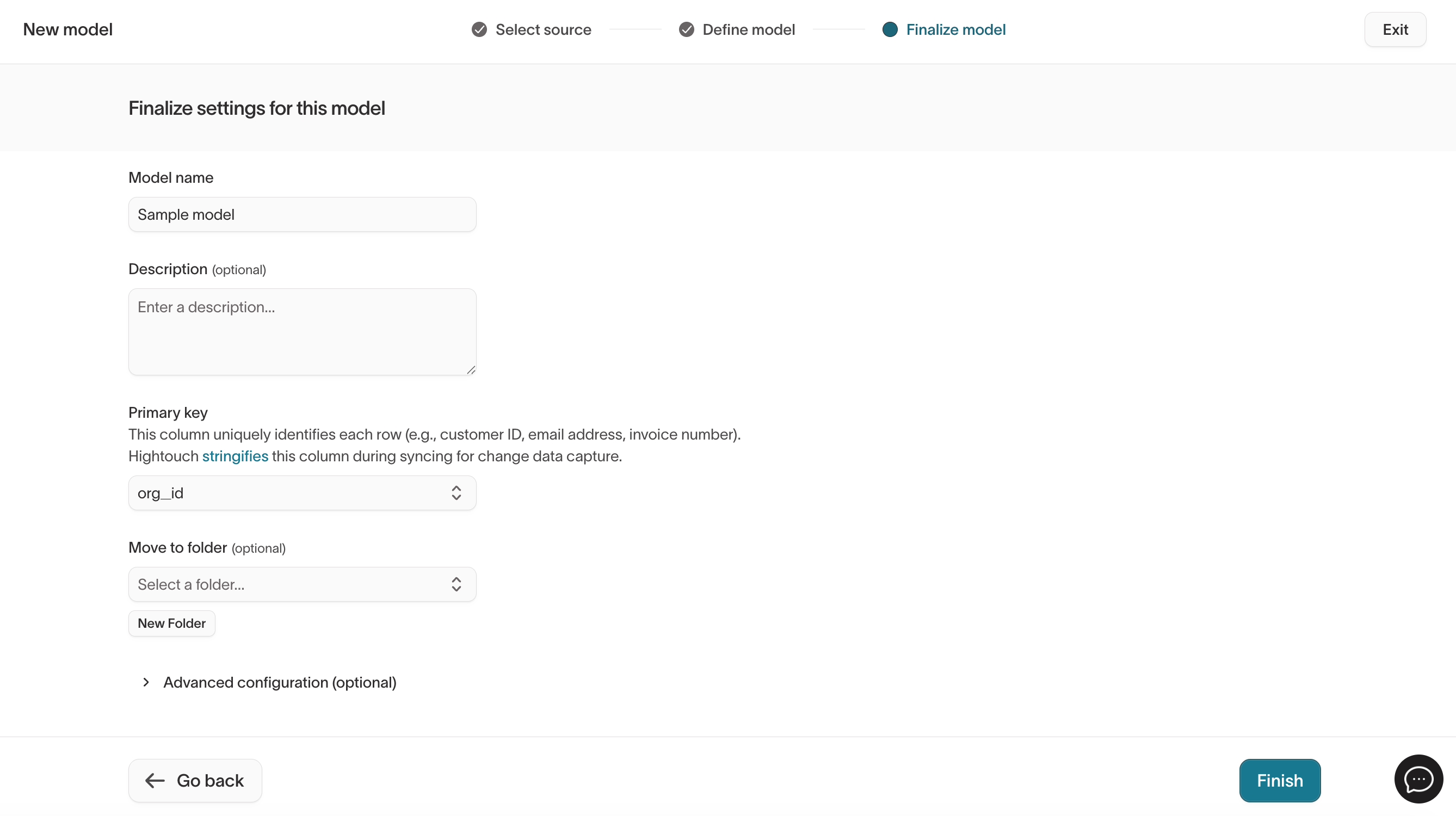
Your new model appears on the Models overview page and is ready to use in syncs.
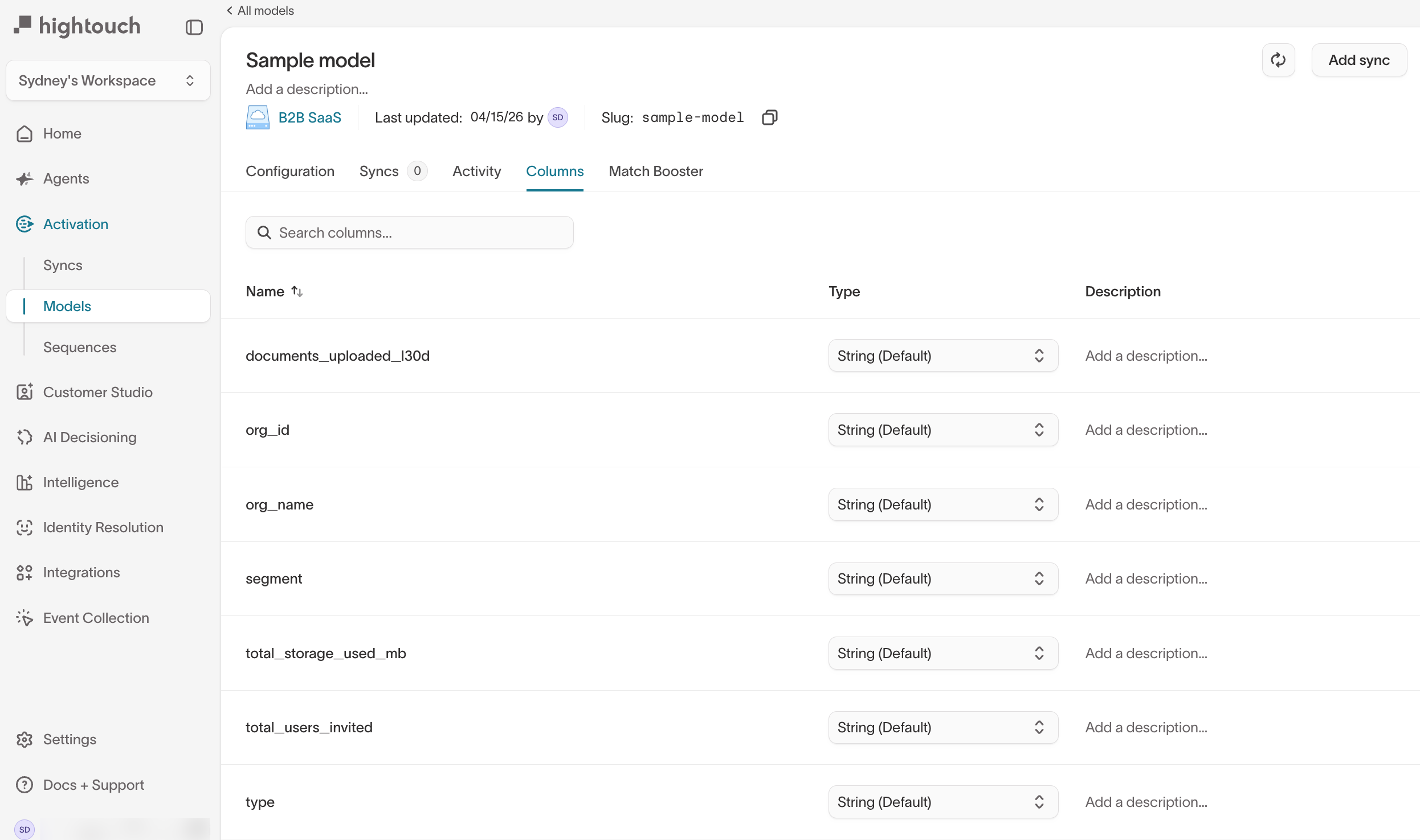
Send data with a sync
With a model in place, you can create a sync that delivers sample data to any destination in your workspace.
-
Go to the Syncs overview page and click Add sync.
-
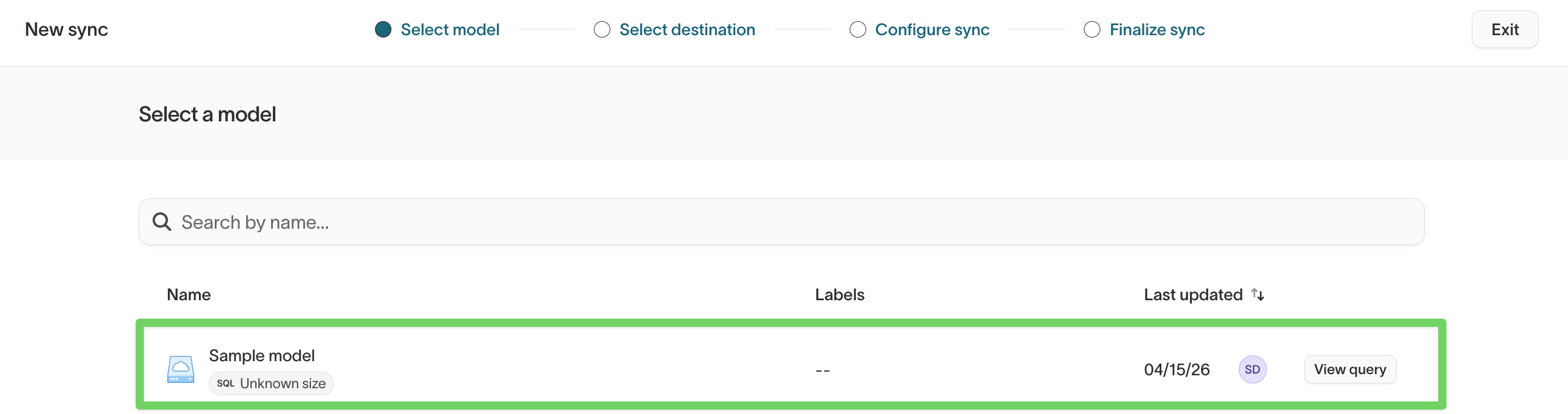
On the Select model step, pick the model you just built on top of the sample source.
-
Pick a destination. If you don't have one connected yet, Google Sheets is the fastest way to see results—it's a lite destination and easy to set up.
-
Map fields from your sample model to the destination's schema.
-
Set a schedule and click Finish.
For a full walkthrough, see Create your first sync.
Use in Customer Studio
Sample sources also work with Customer Studio, so you can try audiences, journeys, and other activation features without real warehouse data.
Create a parent model
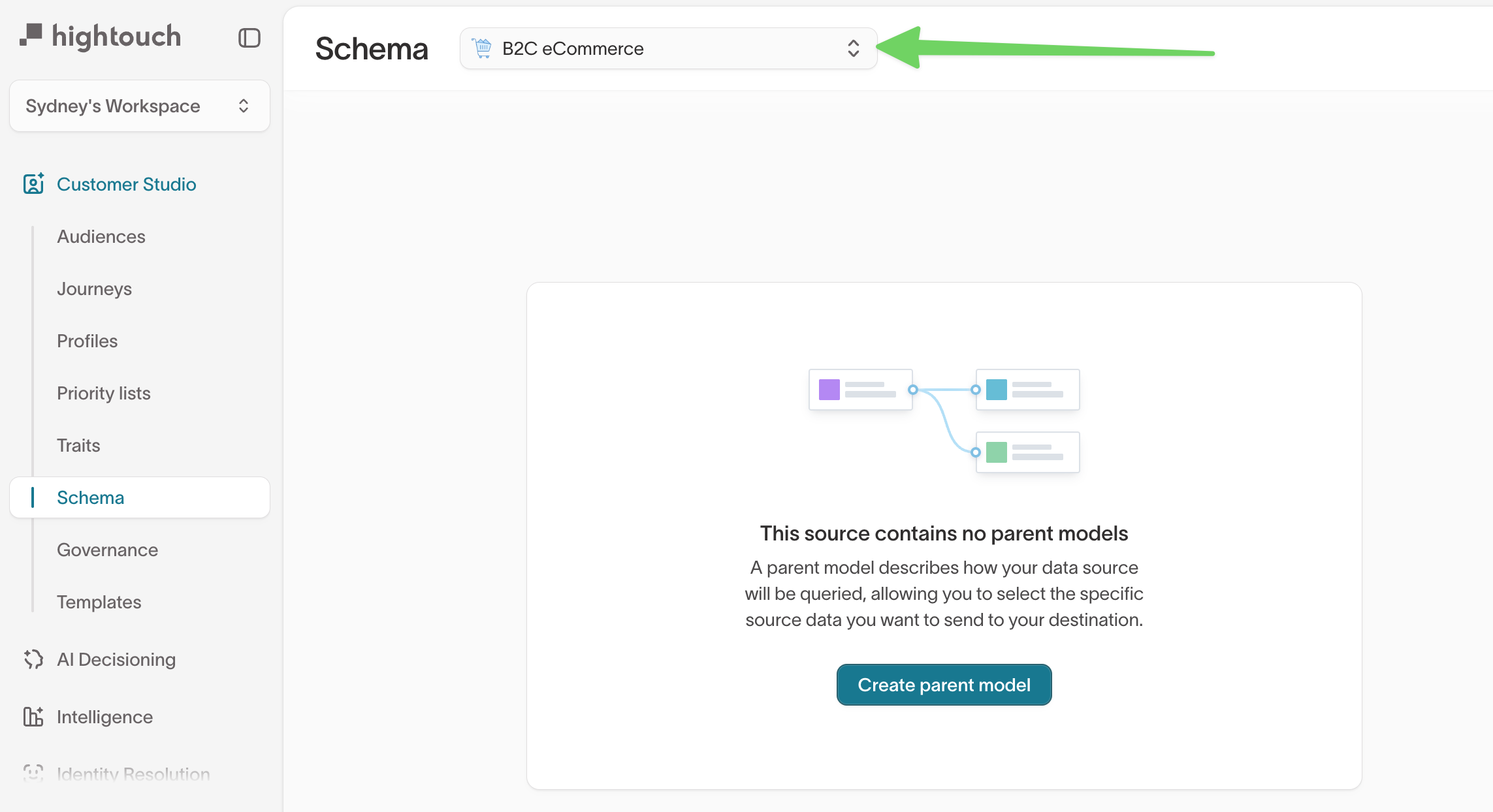
Go to Customer Studio → Schema and switch the source selector at the top of the page to your sample source. If no parent models exist yet, click Create parent model.
On the Select table step of the New parent model flow, the Sample queries panel is pre-populated with starter queries. Pick one to auto-fill the SQL editor, then click Preview results to check your data before continuing.
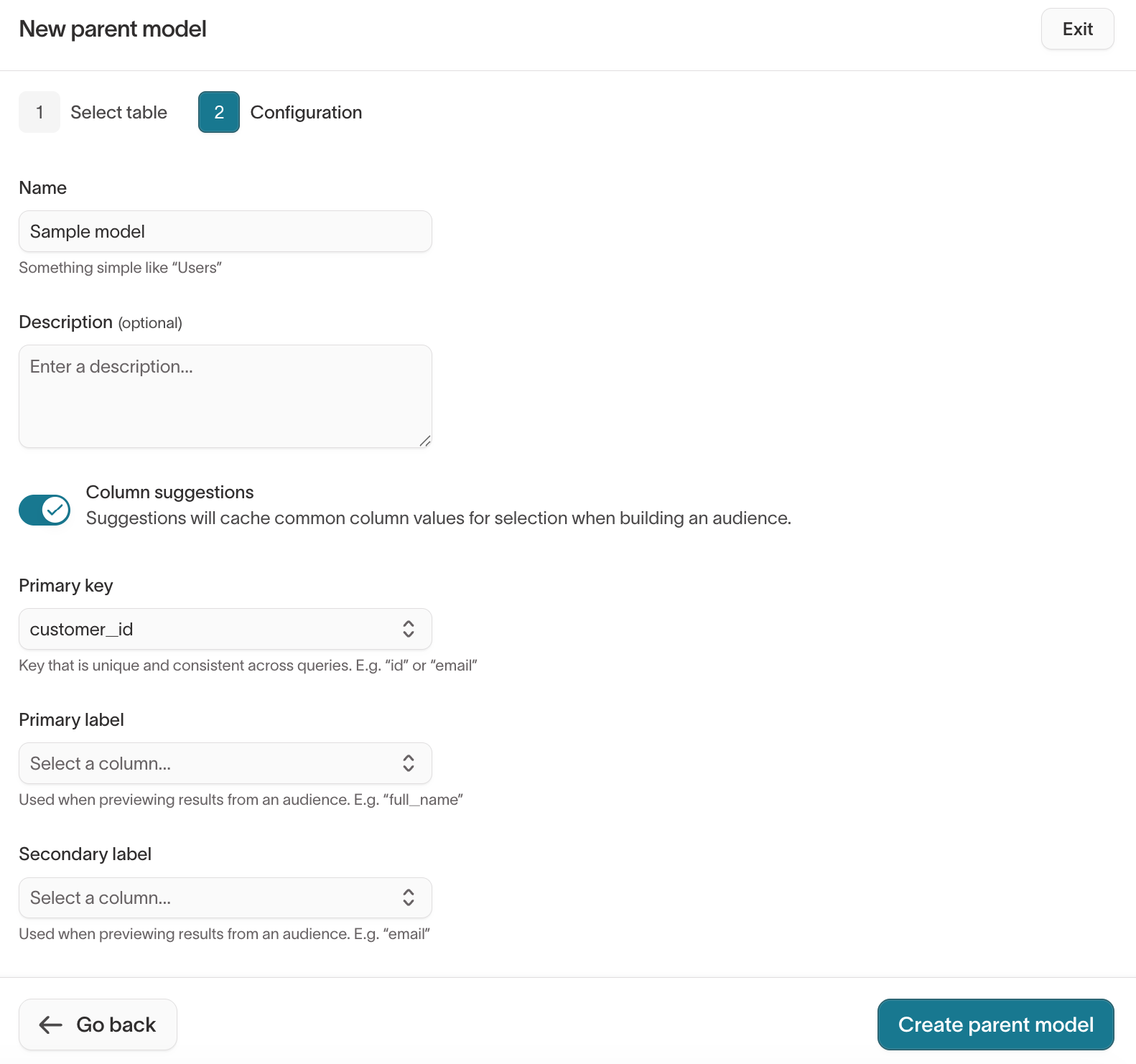
On the Configuration step, give the parent model a name, pick a Primary key, and optionally select primary and secondary labels used when previewing audiences. Click Create parent model to finish.
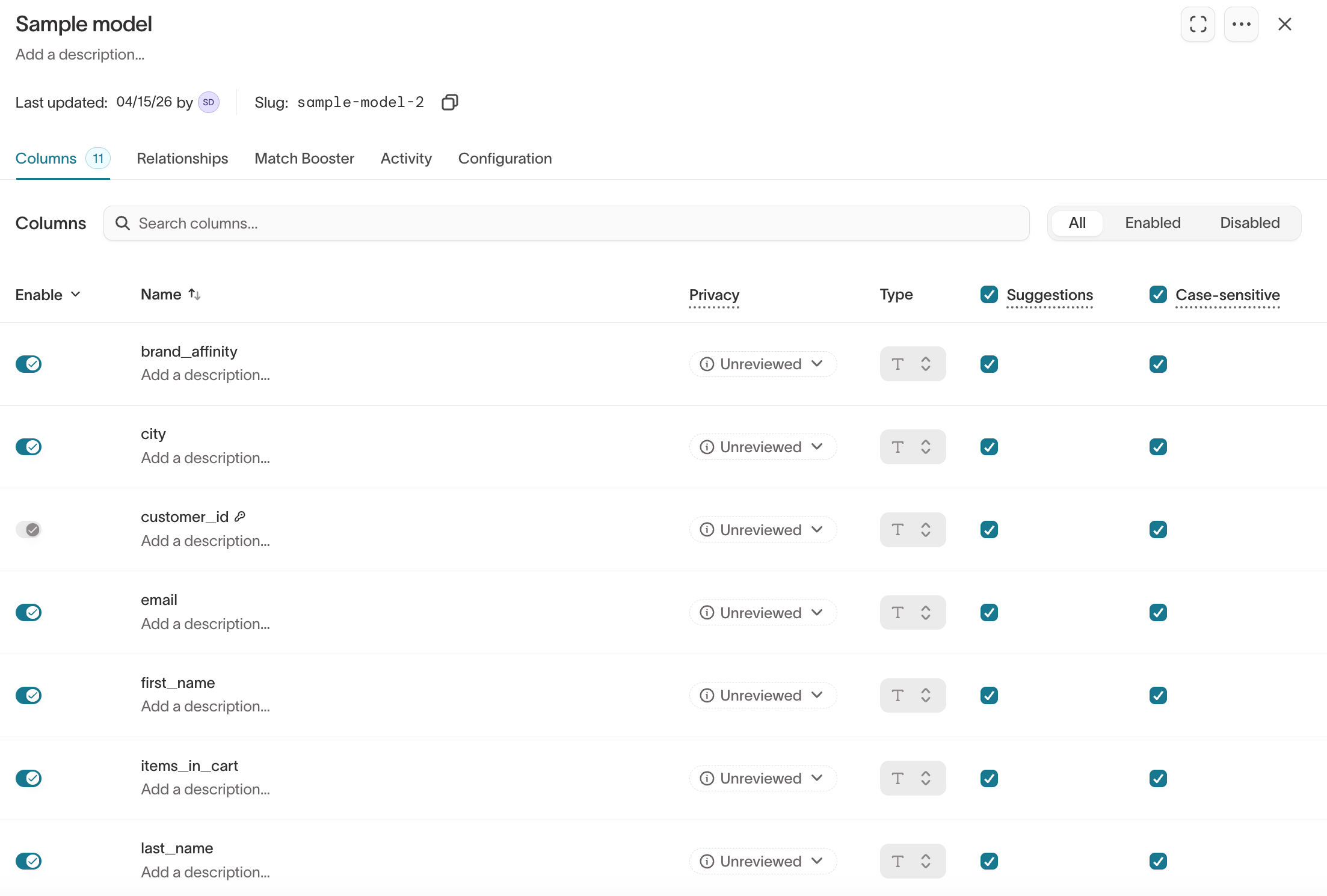
Your new parent model appears in the Schema tab with all its columns visible and ready for audience building.
Build audiences, journeys, and more
Once a parent model exists, you can use it just like any production source to:
- Build audiences—for example, VIP customers with items still in their cart, or Self-Serve organizations approaching their storage limit.
- Add related models (like purchases, subscriptions, or events) to enrich filtering.
- Create traits for reusable calculated fields such as lifetime value or last-seen timestamp.
- Run lifecycle journeys across multiple destinations.
- Sync audiences to any connected destination with Customer Studio syncs.
See the Customer Studio overview for an end-to-end walkthrough.
Sample dataset contents
Each sample database is organized under the public schema. Use the table selector when creating a model to see the full list of tables and columns—the schemas may expand over time as Hightouch adds more examples.
B2B SaaS
Models a SaaS business with records for users and their organizations. The dataset includes tables such as public.users and public.organizations, with attributes like type, segment, total_storage_used_mb, total_users_invited, and documents_uploaded_l30d. This makes it a good fit for testing:
- product-led growth workflows (for example, surfacing upsell opportunities to Self-Serve accounts nearing a storage limit)
- lifecycle marketing to admins and inactive users
- CRM and marketing-automation syncs to destinations like Salesforce, HubSpot, Marketo, Braze, or Segment
The Sample queries panel includes starter queries for Product-led sales upsell opportunities, Lifecycle marketing to inactive admins, and New Business Tier product introduction. A typical starter query—surfacing Self-Serve organizations using more than 50 GB of storage—looks like:
SELECT *
FROM public.organizations
WHERE type = 'Self-Serve'
AND CAST(total_storage_used_mb AS INT) > 50000
B2C eCommerce
Models a direct-to-consumer retailer selling shoe brands. The dataset includes a public.customers table with attributes such as customer_id, first_name, last_name, email, city, ltv, brand_affinity, VIP tier, and items_in_cart, alongside cart-event data. This makes it a good fit for testing:
- audience-building workflows (for example, VIP customers or high-intent shoppers)
- abandoned-cart retargeting to ad platforms like Meta, Google Ads, or TikTok
- email and SMS campaigns through tools like Iterable, Klaviyo, or Attentive
- loyalty and retention use cases
The Sample queries panel includes starter queries for Abandoned cart retargeting ads, Seasonal Rebook campaign - Nano X2, and Annual VIP celebration event in Florida. A typical starter query—pulling non-VIP customers with items still in their cart—looks like:
SELECT *
FROM public.customers
WHERE VIP = 'Normal'
  AND CAST(items_in_cart AS int) > 0
Limitations
Sample sources are intentionally simple. A few things to know:
- Read-only. You can't write to a sample database, create tables, or modify its schema.
- Shared across workspaces. The underlying database is the same for every Hightouch customer. Don't store anything you expect to be private in a sample source—you shouldn't be able to, but it's worth stating plainly.
- Lightning sync engine isn't supported. Sample sources always use the Basic sync engine (Hightouch's
LocalDiffPlanner). Lightning engine features such as Warehouse Sync Logs, Match Booster, and Identity Resolution therefore aren't available on syncs powered by a sample source. - Not for production. Sample datasets are meant for exploration and demos only. When you're ready to run real workloads, connect your own source.
If a sync against a sample source reports a permission denied error, that
usually means the sync was configured to use the Lightning engine. Switch the
sync to the Basic engine (or recreate the sync) and the error will clear.
Next steps
With your sample source connected, you can:
- Follow the Create your first sync tutorial end-to-end.
- Pick a destination from the destination catalog and map sample data to it.
- Explore Customer Studio to build audiences and journeys on top of sample data.
- When you're ready to move to production data, review the Sources overview and add your own warehouse.