| Audience | Marketers, creative teams |
| Prerequisites |
|
Insights shows how your ads are performing across your connected platforms. Monitor performance, identify stale creative, see what competitors are running, and discover real-time market signals. When you find an opportunity, create new ads directly from Insights.
Overview
Insights covers four areas: performance, fatigue, competition, and signals. Each area has its own tab within the Insights section.
Insights connects analytics to ad creation. You can identify an opportunity and create new ads in response without switching between your ad platforms, a spreadsheet, and a separate creative tool.
Monitor performance
The Performance tab shows ad performance metrics across your connected ad platforms. Use it to identify your top and bottom performers and decide where to invest creative effort.
What it shows
Performance aggregates metrics from your connected platforms into a single view. Common metrics include:
- Spend — How much budget is allocated to each ad
- Impressions — How many times the ad was shown
- Clicks — How many clicks the ad received
- Conversions — How many conversions the ad drove
- CPA — Cost per acquisition
- CTR — Click-through rate
- ROAS — Return on ad spend
How to use it
Filter by platform, campaign, date range, or ad format to focus your analysis. Sort by any metric to find your best and worst performers. Keep comparisons like-for-like — static against static and video against video — since engagement rates differ by format.
Use Performance data to inform your next creative move:
- A top-performing ad is a strong candidate for the Upload an ad and create variants mode — generate more versions of what's working.
- An underperforming ad may need a fresh approach — use Upload a brief or Ride a new trend to try a different creative direction.
Detect creative fatigue
The Fatigue tab detects ads that are experiencing declining performance over time, indicating that your audience has seen them too many times.
What it shows
Fatigue shows ads where key metrics like CTR are declining or CPA is increasing over a sustained period, even if overall performance is still acceptable. This helps you refresh creative before performance degrades significantly.
How to use it
Monitor fatigue signals regularly. When the Fatigue tab flags an ad:
- Review the ad and its performance trend.
- Use the Upload an ad and create variants mode to generate fresh versions that maintain the winning elements while introducing enough variation to re-engage your audience.
- Alternatively, use Upload a brief to take a completely new creative direction.
The Fatigue tab updates as new performance data syncs. Check it weekly to catch declining creatives before they significantly impact campaign metrics.
Analyze competitor ads
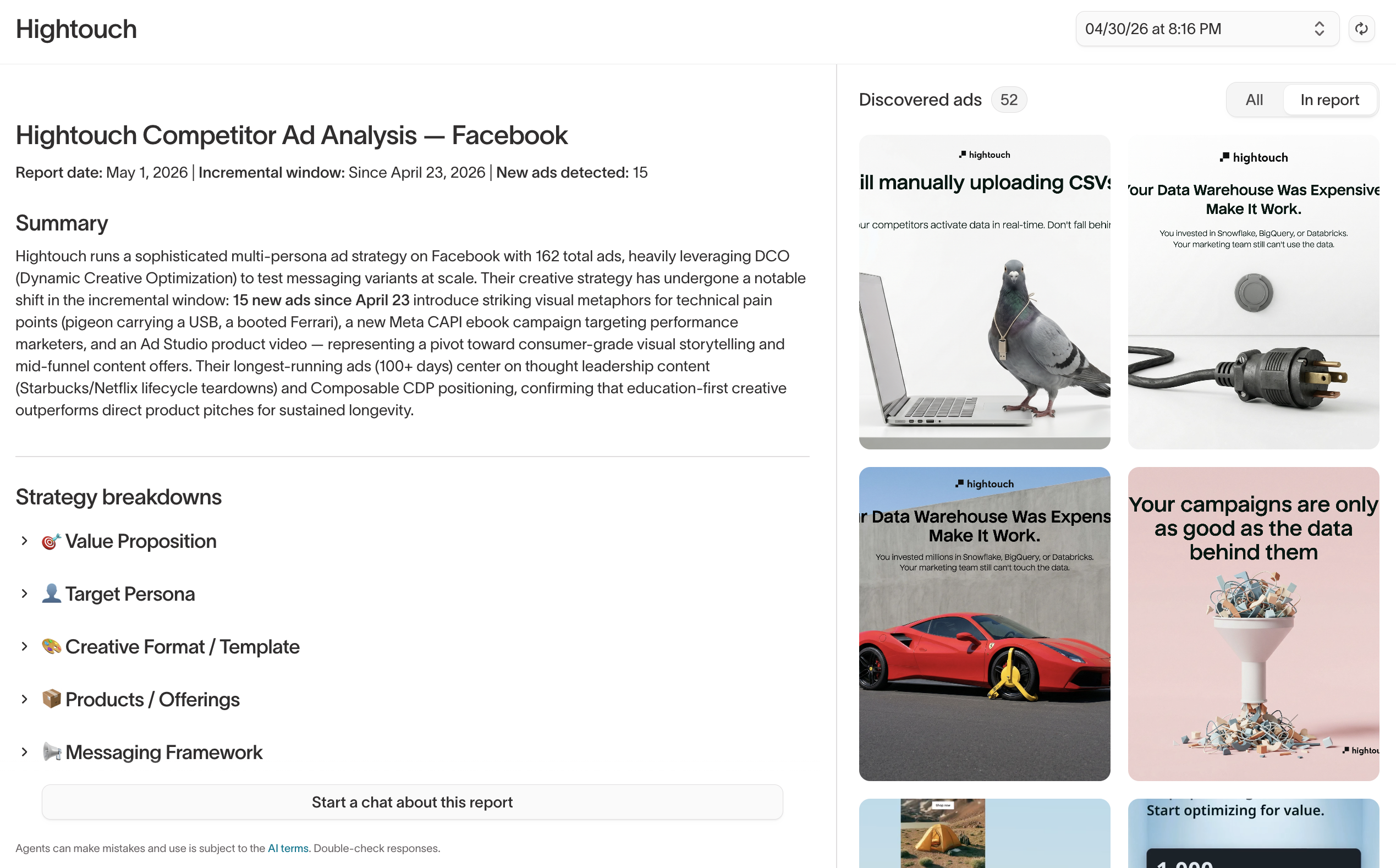
The Competitors tab provides visibility into competitor ad activity across platforms.
What it shows
Browse and analyze competitor ads to understand their messaging, creative approach, and campaign themes. The Competitors tab shows ads from competitors you're tracking, organized by platform and recency.
How to use it
Use competitor intelligence to inform your creative strategy:
- Identify messaging themes or visual approaches that are trending in your category.
- Spot gaps in competitor positioning that you can fill with your own creative.
- Use the Riff on a competitor creation mode to generate your own on-brand response to a specific competitor ad directly from the Competitors tab.
- Generate a competitors report that summarizes trends, themes, and opportunities across your tracked competitors. Share the report with your team or use it as input for a creative brief.
Discover signals
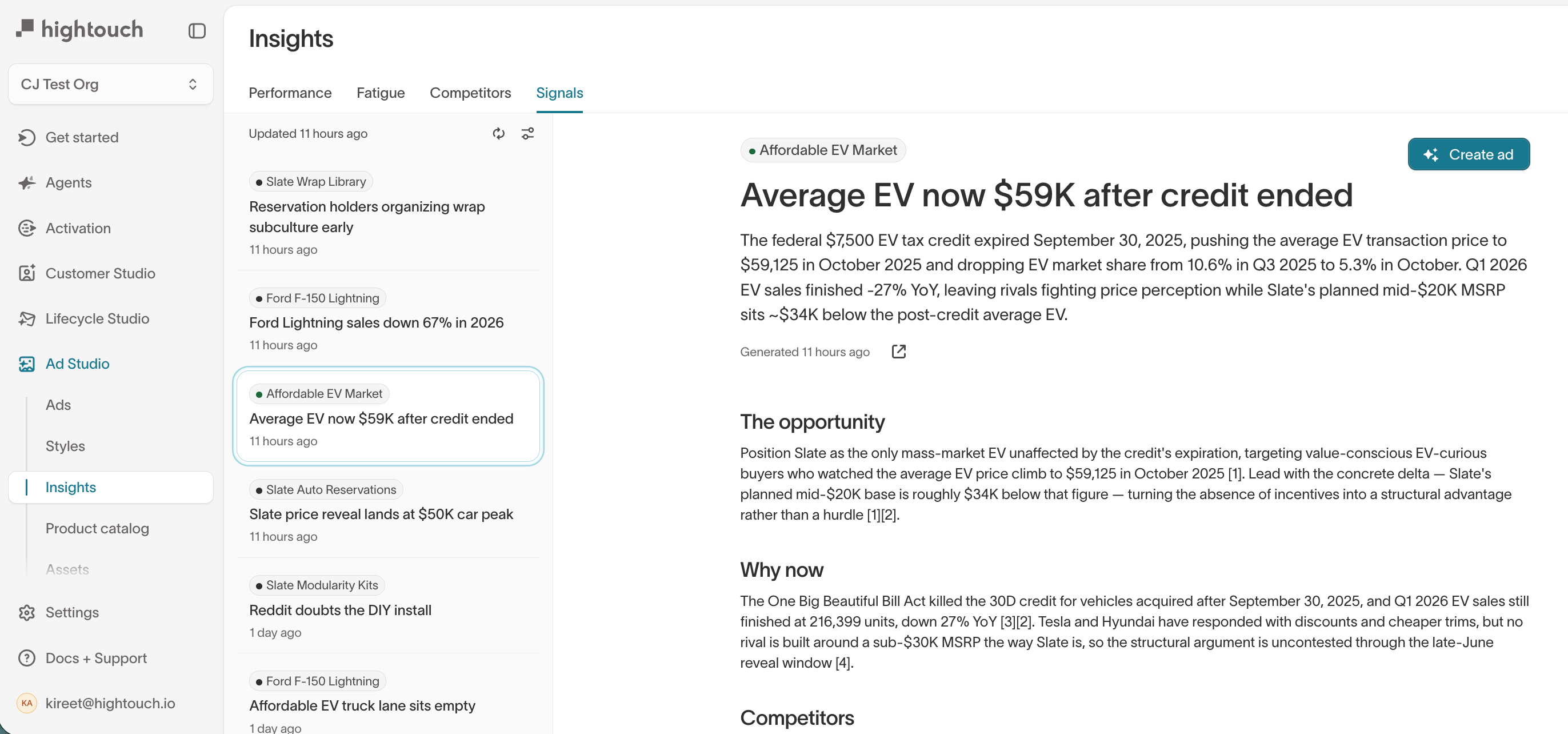
The Signals tab shows curated, real-time events happening in the world that are relevant to your business — recent news, social listening, competitive moves, and emerging trends. Each signal is a concise brief designed to inspire your next ad concept.
What it shows
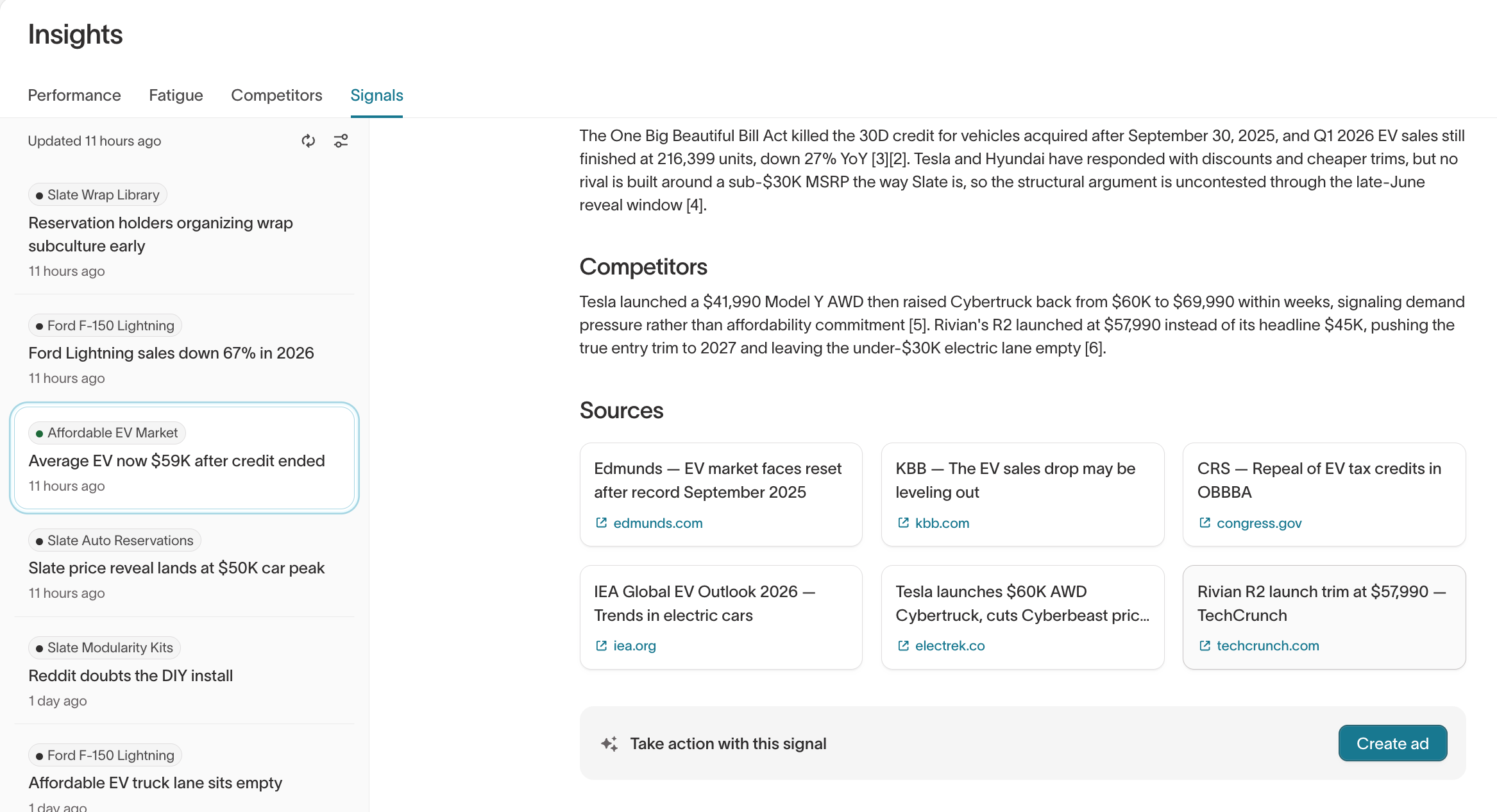
Signals combines social listening, competitive analysis, and web search into a single feed tailored to your business context. Each signal includes:
- Headline — A summary of the event or trend
- The opportunity — How the signal connects to your brand and what angle you could take
- Why now — Context on why this moment matters for your marketing
- Competitors — How competitors are positioned relative to the signal
- Sources — Cited articles and publications so you can verify and dig deeper
Set up signals
The first time you open Signals, the feed is empty. Select Get signals, then Continue, to tell Ad Studio where to research and what to research.
You choose two things:
- Sources — Where the agent looks. Toggle on the suggested sources you want, such as open web research, Reddit, X (Twitter), TikTok, Instagram, and Facebook, or select Add source to add your own.
- Topics — What the agent looks for, grouped into Industry, My brand, Competitors, and Cultural. Edit the suggested topic chips, or select Add topics to add your own.
The agent uses your sources and topics to build the feed, so more specific topics return more relevant signals.
To change your sources and topics later, go to Context Hub > Context > Signals. See Data setup for how signals configuration is shared with Agents.
How to use it
Browse the signal list in the left panel and select any signal to read the full analysis. When you find a signal worth acting on, select Create ad at the bottom of the signal detail. Ad Studio opens a new chat pre-filled with a brief based on the signal report, so you can generate ad concepts without leaving the Signals tab.
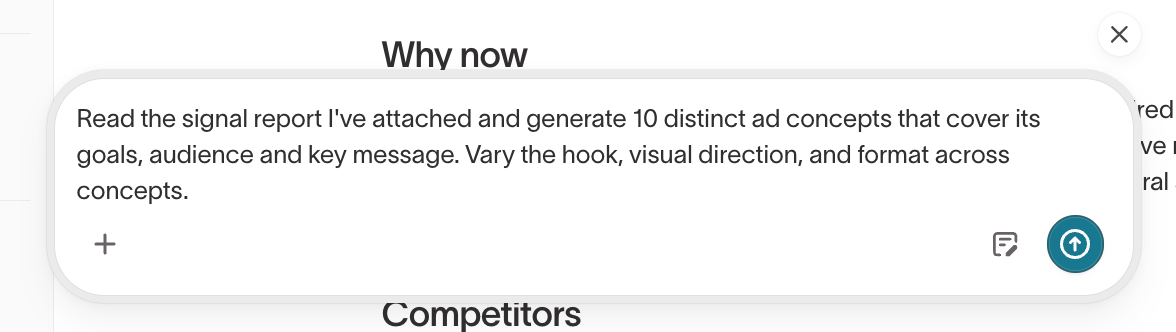
You can start multiple chats from different signals in parallel without breaking your workflow.
Check the Signals tab regularly to catch timely opportunities. Signals update as new events emerge, so what's relevant today may shift quickly.
Act on insights
From any Insights tab, you can create new ads based on what you find:
| Insight | Action |
|---|---|
| Top-performing ad identified | Create variants to scale what's working |
| Fatiguing ad flagged | Generate fresh variants or try a new creative direction |
| Competitor trend spotted | Riff on the competitor or ride the trend with your own creative |
| Real-time signal discovered | Create an ad directly from the signal brief |
| Performance gap in a product category | Create product-focused ads using your catalog |