| Audience | Marketers, data teams |
Reports are saved prompts that run on a schedule and deliver results automatically. Turn any one-off chat analysis into a recurring report delivered via email or Slack.
Overview
Reports are saved prompts that run on a schedule. You create a report once and it runs automatically, delivering results to your inbox or a Slack channel.
Reports are viewable by all users in your workspace. Any user with access to Agents can see report results, regardless of who created the report.
Each report is built from a prompt that describes what the report should cover. You can write the prompt yourself, start from a template, or convert an existing chat conversation into a report.
Create a report
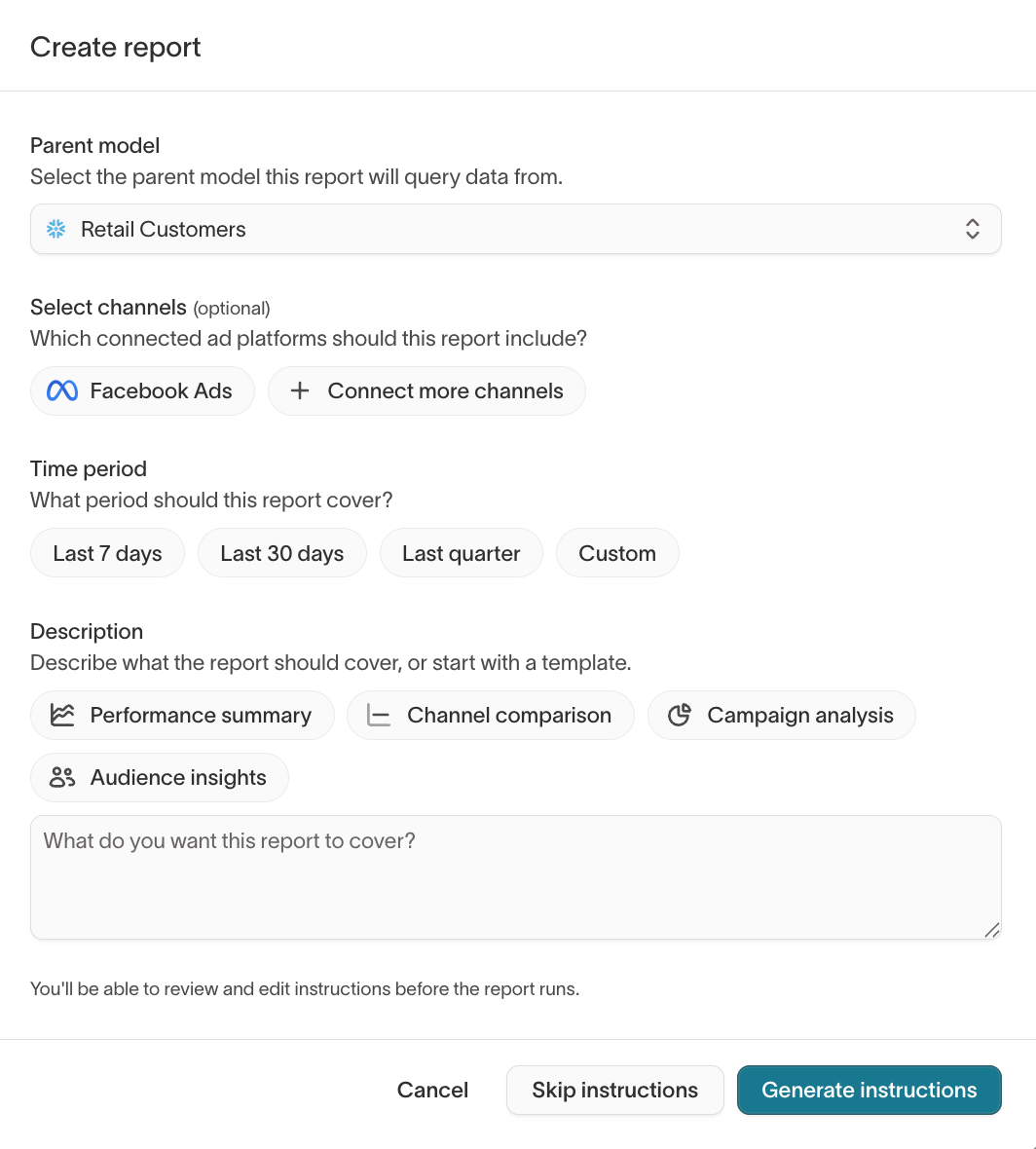
To create a report, go to Agents > Reports and click Create report. The creation dialog walks you through four steps:
-
Select a parent model — choose the parent model the report should query. This determines which customer data is available to the report.
-
Select channels (optional) — choose which connected ad platforms or marketing channels the report should include. This adds campaign performance data from platforms like Meta, Google Ads, and others.
-
Set a time period — choose the time window the report should cover. Options include Last 7 days, Last 30 days, Last quarter, or a Custom range.
-
Write a description — describe what the report should cover. You can write your own prompt or start from a template. Available templates include:
- Performance summary — overall campaign and channel performance metrics
- Channel comparison — side-by-side performance across marketing channels
- Campaign analysis — deep dive into specific campaign results
- Audience insights — customer segment breakdowns and behavioral patterns
After filling in the description, click Generate instructions to have the agent create a detailed report prompt based on your inputs. You can also click Skip instructions to use your description as-is.
Build reports from chat. After any analysis in a chat, ask the agent: "Convert this into a reusable report prompt I can run weekly. Make all time references relative and format the output for team distribution." This turns a one-off analysis into a scheduled report without starting from scratch.
Review and edit instructions
Before a report runs, you can review and edit the generated instructions. The instructions are the prompt the agent uses to generate the report. They control the metrics, formatting, time ranges, and output structure.
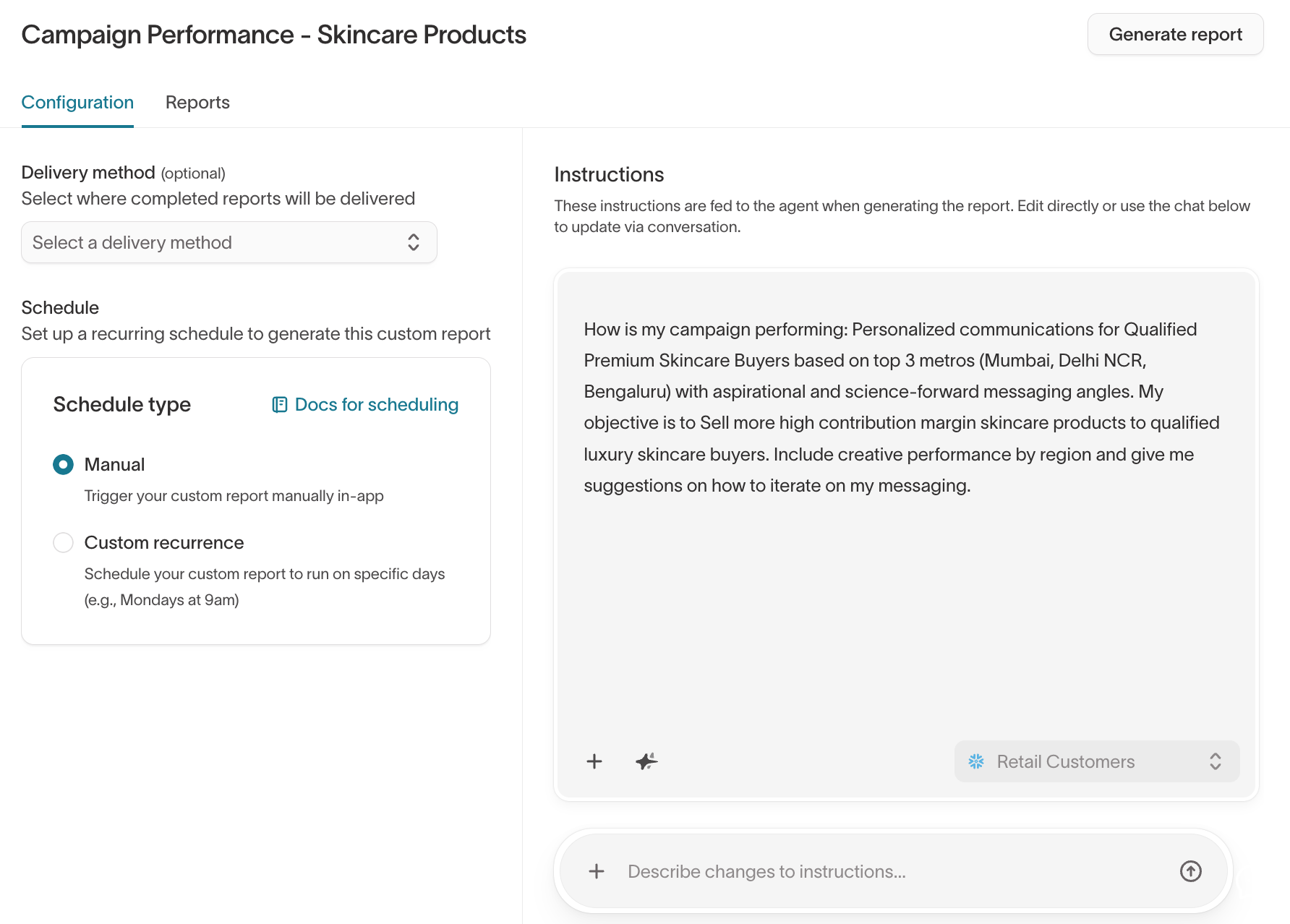
Editing instructions lets you fine-tune the report without recreating it. For example, you might adjust which metrics are included, change the sort order, or add a specific comparison. You can edit the instructions directly or use the Describe changes to instructions chat input at the bottom of the instructions panel to update them conversationally.
Schedule and deliver reports
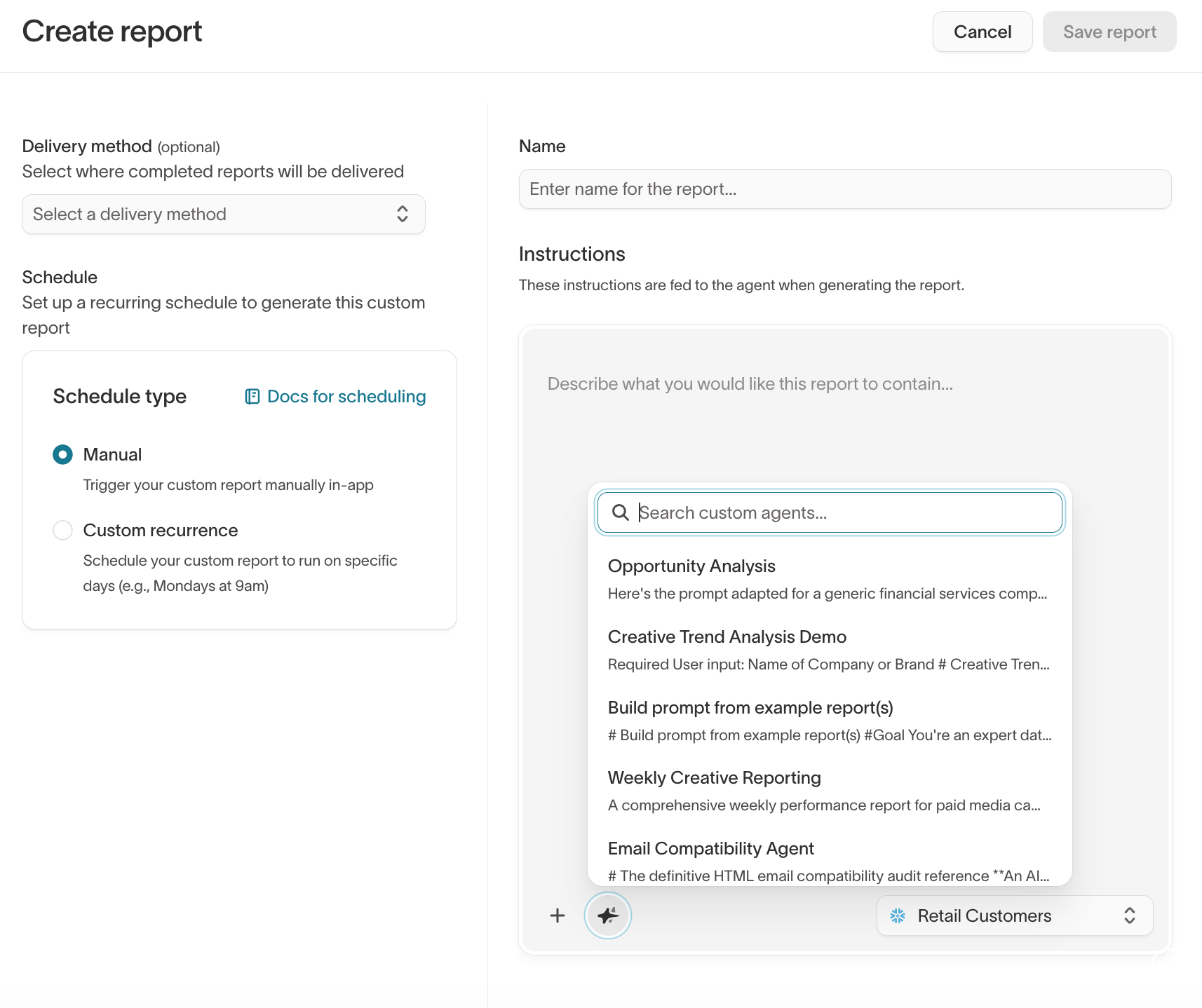
Each report has a Configuration tab where you set the schedule and delivery method.
Schedule type — choose how the report runs:
- Manual — trigger the report manually in-app by clicking Generate report
- Custom recurrence — set a recurring schedule. Configure the time (for example, 5:00 AM), the days of the week, and optionally add multiple recurrences.
Delivery method (optional) — choose where completed reports are delivered:
- Email — the report is delivered to one or more email addresses
- Slack — the report is posted to a Slack channel
View report results
Each report has a Reports tab that shows the history of past runs. Each run displays its status (for example, Completed), name, date, and delivery method.
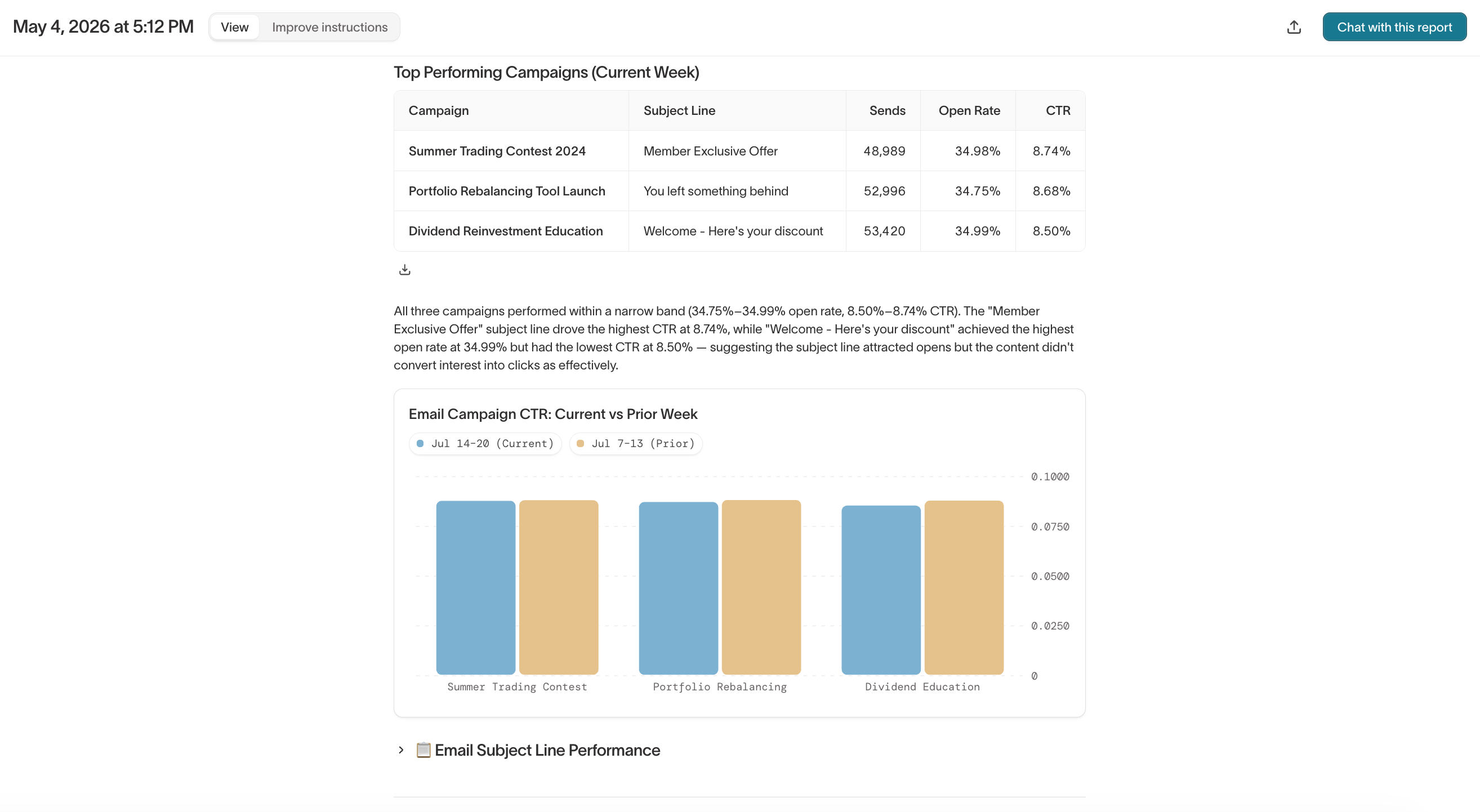
From any report result, you can click Chat with this report to ask follow-up questions about the data. This opens a new chat with the report context preloaded, so you can dig deeper without recreating the analysis.
Review and improve report instructions
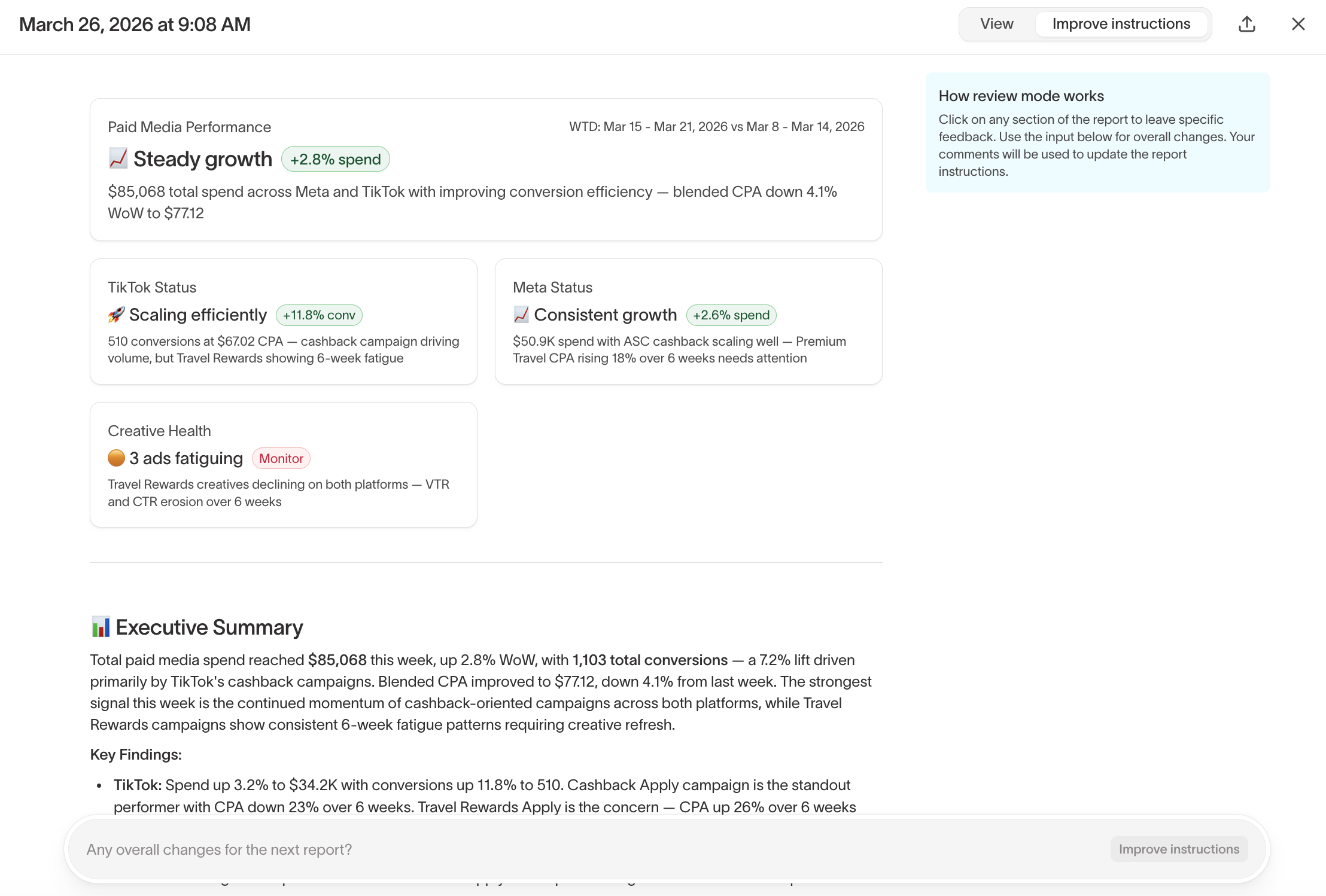
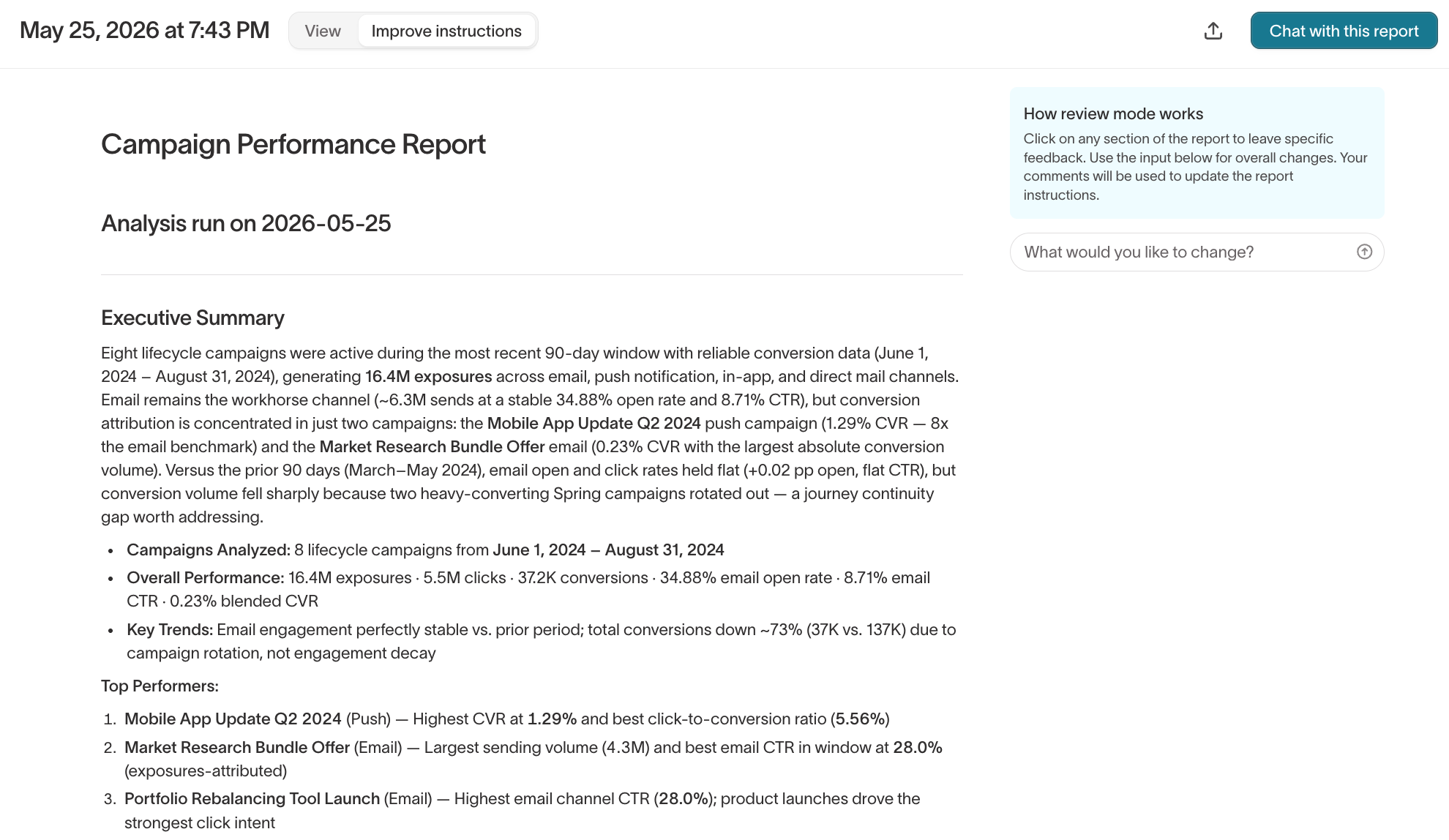
When viewing a report result, you can switch to the Improve instructions tab to enter review mode. In review mode, you can click any section of the report to leave specific feedback, or use the input at the bottom for overall changes. Your comments are used to update the report instructions, so the next run reflects your changes.
Share reports
To share a report result with workspace members, click the share icon at the top of the report. This copies a link to your clipboard that any workspace member with access to Agents can open.
Attach a PDF version
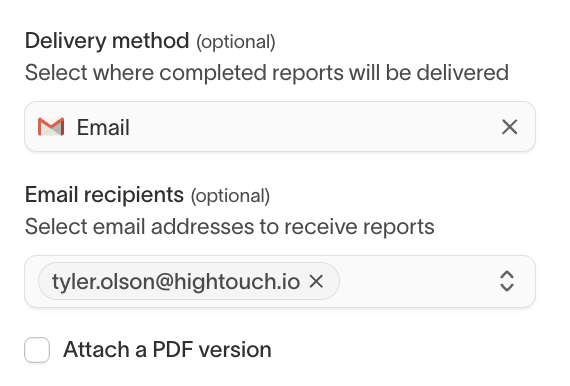
You can include a PDF copy of the report as an email attachment when using email delivery.
- Open the report and go to the Configuration tab.
- Under Delivery method, select Email.
- Check Attach a PDF version.
When this is enabled, each email delivery includes the report output as a PDF attachment alongside the email body.
Use custom agents in reports
Reports can use custom agents to apply specific instructions, metric definitions, or formatting rules. When creating a report, you can select a custom agent to scope the report to a particular domain or team.
For example, a "Weekly Creative Reporting" custom agent might include instructions for analyzing creative fatigue, formatting results by campaign objective, and flagging underperforming ads. Any report that uses this custom agent follows those instructions automatically.
See Custom agents for how to create and configure custom agents.
Manage reports
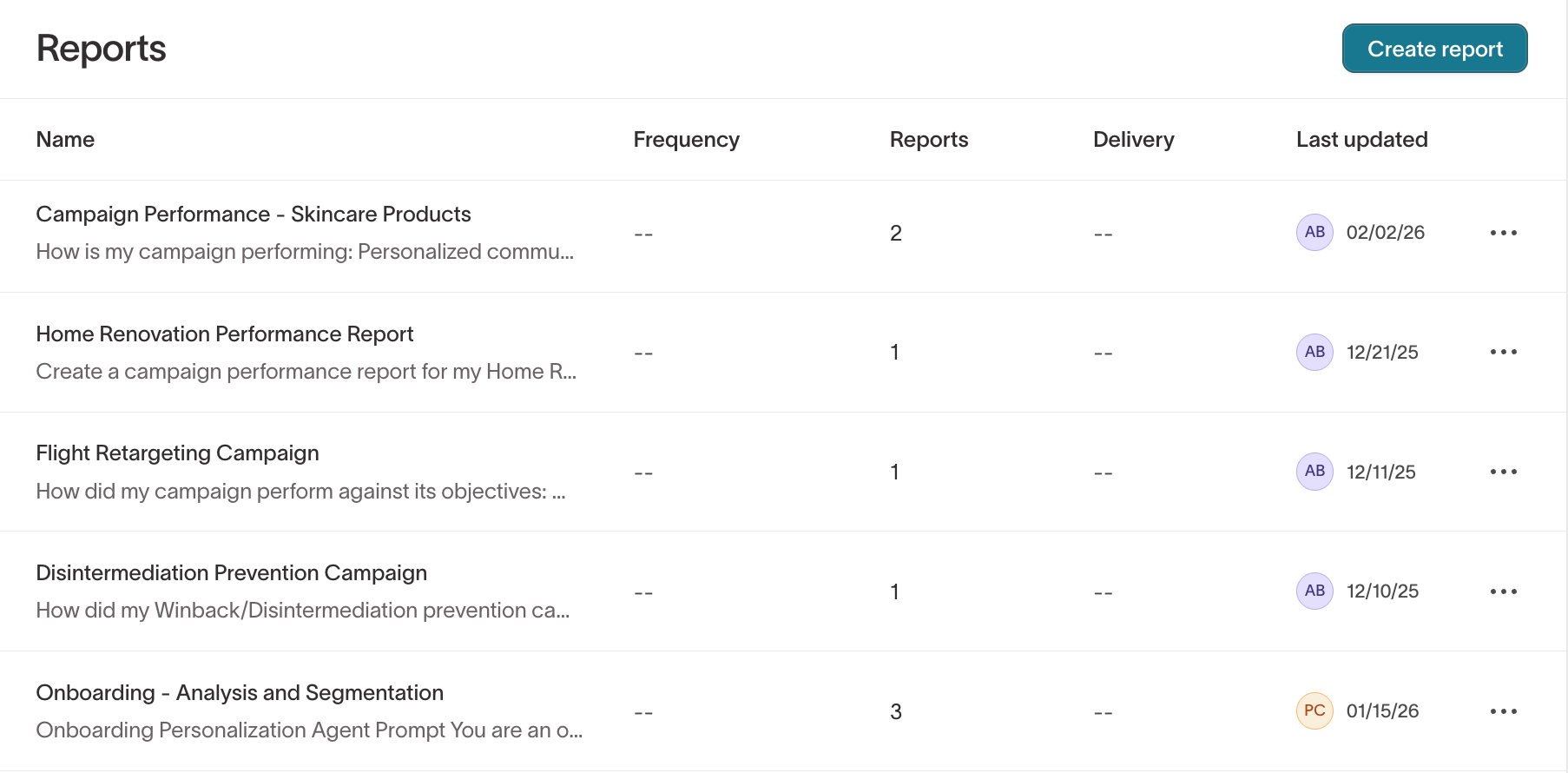
The Reports list shows all reports in your workspace with the following columns:
- Name — the report title
- Frequency — the configured schedule (for example, "Every day at 5:00 AM") or "--" for on-demand reports
- Reports — the number of times the report has run
- Delivery — the configured delivery method (email, Slack, or "--" if not set)
- Last updated — when the report was last modified or run
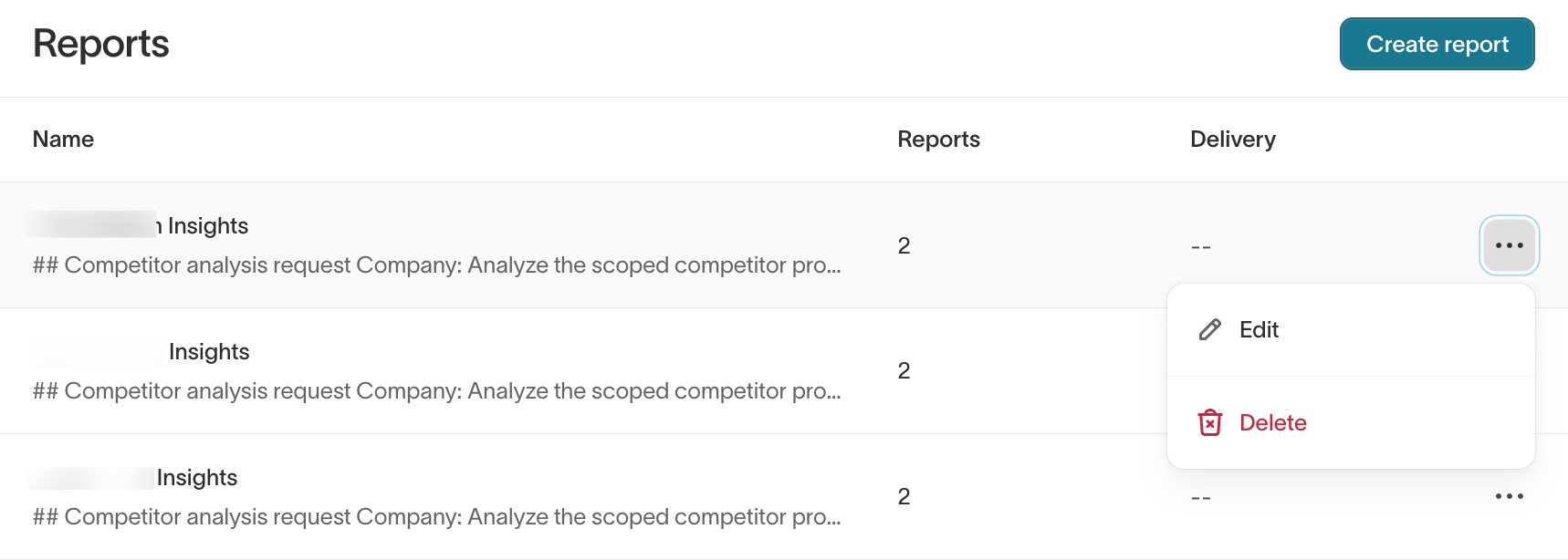
Click the ... menu on any report to edit, duplicate, or delete it.