| Audience | Marketers, data teams, platform admins |
Custom agents are saved prompts that define a specific task, set of instructions, or analysis framework. Use them in chats and reports to get consistent, tailored results.
Overview
A custom agent is a reusable set of instructions that tells the agent how to behave, what data to focus on, and how to format its responses. Think of it as a specialist you can call on for a particular domain, like paid media analysis, creative performance, lifecycle reporting, or any other area your team works in.
Once created, custom agents can be selected in chats and applied to reports, so the same expertise is available across your team.
Custom agents are available to all users in your workspace. Any user with access to Agents can select and use a custom agent, though the data each agent can query depends on the user's parent model permissions.
When to use a custom agent
Use a custom agent when you want to:
- Standardize analysis — ensure the same metrics, definitions, and formatting are used consistently across your team. For example, a "Weekly Paid Media Analyst" agent that always reports on spend, CPA, CTR, ROAS, and creative fatigue by campaign objective.
- Encode metric definitions — embed your organization's specific definitions (like how you calculate LTV or attribution windows) directly into the agent's instructions.
- Scope to a domain — focus the agent on a specific data set or marketing channel so it doesn't need to be told the context every time.
- Share expertise — let team members who are less familiar with the data access the same quality of analysis by selecting a pre-configured agent.
Create a custom agent
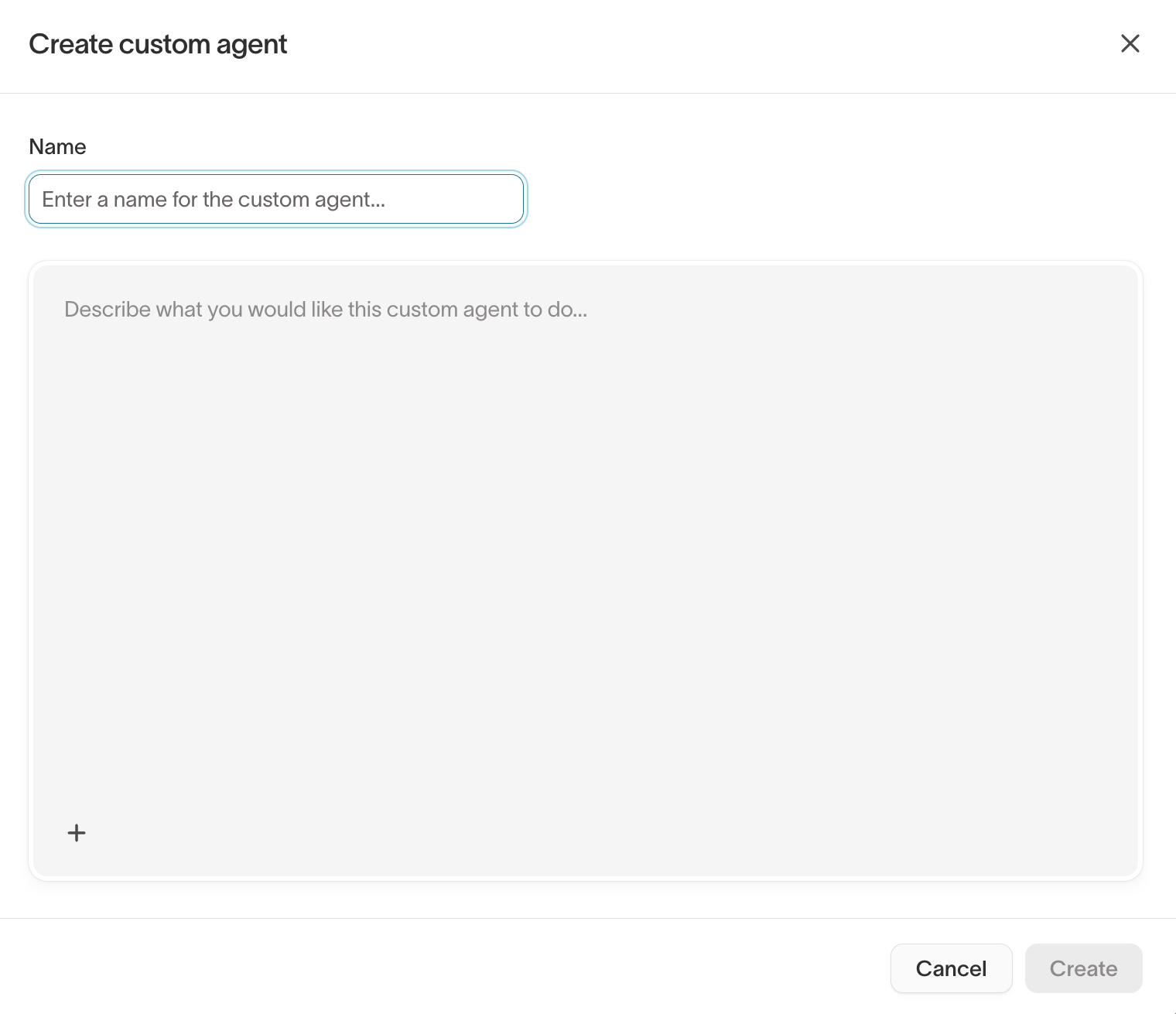
To create a custom agent, go to Agents > Custom agents and click Create custom agent.
-
Name — give the agent a descriptive name that identifies its task or purpose. For example, "Paid Media Analyst", "Creative Trend Analysis", or "Brand & Creative Review".
-
Instructions — describe what the agent should do, what data it should focus on, and how it should format responses. This is the core prompt that shapes the agent's behavior.
Good instructions typically include:
- The agent's task and area of focus
- Which metrics and KPIs to prioritize
- How to structure the output (tables, charts, summaries)
- Any definitions, thresholds, or business rules to follow
- Tone and formatting preferences
-
Click Create to save the custom agent.
Use chat to develop your prompt. Before creating a custom agent, use a regular chat to iterate on the instructions. Ask the agent to analyze your data, refine the output, and adjust the formatting until you're happy with the results. Then save the final prompt as a custom agent.
Use a custom agent in chat
There are two ways to use a custom agent in a chat:
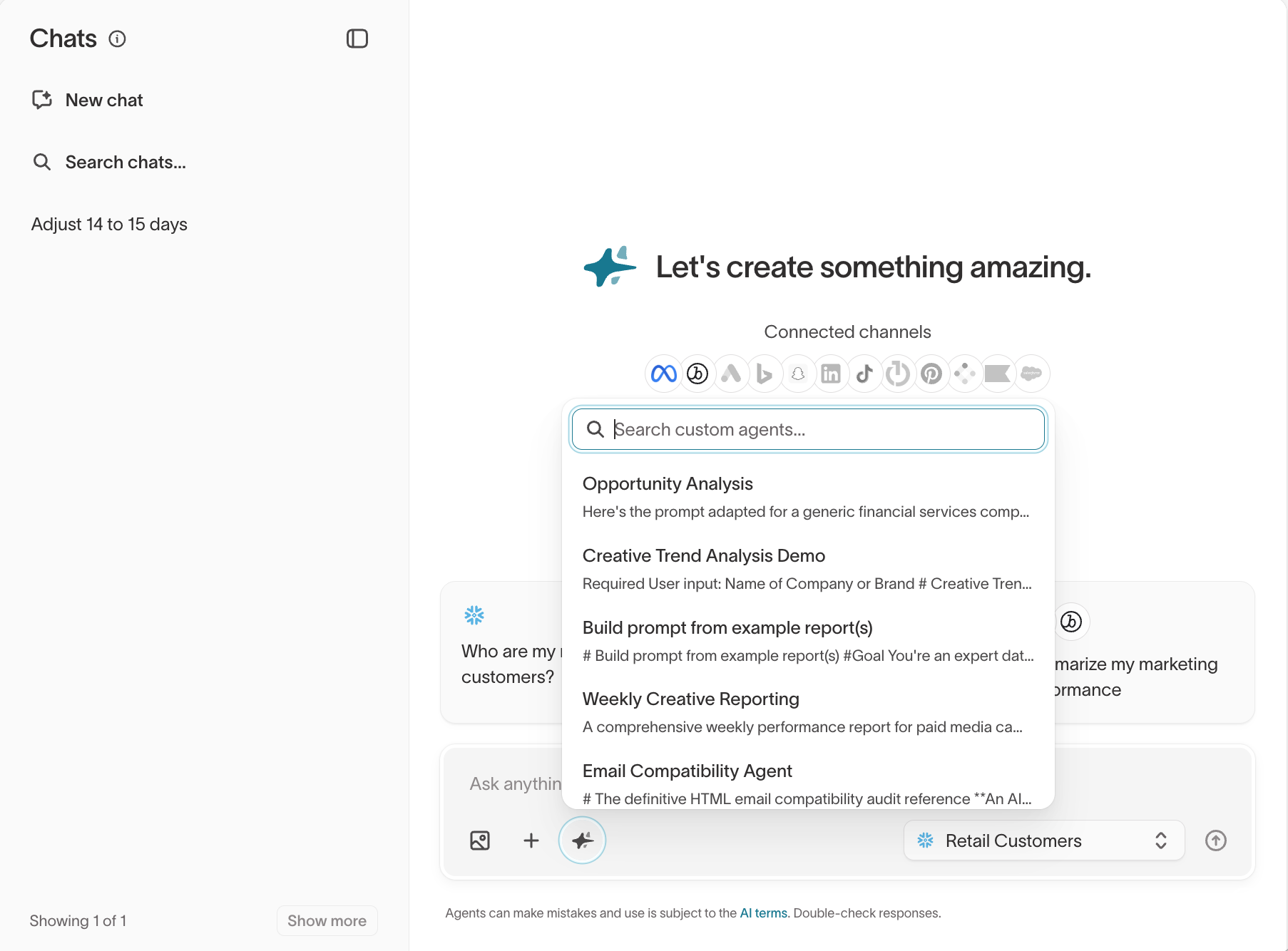
- Select it when starting a chat — choose the custom agent from the agent selector in the chat input before typing your first message. The entire conversation follows the custom agent's instructions.
- Use the "Use in chat" button — from the custom agent's detail view, click Use in chat to open a new chat with that agent already selected.
When a custom agent is active, its instructions are applied alongside the data context from the selected parent model. You can still ask any question — the custom agent shapes how the agent responds, not what it can access.
Use a custom agent in reports
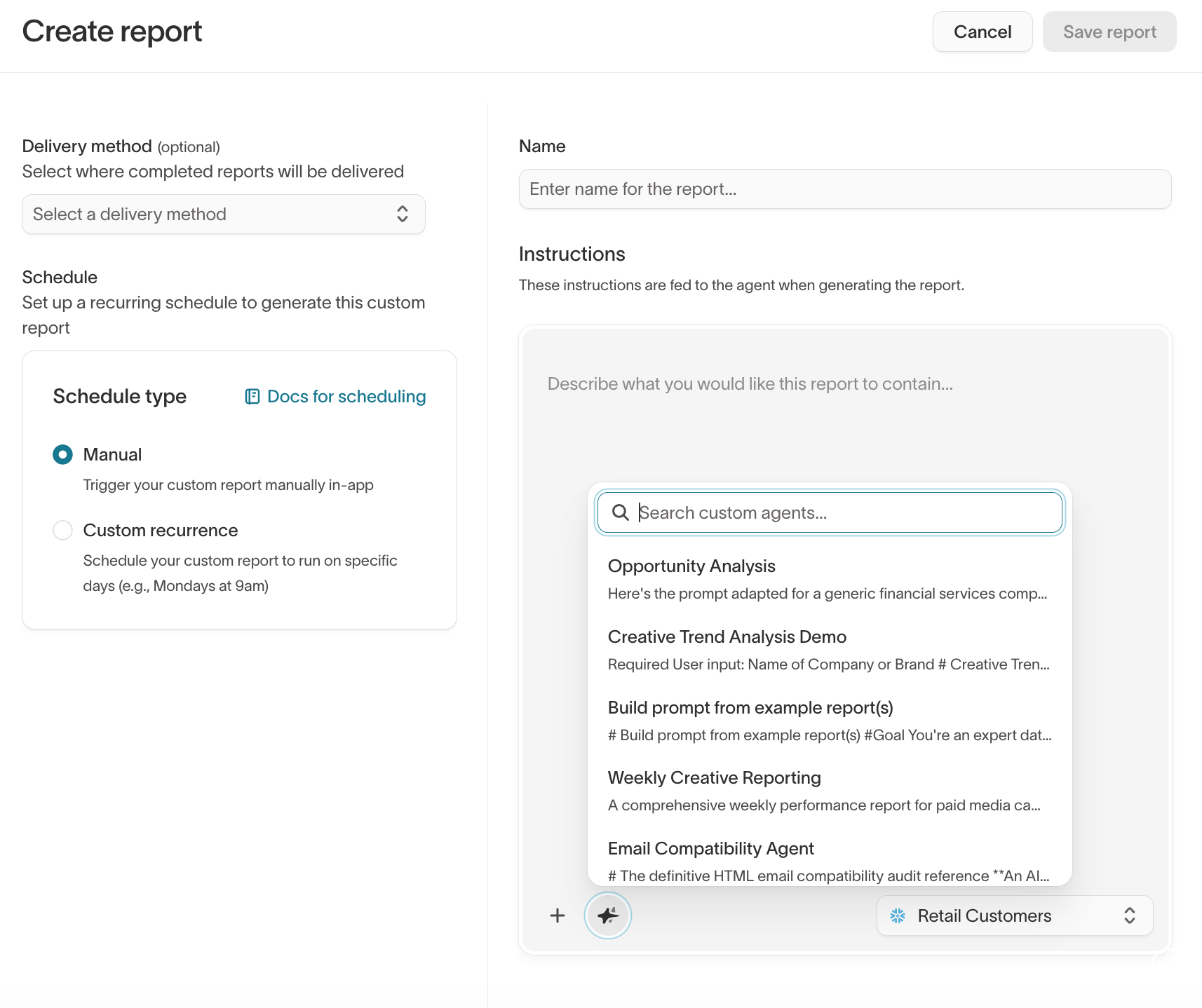
Custom agents can be applied to reports to ensure consistent formatting and analysis across scheduled runs. When creating or editing a report, select a custom agent to scope the report's behavior.
This is useful for standardized weekly or daily reports where you want the same structure, metrics, and tone every time. See Reports for more on creating and scheduling reports.
Example custom agents
Here are some common patterns for custom agents:
Paid Media Analyst — analyzes ad performance across Meta, Google Ads, and TikTok. Reports on spend, CPA, CTR, ROAS, and creative fatigue by campaign objective. Flags ads with declining performance week-over-week.
Lifecycle Performance Analyst — focused on email, SMS, and push campaign performance. Reports on send volume, open rate, click rate, and conversion rate by campaign type. Compares promotional vs. triggered campaigns.
Brand & Creative Review — reviews all email and ad copy before it goes to customers. Checks for compliance with brand standards, voice and tone guidelines, and legal requirements.
Competitor Analysis — monitors competitor ad activity and creative trends. Analyzes competitor messaging, offers, and creative formats to surface opportunities.
Weekly Executive Briefing — produces an insight-driven briefing on overall business and marketing performance. Summarizes KPIs, flags anomalies, and recommends actions.
Manage custom agents
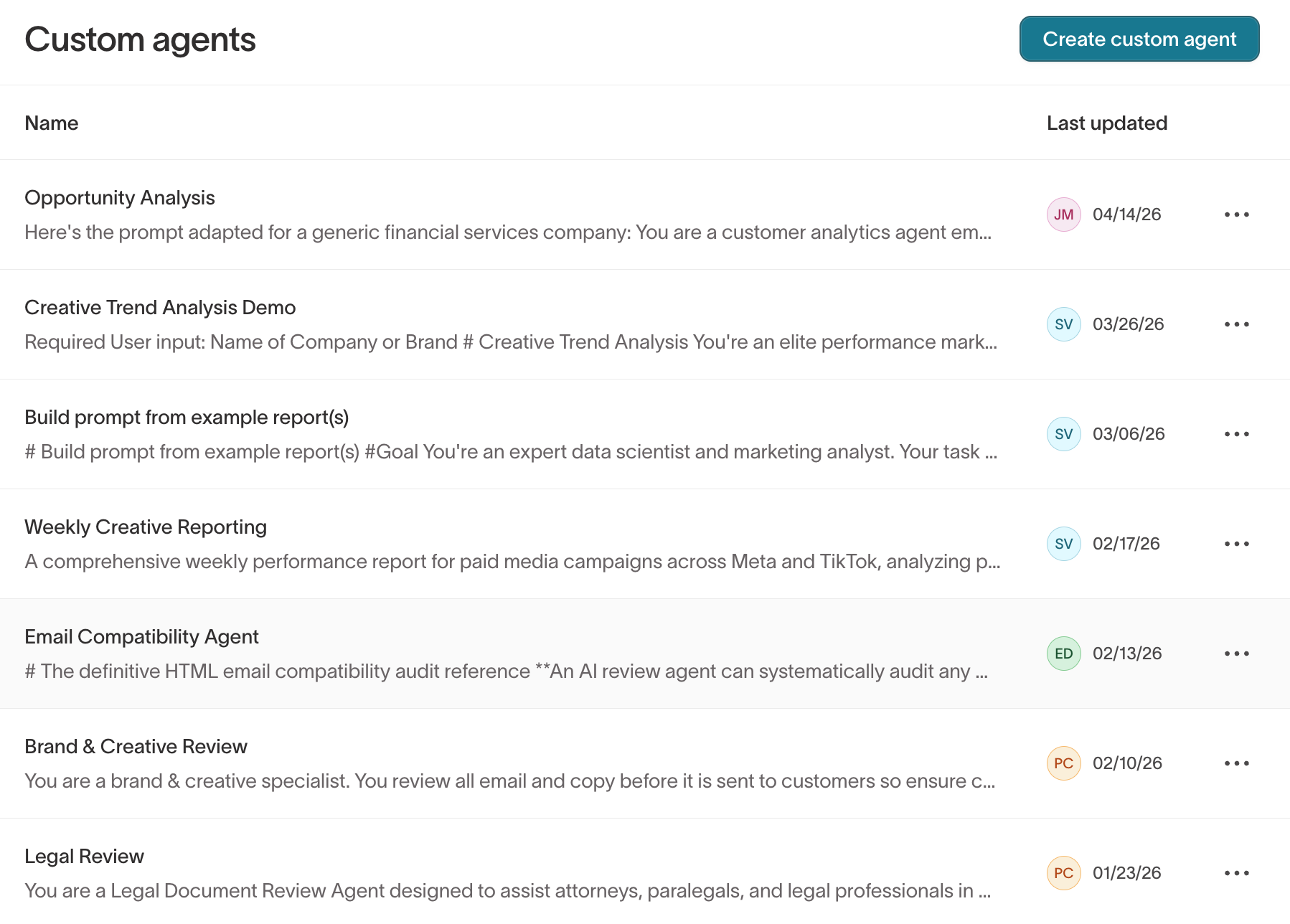
The Custom agents list shows all agents in your workspace with their name and last updated date.
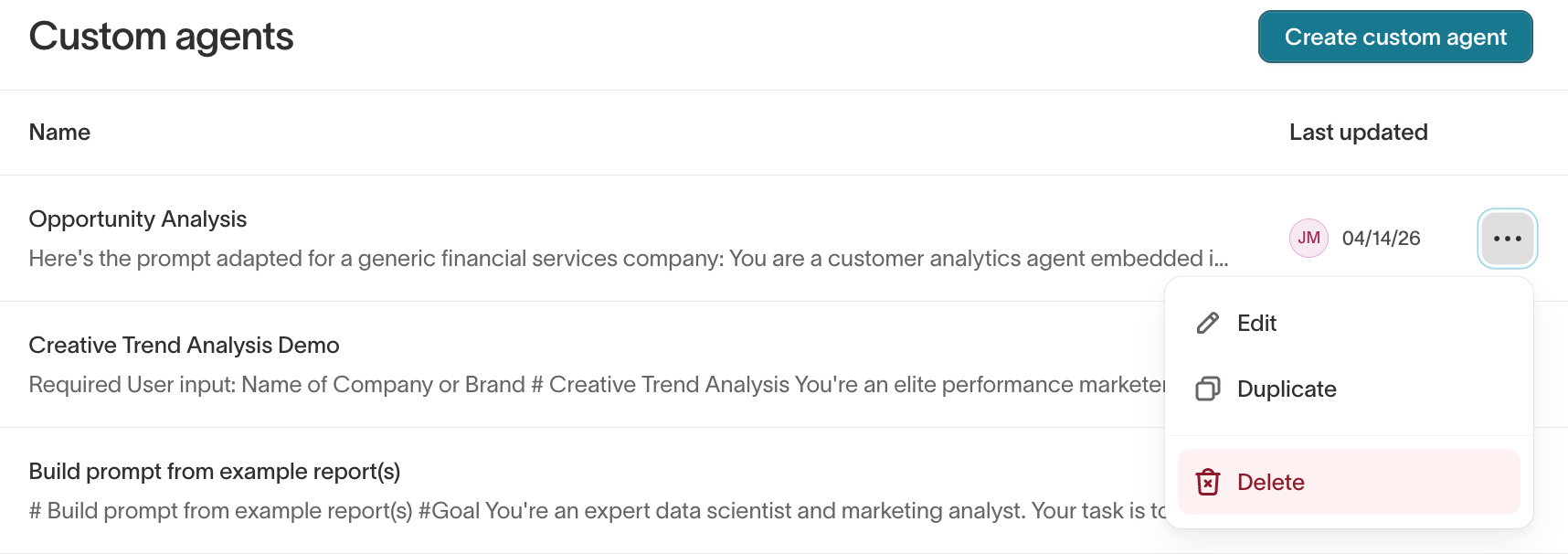
Click the ... menu on any custom agent to edit or delete it. Editing a custom agent updates its instructions for all future chats and report runs. Past results are not affected.
Custom agents are scoped to parent models and respect user-level permissions. Users can only access custom agents associated with parent models they have access to.