A sync sends the rows a model returns to a destination, and defines how and when that data lands.
| Audience | What this article helps you do |
|---|---|
| Data teams | Understand how a sync works, then find the task page for creating, scheduling, monitoring, or recovering one. |
| Marketers | Activate audiences from Customer Studio; the underlying sync is configured and monitored here. |
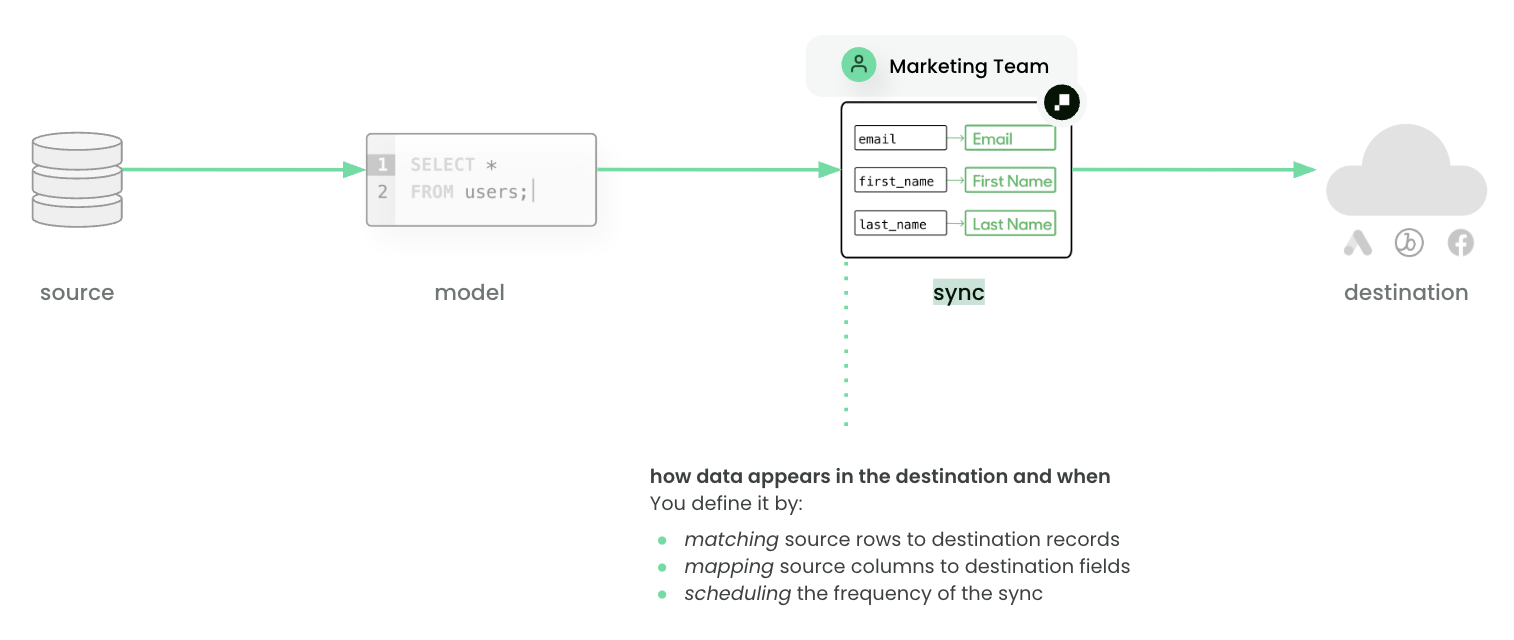
How a sync works
A sync connects one model to one destination object, list, or table, and describes how the model's rows map into that destination. It has four parts you configure once:
- Model — the query results to send.
- Sync type and mode — the destination object to write to and whether to insert, update, or upsert records.
- Record matching — the field the destination uses to find the right record.
- Field mapping — which model columns land in which destination fields.
Between runs, Hightouch uses change data capture to compare the current model results against the previous run and send only the rows that were added, changed, or removed. That's why the first run usually adds every row and later runs send far fewer.
A sync runs on the schedule or trigger you set, then reports the outcome of each run so you can confirm it worked.
Choose a task
Most work with a sync starts from one of these goals:
| If you want to... | Go to |
|---|---|
| Create a sync from scratch | Create your first sync |
| Choose how records are written to the destination | Choose a sync type and mode |
| Match source rows to the right destination records | Match records to destination records |
| Map model columns to destination fields | Map model columns to destination fields |
| Set when the sync runs | Schedule a sync |
| Check a run or debug rejected rows | Debug a sync run |
| Understand why rows retry | Sync retries |
| Get notified when a run fails | Configure sync alerts |
| Analyze run history in your warehouse | Warehouse Sync Logs |
| Reprocess or reset a sync's state | Resync full query, Reset CDC, or Clear and fill |
Sync families
"Sync" is an umbrella term. Most syncs are standard batch syncs that evaluate a model on a schedule, but the semantics differ across families, so a behavior that's true for one isn't always true for another:
- Batch syncs — evaluate a model on a schedule or trigger. The default, and what the rest of this page describes.
- Audience syncs — created from Customer Studio audiences. The audience defines membership; the sync activates it.
- Realtime syncs — react to membership or event changes through Real-Time Personalization on separate infrastructure, not a batch schedule.
- Journey-triggered syncs — run when a journey evaluates a member, not on a fixed cadence.
What varies by destination
The available sync types, modes, matching keys, fields, delete behavior, and limits are defined by each destination. The sections below cover the shared model; for the specifics of any integration, see its destination documentation.
Syncs overview page
Hightouch lists all syncs, both active and inactive, on the Syncs overview page.
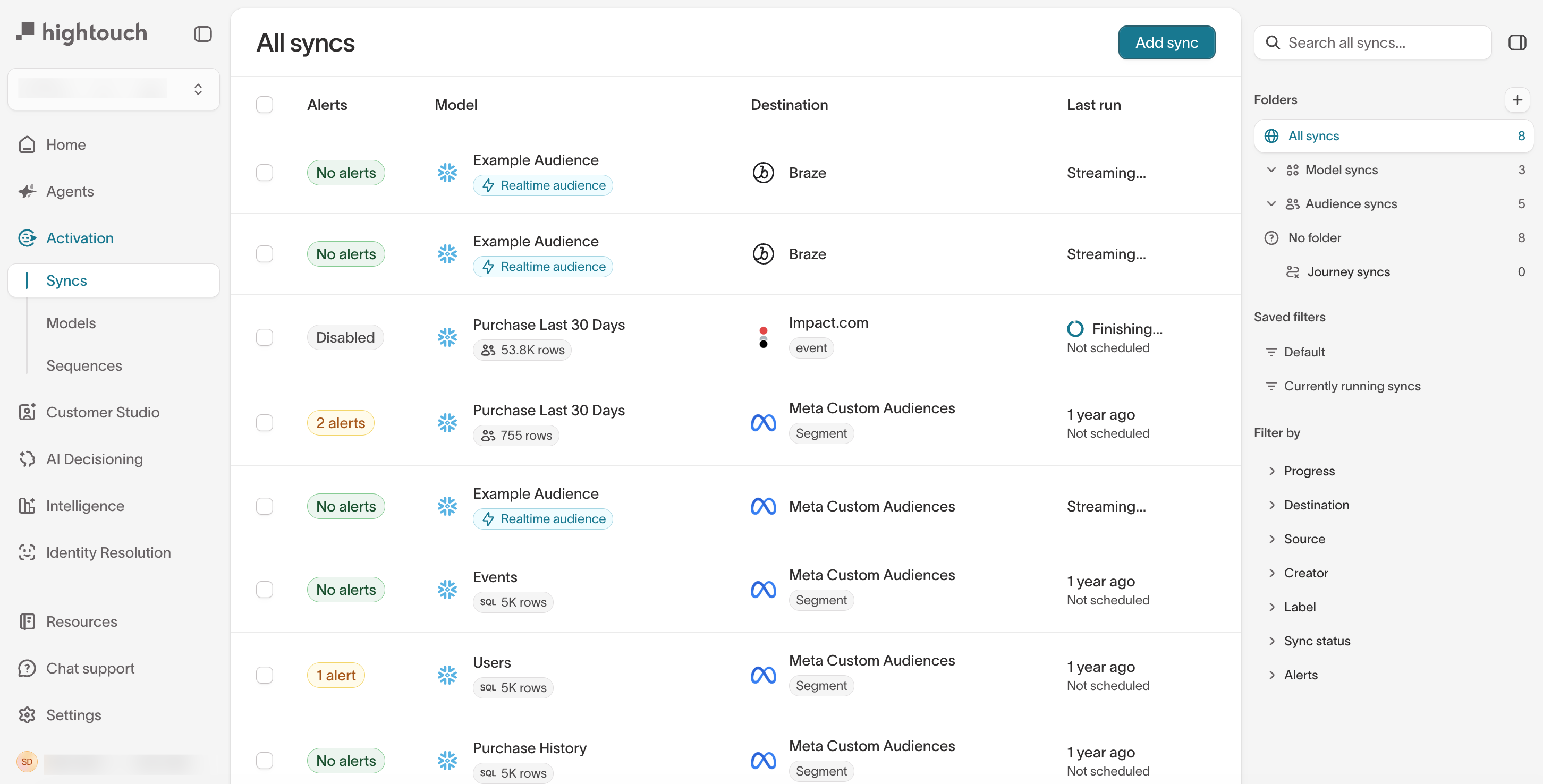
For each sync, the list shows its alert state, its associated model and destination, and its last run. Use the folders and filters alongside the list to narrow it by source, destination, label, or status.
Click a sync to open its individual overview page.
Sync status
Hightouch tracks two kinds of status. Sync health is the sync's overall condition; run status is the state of an individual run. The syncs list can show either, and in workspaces with advanced alerting it shows an Alerts column in place of last-run status.
Sync health
- Healthy: the most recent run completed
- Warning: the most recent run completed with rejected rows
- Pending: the sync hasn't run yet
- Disabled: the sync is turned off
Run status
- Querying: the run is reading its model
- Preparing / Processing: the run is preparing data for the destination
- Queued: the run is waiting to start
- In progress: the run is writing to the destination
- Completed: the run finished
- Completed with errors: the run finished, but the destination rejected some rows
- Interrupted: a temporary interruption stopped the run, and it resumes on the next run
- Aborted: the run was stopped before it finished
- Failed: an error stopped the run. Open the run to see why.
Individual sync overview page
Click a sync on the Syncs overview to open its own page.
The page shows the sync's model and destination, whether it's enabled or disabled, a Run sync button to run it manually, and a ... menu to move the sync to a folder, edit its labels, resync or reset it, or delete it. The Overview tab summarizes the sync's alert state, its Recent sync runs, and Sync metrics such as successful operations over time. The panel alongside it holds the sync's schedule, description, labels, and:
- Sync ID: the numerical identifier used when setting up an Airflow operator or the Dagster, Prefect, or Mage extensions
- Sync slug: a human-readable identifier for the sync
- Created by: who created the sync, and when
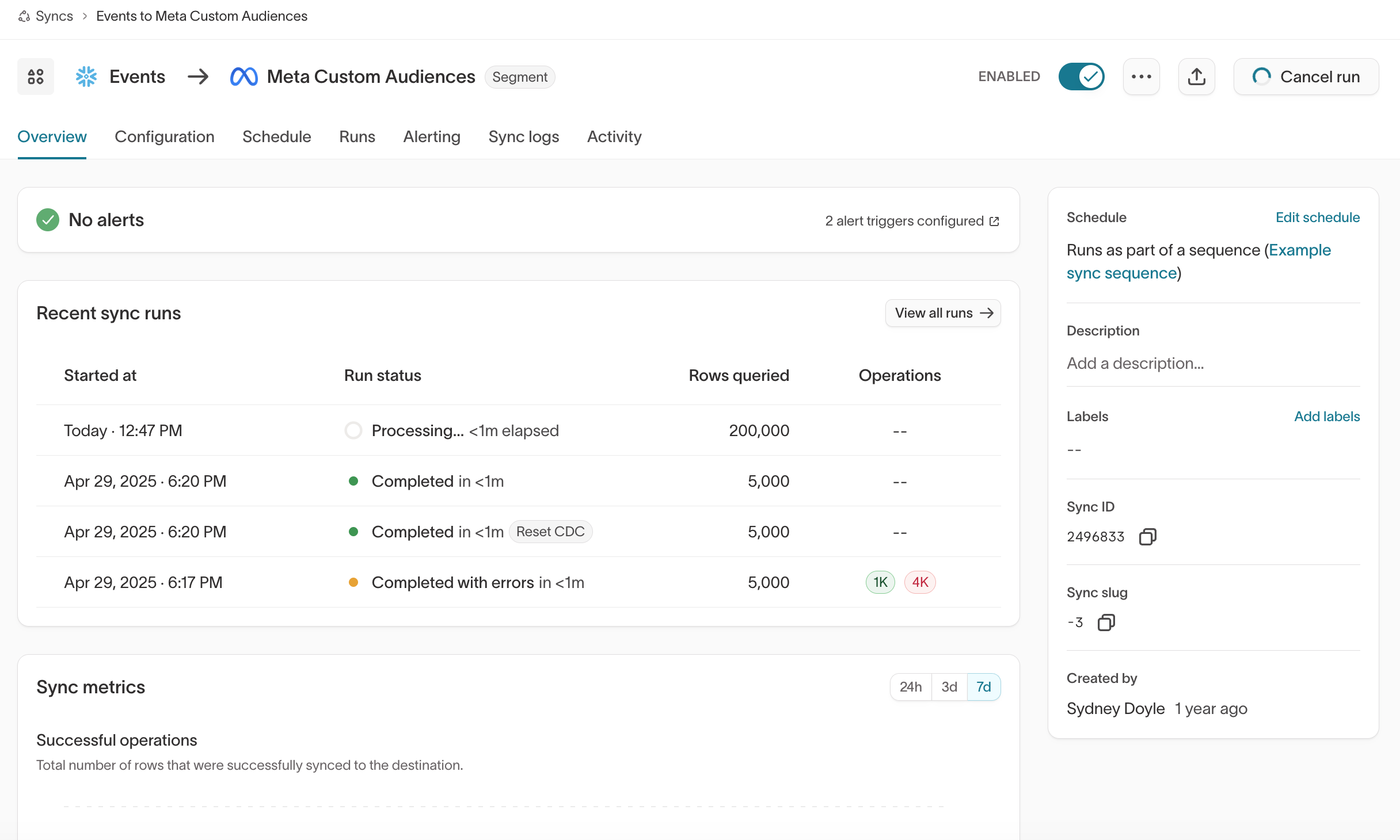
Use the tabs to view and edit each part of the sync:
- Configuration: the sync's configuration.
- Schedule: the sync's schedule.
- Runs: the status, time, and details of recent runs. Select a run to open the debugger.
- Alerting: the sync's alerts.
- Sync logs: where the sync's historical logs are stored.
- Splits: the experiment groups assigned to the sync. Appears when the model uses splits.
- Activity: recent changes to the sync's configuration and settings.
These three run-level actions all start from the sync's ... menu → Resync or reset.... For a decision guide, prerequisites, and warnings, see Resync, reset CDC, or clear and fill.
Resync full query
A full resync reprocesses every current row as if it were newly Added, resetting the sync's tracking to its initial state. See when it's safe and how to run it.
Full resync prerequisites
Before you trigger a full resync, check your sync mode and delete behavior — reprocessing every row can create duplicates on insert-mode, event, and webhook syncs.
Clear and fill
Where a destination supports it, clear and fill empties a segment or audience and re-fills it from the current model.
Reset CDC
Reset CDC clears change-data-capture state without sending any rows, so the next run captures a fresh baseline and sends nothing.
Run details
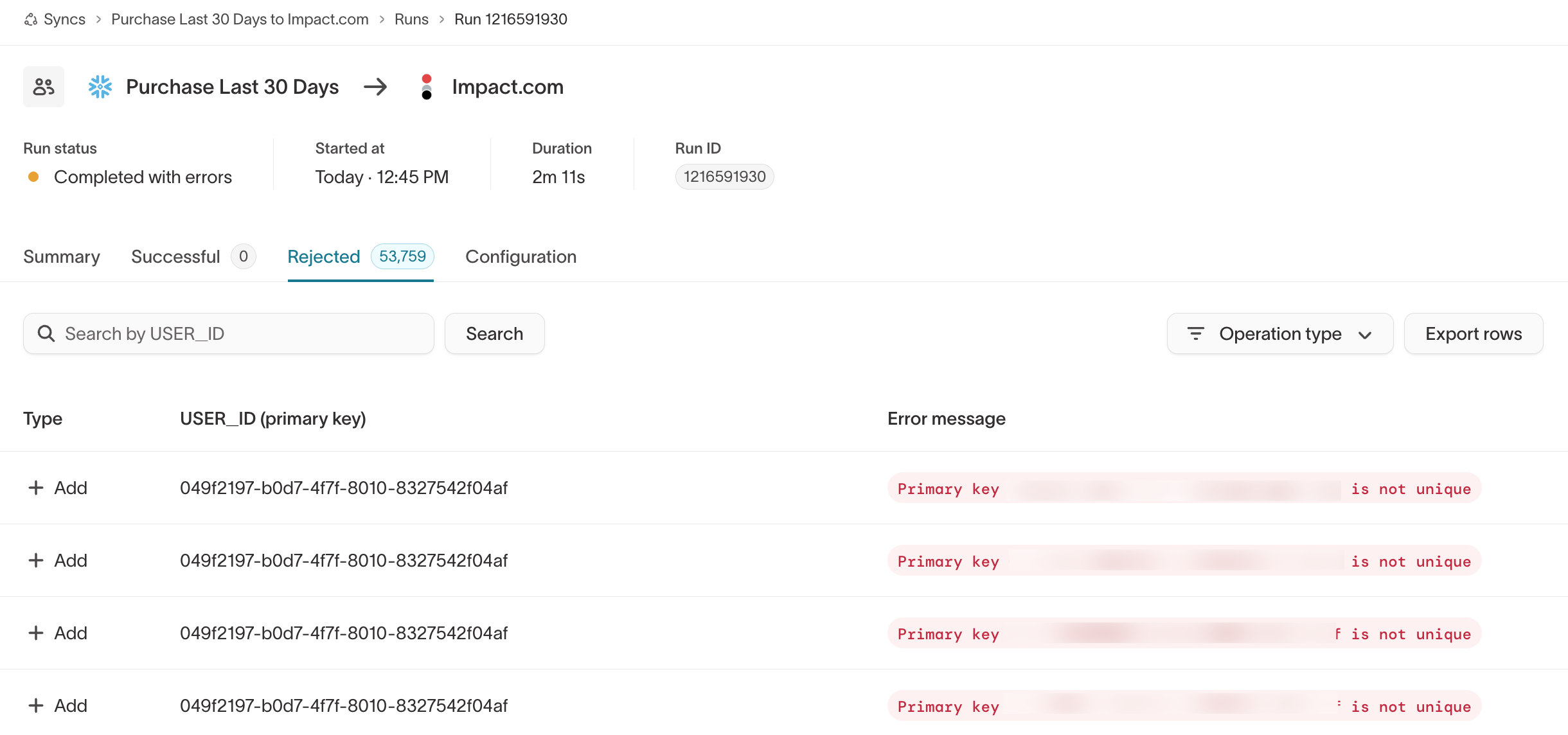
A run is a single invocation of a sync, triggered manually or on a schedule. The Runs tab lists each run with:
- The run's status
- The time the run started and its duration
- The number of rows queried
- The total operations — expand it to see rows added, changed, and removed
- The results: successful operations in green and rejected operations in red
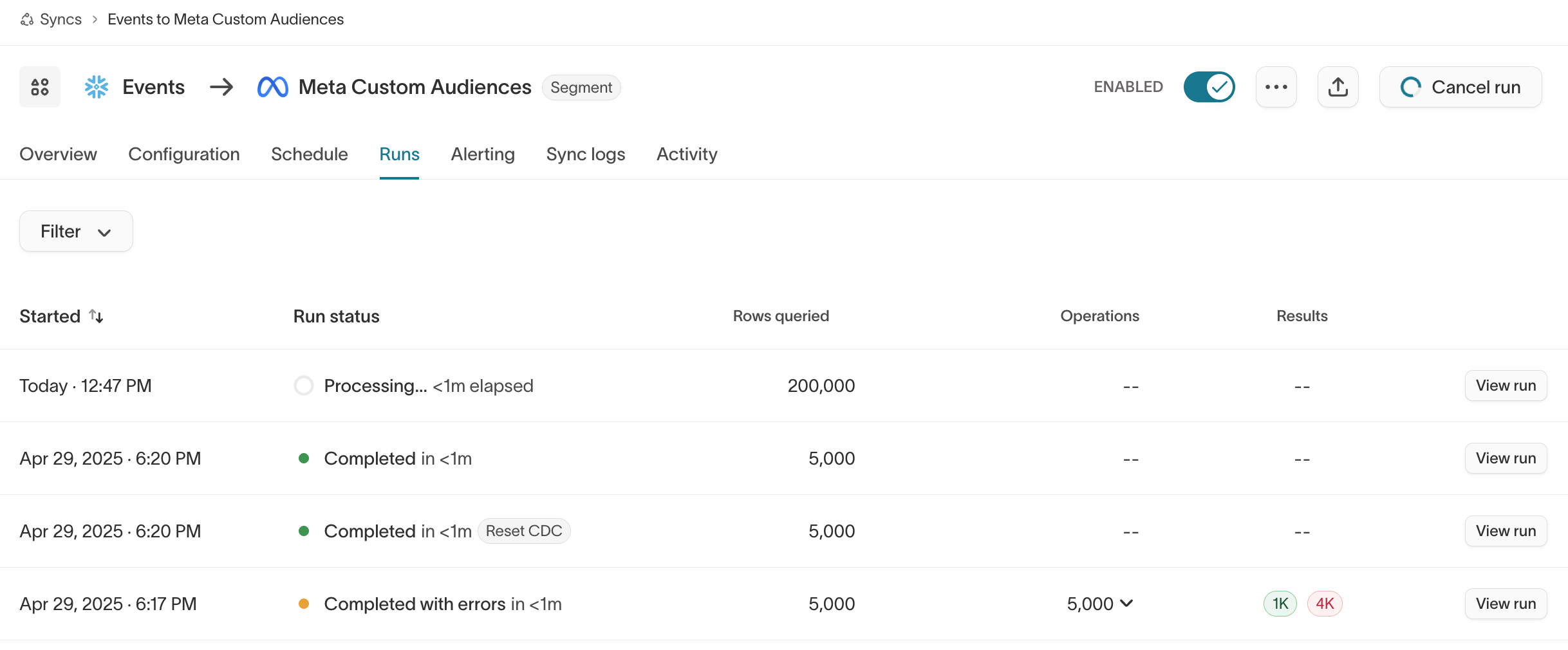
Click View run to open a run. Its rejected rows appear on the run's Rejected tab, each with the destination's error message. To inspect a row's request and response, use the debugger.
Configuration
The Configuration tab exposes destination-specific options. These vary by destination but generally include:
- Type: the kind of object to sync to, such as objects, events, or subscription lists. See types and modes.
- Mode: the update mode, such as upsert, insert, or update. See types and modes.
- Record matching: for update or upsert modes, how source rows match destination records. See record matching.
- Field mapping: which source columns sync to which destination fields. See field mapping.
- Batching: how data is batched into API requests.
- Delete behavior: what to do when a record leaves your source.
Delete behavior
For some sync types and destinations, you may want to remove records that no longer appear in your model's query results.
For example, you might sync customer records to a CRM from a model of all active users. When a user becomes inactive and drops out of the query results, you may want to delete them or clear their fields in the CRM.
Depending on the destination and sync mode, common delete-behavior options are:
| Behavior | Description |
|---|---|
| Do nothing | Keep the record in the destination. Use this when you want the destination to keep accruing records from your source. |
| Clear fields | Keep the record but clear the mapped fields. Use this to retain records while emptying the fields your sync maps. |
| Delete destination record | Delete the record in the destination. Use this when you want the destination to mirror your source by dropping records that leave your model. |
Hightouch acts on records only as they leave your model's query results, and only after you apply deletion settings. It has no access to historically removed records, so it can't delete or clear records that already left your source before this run. It compares against the immediately previous run only. A full resync doesn't delete or clear historically removed records.
Regardless of the delete-behavior option, a run's detail page always displays removed rows.
For a destination's delete-behavior details, see its documentation.
Configuration actions
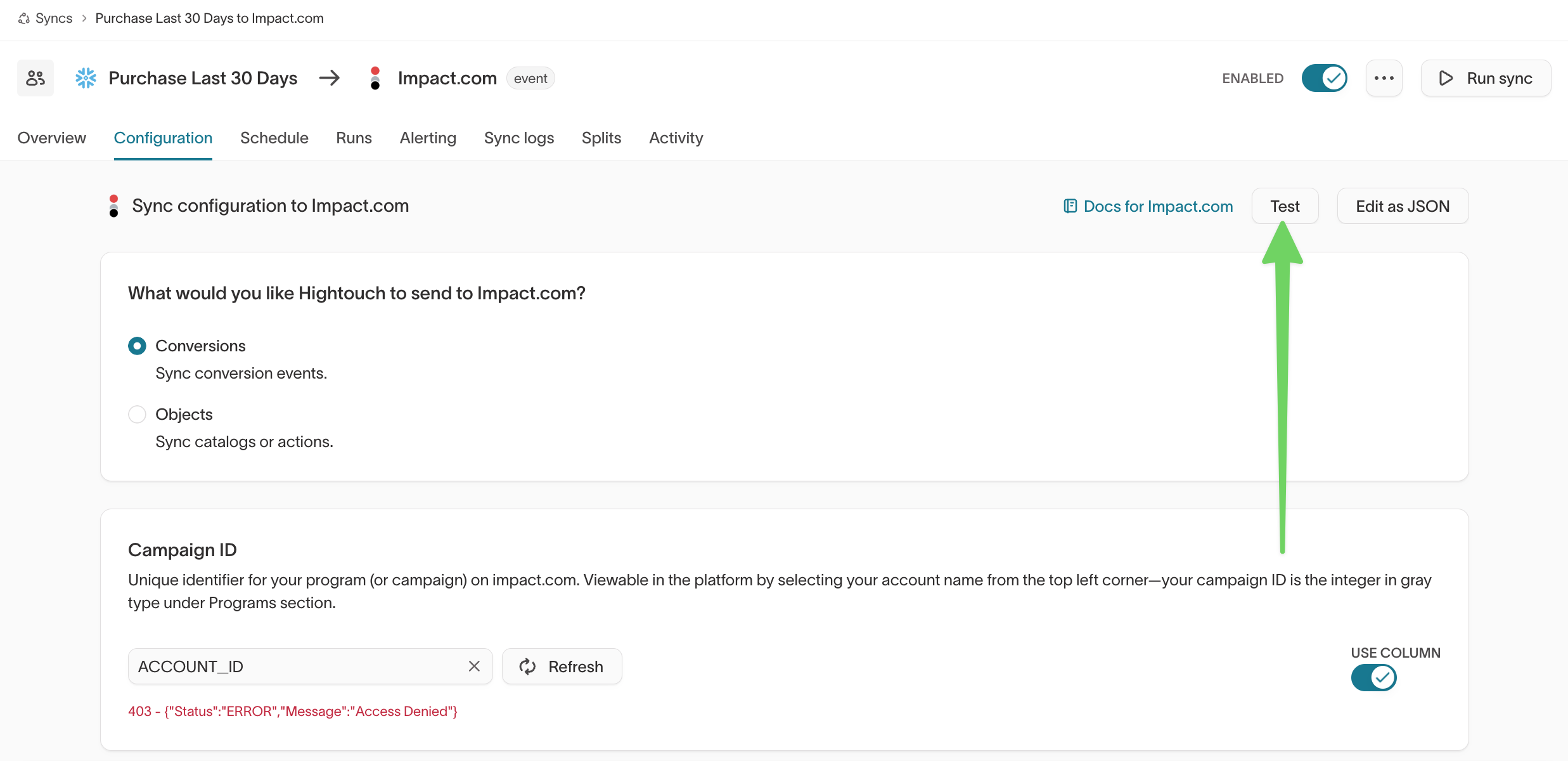
From the configuration, you can also test a row or edit the configuration as a JSON object.
Test a row
Testing a row sends a single row from your model to your destination, so you can confirm the sync works before running it in full.
The Test button appears at the top of the configuration when your destination supports row testing for the current setup. If you don't see it, the destination doesn't support testing this configuration — some require specific options first, such as Meta Custom Audiences, which tests only against an existing audience.
Click Test and select a row. Before testing, you can edit a column's data type and value by hovering over it, clicking the pencil icon, making the change, and clicking the check mark. You can't edit the model column used for record matching, because Hightouch intentionally stringifies it for performance.
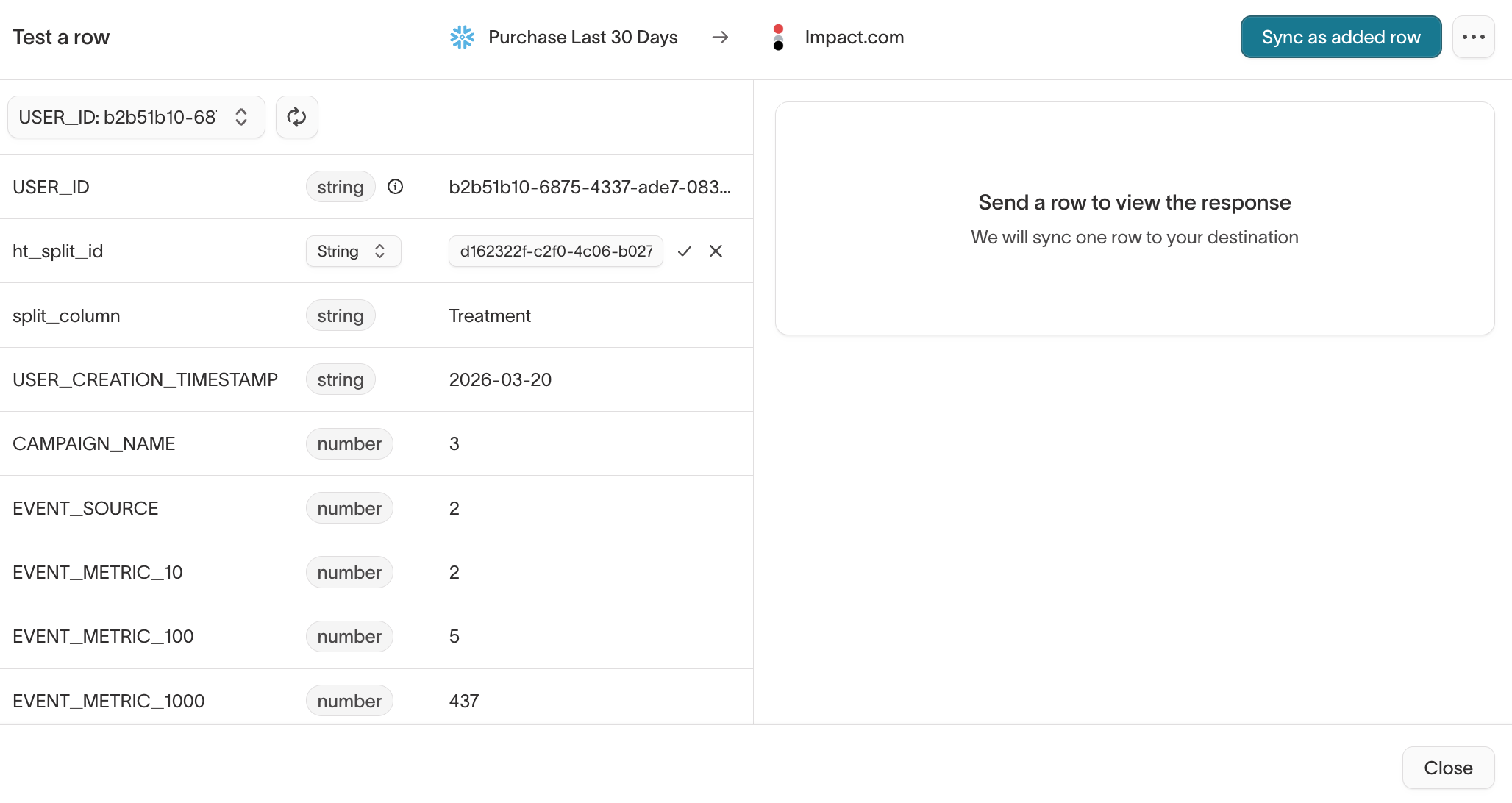
The row-testing window displays only certain data types, such as string and number. A column of another type, such as date, shows as string. This affects the UI only — Hightouch doesn't convert the data type when syncing. To confirm a column's type, see the model configuration page.
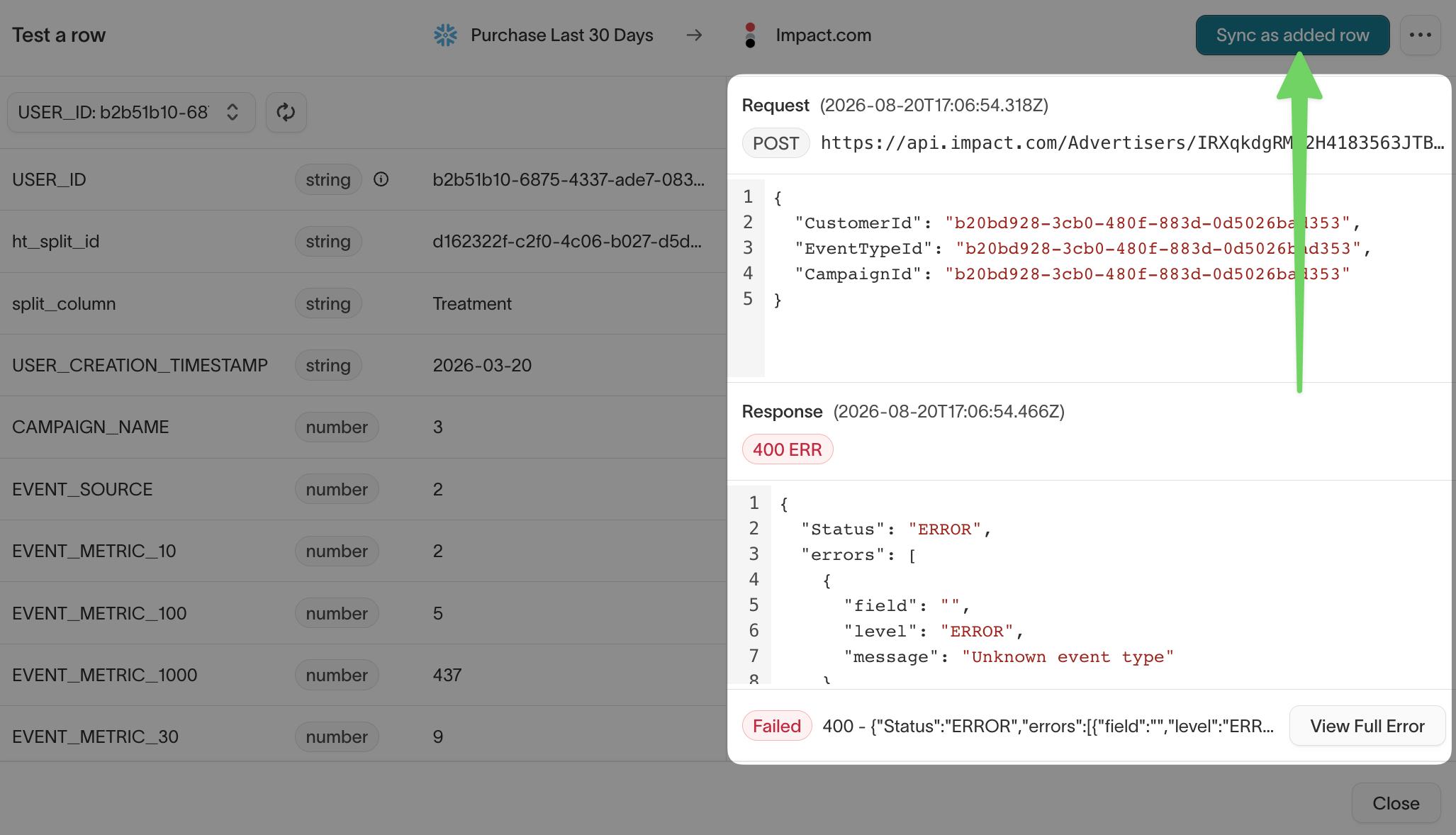
Click Sync as added row to send it, or use the ... menu to sync it as a changed or removed row. The request and response appear alongside the row so you can see exactly what Hightouch sent and what the destination returned. The UI may take a few seconds to show results.
Edit as JSON
You can edit a sync's configuration as JSON to make several changes at once or copy one sync's configuration to another. For example:
{
"mode": "upsert",
"type": "object",
"fromId": "track_visitor_id",
"object": "user",
"mappings": [
{
"to": "uuid-western",
"from": "uuid"
},
{
"to": "Trialer Status",
"from": "trialer_status"
}
],
"customMappings": [
{
"to": "unique_notification_status",
"from": "notify_status"
}
]
}
Schedule
Every sync has a schedule, which decides how often it runs. Besides manual runs, you can schedule a sync with these options:
- Interval: run on a set interval, such as once a day.
- Custom recurrence: run at a specific date and time, such as every Monday at 9 AM.
- Cron expression: run on a cron expression.
- dbt Cloud: trigger runs from dbt Cloud.
- Fivetran: trigger runs from Fivetran.
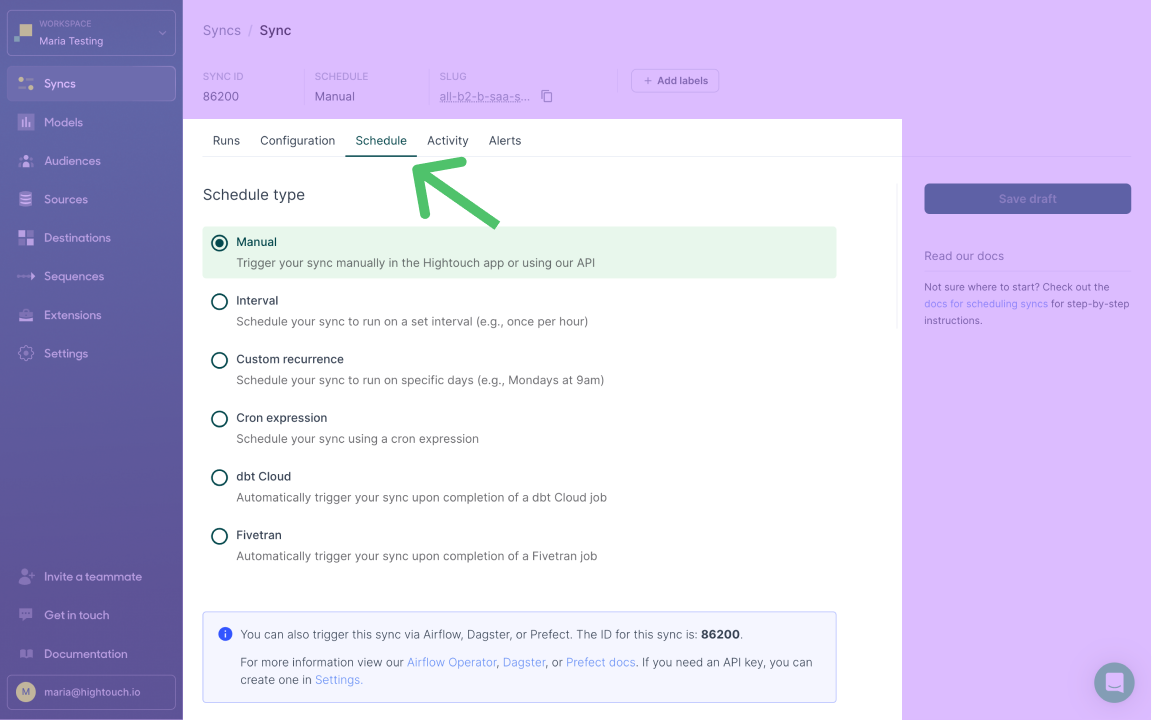
You can also trigger syncs with Airflow, Dagster, Prefect, Mage, or the REST API, even though these aren't listed as schedule types. For all scheduling options, see schedule a sync.
To require one sync to finish before another begins, use Sequences. If you're planning around Daylight Saving Time, review the DST guidance.
Alerts
Configure alerting per sync from the Alerting tab.
Sync logs
Configure Warehouse Sync Logs from the Sync logs tab. This writes the results of your syncs back into your warehouse for more complex analysis.