| Audience | Marketers, platform admins |
| Prerequisites |
|
The Asana integration links Lifecycle Studio campaigns to Asana tasks so the two stay in step. Kick off campaigns from Asana, and read or update the linked task from Hightouch.
Overview
Marketing teams often plan work in Asana and build the campaign in Hightouch. The integration connects the two so a task and its campaign travel together, and works in both directions:
- From Asana — Create or attach a Hightouch campaign from a task, or generate campaigns automatically with an Asana rule. The task's details inform the campaign brief.
- From Hightouch — See and update the linked Asana task on the campaign page, and link, change, or unlink the task at any time.
Lifecycle Studio reuses your Asana destination's credentials to act on Asana, so you connect Asana as a destination before you install the app. A campaign and a task stay linked until you unlink them.
Set up the integration
Setup happens once: connect Asana as a destination, install the Hightouch app in your Asana workspace, then add the app to the projects you work in.
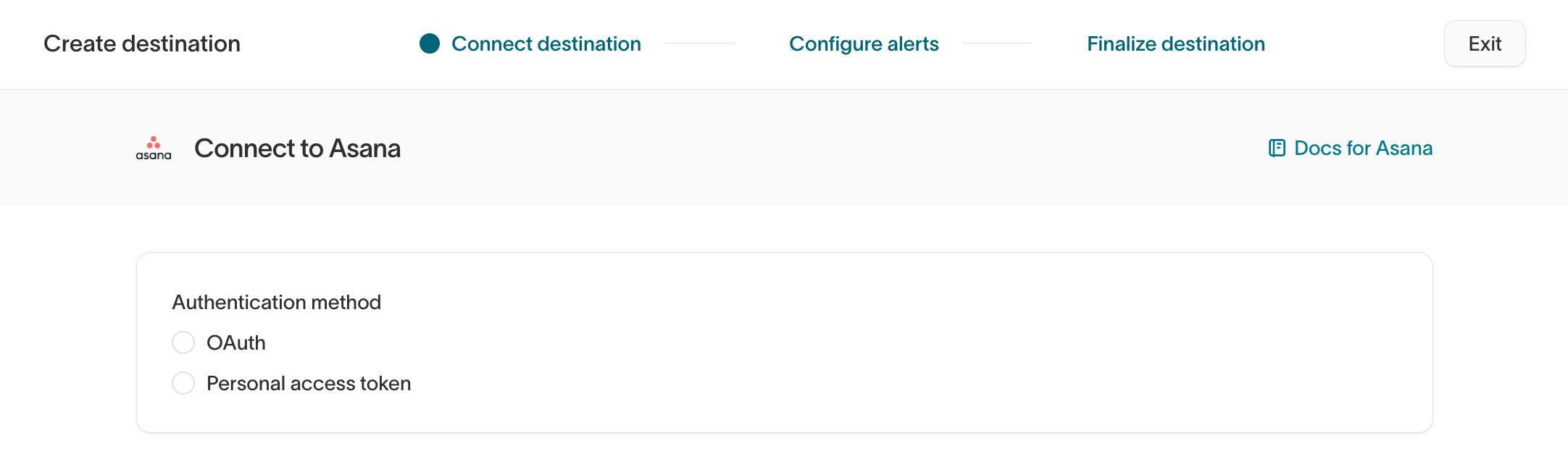
Choose an authentication method
Decide how Hightouch authenticates with Asana before you connect. Every action Hightouch takes in Asana is attributed to the identity behind the method you choose.
- OAuth — No extra setup. Actions are attributed to the person who sets up the connection.
- Personal access token — Create a personal access token (PAT) in the Asana developer console. Actions are attributed to the person who created the token.
To attribute actions to a shared identity instead of an individual, Asana Enterprise customers can create a service account and connect with its token through the Personal access token method.
Connect Asana as a destination
Add Asana as a destination in Hightouch, and select the authentication method you chose. Both a personal access token and a service account use Personal access token. For the full connection reference, see the Asana destination.
Install the Hightouch app in Asana
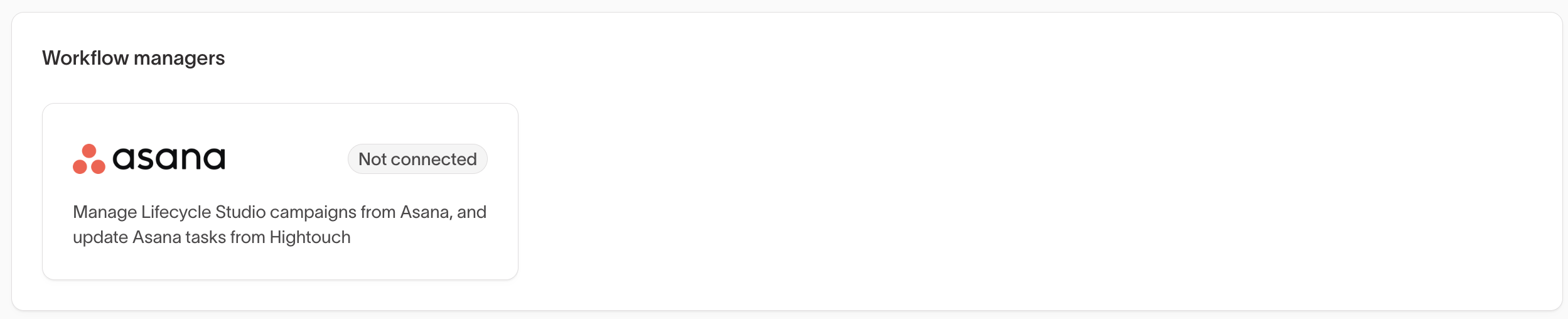
- In Hightouch, go to Context Hub > Connected data.
- In the Workflow managers section, select the Asana card. You can also install directly from Asana.
- Select Connect to Hightouch.
- When Asana redirects you back, select the Hightouch workspace where you added the Asana destination.

Add the app to your Asana projects
After connecting, add the Hightouch app to the Asana projects you want to use it in. Do this during the connect flow, or later from a project: select Customize, then Apps, then add Hightouch.
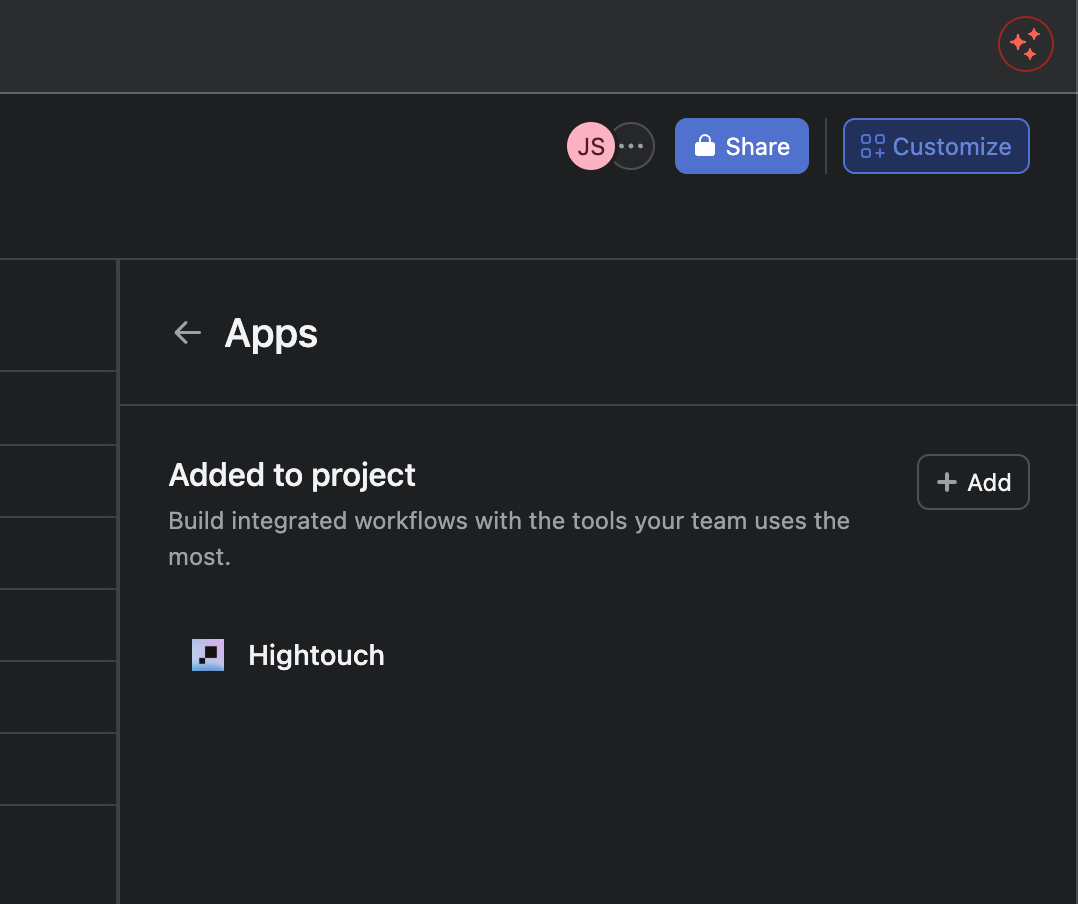
To confirm the app is available, open any task in the project and check that Hightouch appears in its Apps section.

Work from Asana
Create a campaign from a task
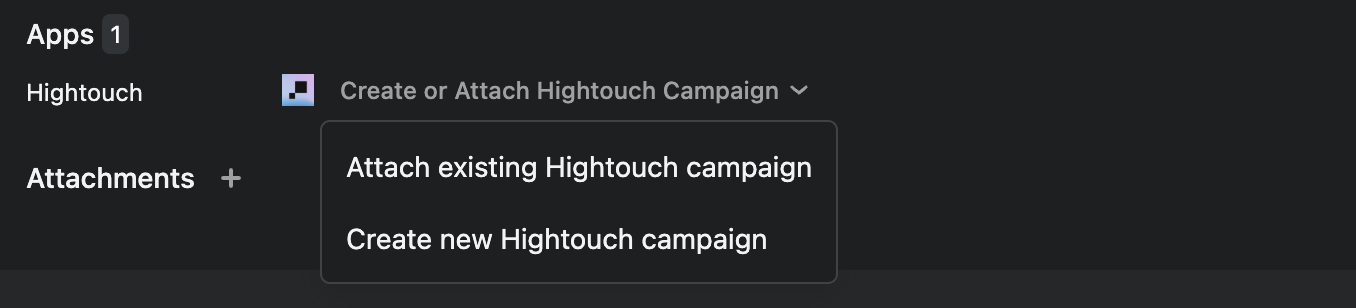
In an Asana task, go to Apps > Hightouch, select Create or Attach Hightouch Campaign, then Create new Hightouch campaign. Hightouch generates a campaign from the task and uses the task's contents to inform the brief. The task and campaign stay linked.
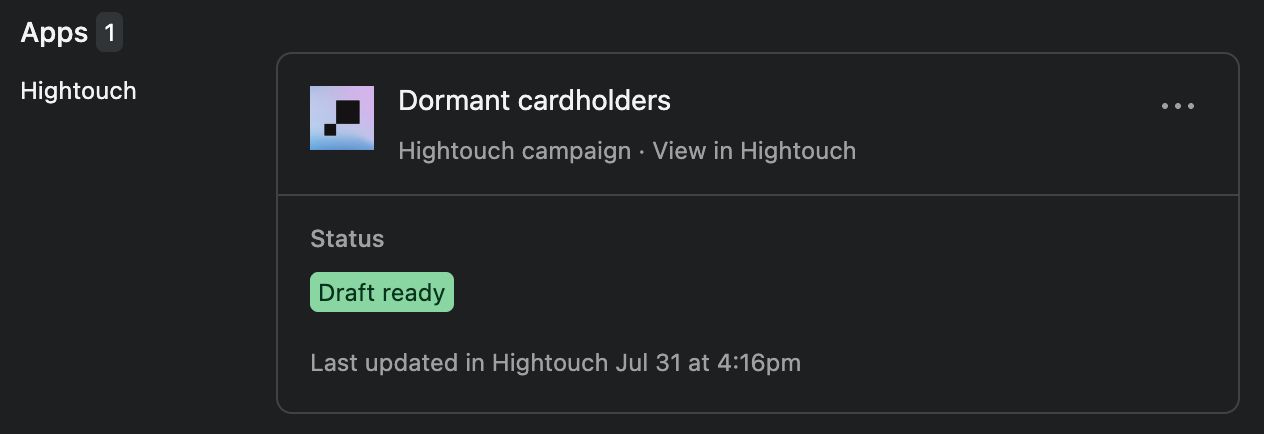
Once a campaign is linked, the task's Hightouch app shows the campaign name, its status (such as Draft ready), and a View in Hightouch link.
Attach an existing campaign to a task
To connect a task to a campaign you've already created, select Create or Attach Hightouch Campaign, then Attach existing Hightouch campaign, and choose the campaign. Attaching links the task to the campaign without changing the campaign's brief.
Create campaigns automatically with a rule
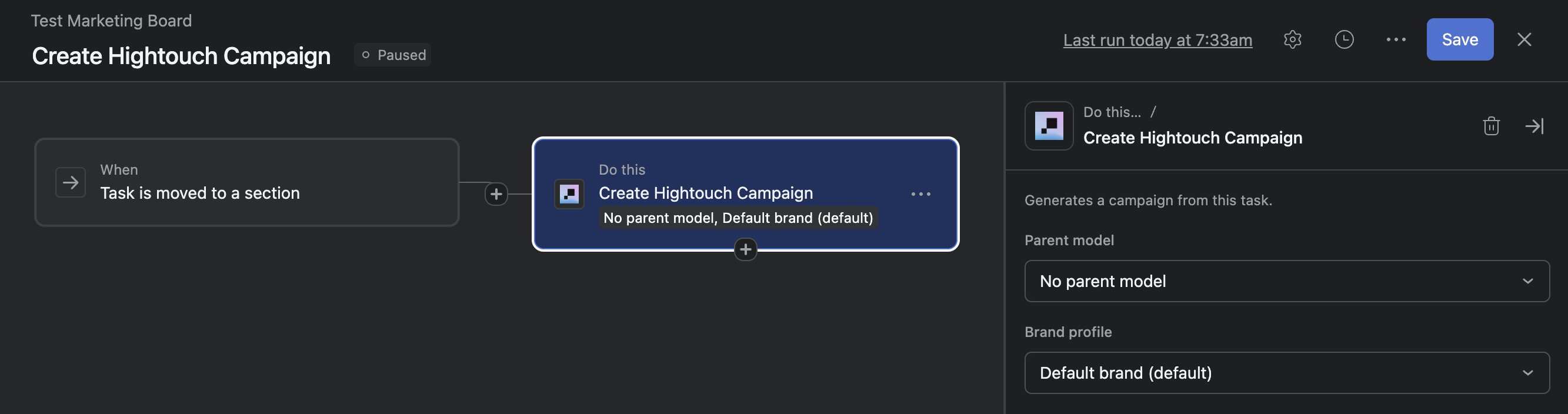
On Asana Starter and above, you can generate campaigns without opening each task. Add an Asana rule with the Create Hightouch Campaign action, and choose a trigger, such as when a task is moved to a section. In the action, set the Parent model and Brand profile Hightouch uses for the campaign. When the rule runs, Hightouch generates a campaign from the task.
Work from Hightouch
Autofill a new campaign from a task
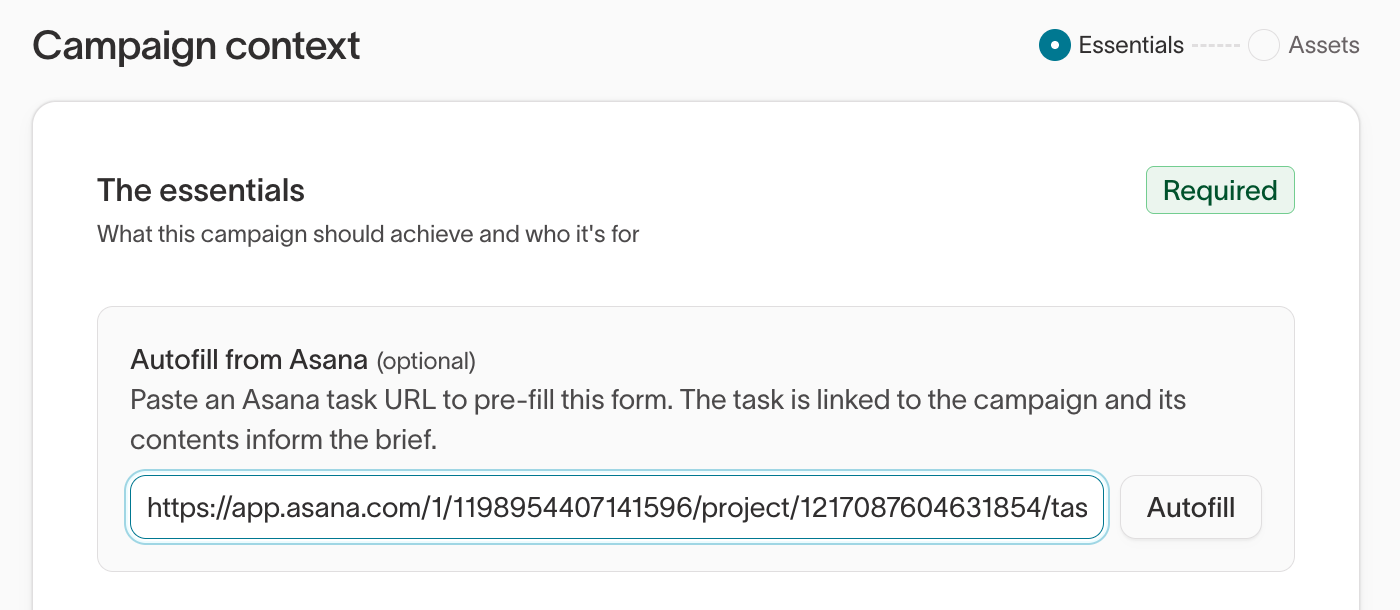
When you create a campaign in Hightouch, paste a task URL into Autofill from Asana and select Autofill. Hightouch pre-fills the campaign form from the task and links the task to the campaign — the same result as creating the campaign from Asana. See Create a campaign.
View and edit the linked task
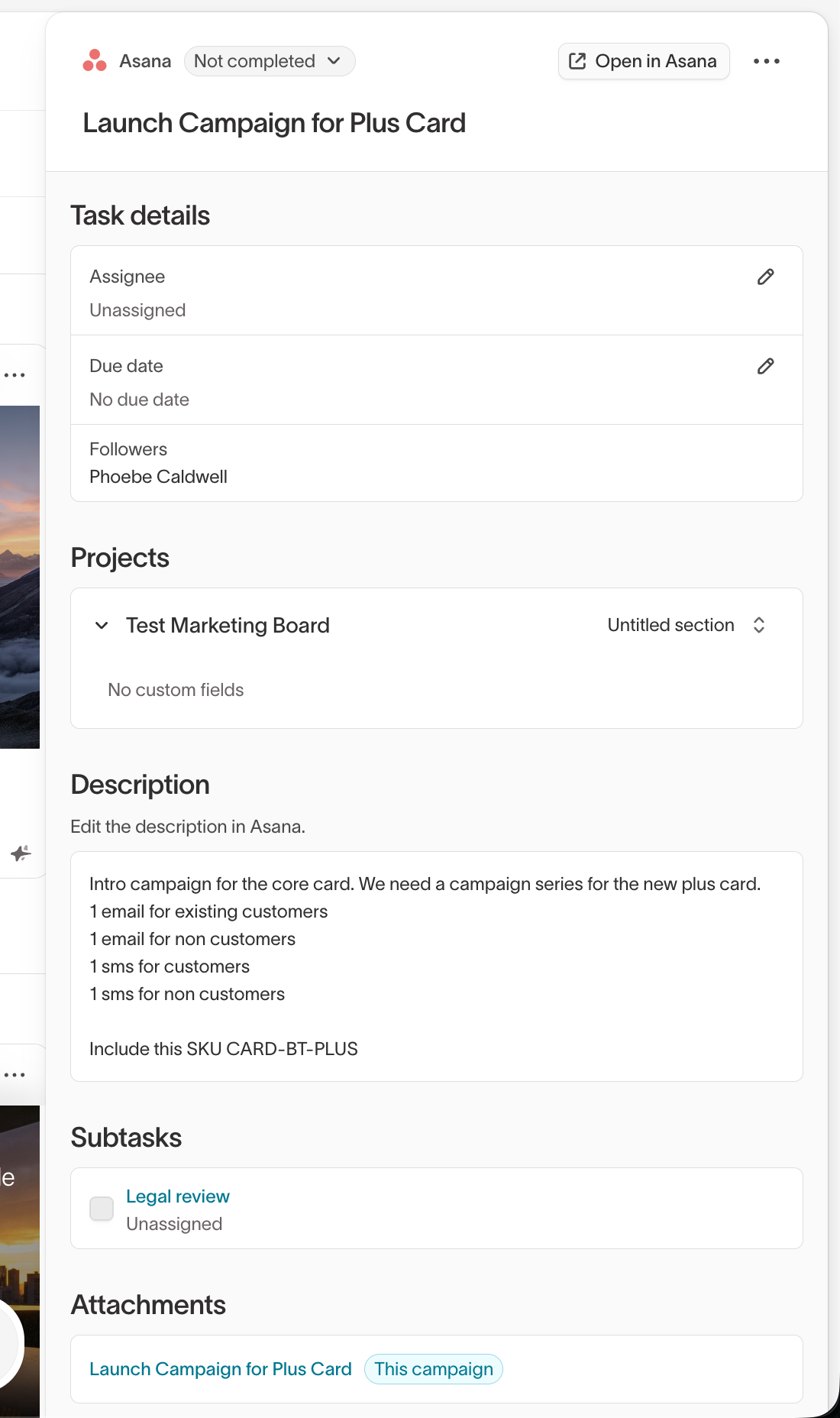
On a campaign with a linked task, open the task to see its assignee, due date, followers, description, and subtasks without leaving Hightouch. You can update some fields, such as the assignee and due date, directly from Hightouch. Edit the description in Asana. Select Open in Asana to open the full task there.
Link, change, or unlink a task
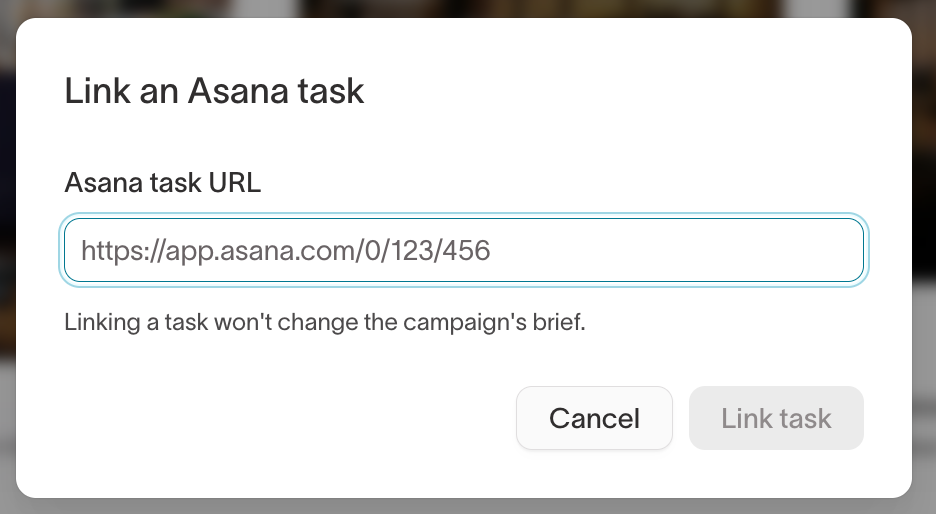
To link an existing campaign to a task, select Link an Asana task, paste the Asana task URL, and select Link task. Linking a task won't change the campaign's brief.
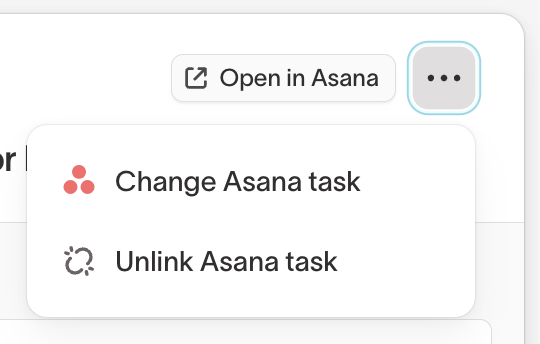
To swap or remove the link later, open the task menu on the campaign and select Change Asana task or Unlink Asana task. Unlinking leaves both the campaign and the task in place. It only removes the connection between them.
Next steps
- Campaigns to plan and generate the campaigns you link to Asana tasks.
- Connected data to manage the Asana connection alongside your other Context Hub connections.
- Asana destination for the full authentication and connection reference.