| Audience | Platform admins, data teams |
| Prerequisites | The Configure Agents grant. Some channels require a matching destination before you can connect them (see Connections). |
Connect your marketing channels and configure the business context your agents use when answering questions and generating content.
What you'll learn
- Connect ad platforms, ESPs, and digital asset managers
- See which channels require a Hightouch destination first
- Provide context cards and metric definitions
- Save assumptions as memories
- Configure the research signals agents use
Overview
Data setup has two parts:
- Connections — Connect marketing platforms so agents can use campaign, creative, and content data.
- Context — Define metrics, business rules, memories, and research signals that agents use when interpreting that data.
In the app, these settings live under Context Hub → Connections and Context Hub → Context.
Connections
Connect your marketing tools so agents can use campaign, creative, and messaging data alongside your warehouse data. The Connections page has three parts: channels, email service providers, and digital asset managers.
Channels
A channel connects an ad platform or messaging tool so its campaign and creative data syncs into Hightouch for agent analysis. Two kinds of platforms appear under Channels:
- Ad platforms — Ad networks and DSPs where you run paid campaigns.
- Messaging and lifecycle platforms — Email, SMS, and marketing automation tools where you run lifecycle programs.
Hightouch adds new channels regularly, so check the platform for the current list.
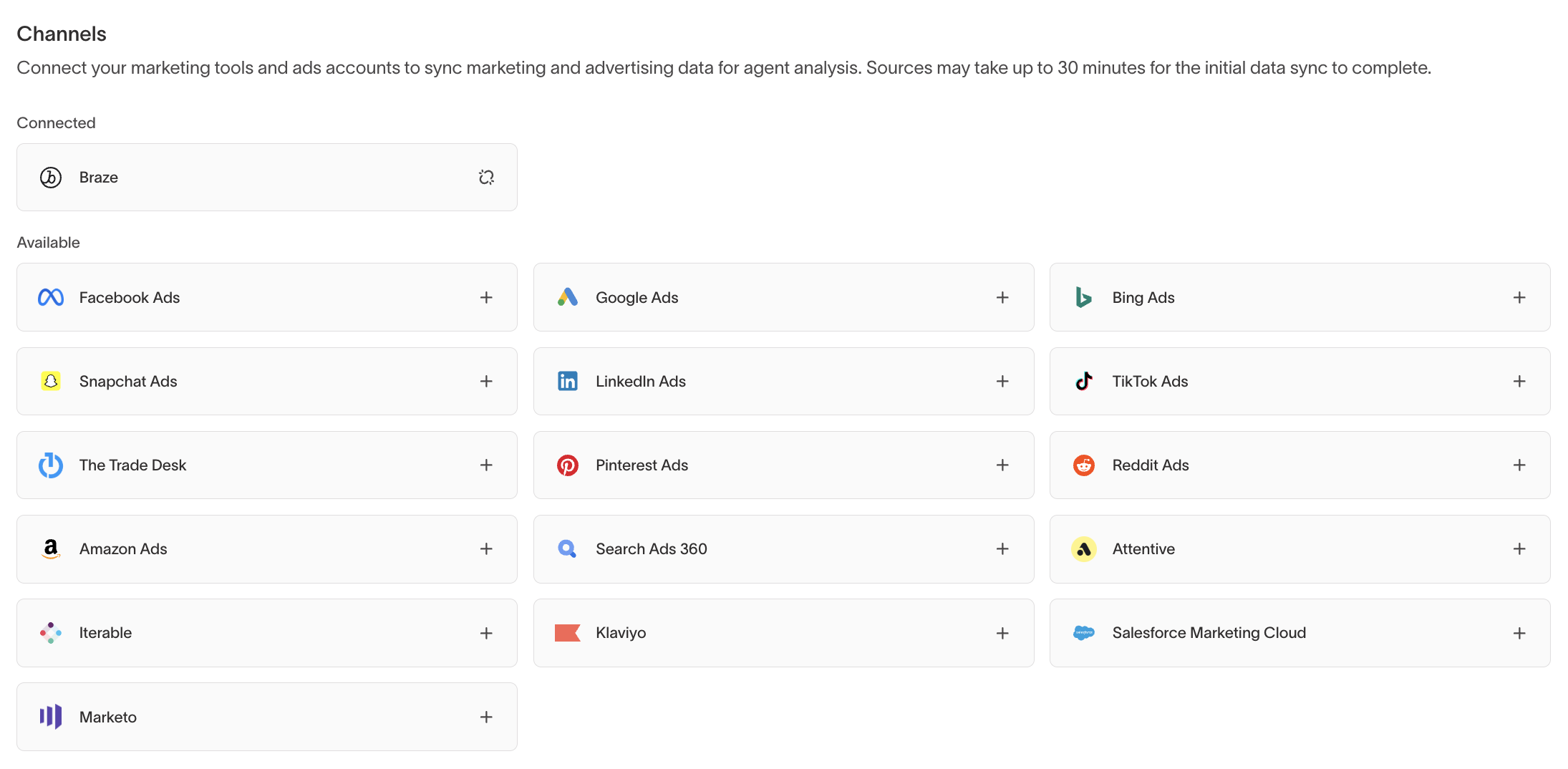
Connect a channel
- Go to Context Hub → Connections.
- Under Channels → Available, select + next to the platform.
- Enter a Connection name. This is how the connection is labeled in Agents.
- If the platform requires one, select a matching Hightouch destination. See which channels need a destination.
- For Facebook Ads and Google Ads, select the accounts to sync in Enabled accounts. Hightouch syncs only the accounts you select.
- Select Connect.
Most platforms redirect you to Fivetran to authorize access. Follow the prompts to sign in. When setup is complete, you're returned to the Connections page. A few platforms connect directly using your destination's credentials and don't redirect.
The initial sync can take up to 30 minutes.
Fivetran is the data-sync service Hightouch uses to pull data from your ad and messaging accounts. When a platform requires authorization, you complete a short sign-in with Fivetran and don't need to change any settings.
Which channels need a destination
Some channels require a matching destination in your workspace before you can connect them. Hightouch uses the destination's credentials to access campaign data or creative assets. Set up the destination first, then return to Connections. The destination's own doc covers the credentials and permissions it needs. If a required destination doesn't exist, the channel shows an error telling you to create one first, for example No Facebook Ads destinations found. Please create a Facebook Ads destination first.
| Channel | Destination required first |
|---|---|
| Facebook Ads | Yes |
| Google Ads | Yes |
| Bing Ads | Yes |
| Reddit Ads | Yes |
| TikTok Ads | Yes |
| Snapchat Ads | No |
| LinkedIn Ads | No |
| The Trade Desk | No |
| Pinterest Ads | No |
| Amazon Ads | No |
| Search Ads 360 | No |
| Attentive | Yes |
| Braze | Yes |
| Iterable | Yes |
| Klaviyo | Yes |
| Salesforce Marketing Cloud | Yes |
| Marketo | Yes |
Only Facebook Ads and Google Ads support selecting specific ad accounts during setup. For other platforms, Hightouch syncs the accounts your destination or authorization grants access to.
Platform-specific setup notes
Some platforms require additional setup:
- Iterable — After you select Connect, you're redirected to Fivetran to finish setup. Follow the instructions there to configure the Iterable webhook.
- Klaviyo — You're redirected to Fivetran to confirm setup. If your Klaviyo destination uses OAuth, you authorize Klaviyo through Fivetran there.
- Attentive — Enable webhooks in Attentive before syncing. In your Attentive app settings, set Event Webhook Status to on and select the subscription webhook.
Manage channel connections
Select a connected channel to view or manage its connections. Each connection shows a status:
- Connected — The connection is active and syncing.
- Paused — Syncing is paused. Select Resume to restart it.
- Broken — The connection needs attention. Open it to view details and reconnect.
- Not connected — Setup is incomplete.
While a channel runs its first sync, it shows Initial sync in progress until the sync finishes.
From the management dialog you can:
- Update — Edit the connection name, destination, or enabled accounts.
- Pause or Resume — Stop or restart syncing without deleting the connection.
- Delete connection — Permanently remove the connection and its synced data. This can't be undone.
- Add new connection — Messaging and lifecycle platforms support multiple connections each. Ad platforms support one connection unless the existing one is paused or broken.
If a connection breaks
Connections shows a banner reading A connection needs attention. Open the affected channel to reconnect it.
Email service providers
Connect an email service provider (ESP) to import email templates into Hightouch for use in Lifecycle Studio.
The Email Service Providers section is available in workspaces with Lifecycle Studio enabled.
Connecting an ESP for template import is separate from connecting the same tool as a channel. A channel syncs campaign performance data. An ESP connection imports email templates. Braze, Klaviyo, Iterable, and Salesforce Marketing Cloud can appear in both places for different purposes.
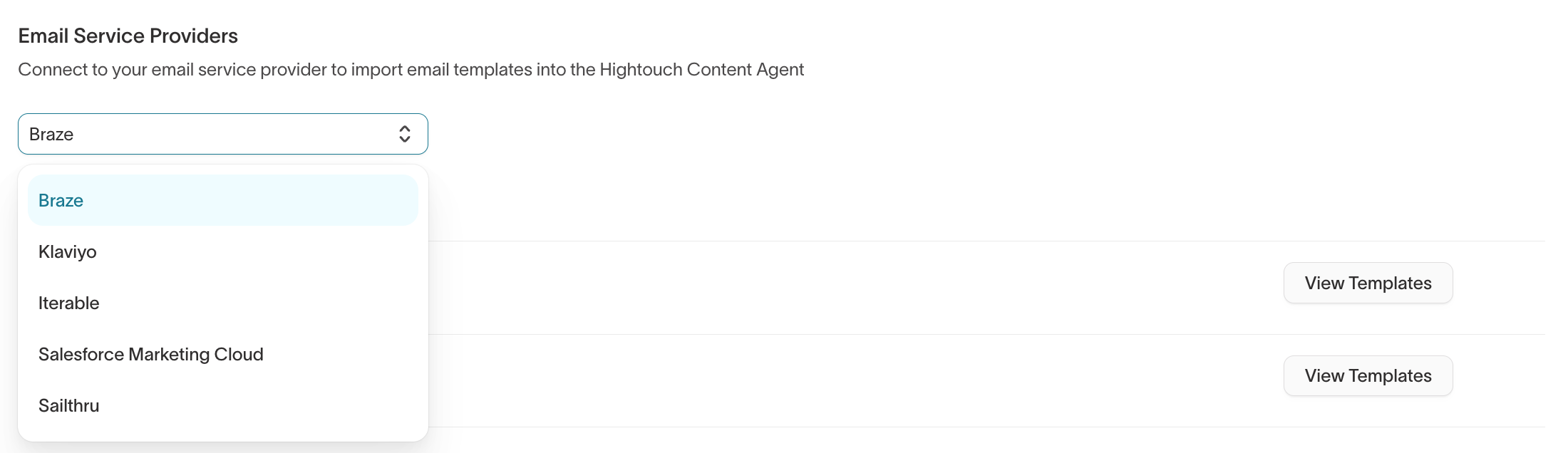
To connect an ESP and import templates:
- Select your Email Service Provider from the dropdown.
- If no destination exists for that provider, select Connect your ESP to create one. You must have an ESP destination before you can import templates.
- Once a destination exists, it appears in the list by its Integration name. Select View Templates next to the integration.
- In the browse dialog, search for templates by name. For Iterable, you can also filter by template type.
- Select the templates to import, optionally assign them to one or more Brand profiles, and select Import.
The preview includes the template name, subject line, preheader, tags, and HTML preview.
Digital asset managers
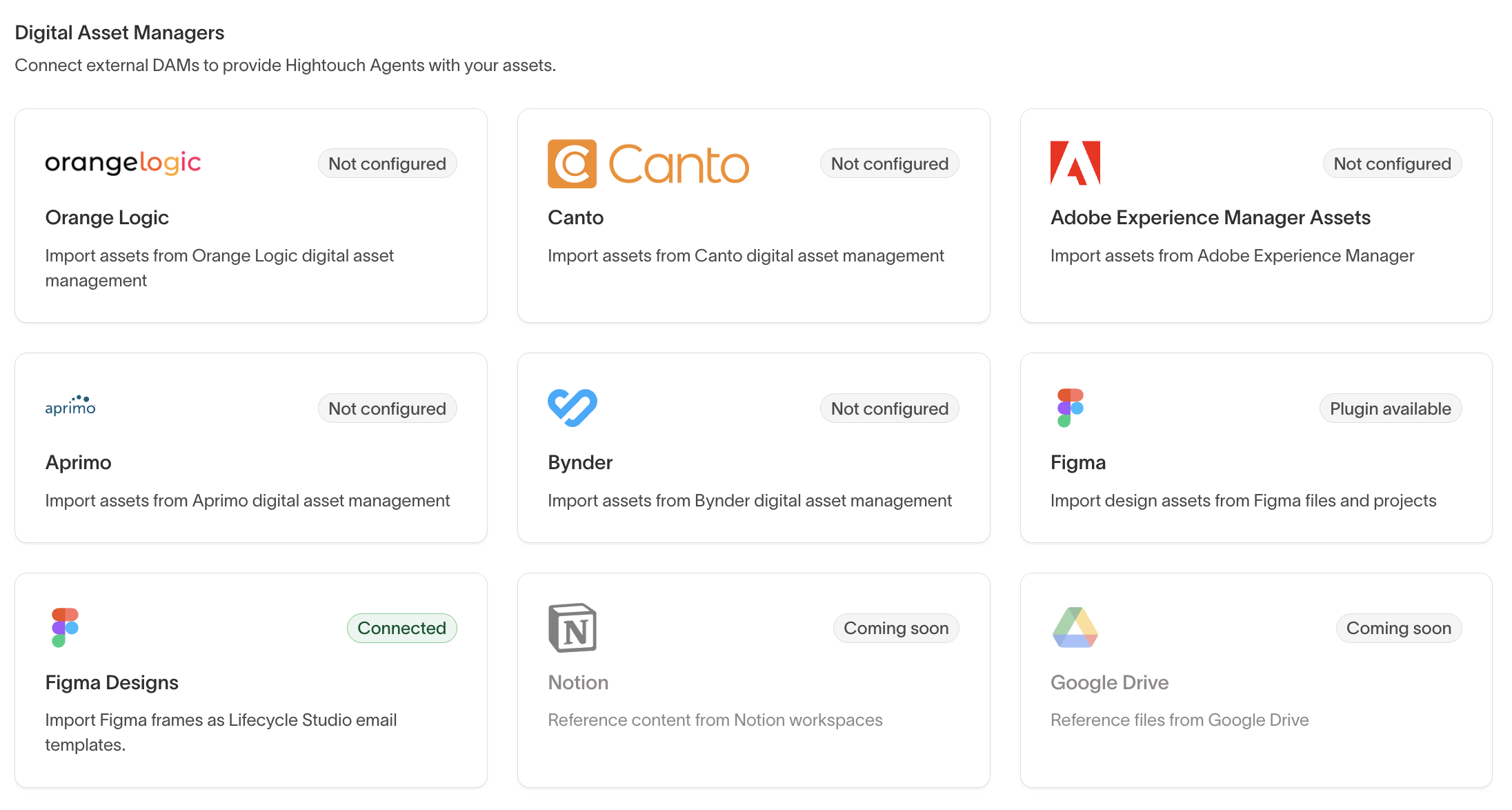
Connect a digital asset manager (DAM) so agents can access your images and creative assets. Providers appear as cards under Digital Asset Managers, and the list can vary by workspace.
To connect a DAM, select its card under Digital Asset Managers, then follow the prompts to authorize access. Each card shows a status:
- Not configured — The provider is available to connect but isn't set up yet.
- Connected — The DAM is connected and its assets are available to agents.
- Plugin available — Connect through the provider's plugin.
- Coming soon — Support is planned but not yet available.
Context
Context defines your business rules, metric definitions, and formatting guidance for agents. Context is organized into cards. Each card contains instructions or reference information for agents. Select Add context to create a new card.
Each context card includes a brand profile selector. Assign a card to one or more brand profiles to scope it to those brands, or leave it unassigned to make it available to all profiles.
Common context cards include:
- General — How the agent should behave, which data tables to prioritize, and any global instructions.
- Metric definitions — Your organization's specific definitions for metrics like LTV, attribution windows, conversion rates, or engagement scores.
- Campaign formats — Templates or formatting rules for campaign briefs, reports, or other formatted content.
- Email copy guidelines — Rules for generating or reviewing email content.
You can also upload files to a context card. Upload files such as brand guidelines, planning documents, and example reports that agents should reference.
What to add first
Start with the business definitions and rules that agents should consistently follow. In rough priority order:
- Metric definitions — formulas, attribution windows, fiscal calendar rules, KPI thresholds, and known caveats.
- Schema and table guidance — what key tables mean, which tables agents should prefer, and how important fields should be interpreted.
- Report requirements — example reports, required sections, preferred comparisons, formatting expectations, and stakeholder-specific rules.
- Business glossary and rules — standard terminology, segment definitions, campaign taxonomy, and compliance constraints.
- Brand and copy rules — approved messaging, restricted language, tone, and audience-specific voice guidance.
- Reference documents — upload planning docs, briefs, research, benchmarks, and other files agents should reuse across conversations.
You can start with a single general context card and split into more specific cards as your needs evolve.
Tips for effective context
Focus on decisions, not documentation. Use context to define business rules, preferred data sources, and how to resolve ambiguous cases.
Scope context when definitions differ. If metrics, terminology, or rules vary by brand, region, team, or business unit, assign context cards to the relevant brand profiles instead of forcing one global definition.
Resolve conflicting definitions. Terms like "revenue," "conversion," and "active user" often exist in multiple conflicting forms. Resolve conflicts in your context cards so agents reference a single authoritative definition.
Review context regularly. Update metric definitions, brand guidance, and other business rules as they change.
Memories
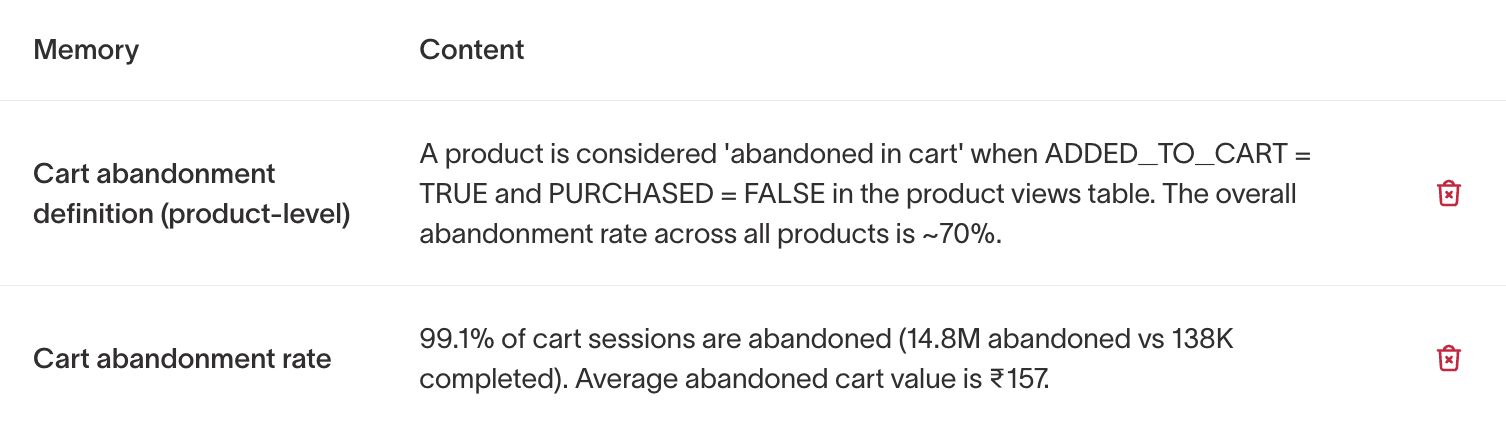
Memories are saved facts and definitions from conversations. When an agent identifies a reusable assumption during a conversation, you can save it as a memory for future conversations.
Memories are created in two ways:
- From chats — When the agent flags an assumption during a conversation, you can save it as a memory. For example, if the agent assumes a specific definition for cart abandonment, that definition can be saved so all future conversations use the same one.
- Explicitly via chat — Ask the agent to create memories directly. For example, upload a file containing metric definitions and ask the agent to create memories, which you can then save.
Memories are grouped by scope:
- Workspace — Memories that apply globally across all agents and conversations.
- Parent model — Memories associated with a specific parent model.
Admins can view and delete memories in the Memories tab. You can manage agent knowledge with memories, context cards, or both.
Signals
Signals define the external sources and topics agents use when researching trends, competitors, and industry developments. This configuration is used by Ad Studio Insights.
Signals has two sections:
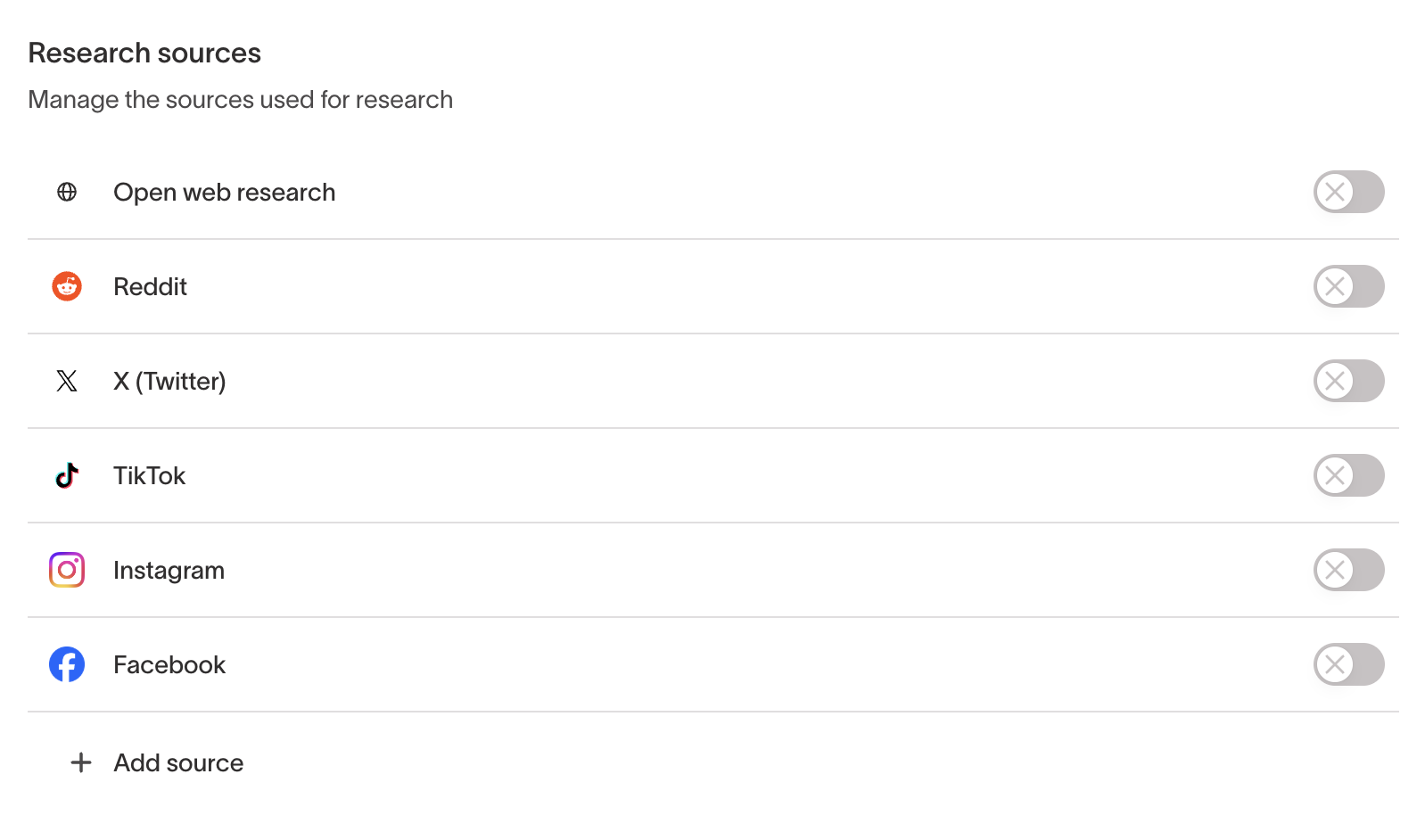
- Research sources — Platforms the agent searches for relevant information. Toggle on the built-in sources you want the agent to use, or select Add source to add more.
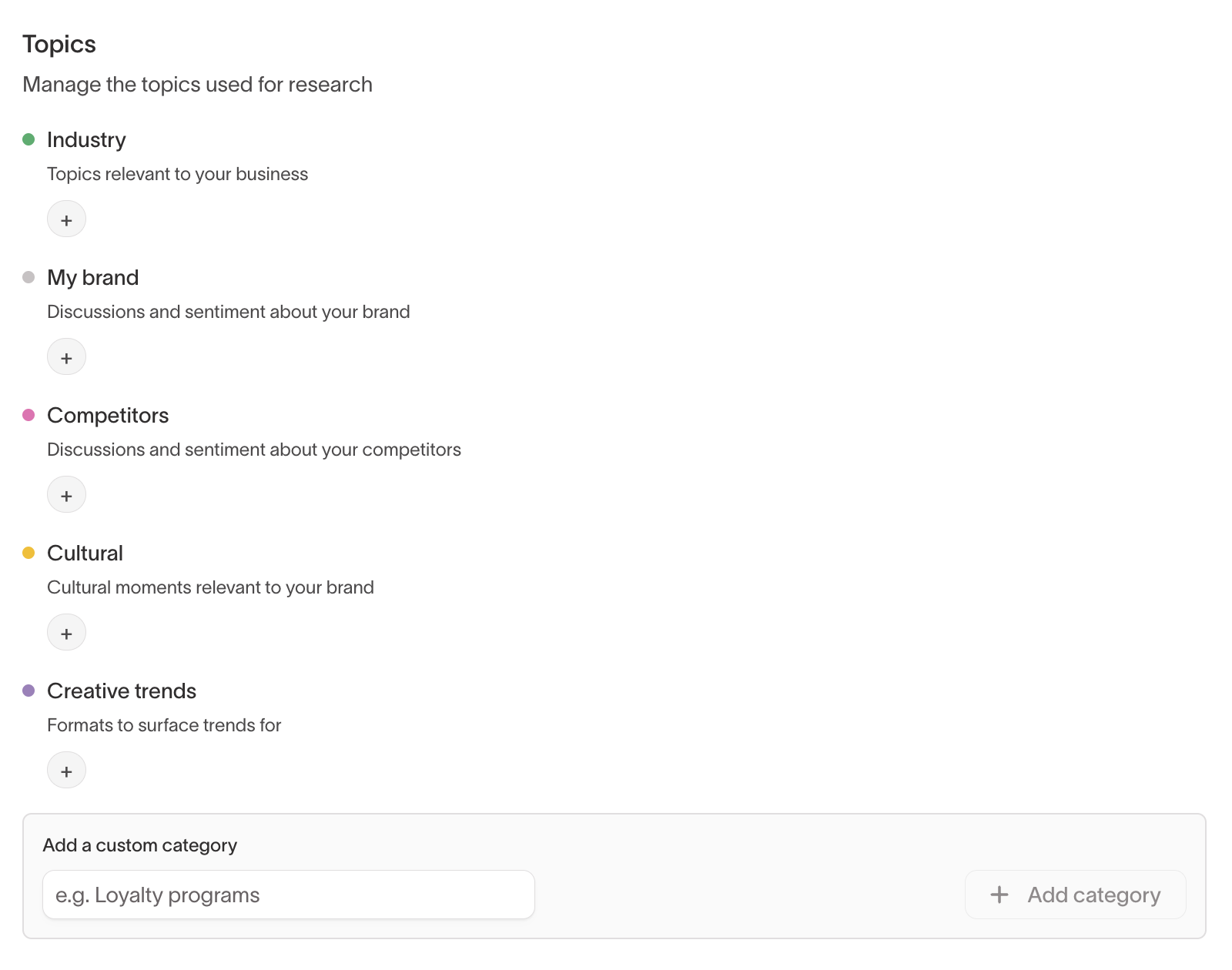
- Topics — Categories that focus the agent's research. Select + within any predefined category to add specific topics, or use Add a custom category at the bottom to create your own.
Signals configuration determines what the agent searches. To view the results, go to Ad Studio → Insights → Signals.
Next steps
- Set up your brand identity, styles, and product catalog for creative generation.
- Use Agents to analyze the data from your connected channels and context.