| Audience | Platform admins, marketers |
| Prerequisites | The Configure Agents grant. A product data source connected to Hightouch is required for the product catalog. |
Define your brand identity, reusable styles, product data, and creative rules so Ad Studio and Lifecycle Studio generate on-brand content.
What you'll learn
- Create brand profiles, guidelines, logos, and fonts
- Save reusable visual styles for generated content
- Connect a product catalog for product-focused ads
- Set email best practices for cross-client compatibility
- Control what Lifecycle Studio can change in images
Overview
Creative setup covers everything that shapes the creative agents generate: your brand identity, reusable visual styles, product data, and the rules that constrain generated content. Ad Studio and Lifecycle Studio draw on this configuration when they create ads, images, and email content.
In the app, this content lives under Context Hub → Brands, Context Hub → Styles, and Context Hub → Product catalog, plus the Best Practices and Guardrails tabs of Context Hub → Context.
Brands
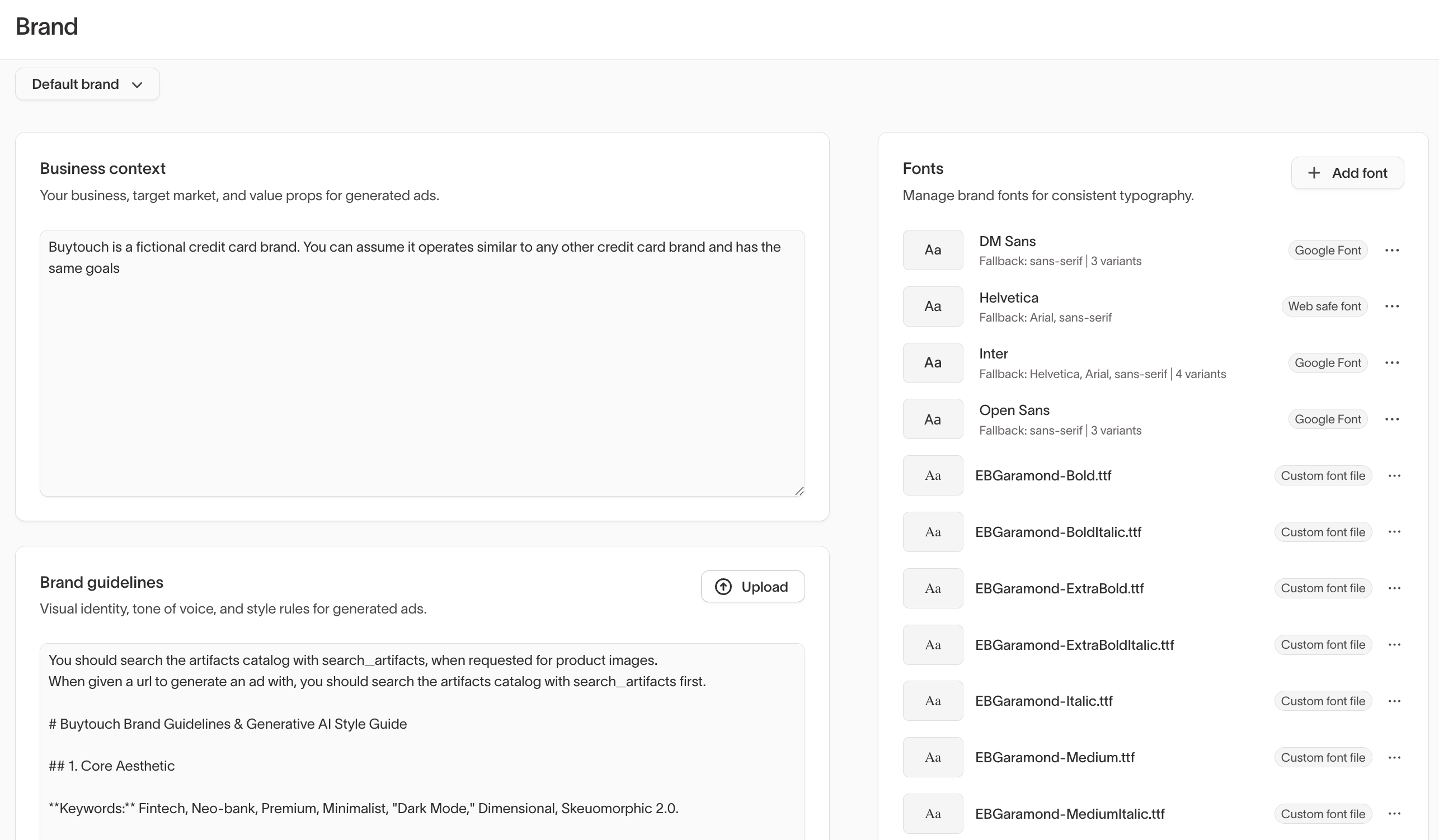
The Brands page manages brand profiles, logo files, and fonts. Logo files and fonts are shared across Ad Studio and Lifecycle Studio.
Brand profiles
Brand profiles let you organize context and brand assets by brand. For example, a company with both a consumer brand and a B2B brand can create separate profiles, each with its own context, logo files, and fonts. Use the brand selector dropdown at the top of the page to switch between profiles.
To create a brand profile, go to Context Hub → Brands and select Add brand profile. Each profile has a Name and an optional Business context field for a short summary of the business, target market, and value props. Agents reference this background when generating creative content. You can add brand guidelines, logos, and fonts after creating the profile.
Brand guidelines
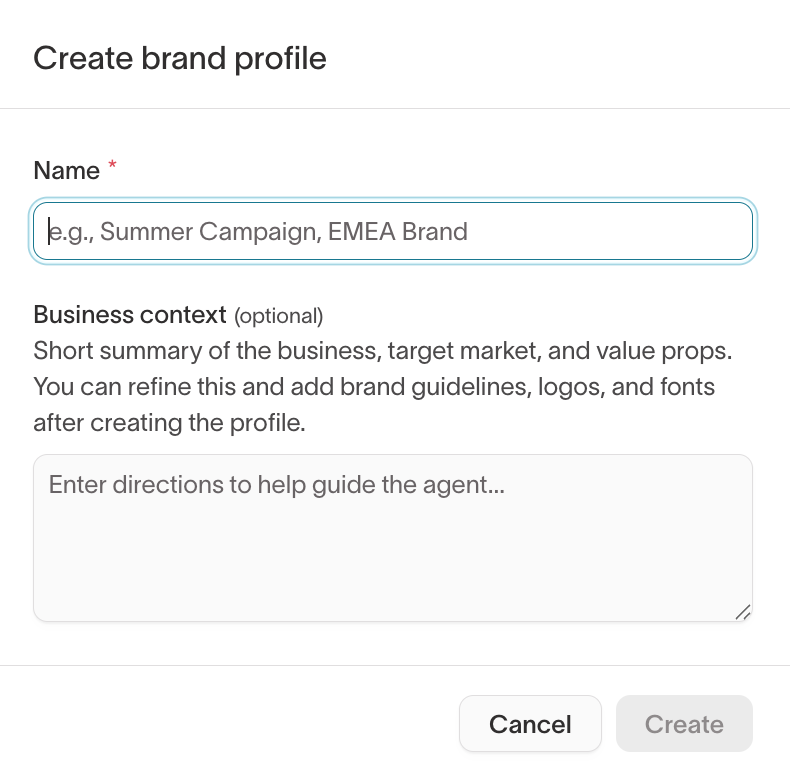
Upload brand guidelines that the agent references when generating creative content. Brand guidelines define visual identity, tone of voice, and style rules. Select Upload to add a brand guidelines document.
What to include in your brand guidelines
Consider covering: color palette with exact hex codes, typography rules (font styles, sizes, usage), copywriting voice and tone, visual style (iconography, illustrations, imagery), hero objects and product photography direction, composition and layout rules, logo usage rules (sizing, positioning, color variants), and image-generation prompting dos and don'ts with examples.
Logo files
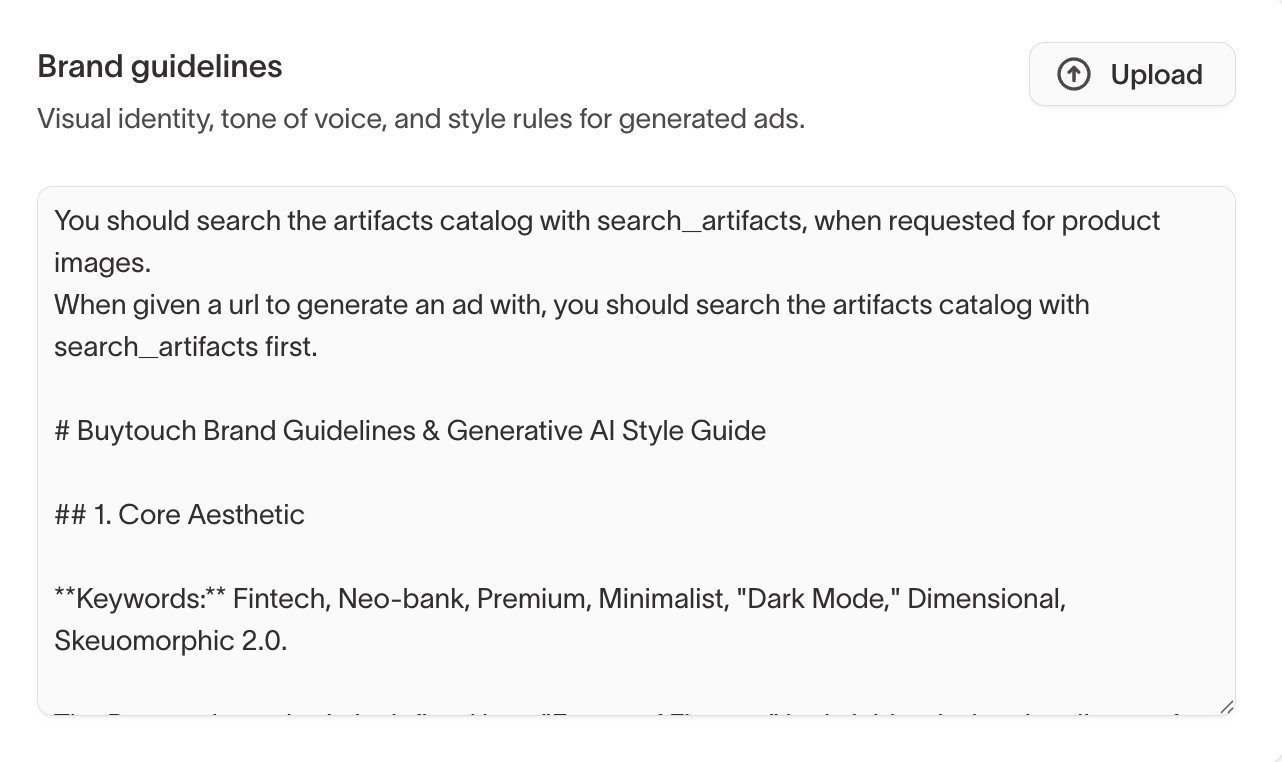
Upload logo files that Ad Studio and Lifecycle Studio can reference when generating creative content. Logos are shared across both products, so you only need to upload them once. Logo files can be PNG, JPEG, WebP, HEIC, HEIF, or SVG, and you can add up to 10.
Fonts
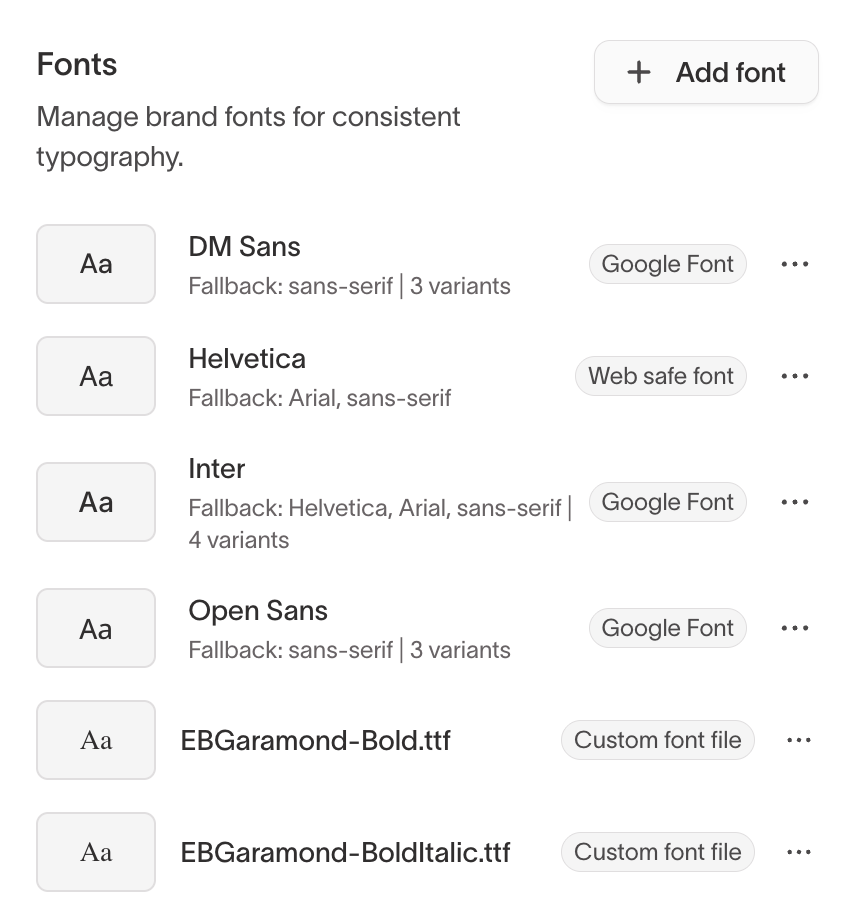
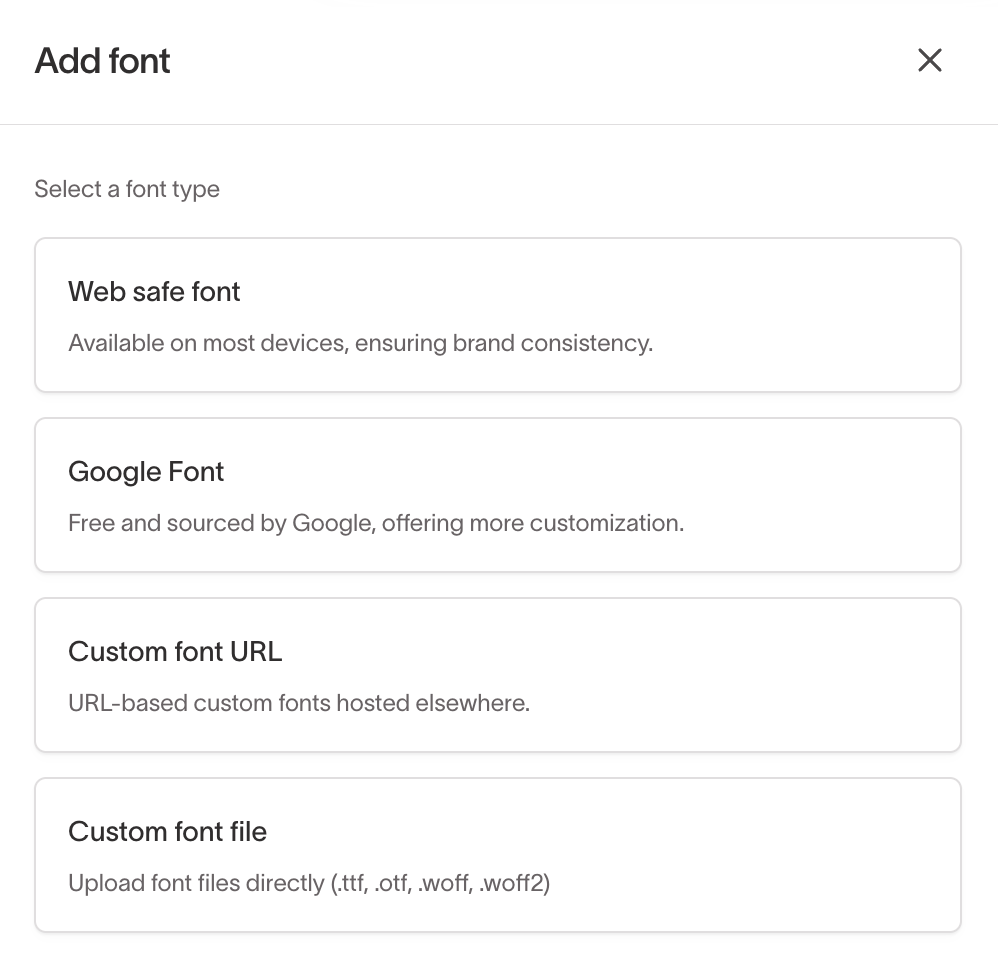
Add fonts for use in generated content. Select Add font to add a new font. Context Hub supports four font types:
- Web safe fonts — Standard fonts available on most devices (for example, Helvetica, Arial).
- Google Fonts — Fonts loaded from Google Fonts (for example, Inter, DM Sans, Open Sans).
- Custom font URL — URL-based custom fonts hosted elsewhere.
- Custom font files — Upload font files directly (.ttf, .otf, .woff, .woff2).
Fonts are shared across Ad Studio and Lifecycle Studio.
Styles
A style is a reusable set of visual direction — mood, palette, composition, and art direction — that Ad Studio and Lifecycle Studio apply when they generate images and ads. Saving a style once keeps generated creative consistent instead of re-describing the look in every prompt.
Create a style
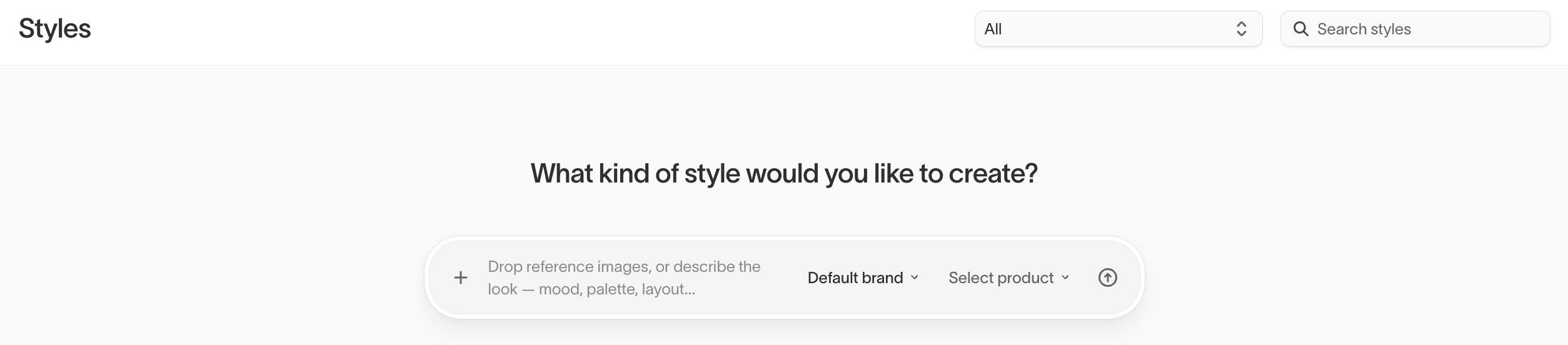
To create a style, go to Context Hub → Styles. In the prompt at the top of the page, describe the look you want — mood, palette, layout — or drop in reference images for the agent to match. Choose a brand profile and a product surface, then submit.
Each style is scoped to one product surface:
- Ad Studio — Available when generating ads.
- Lifecycle Studio — Available when generating images for email content.
Use the filter at the top of the Styles list to show all styles or only those for a single product surface, and use search to find a style by name.
Add guidance and dimensions
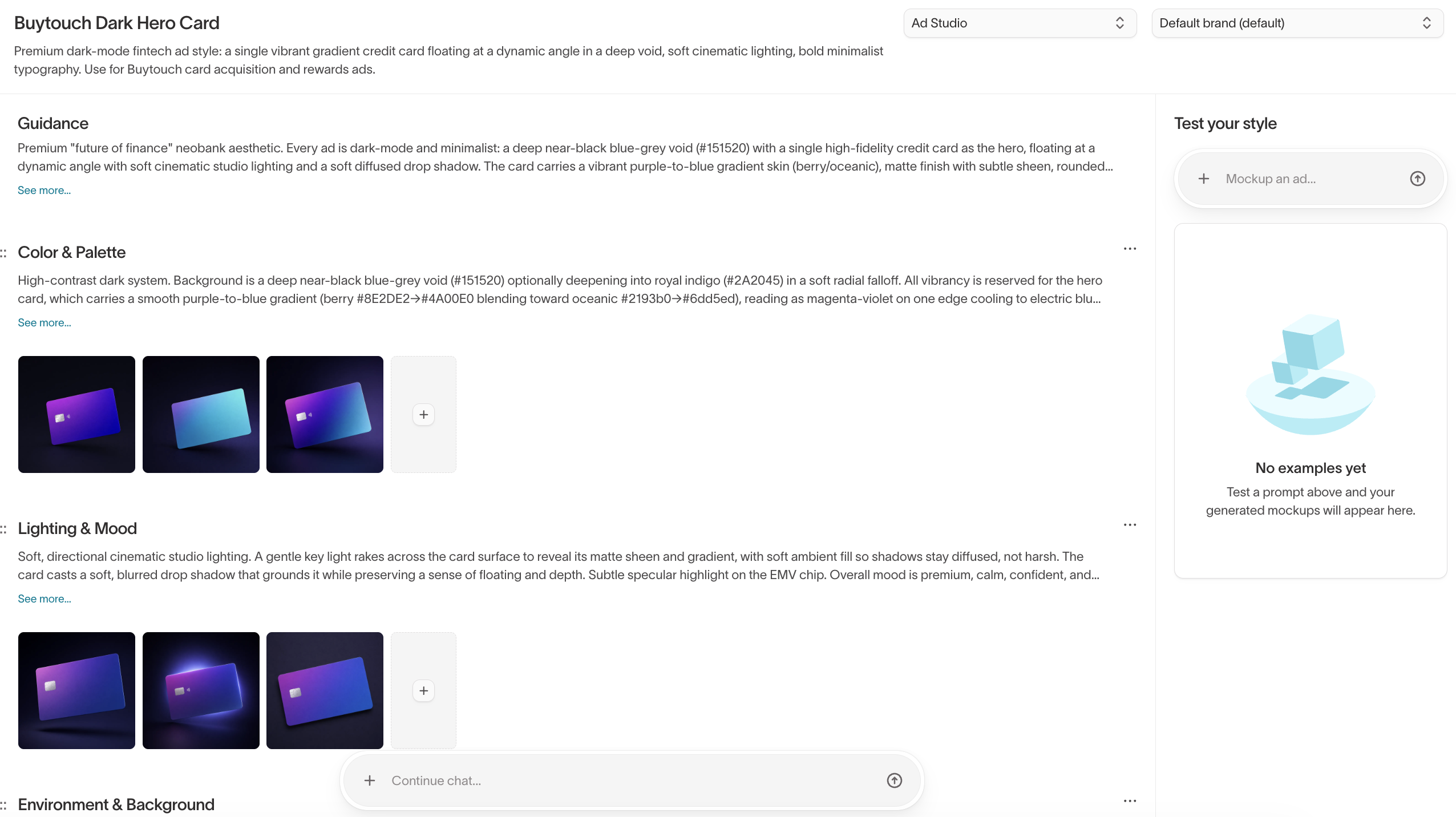
Open a style to refine its direction. A style has two parts:
- Guidance — The global creative direction that applies to the whole style.
- Dimensions — Named facets of the look, each with its own art direction and reference images. For example, a style might have separate dimensions for color and palette, lighting and mood, and environment.
Add reference images to guidance or to any dimension so the agent has concrete visual examples to match.
Test a style
Use the Test your style panel to preview how the style renders before you rely on it. Enter a prompt describing what to mock up, and the agent generates example images for you to review. Generated examples appear in the panel so you can compare them against the style's direction and refine the guidance or dimensions.
Manage styles
From the Styles list, use the context menu on any style to duplicate or delete it. Duplicating is useful when you want to branch an existing look into a variant for a different product surface or brand.
Product catalog
The product catalog connects your product data to Ad Studio so the agent can generate product-focused ad creatives with accurate product images and details.
When you use the Choose a product creation mode in Ads, the agent pulls product information directly from your catalog — titles, images, descriptions, and any additional metadata you've mapped. This keeps product-focused ads accurate and up to date without manual data entry.
The product catalog is optional. If your team primarily creates brand or campaign-level ads rather than product-specific ads, you can skip this setup and use the other creation modes.
Connect a product catalog
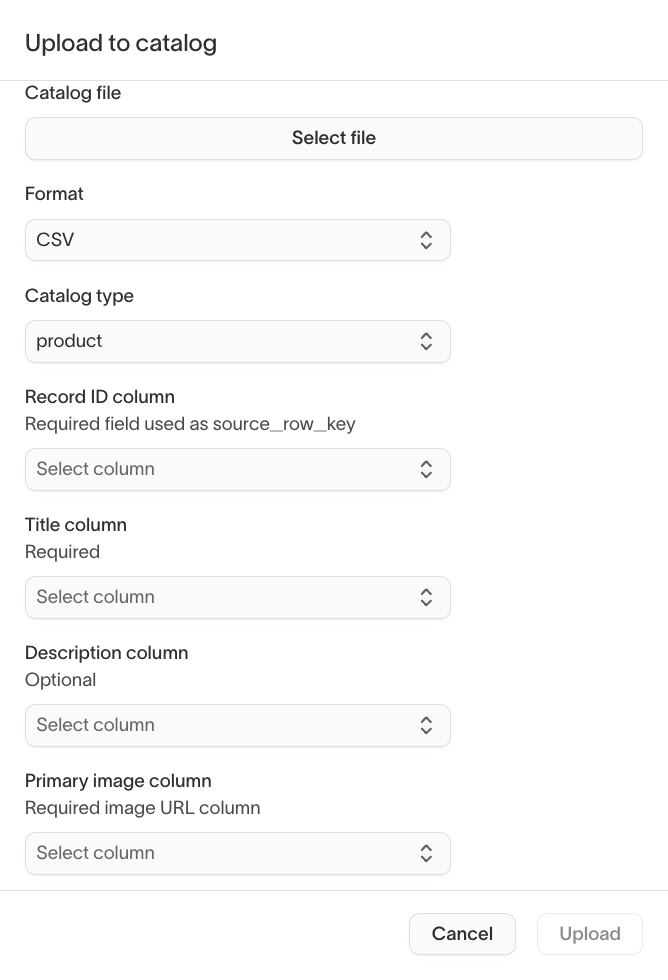
To upload a product catalog:
- Go to Context Hub → Product catalog and select Upload.
- Select a catalog file and choose a format — CSV, XML, or JSONL.
- Map your columns to the fields Ad Studio uses.
- Select Upload to import the catalog.
The available fields are:
| Field | Required | How the agent uses it |
|---|---|---|
| Record ID | Yes | Unique identifier for each product (source_row_key) |
| Title | Yes | Product name appears in headlines and copy |
| Primary image | Yes | Main product image used in the ad creative directly |
| Description | No | Product details inform ad copy and messaging |
| Additional image columns | No | Extra product images the agent can use for variety |
The more complete your product data, the more accurate and varied the generated ads. You can add columns beyond these fields — the agent uses any mapped metadata when generating product-focused creatives.
Use products in ads
When you select Choose a product as your creation mode in Ads:
- Browse or search your product catalog.
- Select one or more products.
- The agent combines your product data with your brand guidelines and business context to generate product-focused ad creatives.
Selecting multiple products generates ads that feature a product collection — useful for seasonal promotions, category campaigns, or cross-sell opportunities.
Email best practices
Best practices are rules the agent applies when analyzing and fixing email HTML for cross-client compatibility. Each rule category contains individual rules you can toggle on or off. Disable any rules that don't apply to your templates.
Rule categories include:
- Compatibility — Rules for cross-client rendering consistency.
- Mobile Responsiveness — Rules for responsive email layouts on mobile devices.
- CSS Patterns — Rules for CSS usage that works across email clients.
- Dark Mode — Rules for dark mode support and fallback styling.
- Accessibility — Rules for accessible email markup and content.
- Structure — Rules for email HTML structure and organization.
- Custom — Add your own rules for organization-specific email requirements.
Image guardrails
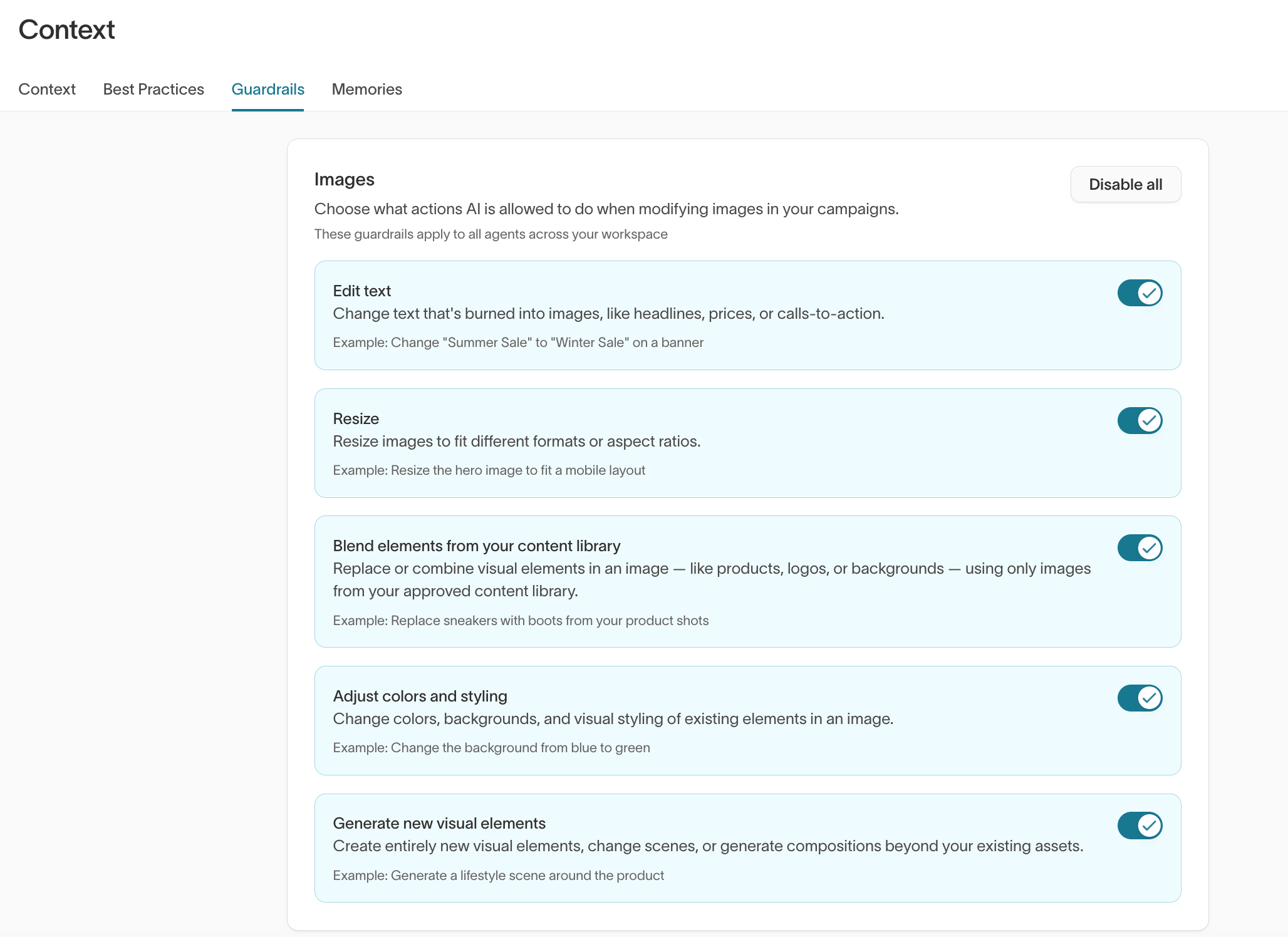
Guardrails control what actions Lifecycle Studio AI is allowed to take when modifying images in your campaigns. Each guardrail can be toggled on or off independently:
- Edit text — Change text burned into images, like headlines, prices, or calls-to-action.
- Resize — Resize images to fit different formats or aspect ratios.
- Blend elements from your content library — Replace or combine visual elements using only images from your approved content library.
- Adjust colors and styling — Change colors, backgrounds, and visual styling of existing elements.
- Generate new visual elements — Create new objects, change scenes, or generate compositions beyond your existing assets.
Select Disable all to turn off all image modification capabilities at once.
Next steps
- Create product-focused ads in Ad Studio.
- Connect marketing channels and add context so agents have the data behind your creative.