| Audience | Marketing teams, creative teams, platform admins |
| Prerequisites | The Configure Agents grant. |
Add logos, colors, and fonts that agents can use when generating ads, images, and emails.
Overview
Each brand gets a brand profile in Context Hub > Brands. Each profile holds the brand kit: the brand's logos, colors, and typefaces. In Lifecycle Studio workspaces, you can also set the email provider the brand sends through.
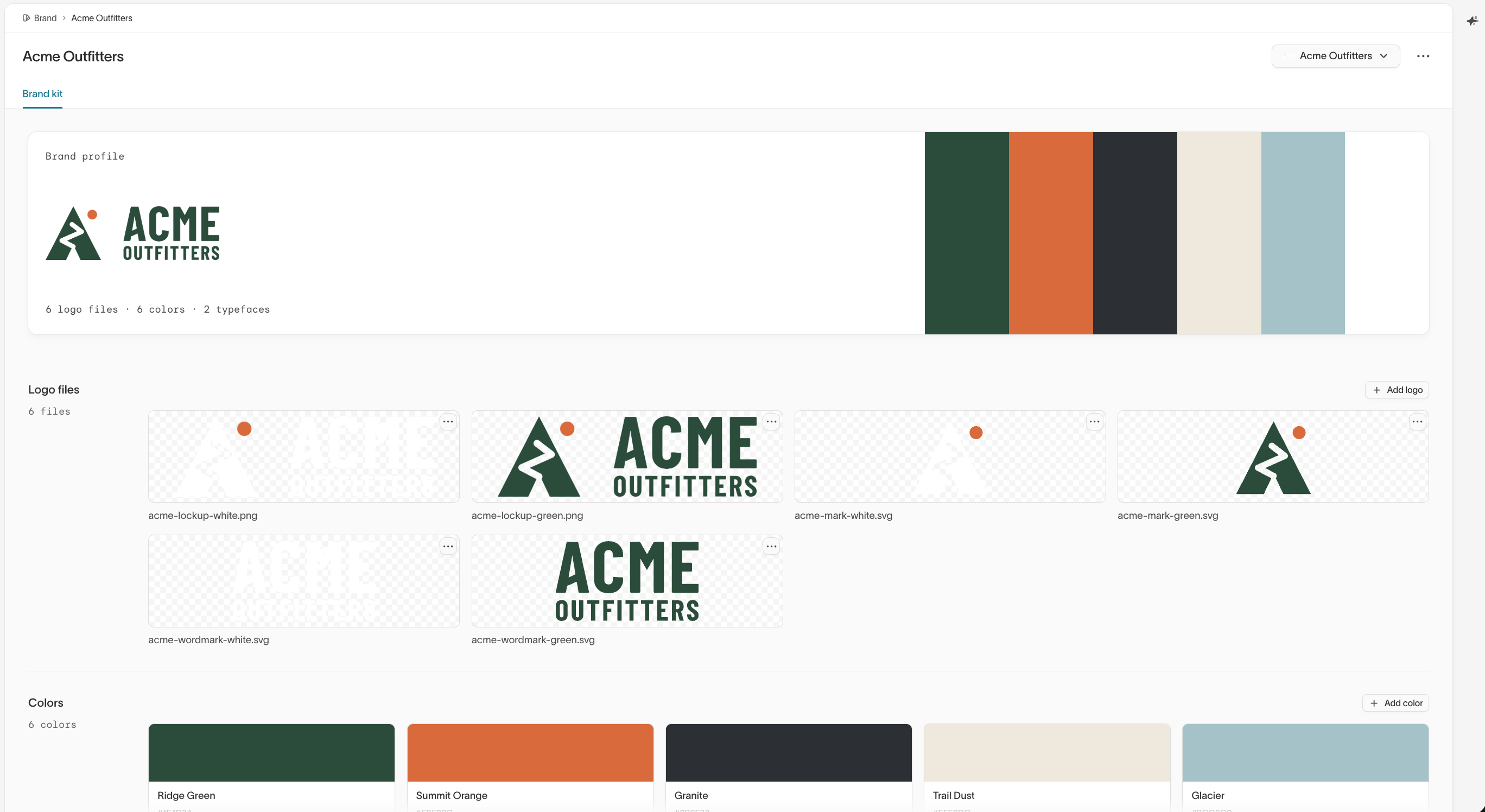
To keep brand-specific rules separate from company-wide ones, assign files, skills, styles, and copy references to a brand with their Brand profiles setting.
Image generation limits and AI disclosure defaults aren't part of the brand kit. Set them per brand in Guardrails.
Create a brand profile
Create one brand profile for each brand agents generate content for. If your company markets several brands, or one brand with distinct regional identities, give each its own profile so their logos, colors, and fonts don't mix. If everything you produce shares one identity, a single profile is enough.
To create a profile:
- Go to Context Hub > Brands.
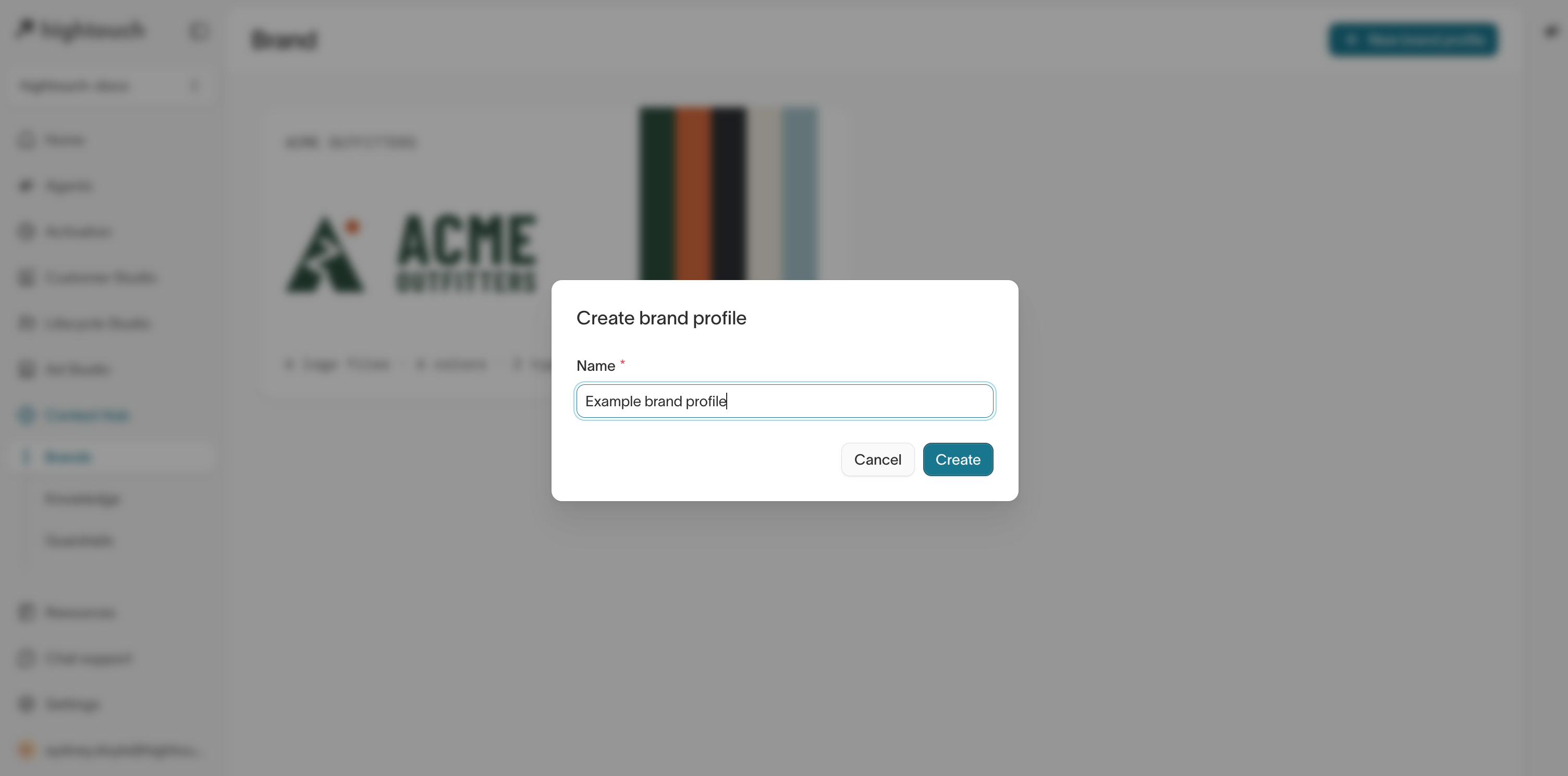
- Select New brand profile.
- Enter a Name that your team will recognize when choosing a brand, then select Create.
For your first profile, select Create brand profile instead. Hightouch creates a profile named "New brand profile" and opens its name for editing.
Instead of starting from a blank profile, you can share your brand's website and guidelines with the Context Agent. The agent drafts a brand profile for you to review and edit.
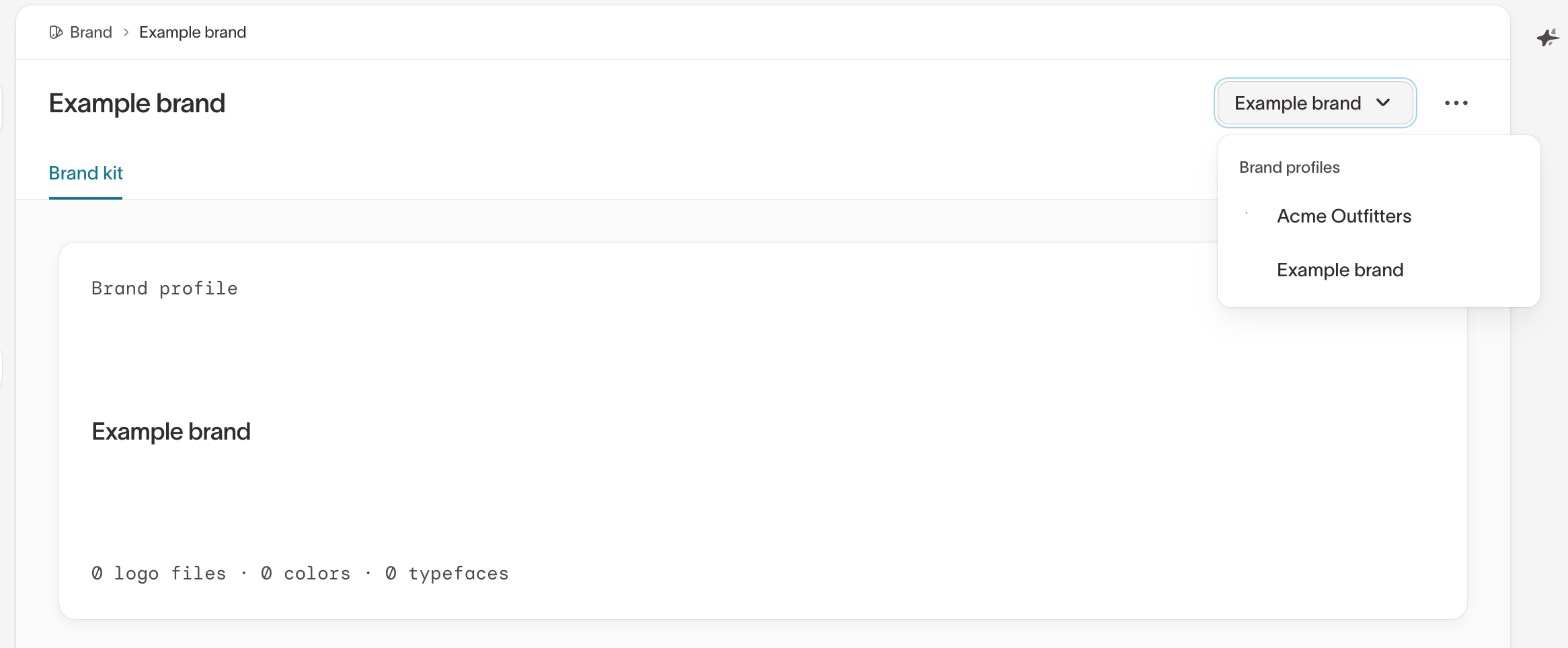
When you have more than one profile, switch between them from the brand menu on any profile page.
Choose the default profile
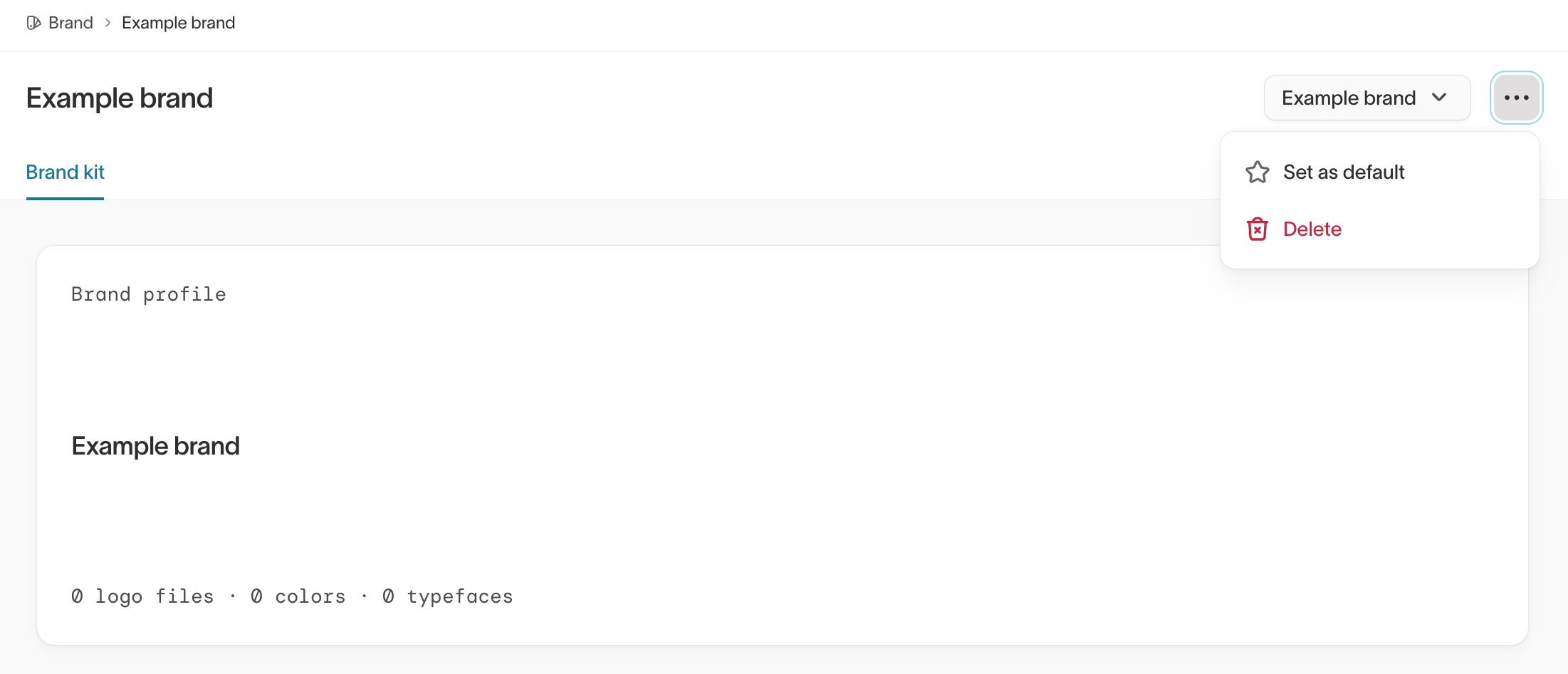
The first profile you create becomes the default. To change it, open a profile, open its actions menu, and select Set as default. You can't delete the default profile, so set another profile as the default first if you need to remove it.
Build the brand kit
Add the logos, colors, and fonts agents should use when generating content for the brand. Fill in the brand kit before you generate content for it.
Add logo files
Add each version of the logo agents might need, such as a full lockup and a standalone mark. Add light and dark variants so agents have a logo for both light and dark backgrounds.
Select Add logo and upload the file. Logo files can be SVG, PNG, WebP, JPG, or JPEG, up to 10 MB each, and you can add up to 10 per profile.
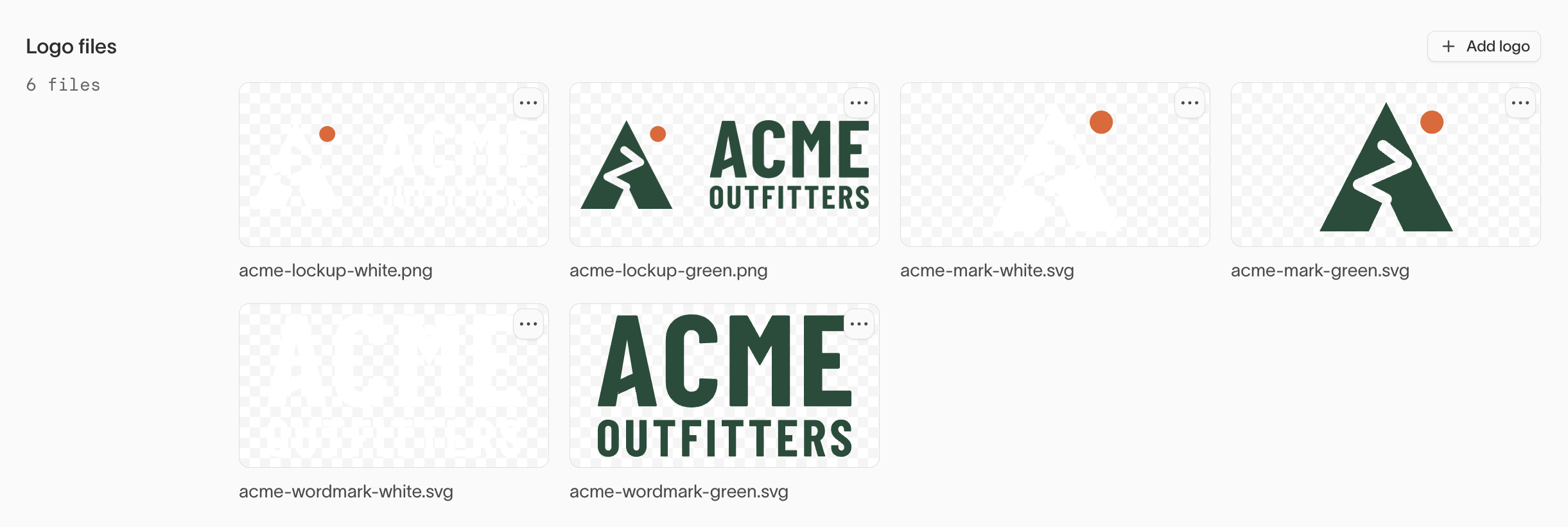
Turn on Set as profile logo for the logo that identifies the brand profile elsewhere in Hightouch. A square (1:1) logo or icon works best.
Add colors
Add the colors you want agents to use, and name each one by its role, such as a primary brand color or a background neutral.
Select Add color, then enter the Hex value and an optional Name. You can edit a color's value or name directly in the list.
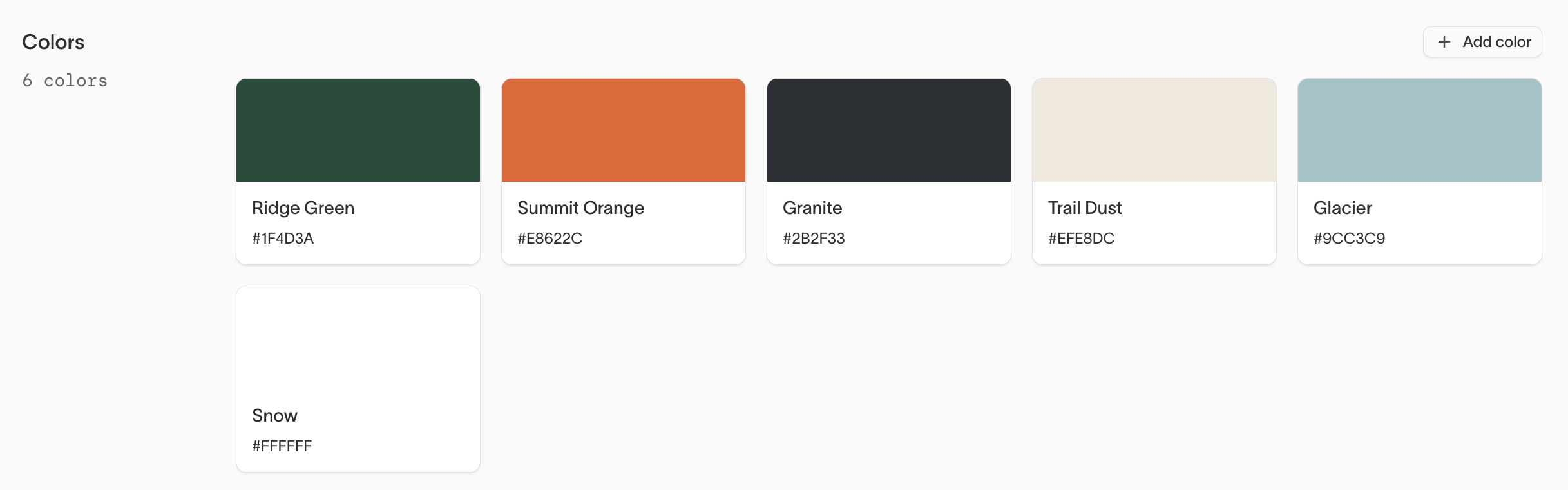
Each hex value and name must be unique. If Hightouch flags a duplicate, rename or remove one of the colors.
Add typefaces
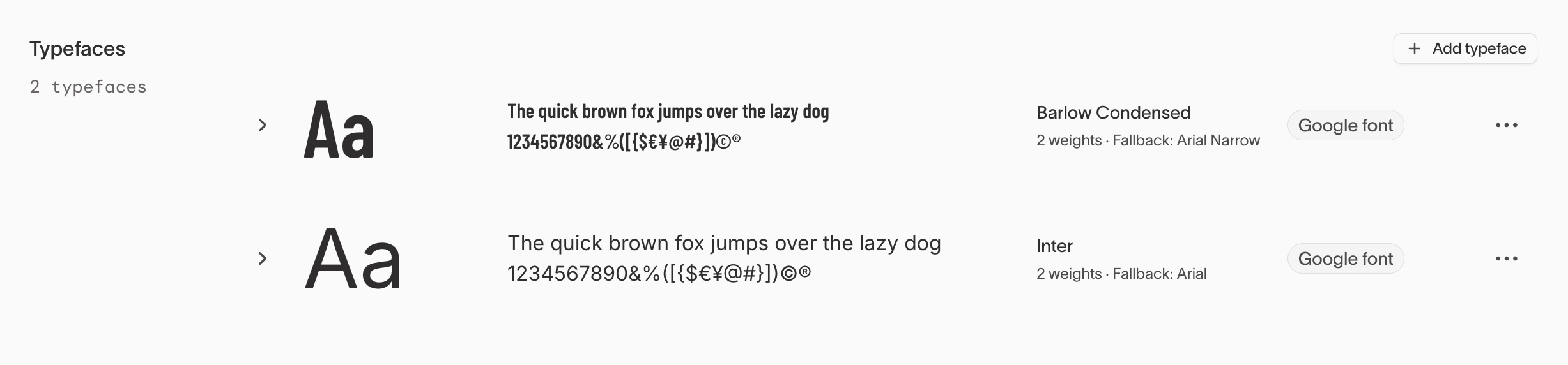
Select Add typeface and choose how to add the font. The right option depends on where the font needs to work:
- Web safe font — Choose for a font that's already available on most devices and email clients, such as Arial. This is the most reliable choice for email body text.
- Google Font — Choose for a free font from Google Fonts. Select the variants you need and a fallback font.
- Direct font file URL — Choose when the font file is already hosted and agents need it for text in generated images. Enter a link that ends in .woff, .woff2, .ttf, or .otf.
- Email font CSS URL — Choose when you want a custom font in the drag-and-drop email editor. Enter a CSS URL from Google Fonts, Bunny Fonts, or Adobe Fonts, and pick a fallback font that displays when the custom font can't load.
- Upload font file — Choose when you have the font file and agents need it for text in generated images. Upload a .ttf, .otf, .woff, or .woff2 file. Agents don't add uploaded fonts to emails.
A custom font often needs two entries: an uploaded file or direct URL for generated images, and an email font CSS URL for emails.
Set the brand's email provider
The Email provider section appears only in workspaces with Lifecycle Studio.
Lifecycle Studio writes each email in the templating syntax of the provider it sends through. By default, every brand uses the workspace provider you choose in Connected data.
Set a Brand default only when this brand sends through a different provider than the rest of your workspace, such as a brand on its own email service provider (ESP) account or a brand that sends with Native Delivery. Leave it on Use workspace default otherwise.
When the brand sends through an ESP, you can also set its Conditional type, which controls how new dynamic-content conditions are written for this brand. The options work the same way as the workspace setting.

Next steps
- Set creative direction to add visual styles and copy references for each brand.
- Manage assets to add the images, templates, and product catalogs agents use to generate content.