| Audience | Marketers integrating Hightouch with AI assistants |
| Use this article to | Connect your AI assistant to Hightouch via MCP and use natural language to build audiences, journeys, emails, and more |
| Prerequisites | A Hightouch workspace with access to the products you want to use. Audience and data-agent workflows require a parent model. Ad Studio does not require Customer Studio. |
How it works
- Connect — Add the Hightouch MCP server to your AI tool using the configuration below.
- Authenticate — Log in via OAuth when prompted and select a workspace.
- Discover — Your assistant sees your customer schema: parent models, relationships, and available attributes.
- Create — Build audiences, journeys, emails, or ad creatives through conversation.
- Iterate — Refine with follow-up messages until the result is right.
- Save — Persist the result to your Hightouch workspace.
All operations are scoped to your authenticated workspace and respect your workspace role and access controls.
Compatible AI tools
Any client that supports the MCP standard can connect to the Hightouch MCP server. The following tools have been tested and have configuration instructions below:
| AI tool | Type | Configuration |
|---|---|---|
| Claude (Teams, Enterprise, Desktop, Code) | Web app, Desktop, CLI | Setup instructions |
| ChatGPT | Desktop app | Setup instructions |
| Gemini Enterprise | Web app | Setup instructions |
| Microsoft Copilot Studio | Web app | Setup instructions |
For tools not listed here, see Other clients.
Getting started
Endpoint
https://api.hightouch.com/api/v1/mcp/messages
Authentication
The Hightouch MCP server uses OAuth. When you first connect, you'll be prompted to log in and select a workspace. The server handles token refresh automatically.
Configuration
Claude
Custom Connectors (recommended)
Select Add custom connector, enter "Hightouch" as the Server URL, then select Add.
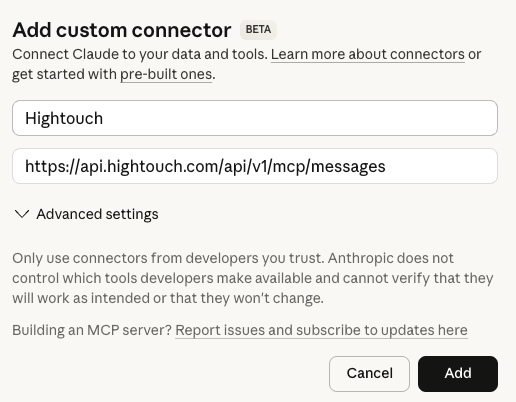
Note for org admins: On Team and Enterprise plans, only Owners can add custom connectors. Owners should add the connector via Organization settings → Connectors → Add → Custom → Web — members can then connect individually via Customize → Connectors.
Config file (if you can't add custom connectors)
If your plan or organization permissions don't allow you to add a custom connector, add the following to your claude_desktop_config.json. To learn more, see the Claude Desktop MCP documentation.
{
  "mcpServers": {
    "hightouch": {
      "url": "https://api.hightouch.com/api/v1/mcp/messages"
    }
  }
}
Claude Code — Run the following from your terminal. To learn more, see the Claude Code MCP documentation.
claude mcp add --transport http hightouch https://api.hightouch.com/api/v1/mcp/messages
ChatGPT
You can enable MCP servers in ChatGPT if you have a Pro, Plus, Business, Enterprise, or Education account. Follow the OpenAI documentation for instructions. Use the following parameters when setting up your custom connector:
- Server URL:
https://api.hightouch.com/api/v1/mcp/messages - Connection mechanism: OAuth
Gemini Enterprise
Gemini Enterprise connects to MCP servers through the Google Cloud console as a custom data store. Follow the Google Cloud documentation. Use the following parameters when setting up your custom connector:
- Server URL:
https://api.hightouch.com/api/v1/mcp/messages - Authentication: OAuth
- Authorization URL: https://mcp-auth.hightouch.com/oauth2/authorize
- Token URL: https://mcp-auth.hightouch.com/oauth2/token
- Client ID and Client Secret: generate these once by following the step below
Generating your Client ID and Client Secret
Gemini requires you to paste in a static Client ID and Client Secret. Create a set yourself by sending a single request to Hightouch's registration endpoint.
Run this command in your terminal:
curl -X POST https://mcp-auth.hightouch.com/oauth2/register \
  -H "Content-Type: application/json" \
  -d '{
    "client_name": "Gemini Enterprise",
    "redirect_uris": ["https://vertexaisearch.cloud.google.com/oauth-redirect"],
    "token_endpoint_auth_method": "client_secret_post",
    "grant_types": ["authorization_code", "refresh_token"]
  }'
Microsoft Copilot Studio
Connect Hightouch to a Copilot Studio agent using the MCP onboarding wizard. Follow the Microsoft documentation for instructions. Use the following parameters when setting up your custom connector:
- Server URL:
https://api.hightouch.com/api/v1/mcp/messages - Authentication: OAuth 2.0 → Dynamic discovery
Other clients
MCP is an open protocol supported by many clients. Use the server URL https://api.hightouch.com/api/v1/mcp/messages with Streamable HTTP transport and OAuth as the connection mechanism. Refer to your client's documentation for specific configuration instructions.
What you can do
The tools your assistant can use depend on your workspace enablement and access:
All customers can use tools to understand their schema, build audiences, create and analyze journeys, manage syncs, create syncs from templates, and run marketing data analysis with Hightouch's AI agents.
- Lifecycle Studio customers can use tools to generate emails and SMS.
Ad Studio customers can plan, generate, edit, resize, review, and export ad creatives.
Understand your customer schema
Your AI assistant starts with full visibility into your marketing data layer — parent models, their relationships, source connections, and available attributes. The assistant uses this structured context to ground every action in your real data.
Tool: list_parent_models
Example prompt: "What parent models are available in my workspace?"
Build audiences with natural language
Describe the audience you want in plain English and the agent builds it. Iterate conversationally until it's right, then save it to your workspace.
Tools: create_agent_session → ask_agent_session → save_audience
Example flow:
- Create a session: "Create an audience of users who signed up in the last 30 days but haven't made a purchase."
- Review the audience definition the agent returns.
- Refine: "Also exclude users who have unsubscribed from marketing emails."
- Save when you're happy with the result.
Create and analyze journeys
Describe a journey in natural language and iterate until it matches your intent. The agent handles entry conditions, messaging steps, timing, branching, and exit logic.
Tools: create_agent_session → ask_agent_session → save_journey
Example prompt: "When a user signs up, wait 1 day, then send a welcome email. If they don't open it within 2 days, send a reminder."
Generate marketing emails or SMS messages
Prompt for a full HTML email — subject line, body, and styling — and get a complete email back. Refine copy, tone, or layout conversationally. Emails are saved automatically within the session (no separate save step needed).
Tools: create_agent_session → ask_agent_session
Example prompt: "Write a cart abandonment email with a 10% discount code. Use an urgent but friendly tone."
Generate ad creatives
Describe the ads you want to create, then review and refine them through conversation. You can also find existing ads, resize ads for different placements, and download the finished files.
The tool names below show which capabilities your assistant uses for each task.
Create ads for your brand
Include your campaign goal, audience, offer, and creative direction in your request. If your workspace has multiple brands, specify which brand to use when creating ads.
Example prompt: "Create three ads for our new-customer offer for the Wilder brand. Target first-time buyers and highlight our 20% discount."
If you want to review the direction first, ask for a plan before generating ads. Give feedback on the proposed ideas, then ask your assistant to create the ads when you're satisfied.
Example prompts:
- "Generate 5 ads for a winback campaign that will run on Meta. Show me a plan for these ads before generating them."
- "Replace the discount-focused idea with one about product quality."
- "Create the ads from this plan."
You can request up to 200 concepts at a time.
Tools: get_business_context, generate_ads, view_ad_plan, get_ads
Find and refine existing ads
Ask your assistant to show your existing ads, then identify the ad you want to work on. Describe the changes you want to make.
Example prompts:
- "Show me my existing ads."
- "Show me the ads from our back-to-school chat."
- "Shorten this ad's headline and make the background lighter."
Clients that support the embedded gallery can display it in the conversation. You can also follow the returned link to review your ads in Ad Studio.
Tools: show_ad_gallery, get_ads, edit_ad
Resize ads for different placements
Ask which sizes are available in your workspace, then specify the ad and placements you need. Your assistant can request resized versions and check when they're ready.
Example prompt: "What Meta sizes are available? Create 4:5 and 9:16 versions of this ad."
Resized versions stay with the original ad. Review the layout and text in each version before downloading it. Requesting a size that already exists regenerates that version.
Tools: resize_ad, get_ads
Record review decisions
Ask your assistant to update an ad's review status so teammates can see your decision in Hightouch. You can include a reason for the change.
Example prompt: "Mark this ad as needs changes and note that the savings claim needs legal review."
The available statuses are Draft, Pending review, Needs changes, Approved, and Launched. Statuses record review progress. They do not prevent editing, resizing, or exporting, and marking an ad as Launched does not publish it.
Tool: set_ad_status
Download ads
After reviewing your ads, ask your assistant for download links to the originals or resized versions. You can export static and video ads.
Example prompt: "Download all the ads we just generated."
Generation, editing, resizing, and video exports can take time. If results are still processing, ask your assistant to check their progress.
Download links expire after one hour. Ask for new links if they expire. Exported files include the AI disclosures configured on the ad's brand profile.
Tool: export_ads
Ask marketing questions
Use agent sessions for general marketing analysis — campaign performance insights, audience recommendations, strategy suggestions. The agent can also produce downloadable files (for example, CSV exports) when your question requires data output.
Tools: create_agent_session → ask_agent_session
Example prompts:
- "Which of my audiences has grown the most in the last 30 days?"
- "Analyze message performance across my email campaigns last quarter."
Tool reference
| Tool | Description |
|---|---|
list_parent_models | List all parent models (users, customers, accounts) in your workspace |
create_agent_session | Start a conversation with the Hightouch agent for audiences, journeys, emails, syncs, or analysis |
ask_agent_session | Send follow-up messages or check the status of an existing session |
save_audience | Save an audience definition from an agent session to your workspace |
save_journey | Save a journey definition from an agent session to your workspace |
get_business_context | Read default brand context, available brand profiles, configured channel sizes, and setup status. Credits are reported for self-serve workspaces only. |
generate_ads | Plan with planOnly: true, or generate ads. Accepts 1–200 concepts and optional brand selection when starting a new chat. |
view_ad_plan | Read the latest completed creative plan. |
get_ads | Read ad metadata and content readiness, inspect one ad's source, and poll generation, editing, or resizing. |
edit_ad | Refine one ad using an instruction in message. |
resize_ad | Create or regenerate size variants using channel-size IDs. |
set_ad_status | Update an ad's review status and optionally record a note. |
export_ads | Render and download static or video ads, with per-entry status and expiring URLs. |
show_ad_gallery | Browse existing ads in the gallery. |
For custom integrations, use get_ads to check operation status and content readiness, and export_ads to retrieve download URLs.
Troubleshooting
OAuth prompt doesn't appear
Cause: Your AI client may not support Streamable HTTP transport, or the endpoint URL may be incorrect.
Resolution: Verify you're using the correct endpoint (https://api.hightouch.com/api/v1/mcp/messages) and that your client supports MCP with HTTP transport. Check your client's documentation for MCP configuration instructions.
Agent session returns unexpected results
Cause: The agent's response quality depends on the context available in your Customer Studio schema — model names, column descriptions, and value suggestions.
Resolution: Review your parent model configuration in Customer Studio. Adding clear column descriptions and value suggestions helps the agent produce more accurate results. You can also refine results by sending follow-up messages in the same session.