| Audience | Platform admins, marketers |
| Prerequisites |
|
The product catalog connects your product data to Ad Studio so the agent can generate product-focused ad creatives with accurate product images and details.
Overview
When you use the Choose a product creation mode in Ads, the agent pulls product information directly from your catalog — titles, images, descriptions, and any additional metadata you've mapped. This ensures product-focused ads are accurate and up to date without manual data entry.
The product catalog is optional. If your team primarily creates brand or campaign-level ads rather than product-specific ads, you can skip this setup and use the other creation modes.
Connect a product catalog
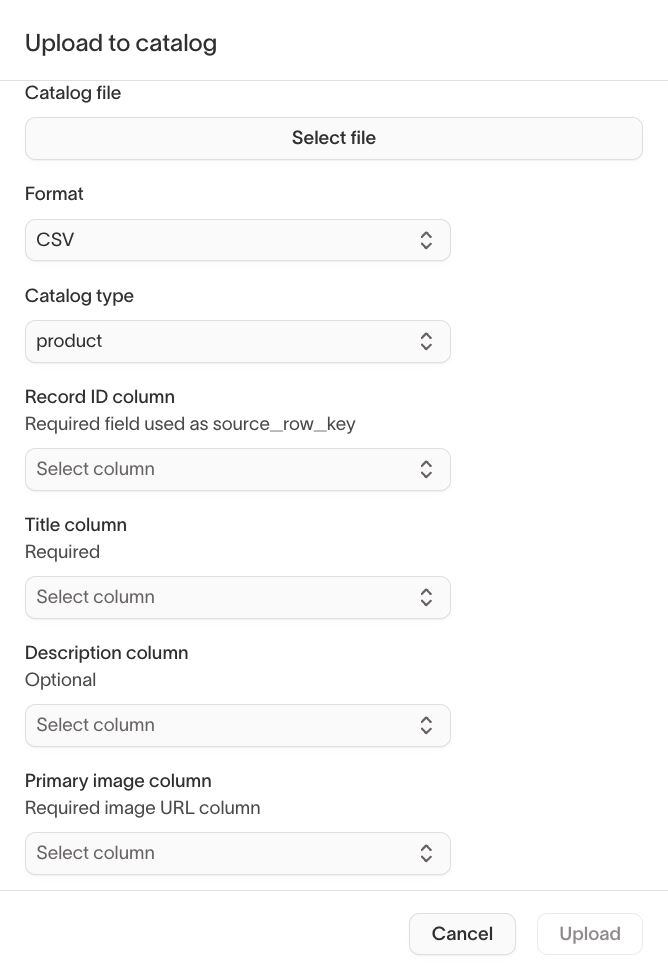
To upload a product catalog:
- Go to Ad Studio → Product catalog and select Upload.
- Select a catalog file and choose a format — CSV, XML, or JSONL.
- Map your columns to the fields Ad Studio uses.
- Select Upload to import the catalog.
Required and optional fields
| Field | Required | How the agent uses it |
|---|---|---|
| Record ID | Yes | Unique identifier for each product (source_row_key) |
| Title | Yes | Product name appears in headlines and copy |
| Primary image | Yes | Main product image used in the ad creative directly |
| Description | No | Product details inform ad copy and messaging |
| Additional image columns | No | Extra product images the agent can use for variety |
The more complete your product data, the more accurate and varied the generated ads will be. You can add additional columns beyond these fields — the agent uses any mapped metadata when generating product-focused creatives.
Use products in ads
When you select Choose a product as your creation mode in Ads:
- Browse or search your product catalog.
- Select one or more products.
- The agent combines your product data with your brand guidelines and business context to generate product-focused ad creatives.
Selecting multiple products generates ads that feature a product collection — useful for seasonal promotions, category campaigns, or cross-sell opportunities.