
Optimize enterprise performance using fresh data from your data warehouse
Overview
With the Anaplan destination, you can automate file uploads and trigger import actions in Anaplan. You can sync a variety of data from your warehouse, such as purchase orders, customer data, and more.
Supported syncing
| Sync Type | Description | Supported Sync Modes | API Reference |
|---|---|---|---|
| Records | Sync data from any source to Anaplan records | Insert, All | Perform an import action ↗ |
For more information about sync modes, refer to the sync modes docs.
The order of rows and columns in synced data may differ from how they appear in your model. This is expected behavior and applies to all sync modes. Learn more about row and column ordering →
Connect to Anaplan
Select an authentication method: OAuth or basic auth (username and password).
OAuth
Setup Anaplan OAuth client
Hightouch supports Anaplan OAuth clients that have the type Authorization code grant with both non-rotatable and rotatable refresh tokens.
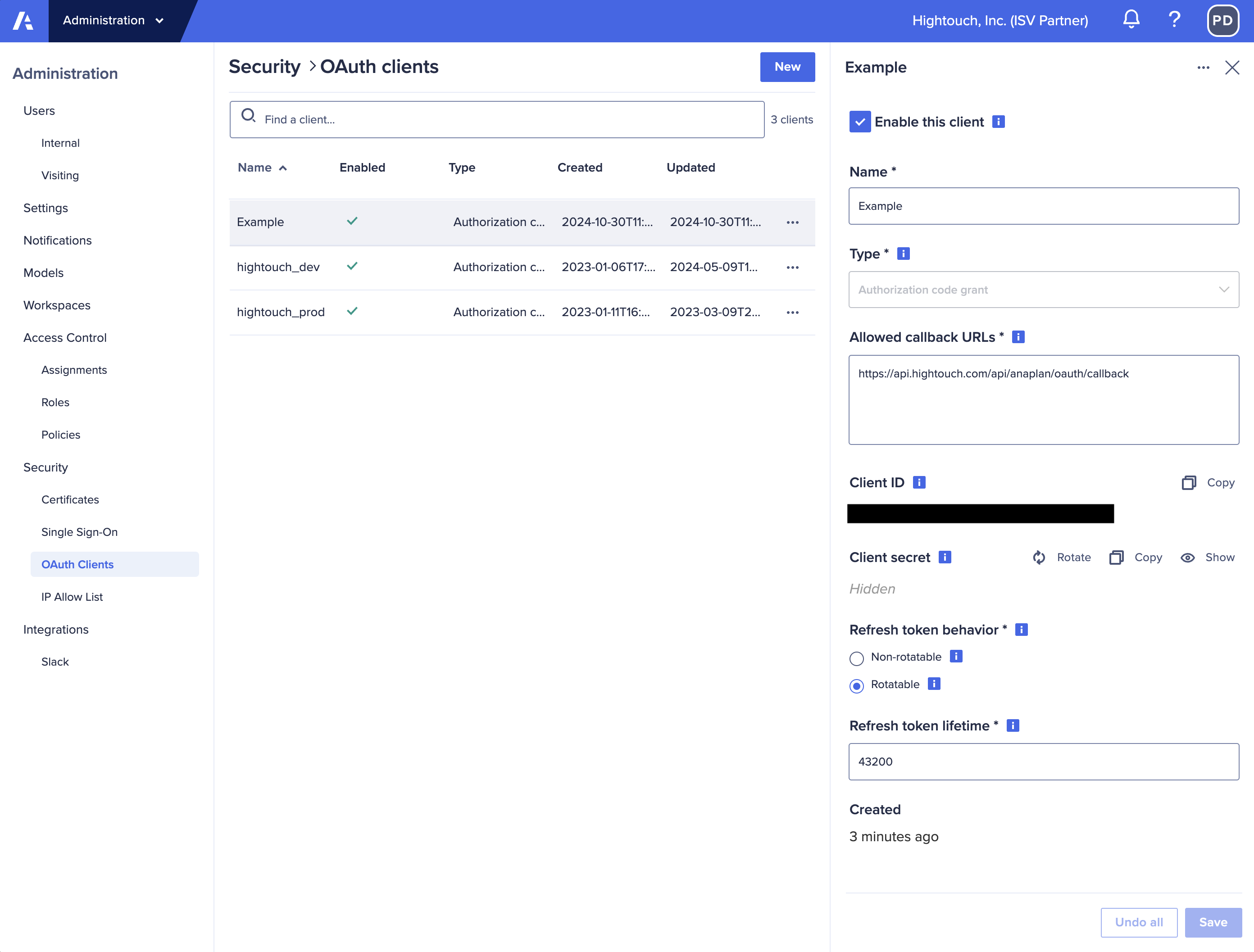
- Non-rotatable: The refresh token used for getting access tokens do not expire for as long as you allow the connection.
- Rotatable: The refresh token used for getting access tokens changes every time a new access token is retrieved.
Rotatable tokens require setting a Refresh token lifespan in Anaplan. This
setting is the total time in seconds before the connection will need to be
re-authenticated in Hightouch.
Ex: Setting Refresh token lifespan token to 604800 (7 days) will rotate the
refresh token every time an access token expires but will require you to re-authenticate
your account at the end of that time. Until you re-authenticate all syncs will
continue to fail. More detail on refresh tokens
Use Non-rotatable refresh tokens for syncs to minimize chances of sync failures.
Connecting with Hightouch
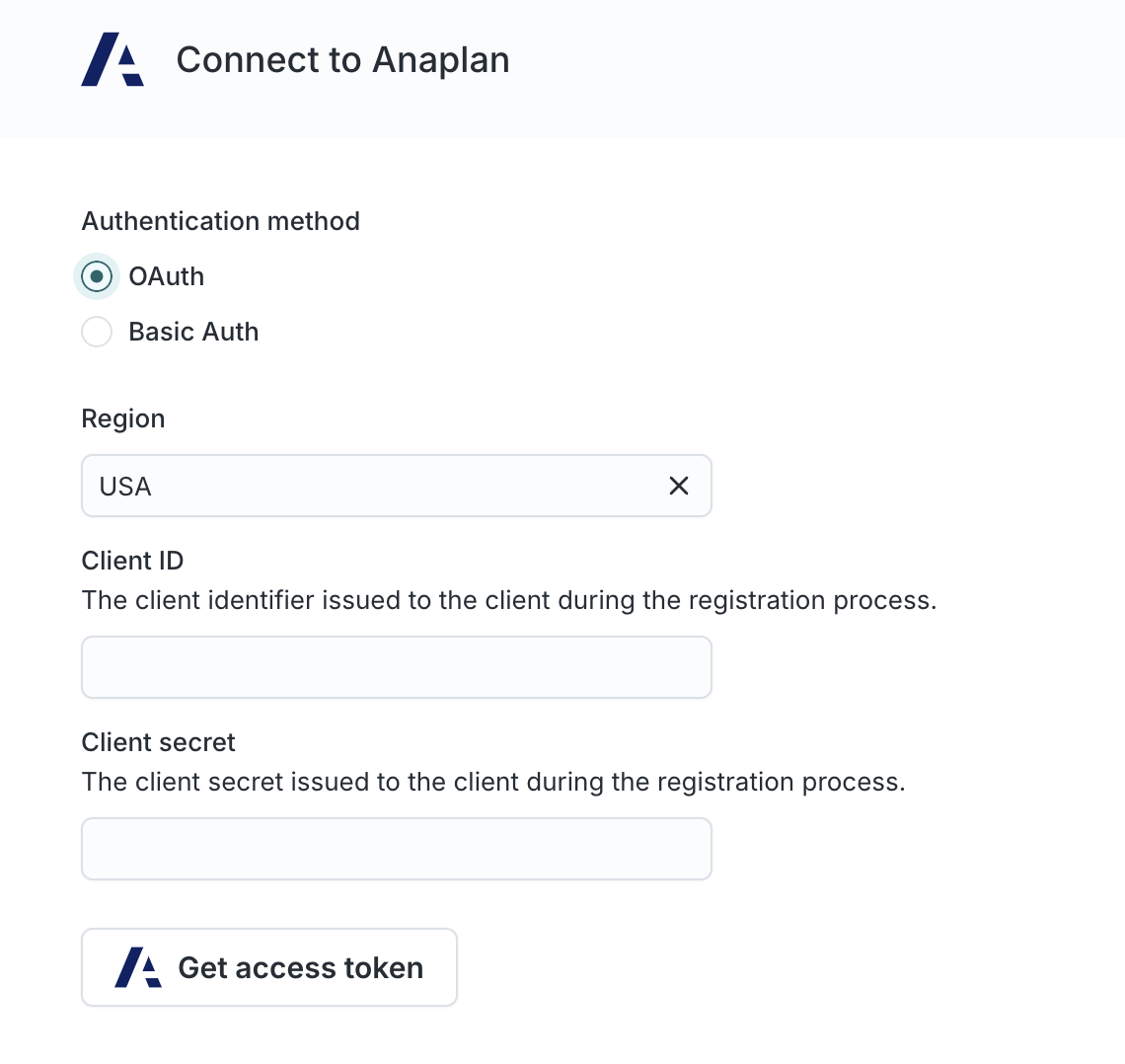
Select the region you want to connect to and then enter your client ID and client secret. Your client ID and secret are provided by Anaplan when you setup your OAuth client.
Continue through the auth flow to connect your account.
Basic auth
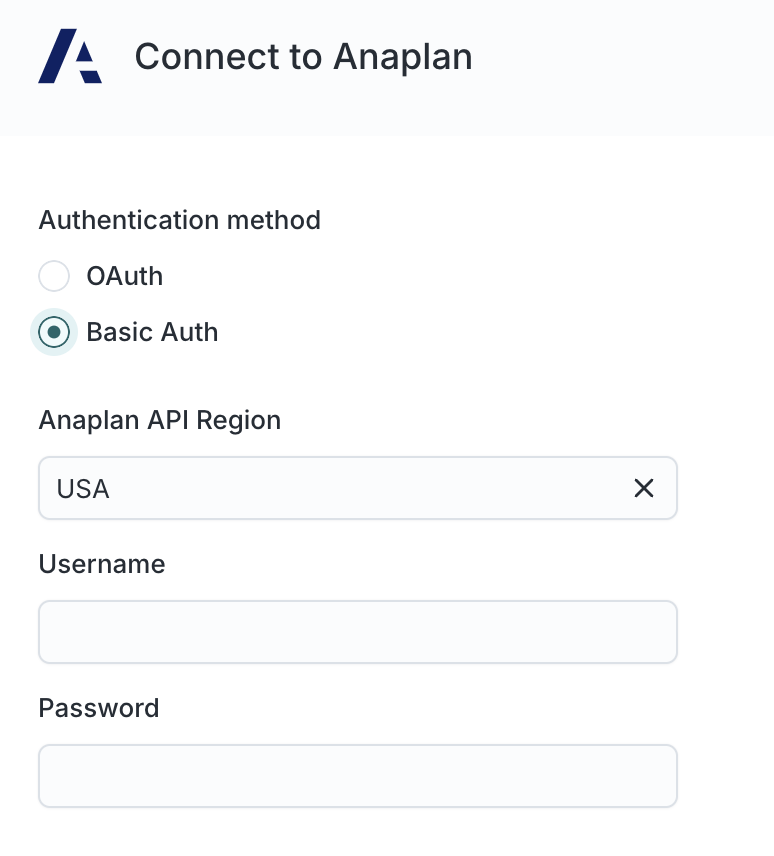
Select the region you want to connect to and enter your username and password.
If your Anaplan workspace uses an IP allow list, you must add Hightouch's server IP addresses before connecting. See Anaplan's IP allow list documentation and Hightouch's IP addresses.
Prerequisites
Before creating a sync, set up the following in Anaplan:
Create an import data source
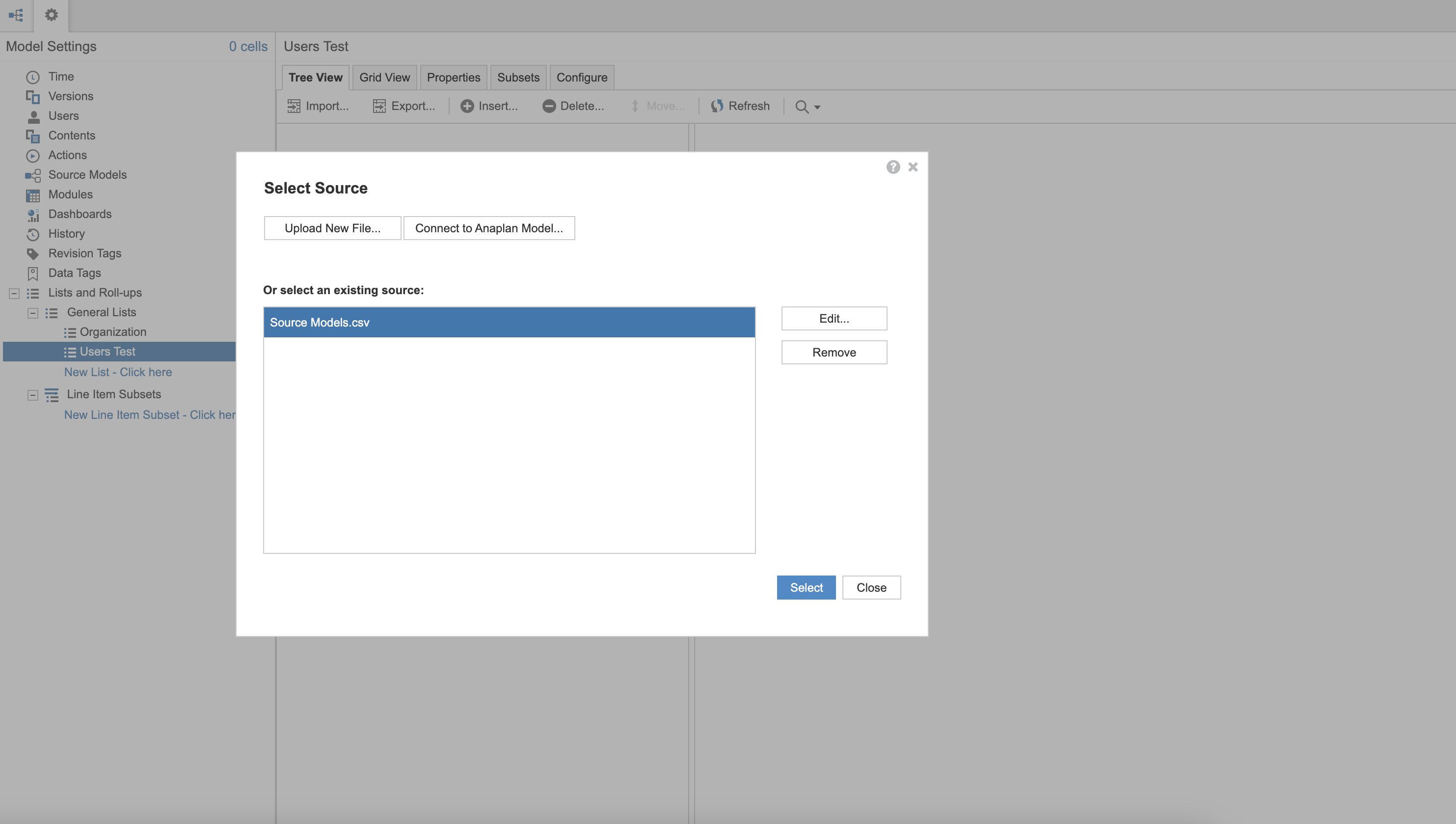
You must create a data source in Anaplan for Hightouch to upload data into. Go to your model's Model settings → Actions → Import Data Source and create a new import data source by uploading a placeholder CSV.
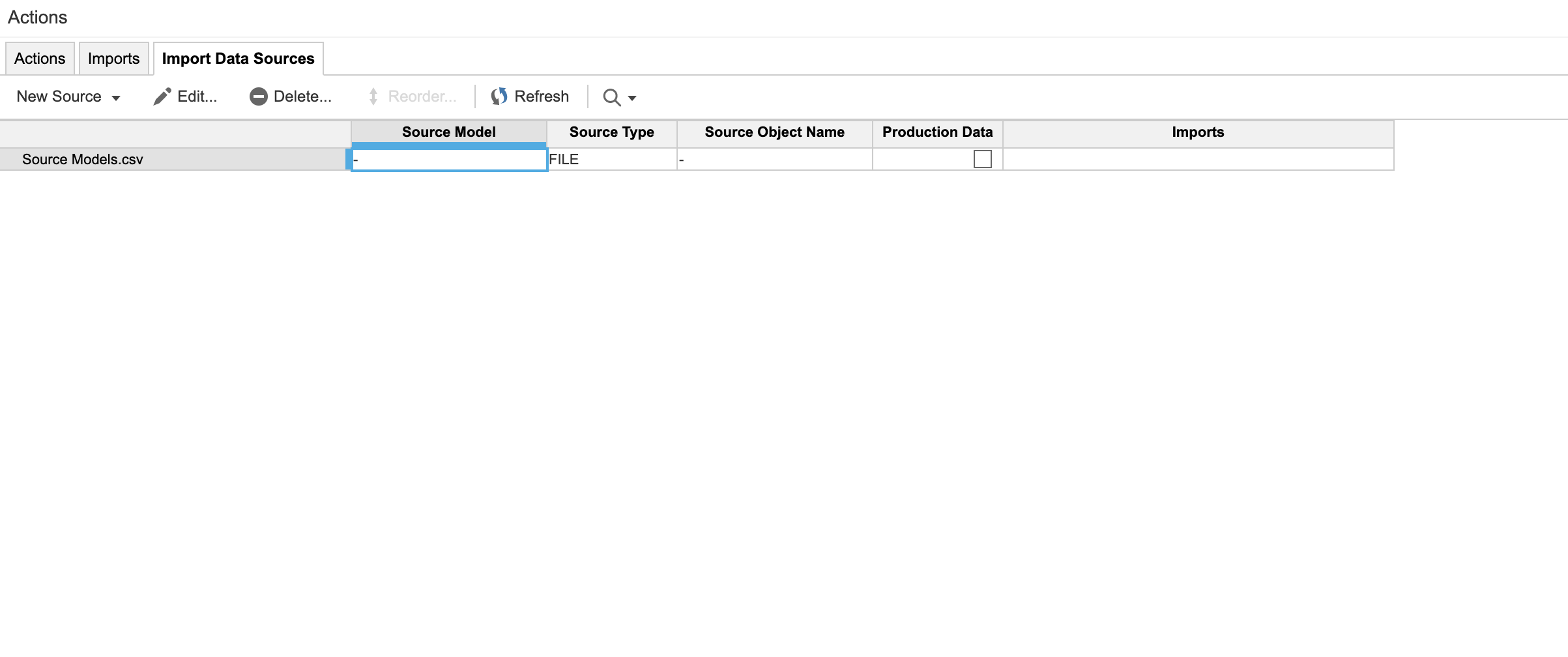
Hightouch overwrites this CSV with data from your warehouse based on the mappings in your sync configuration.
Create an import (optional)
You can optionally create imports based on the data source and trigger them after the upload completes. Go to a list and select Import. After selecting the placeholder data source, you can create an import that can then be selected in Hightouch.
Sync configuration
Records
Use this sync type to upload data from your warehouse to an Anaplan import data source and optionally trigger imports.
Configure record matching
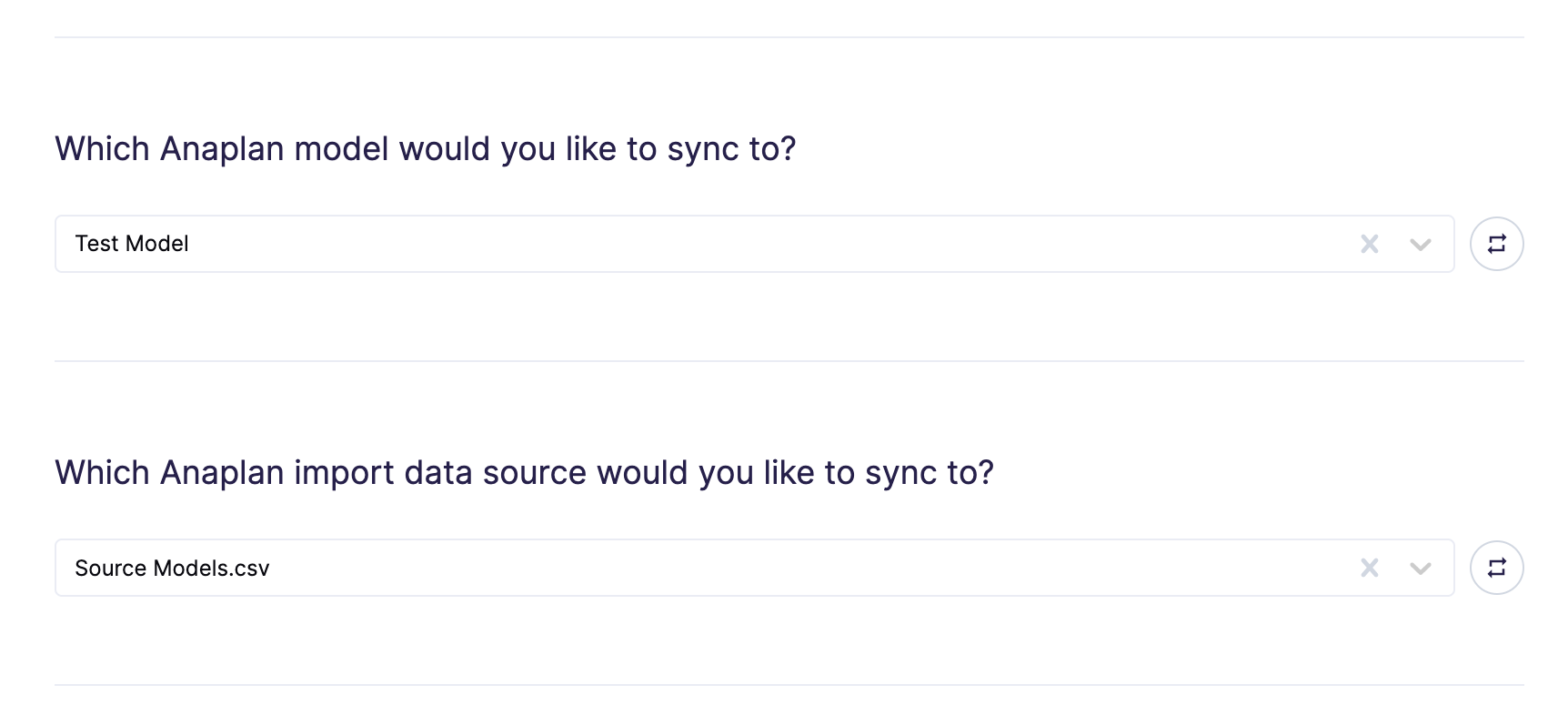
Select the model and data source that you created (or an existing one). Hightouch overwrites the import data source on each sync run. You can choose between two modes:
- Insert: The data source is overwritten with only the rows that have been added since the last run.
- All: The data source is overwritten with the full results of the query in this run.
Configure triggered imports
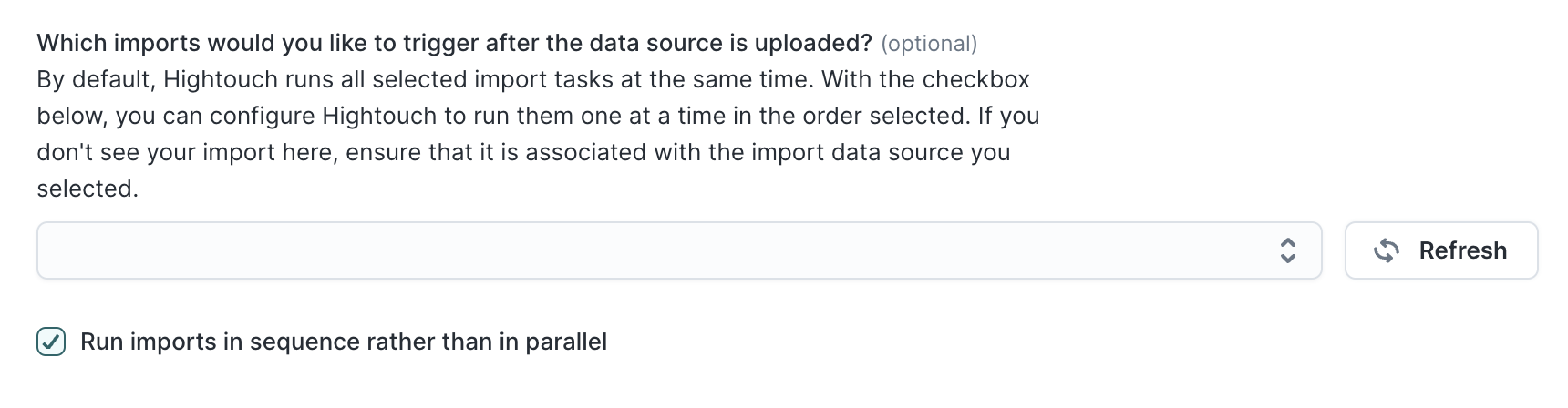
You can select one or more imports to trigger after the data source upload completes. By default, Hightouch triggers these imports in parallel and waits for all imports to finish before completing the sync.
Map fields
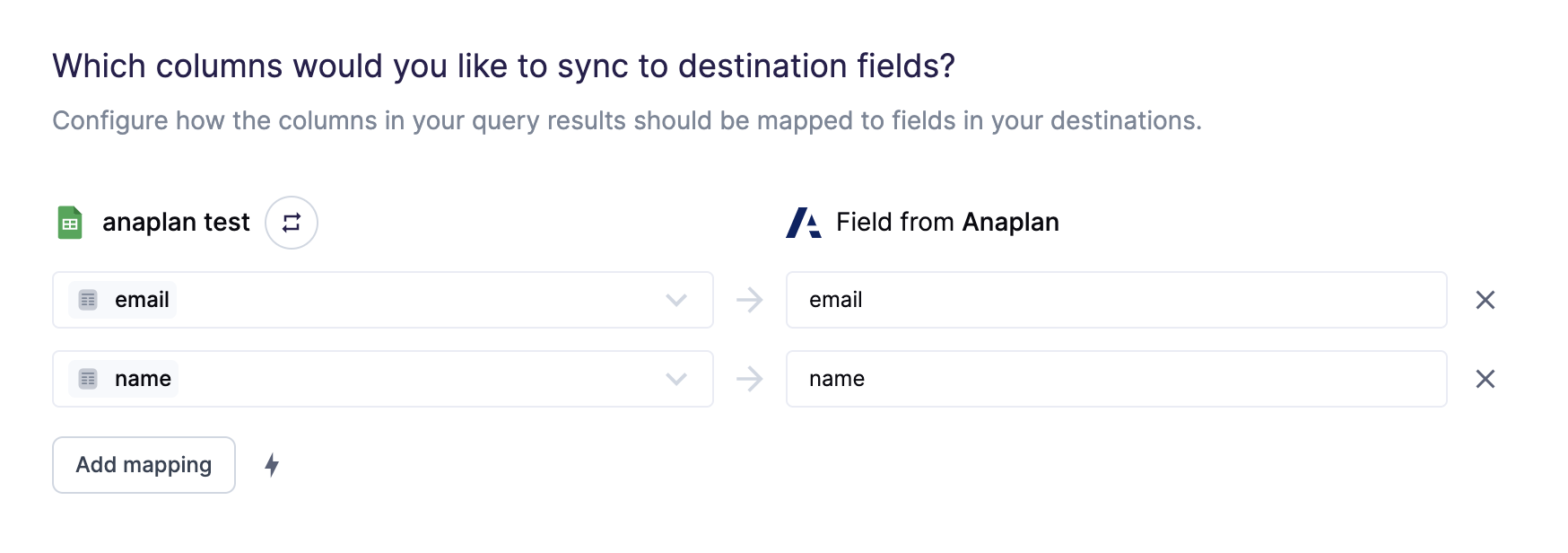
Map the columns in your Hightouch model to columns in your Anaplan data source.
The Anaplan column names you map to in Hightouch must exactly match the column names configured in your Anaplan data source. The columns must also be in the same order as they appear in your data source. Incorrect column names or order mismatches cause your sync to error.
Tips and troubleshooting
For Hightouch platform error codes related to Anaplan, see Error codes: Anaplan.
Validate your setup
After your first sync completes, verify the data in Anaplan:
- Go to your model's Model settings → Actions → Import Data Source and open the data source you configured. Confirm the file contents match the rows and columns from your Hightouch model.
- If you configured triggered imports, go to the imports page and check that the import status shows success. Failed imports typically indicate a column mismatch between the file and the target list.
- Open the target list or module in Anaplan and spot-check that values landed in the correct fields. Column name or ordering mismatches are the most common cause of sync failures — if data appears in the wrong columns, compare your Hightouch field mapping order against the import data source column order.
Common errors
If you encounter an error or question not listed below and need assistance, don't hesitate to . We're here to help.
Connection failures
If your Anaplan connection fails during setup or stops working after initial configuration:
- Basic auth: Verify that your username and password are correct and that the account hasn't been locked. If your organization enforces SSO, confirm that the Anaplan user account has SSO disabled for API access — SSO-only accounts can't authenticate via basic auth. If your Anaplan workspace uses an IP allow list, confirm that Hightouch's IP addresses are included.
- OAuth: Confirm that your client ID and secret match the OAuth client configured in Anaplan. If you're using rotatable refresh tokens, the connection expires after the
Refresh token lifespanperiod you set in Anaplan — re-authenticate the destination in Hightouch when this happens. - Region mismatch: Confirm that the region selected in Hightouch matches your Anaplan workspace region. Using the wrong region causes authentication to fail silently.
Column name or order mismatch
If your sync errors with a message about column mapping, verify that the column names in your Hightouch field mapping exactly match the column names in your Anaplan import data source, and that the columns are in the same order. Even small differences in capitalization or spacing cause sync failures.
Live debugger
Hightouch provides complete visibility into the API calls made during each of your sync runs. We recommend reading our article on debugging tips and tricks to learn more.
Sync alerts
Hightouch can alert you of sync issues via Slack, PagerDuty, SMS, or email. For details, please visit our article on alerting.