| Audience | Marketers, data teams |
Chats are the primary interface for interacting with Agents. Ask questions in natural language and get answers grounded in your warehouse data and connected marketing channels.
Overview
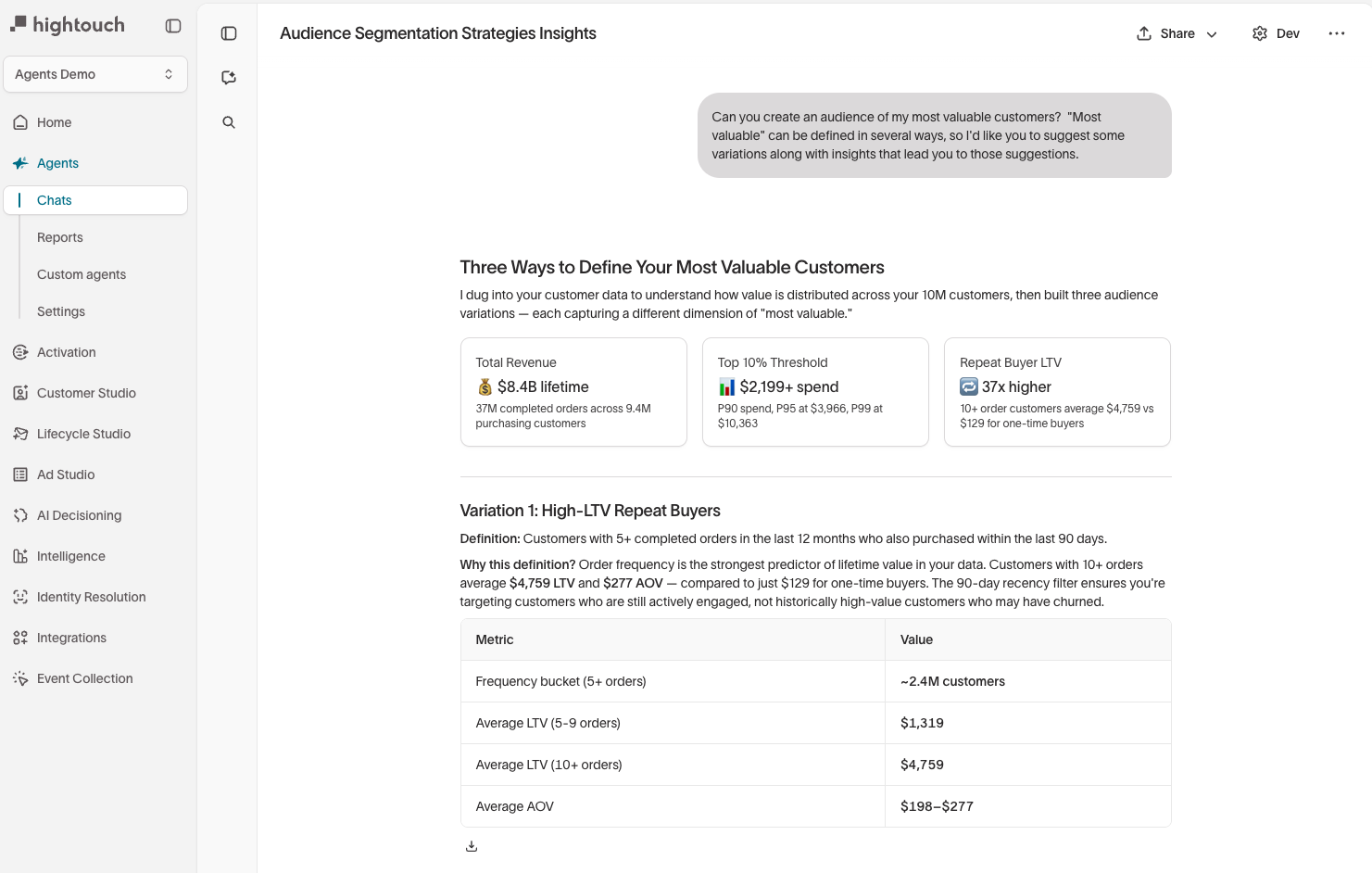
Chats let you have a conversation with an Agent about your customer data and marketing performance. You type a question, and the agent queries your data warehouse, analyzes the results, and returns answers with charts, tables, and recommendations.
Conversations are persistent. You can follow up, refine your question, and dig deeper without starting over. Each chat maintains full context from earlier messages, so you can iterate naturally.
Start a new chat
To start a chat, go to the Agents tab and click Chats in the left navigation. Click New chat or type directly in the input field at the bottom of the screen.
Before you ask your first question, you can configure two things:
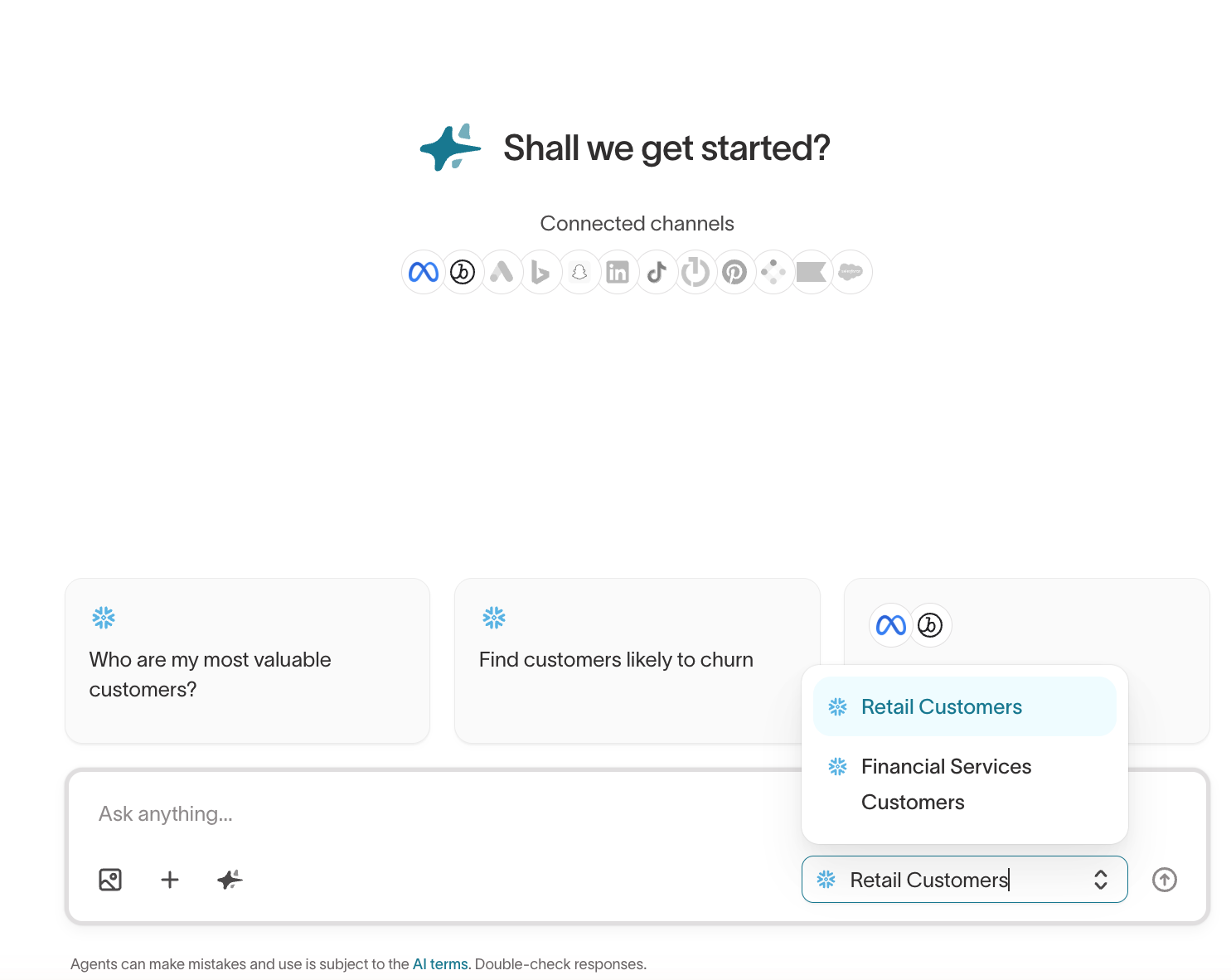
- Parent model — select the parent model the agent should query from the dropdown in the bottom-right corner of the chat input. This determines which customer data the agent has access to.
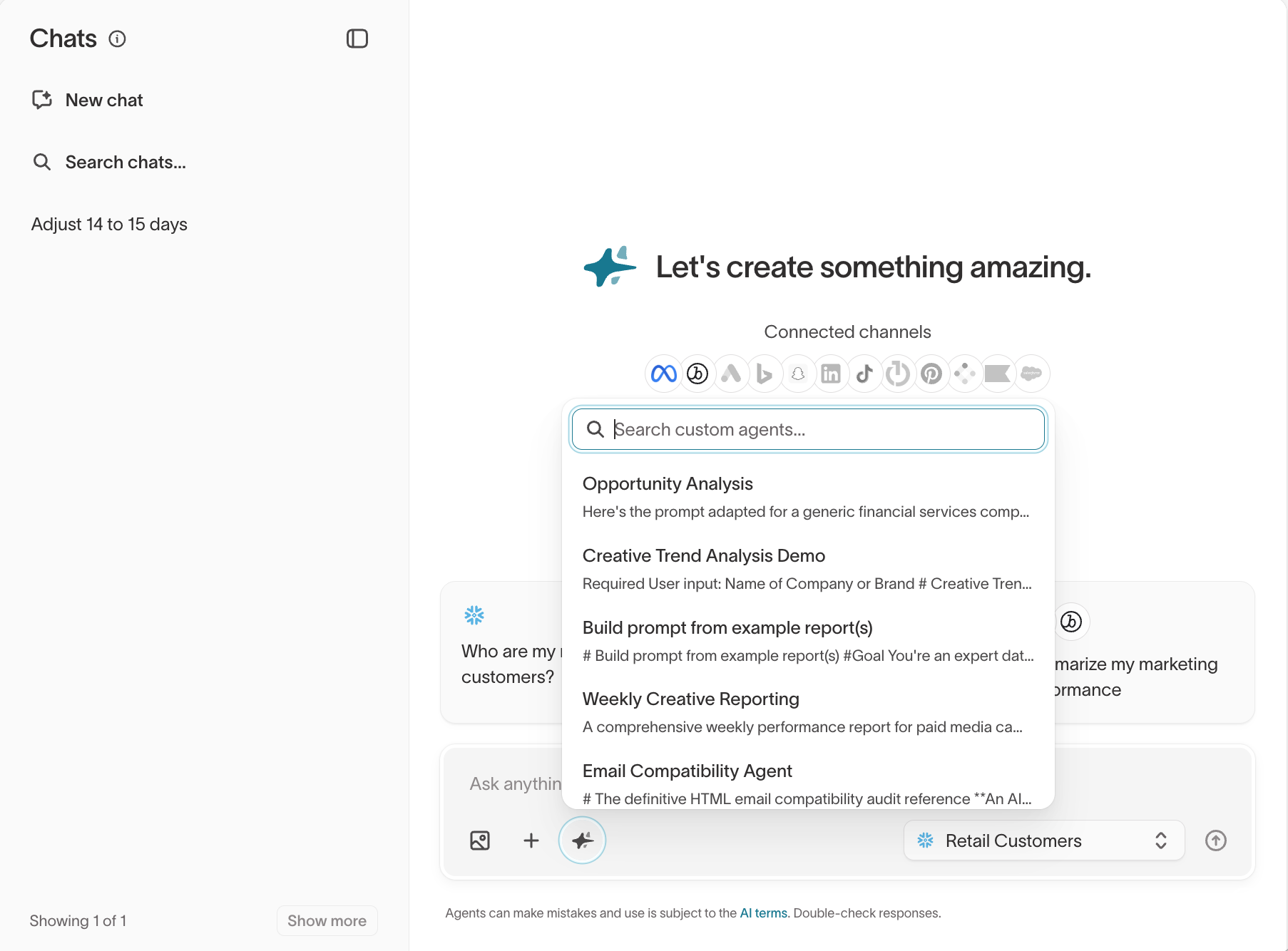
- Custom agent — optionally select a custom agent to scope the conversation to a specific task or set of instructions. You can also open a custom agent and click Use in chat to start a new conversation with it applied. If you don't select one, the default agent is used.
Ask questions
Type your question in natural language. The agent uses the selected parent model and available schema to query the right data and return a response.
Questions can range from simple data pulls to complex multi-step analyses:
- Quick counts — "How many customers made a purchase in the last 30 days?"
- Performance analysis — "How are my Meta ads performing this month? Break down by campaign objective with spend, CPA, CTR, and ROAS."
- Audience research — "Break down my customer base by segment. Show customer count, average order value, purchase frequency, and email opt-in rate per segment."
- Comparisons — "Compare new and returning customers over the last 90 days — revenue contribution, order frequency, AOV, and channel mix."
- Campaign planning — "I want to run an A/B test on our win-back campaign — 10% discount vs. free shipping. How should I set up the holdout and how long should I run it?"
- Anomaly detection — "Are there any unusual patterns in my campaign performance over the last 7 days compared to the prior 4-week average?"
Tips for better results
- Be specific about metrics — "Show CPA and ROAS by campaign" produces better results than "how are things going."
- Include time ranges — "last 30 days" or "Q4 vs. Q3" helps the agent scope results accurately.
- Name your segments — "Gold loyalty members" or "first-time buyers in the last 14 days" gives the agent clear targeting context.
- Give context on your goal — "I'm trying to reduce CPA" helps surface the right insights.
- Ask for visualizations — add "show as a bar chart" or "trend over time" to any prompt. You can also provide a video or image and ask the agent to remix it into a GIF.
- Ask for comparisons — "Compare X vs. Y" consistently drives richer analysis.
- Iterate on the fly — "Relax the purchase frequency to 2+. What's the size difference?" lets you explore without starting a new conversation.
- Use memories — save assumptions and metric definitions so future conversations stay consistent.
- Start in chat, then formalize — use chat to develop and test your analysis before saving it as a custom agent or report.
Iterate and follow up
You don't need to get your question perfect on the first try. Follow up within the same chat to refine results:
- "Break this down by channel."
- "Now show the same data as a trend over time."
- "Relax the purchase frequency to 2+. What's the size difference?"
- "Exclude customers who received an offer in the last 14 days."
The agent retains context from the full conversation, so each follow-up builds on what came before.
Go from insight to action
After any analysis, you can ask the agent to take action on the results:
- Build an audience — "Now build an audience from this group." The agent creates a draft audience you can review and save to Customer Studio for activation.
- Create a report — "Convert this into a weekly report." The agent turns your analysis into a reusable report prompt you can schedule and deliver via email or Slack. See Reports for more detail.
- Save a custom agent prompt — if you've refined a useful line of questioning, you can save the prompt as a custom agent for reuse. See Custom agents for more detail.
You can also access these actions from the ... menu in the top-right corner of any chat.
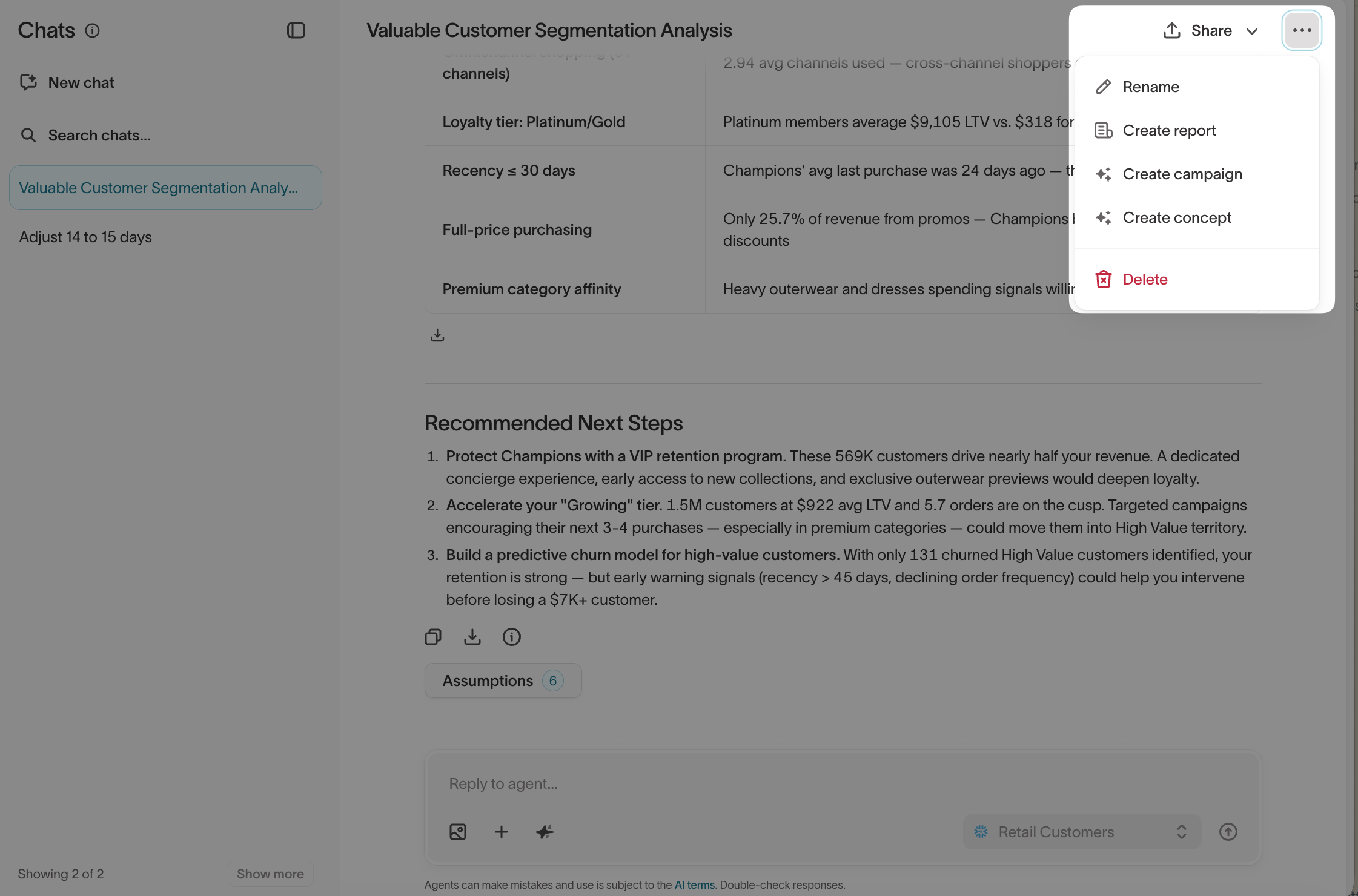
Customer Studio also includes an Agent in the audience builder for creating and refining audiences using natural language. Use Agents when you're starting from a question; use the Agent in the audience builder when you're already working on an audience definition.
Upload files
You can upload files directly in the chat to give the agent additional context. Click the image icon in the chat input to attach a file.
Common uses for file uploads include:
- Report QA — upload an example report and ask the agent to replicate it using your warehouse data, then compare the results.
- Metric definitions — upload a document with your organization's metric definitions so the agent can reference them.
- Planning documents — upload campaign briefs, initiative overviews, or other planning materials the agent can reference when answering questions.
If metric definitions are useful across multiple chats or reports, add them as context documents in the Context Hub so every conversation references them automatically.

Use suggested prompts
When you open a new chat, the agent suggests questions based on your data and connected channels. These suggestions appear as cards below the welcome message and are a good starting point if you're not sure what to ask.
You can also ask the agent for suggestions directly:
- "What are the top 5 things I should look at this week for my paid media campaigns?"
- "What questions should I be asking about my email performance?"

Share and manage chats
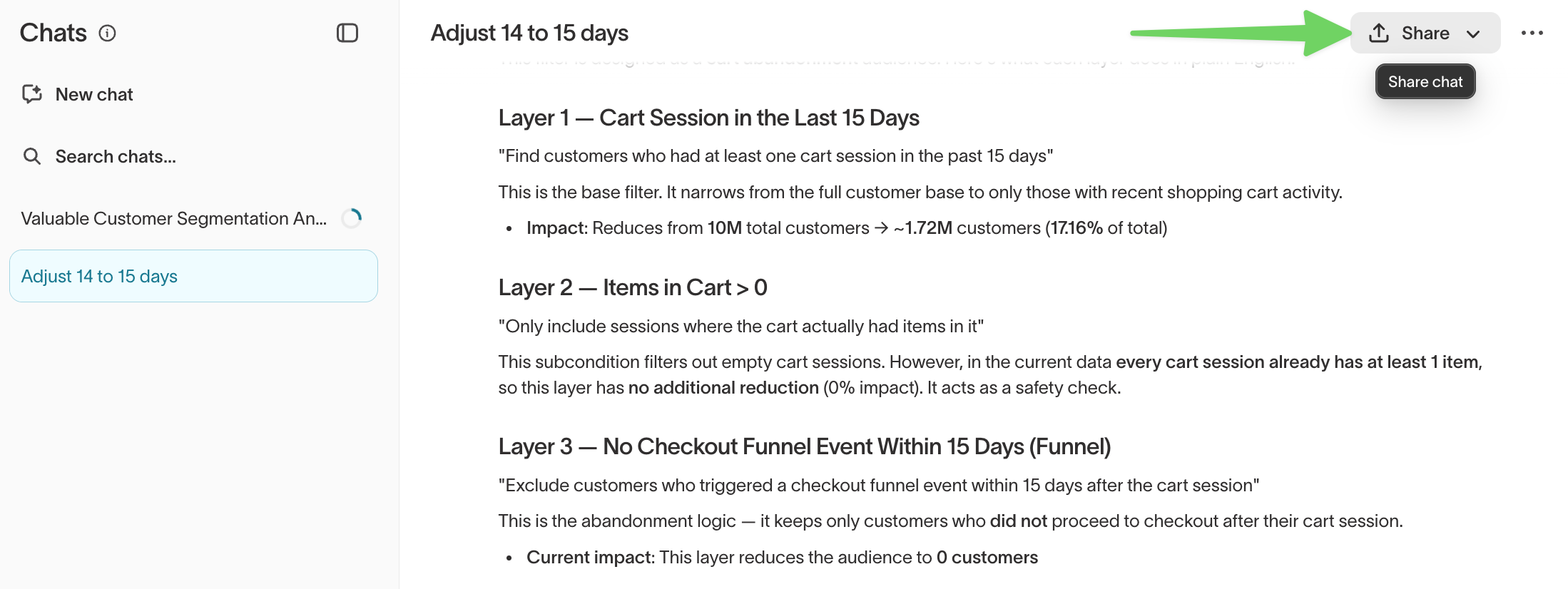
Chats are private by default. Only you can see your conversations. To share a chat with a colleague, click Share in the top-right corner of the chat. From the dropdown, you can Copy link to generate a shareable URL or Share to Slack to post the chat directly to a Slack channel.
You can search past chats using the Search chats field in the left sidebar. All conversations are preserved, so you can return to a previous analysis at any time.