| Audience | Marketers, data teams, platform admins |
Hightouch has two agents for different kinds of work: the Agent in the audience builder and the standalone Agents workspace. One helps you build audiences inside Customer Studio, and the other helps you answer broader questions, analyze performance, and automate recurring work.
Use the Agent in the audience builder when you already know the audience you want to build. Use Agents when you're starting with a question and need to analyze data before deciding what to do next.
This page covers the Agent in the audience builder and the standalone Agents workspace. It does not cover AI Decisioning agents, which optimize message delivery within campaigns.
At a glance
| Agent in the audience builder | Standalone Agents | |
|---|---|---|
| Where to find it | Inside the audience builder when creating or editing an audience | The Agents tab in the left navigation |
| What it does | Builds, modifies, and explains audiences using natural language | Explores customer data, analyzes campaign performance, automates reporting, and builds audiences |
| Best for | You already know the audience you need and want help defining it — creating filters, understanding changes, exploring fields | You're starting with a question and want to explore data, get recommendations, or automate reporting |
| Availability | Available with Customer Studio | Available in workspaces with access to Agents, including workspaces that use Ad Studio or Lifecycle Studio |
Agent in the audience builder
The Agent in the audience builder is available when you create a new audience or edit an existing one. It's scoped to the audience you're currently working on. Use it to build filter conditions, explain why an audience changed size, and explore available fields and traits.
This agent is designed for moments when you already know what audience you need and want help defining it. It translates natural-language descriptions into audience filters and helps you find the fields, traits, and events available in your schema.
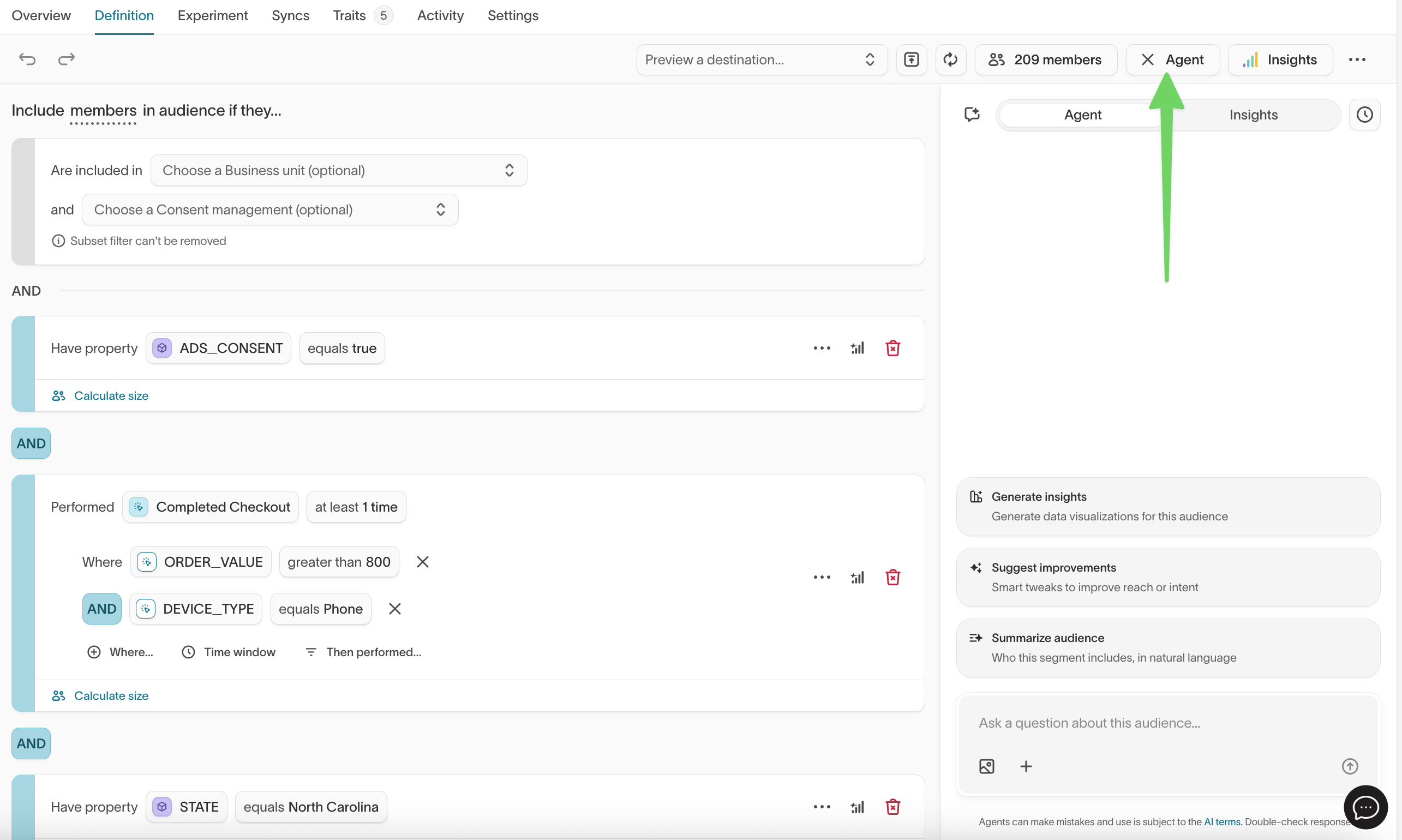
What you can do
- Build audiences: Describe the audience you want (for example, "users who opened an email but didn't click in the last 7 days") and the Agent creates the filter conditions.
- Understand audiences: Ask the Agent to summarize an audience, break it down by attributes, or explain what caused a size change.
- Explore your schema: Ask what fields, traits, or events are available for filtering — for example, "What columns can I use to filter by age?"
- Refine definitions: Follow up with adjustments like "add users who purchased in the last 30 days" and the Agent updates the filters.
What it doesn't do
The Agent in the audience builder focuses on audience mechanics, not broader strategy. It won't recommend which audiences to target for a campaign, predict conversion likelihood, or provide open-ended analysis. If you need that kind of guidance, use the standalone Agents workspace.
See the Audience builder prompting guide for full documentation.
Standalone Agents
The standalone Agents workspace is where you ask open-ended questions, analyze campaign performance, and create recurring reports. It connects to your data warehouse and marketing channels to answer questions about your customers and campaigns.
Unlike the Agent in the audience builder, standalone Agents aren't scoped to a single audience. You can ask broad questions, compare datasets, get strategic recommendations, and save prompts for recurring use.
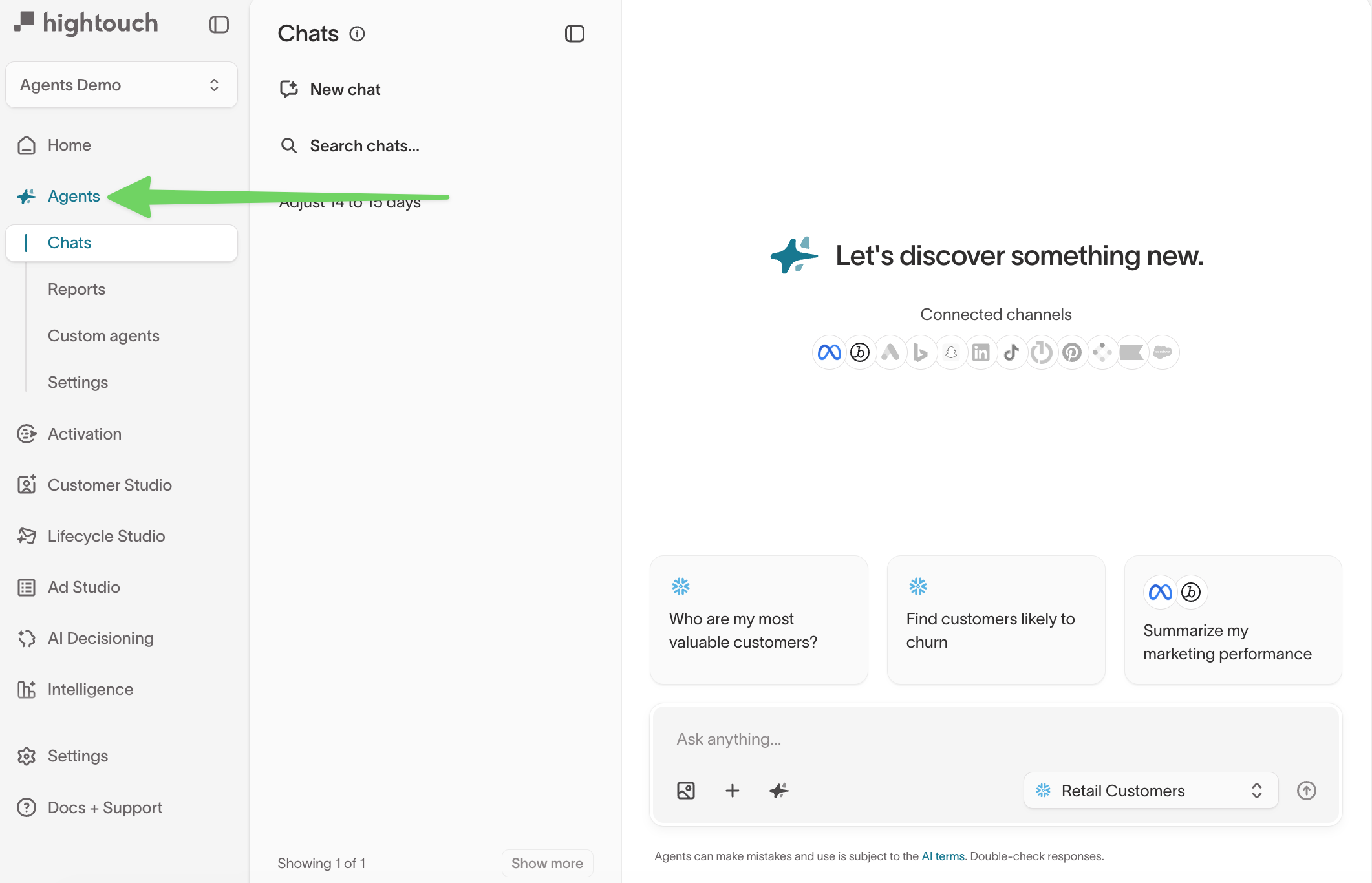
What you can do
- Chat: Ask natural-language questions about customer data, campaign performance, and marketing strategy. The agent returns answers with charts, tables, and recommendations.
- Reports: Save prompts that run on a schedule and deliver results via email or Slack — useful for weekly summaries, daily dashboards, and automated monitoring.
- Custom agents: Create specialized agents scoped to specific teams or use cases with defined tasks, tone, and guardrails.
- Strategic analysis: Get targeting recommendations, identify opportunities, analyze creative performance, and design experiments.
- Build audiences from insights: After analysis, ask the agent to draft an audience for you to review and save in Customer Studio.
Standalone Agents does not replace the campaign creation workflows in Ad Studio or Lifecycle Studio. See Agents overview for full documentation.
Choose the right one
Use the Agent in the audience builder when you already know the audience you need. Use standalone Agents when you're starting from a question.
| Scenario | Recommended agent |
|---|---|
| "Build an audience of users who opened but didn't click in 7 days" | Agent in the audience builder — this is a specific audience definition task |
| "What fields can I use to filter by age?" | Agent in the audience builder — exploring schema for the current audience |
| "Why did this audience shrink?" | Agent in the audience builder for filter or data-change explanations. Use Agents if you need broader root-cause analysis and recommendations. |
| "Who should I target for this campaign given these goals?" | Agents — this requires analysis across your customer and campaign data |
| "How likely is this audience to convert?" | Agents — requires analysis of past campaign performance and customer behavior |
| "What should we do to improve our email performance?" | Agents — open-ended question requiring cross-dataset analysis |