| Audience | What this article helps you do |
|---|---|
| Marketing | Build audiences, run journeys, and understand who you're reaching. |
| Data teams and admins | Prepare the customer data marketers and Agents work with, and configure access controls. |
Use Customer Studio to build audiences and lifecycle programs from your warehouse data, without writing SQL.
Overview
Customer Studio is where marketers use warehouse data to decide which customers to reach and what should happen next.
Data teams make customer data available in Customer Studio, such as profile attributes, purchases, product activity, or other behaviors. Marketers use that data to build audiences: groups of customers they want to reach, suppress, analyze, or include in a campaign.
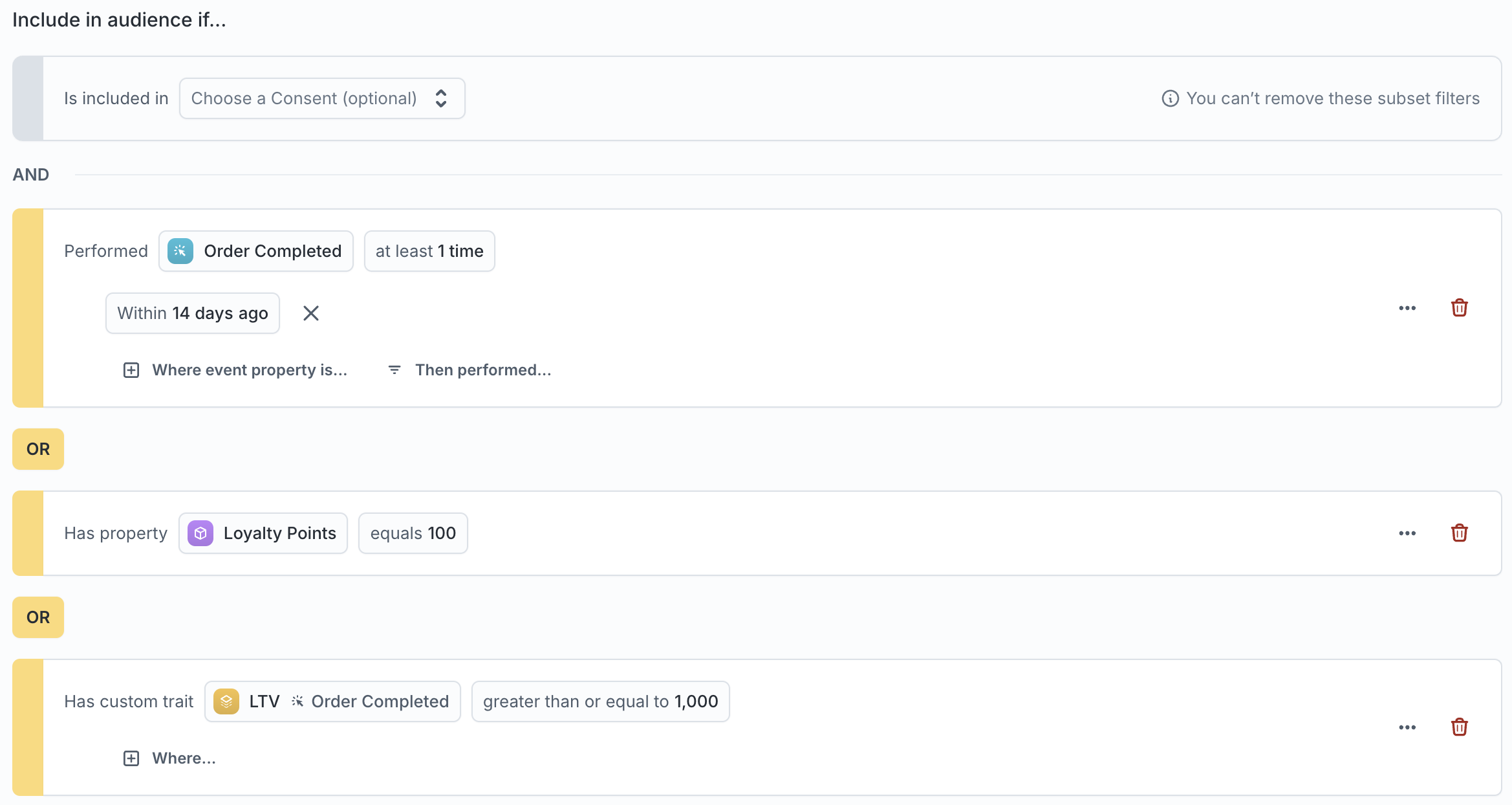
You can build an audience by choosing the characteristics and behaviors that define who should qualify, or ask the Agent to help you get started. Before saving, you can review the audience criteria and preview the customers who match.
Once you've built an audience, you can:
- Sync it directly to a destination such as an ad platform, CRM, or messaging tool.
- Use it in a journey when a campaign needs multiple steps, delays, branches, or exit conditions.
Customer Studio reevaluates audiences as your warehouse data changes, so membership stays up to date.
Explore the interactive architecture diagram to see how Customer Studio works with your warehouse and destinations.
How Customer Studio fits together
A typical workflow moves from customer data to an audience, then to a sync or journey.
Prepare the customer data
Data teams configure the schema marketers use to build audiences. The schema connects a parent model, such as customers or accounts, with related records, events, and traits.
The schema determines which fields, events, and relationships marketers and Agents can use.
Define who qualifies
An audience defines which customers currently meet your targeting criteria.
For example, you might build an audience of customers who added an item to their cart but haven't purchased within 24 hours. You could use that audience to send a reminder, exclude those customers from another campaign, or analyze how they differ from customers who completed a purchase.
Build the audience by adding conditions directly in the visual builder or asking the Agent to translate your intent into audience conditions. For prompting examples and guidance, see the Audience builder prompting guide.
If you're starting with an open-ended question rather than a specific audience, use Agents to explore your data first. You can then build an audience from that analysis and continue working with it in Customer Studio.
Decide what happens next
Audiences can feed directly into syncs or become the starting population for a journey.
A sync sends the current audience membership and customer attributes to a destination such as an ad platform, CRM, or messaging tool. Use a sync when the audience already contains the targeting logic you need and there is no multi-step campaign flow.
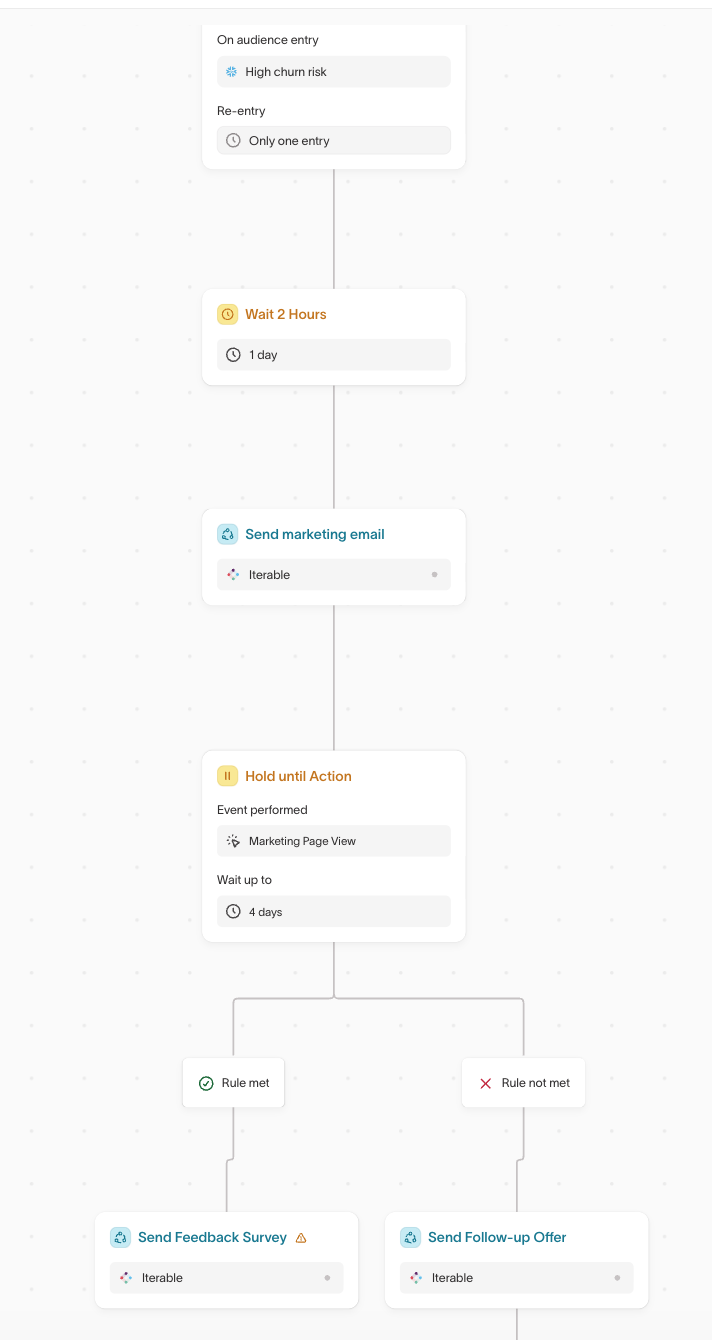
A journey coordinates what happens after someone qualifies. Journeys can wait between steps, branch based on customer behavior or attributes, remove members when they meet exit criteria, and trigger destination actions as the campaign progresses.
For example, a welcome journey might:
- Start when a customer signs up.
- Wait two days.
- Send the customer to an email platform for an onboarding message.
- Check whether they activated.
- Send a reminder only to customers who haven't.
A journey decides who reaches each step and when. At a step, a journey either delivers a message itself or hands the work to another tool. Hightouch can send an email, SMS, or push message directly. Otherwise, a sync passes data to a downstream tool such as an ad platform, CRM, or messaging tool, which delivers the message or performs another action.
Understand what happened
Use Audience insights to understand who is in an audience, how it is composed, and how it overlaps with other audiences.
Use Intelligence to measure campaign, treatment, and experiment performance.
Get started
Customer Studio requires some initial setup from a data or platform team before marketers can build audiences and journeys.
For data teams and platform admins
- Connect your warehouse.
- Add the destinations your team plans to use.
- Plan your data model, then configure your schema with the customer data marketers need.
- Enable the Lightning sync engine if you plan to use features that require it, including journeys.
- For large datasets, optionally configure sampling to speed up audience and trait previews.
The Customer Studio schema also gives Agents structured customer data to work with. If Agents need warehouse data that doesn't belong in the audience-building schema, add general models.
For marketers
Start by creating an audience.
Once you're comfortable defining and validating audiences, choose how the campaign should use them:
- Sync audiences directly to destinations.
- Build journeys for campaigns that need timing, branching, or multiple steps.
- Use Audience insights to understand who qualifies.
- Save repeatable audience logic with templates.
How Customer Studio works with other Hightouch products
Customer Studio builds on other parts of Hightouch when your implementation needs richer customer data, broader analysis, or additional campaign optimization.
Customer data
- Warehouse models provide the customer, account, transaction, and other data you organize in your Customer Studio schema.
- Identity Resolution can provide a Golden Record when you need audiences built from resolved customer profiles.
- Events provide behavioral data such as page views, purchases, and app activity for audience conditions and journey triggers.
Analysis and decisioning
Use Agents for open-ended analysis when you're still deciding which customers to target or what action to take.
Use AI Decisioning when you want Hightouch to adaptively choose the best message, channel, and timing for each eligible person.
Measurement
Use Intelligence to measure campaign and experiment outcomes.
Control access and delivery
Customer Studio includes controls for which customer data teams can work with and what Hightouch can send downstream.
- Subsets restrict which records particular users or groups can work with.
- Data masking protects sensitive values.
- Destination rules filter records before they are sent to specific destinations without changing audience membership.
- OneTrust integration applies consent data to activation workflows.
- Schema Git Sync manages Customer Studio schema configuration through Git.
Destination rules, subsets, and consent controls apply at different points in the workflow, so a customer can qualify for an audience but still be excluded before data reaches a destination.
Source compatibility
Customer Studio supports the following warehouse sources:
- Snowflake
- Databricks
- Google BigQuery
- Amazon Redshift*
- Trino
- Amazon Athena
- Azure Synapse
- Microsoft Fabric
* Customer Studio may not work with Amazon Redshift Spectrum due to its limitations around nested data. To mitigate these, you can query a materialized view during your parent model setup.
Beyond baseline support, some capabilities have additional source requirements, including journeys, predictive traits, and audience snapshots. Check the requirements for the feature you plan to use, or to confirm compatibility with your warehouse.
Permissions
Access to Customer Studio features is controlled through custom roles.
Admins configure these grants in the Models section of the custom role builder: View parent model data, Configure audiences & syncs, Manage traits, Configure journeys, and Publish journeys. The trait and journey grants appear only when those features are enabled.
See Roles for the full list of grants.